
Generating images
Choose an image model and resolution, then generate images with prompts and references
The Generate sidebar is the primary surface for creating and editing storyboard frame images in Boords. Open it from any frame to sketch a layout, prompt a new frame, edit part of an existing image, change the artwork style, or reframe the shot. Every generation is saved as a frame revision, so you can page back through the history at any time. See Frame revisions for how revisions work.
Use reference images to carry the same characters, locations and props from frame to frame. You can select saved images and earlier frames with @ in your prompt or attach them through the reference picker.
The Generate sidebar
Open any frame and switch to the Generate tab in the sidebar. Generate has three sub-tabs:
- Canvas for sketch-to-frame composition, prompting a frame from scratch, and editing parts of an existing image.
- Camera for reframing the current image to a new angle, height, or distance.
- Restyle for changing the artwork style of the current image without rebuilding it.
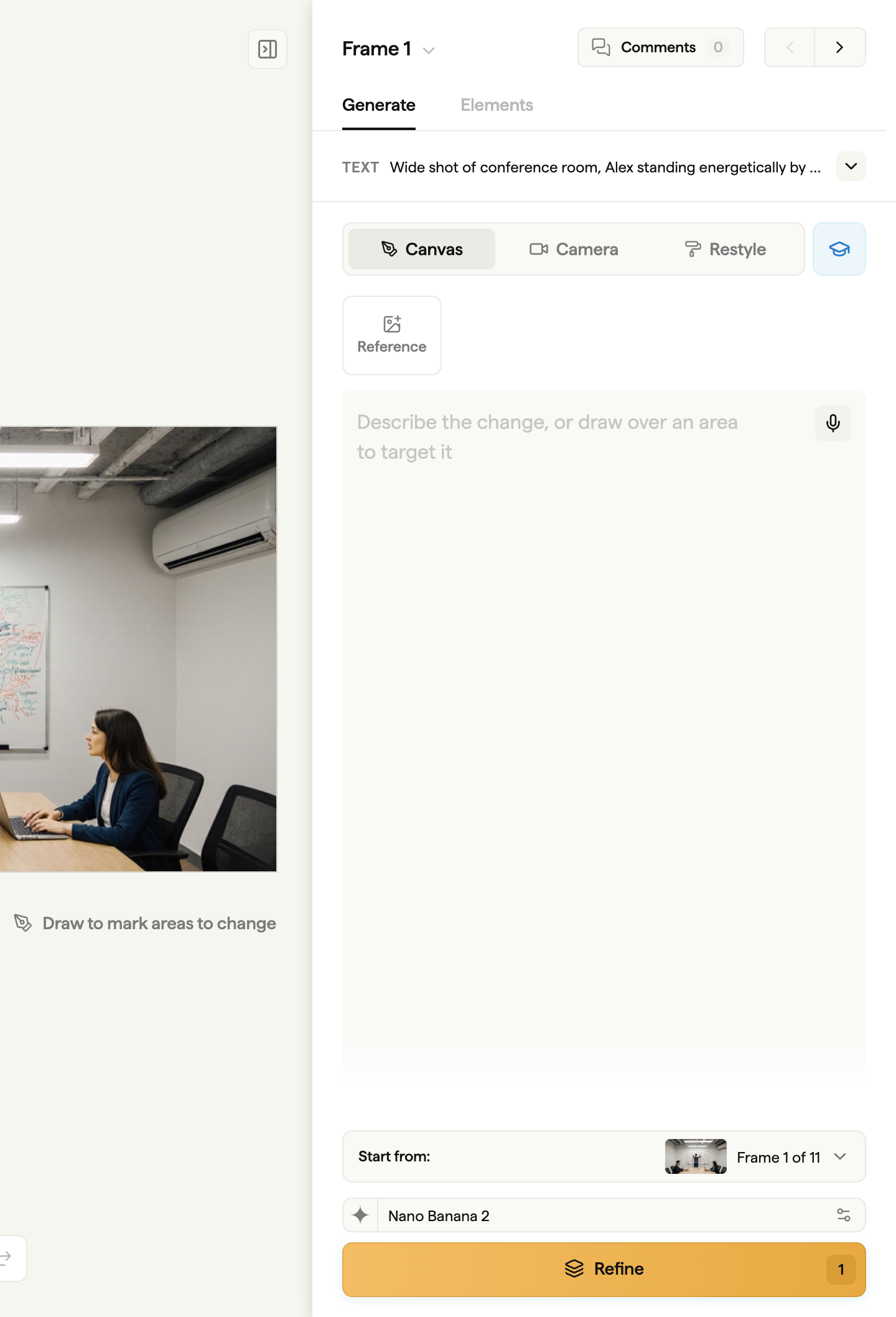
This guide focuses on Canvas. See Styles & restyling for Restyle, and the Camera sub-tab section below for reframing.
Choosing an image model
Open the Image model menu beside the generation controls. Depending on the space available, the button shows the model name or its provider's logo. Choose a model before generating your next image.
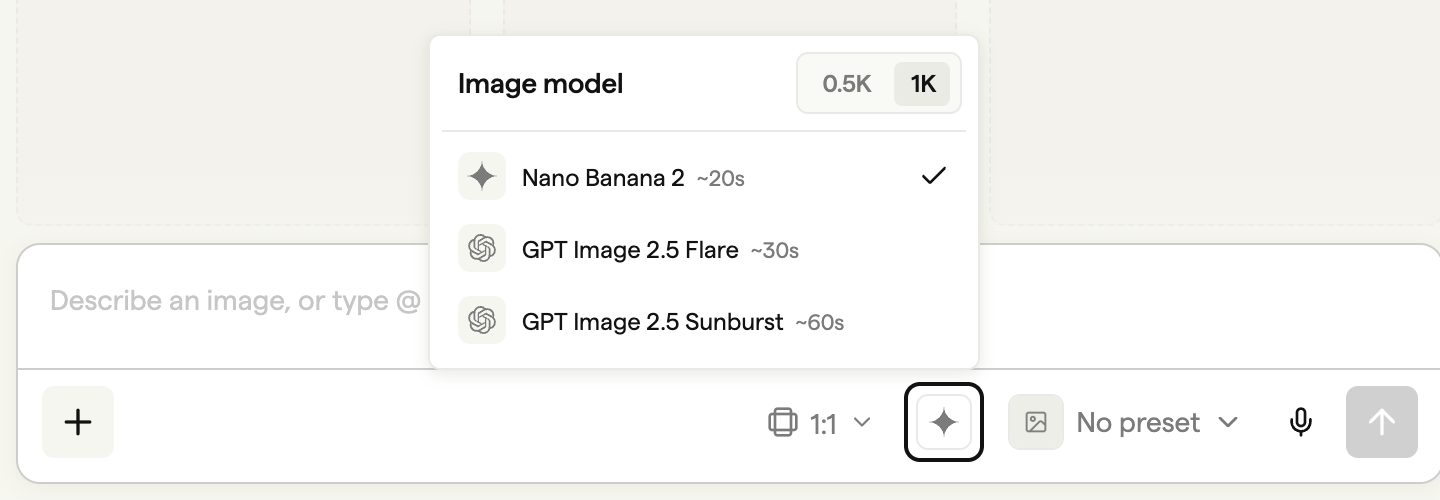
| Model | Free and trial plans | Paid plans | Estimated time |
|---|---|---|---|
| Nano Banana 2 | Upgrade required | Included | ~20 seconds |
| GPT Image 2.5 Flare | Included | Included | ~30 seconds |
| GPT Image 2.5 Sunburst | Upgrade required | Included | ~60 seconds |
These times are estimates, not a countdown. A request can take longer when a provider is busy.
Free and trial teams start with GPT Image 2.5 Flare. Paid teams start with Nano Banana 2 unless you've already chosen another model. Boords remembers your choice in this browser and shares it across the frame generator, Playground and storyboard Agent.
Choosing a resolution
Use 0.5K or 1K at the top of the Image model menu. Free and trial teams use 0.5K. Paid teams can choose either resolution and start at 1K. Boords remembers your resolution choice in this browser too.
Nano Banana 2, GPT Image 2.5 Sunburst and 1K resolution require a paid plan. Selecting an upgrade option opens the plan chooser.
Unavailable models
A model marked Unavailable doesn't support the current combination of style, operation or references. If your preferred model isn't compatible, Boords shows a compatible model for that generation. Your saved preference remains available when you return to a supported setup.
Some styles and operations use a specific model automatically. The Image model menu is hidden when none of the three selectable models supports the operation, including Camera reframe. See Styles & restyling.
Choosing a model doesn't increase the frame generator's limit of four content references. Images selected with @ and through the reference picker share that limit.
Canvas
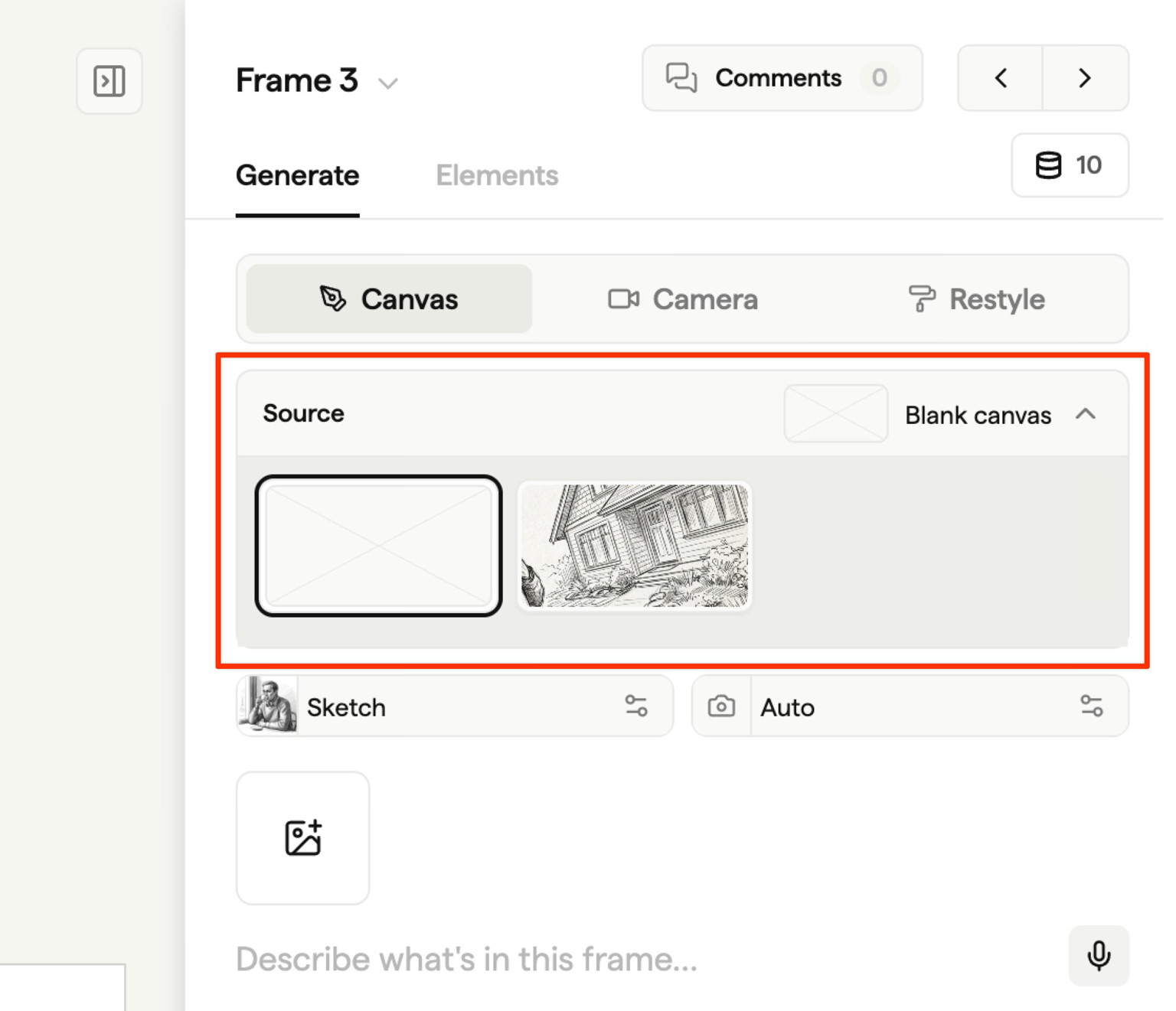
Canvas is the main generation surface. It works in three modes, switched by the Source picker at the top of the panel.
| Source | What it does |
|---|---|
| Blank | Generate a new image from scratch using your brush layout and prompt |
| Current | Edit the current image in this frame by brushing over the region to change, then prompting the change |
| Another frame | Use another frame's image as a reference point for generation |
Brushing a layout
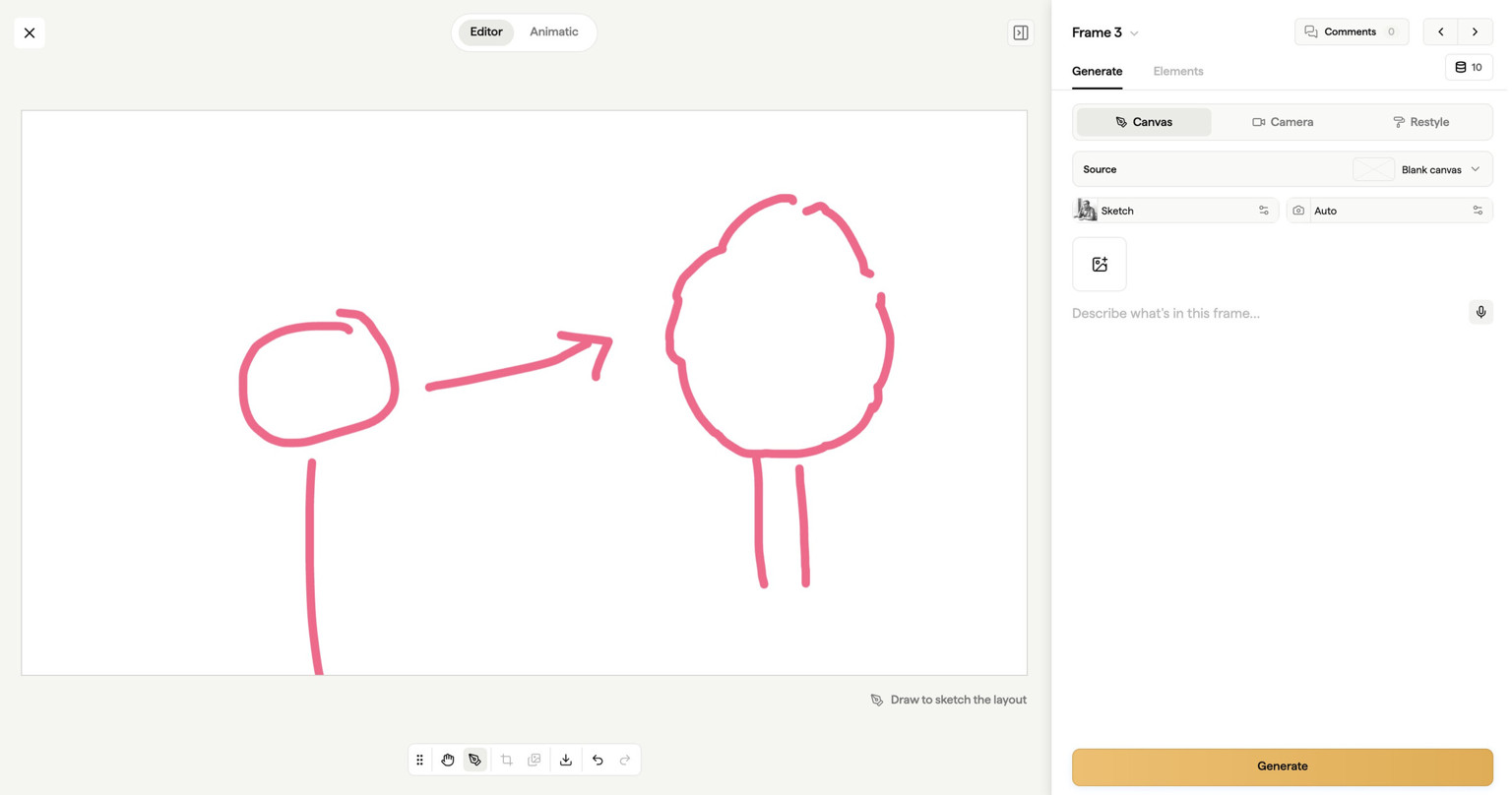
The Canvas toolbar gives you a brush, size and colour controls, and a prompt field. Block out the composition with rough shapes (stick figure for the actor, rectangle for the window, circle for the cup of coffee) and write a prompt describing what you want. The brush gives the AI a layout to follow.
Add a prompt like "woman in her thirties working at a sunlit desk, soft morning light from the left" and click Generate. The result keeps your composition while filling in the prompt's details. Iterate the prompt without losing the layout.
Editing an existing image
Set the Source to Current to edit the image already in the frame. Brush over the part you want to change, then prompt the change. Boords focuses the work on the brushed region and keeps everything outside it close to the original. The brush mark is a hint, not destructive. It's discarded after the request.
Useful examples:
- "Replace the man with a woman in a navy blazer."
- "Swap the coffee cup for a glass of water."
- "Remove the laptop from the desk."
The previous version is saved as a frame revision, so you can page back if the change doesn't land.
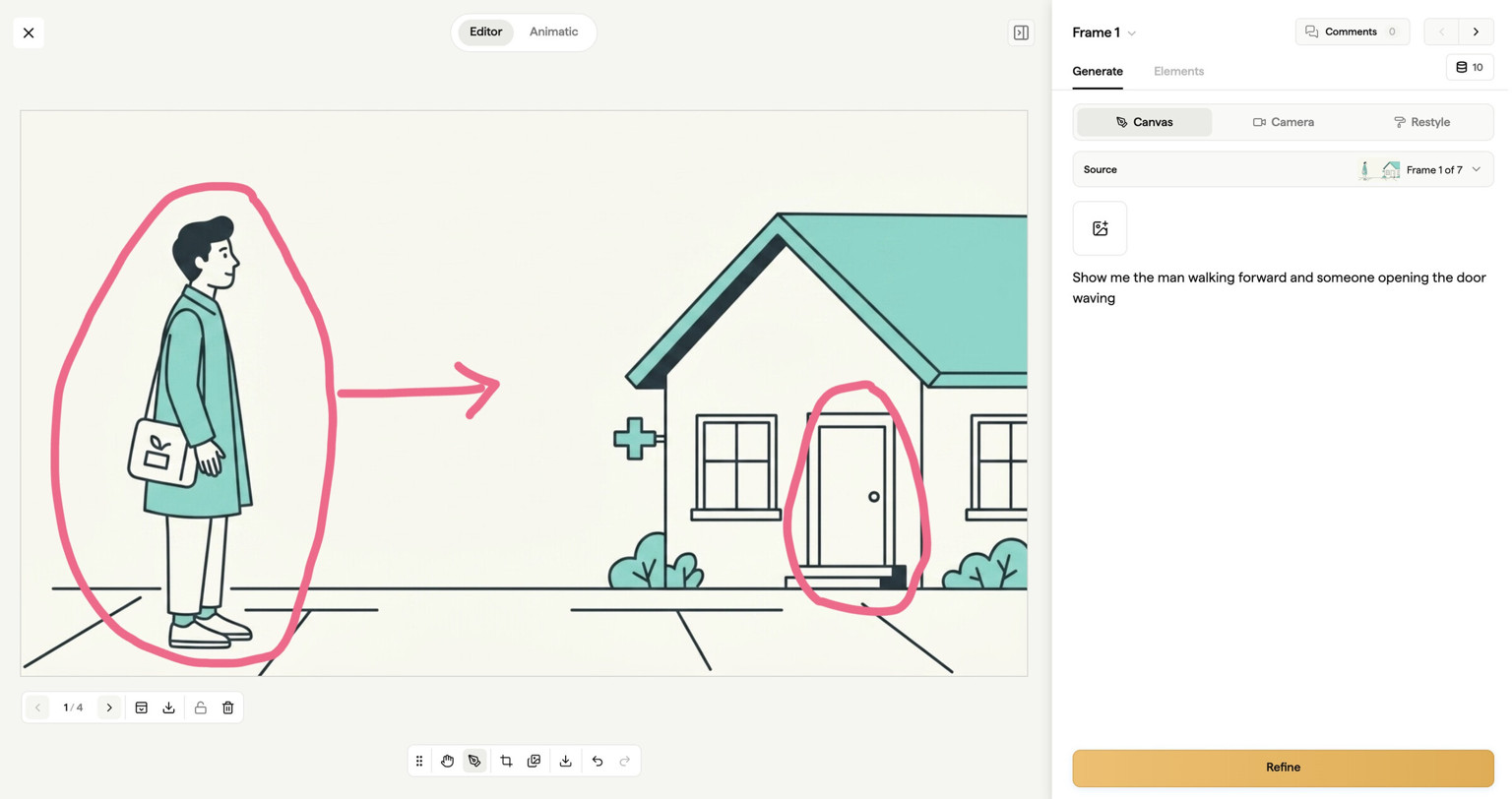
Camera reframe
The Camera sub-tab takes the current image and regenerates it from a different angle, height, or distance. Pick a preset and Boords renders the same shot from the new viewpoint. Use it when the composition is right but the camera position isn't.
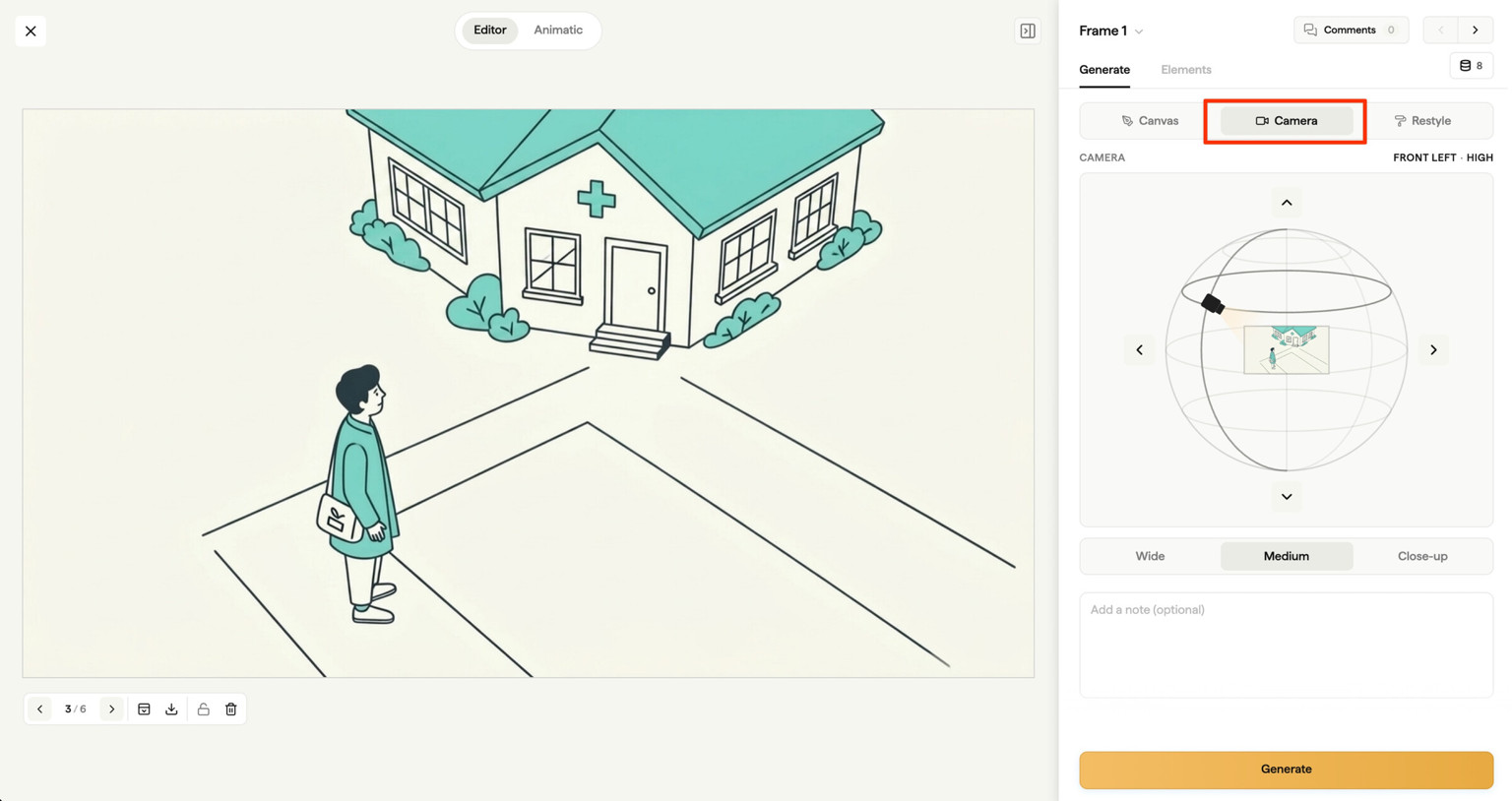
Each reframe is saved as a frame revision, so you can compare angles side by side and revert if a take doesn't land.
Get consistent images
Reference images help maintain consistency across your storyboard. You can use existing frame images, generated assets, or your own uploaded files as references.
The AI doesn't automatically remember previous frames. Select an @mention or attach a reference image to show it what to reuse. Writing "the same character" without a reference doesn't identify that character.
Using @mentions
Type @ in the Canvas prompt to choose an image from your team's Asset Library.
- Type
@, then start typing the image's name or tag to narrow the list. - Browse the folders and check the image preview.
- Click the image to insert it. You can also use the arrow keys to move through the list and press Enter to select.
- Finish your prompt and generate the image.
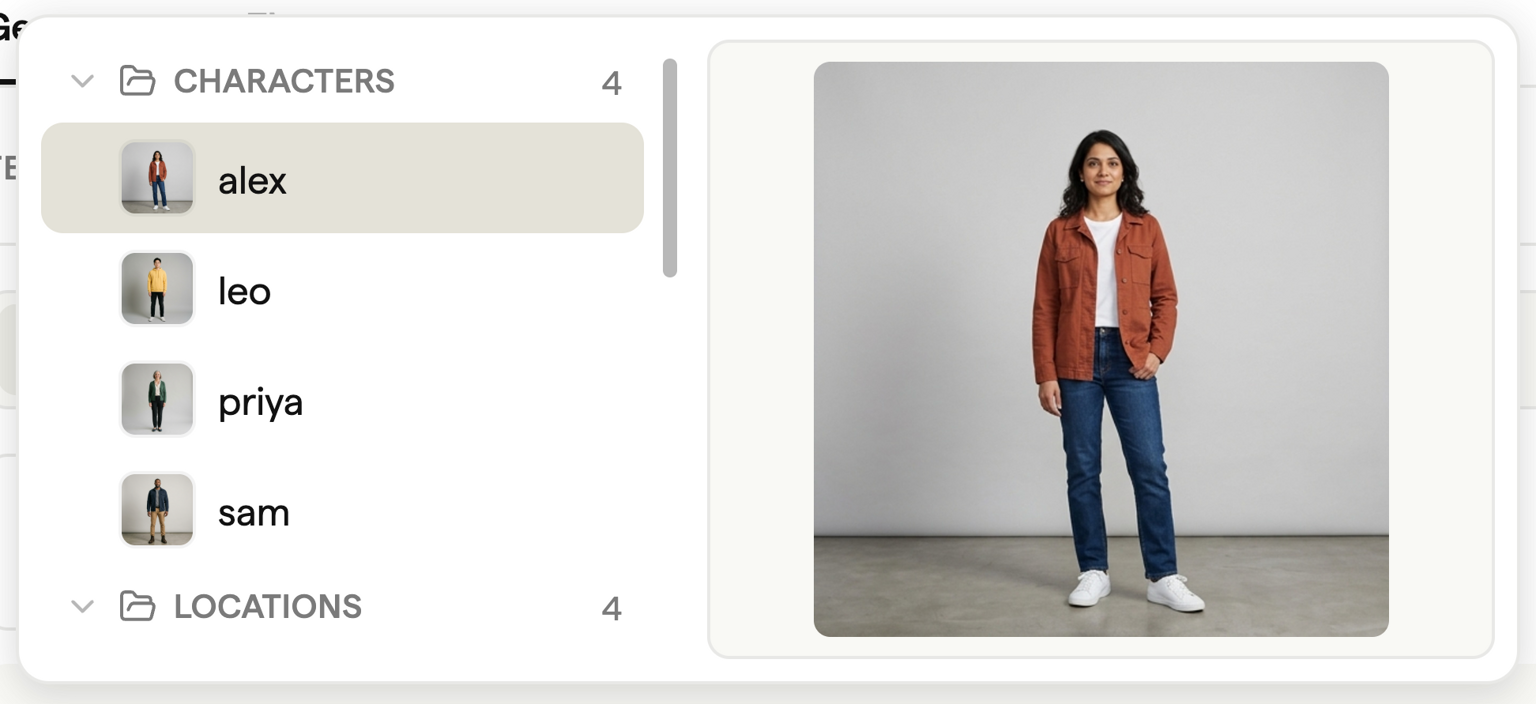
For example, write "Show @alex holding @box in @office." Select Alex, Box and Office from the picker as you write. Each selected mention appears in the prompt, with its reference thumbnail above it.
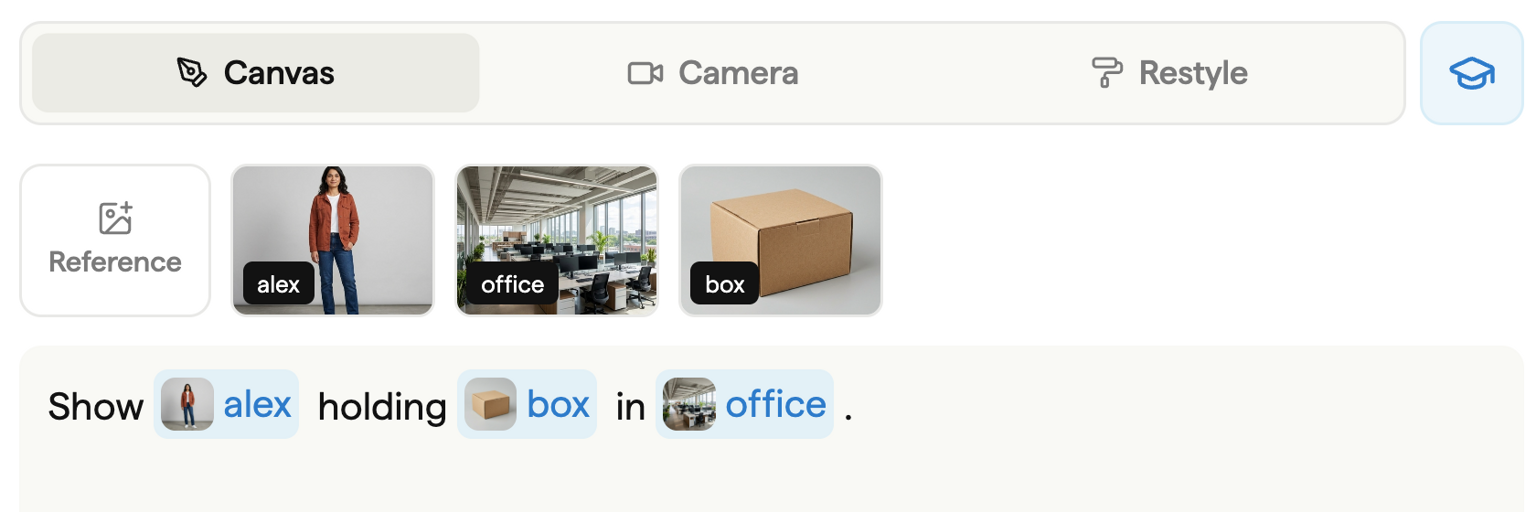
For the result below, we used the Sketch style and specified a small box held at waist height, with realistic proportions for Alex and the office furniture.
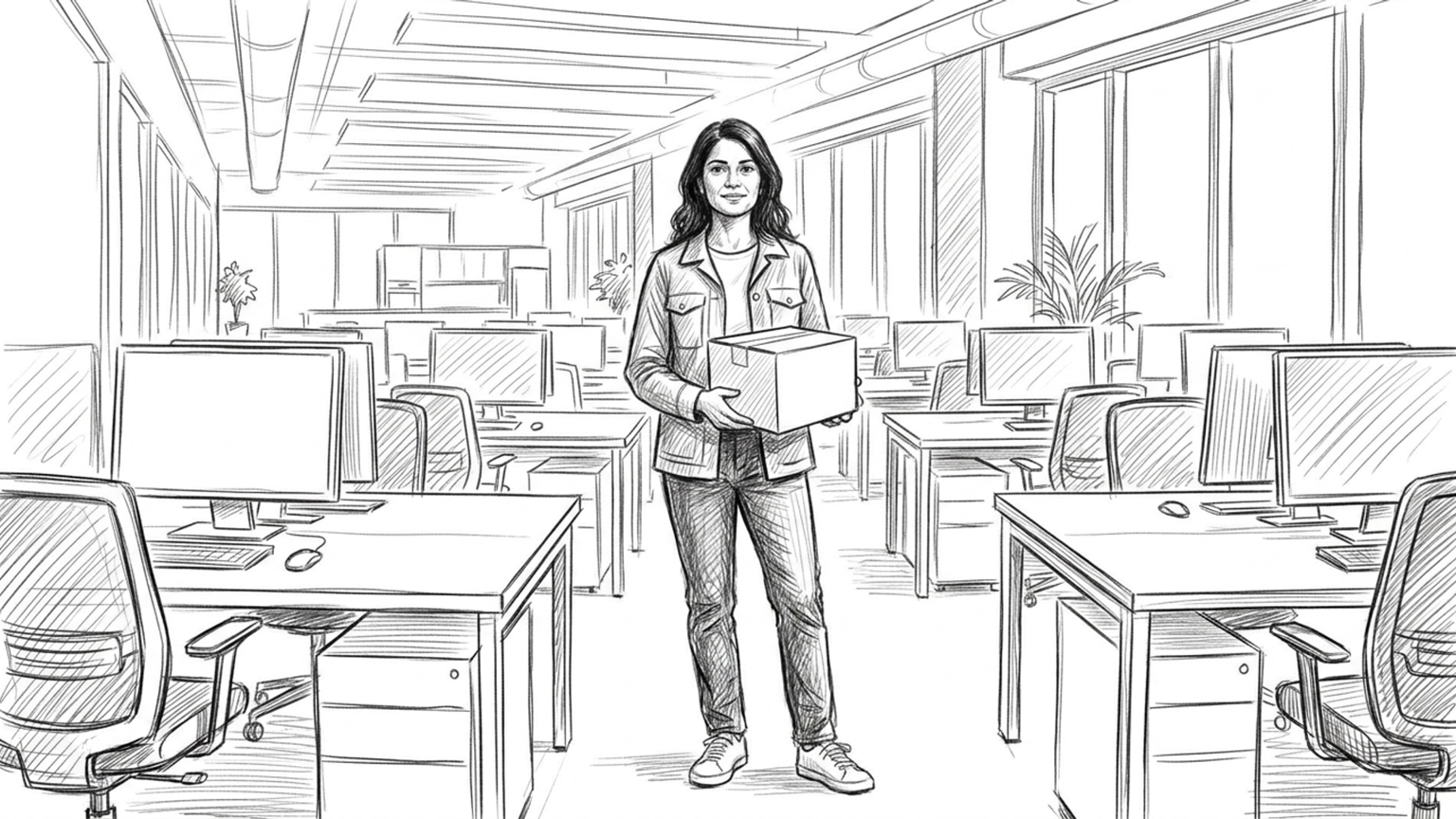
Describe what each subject should do, and add details such as the shot size or lighting. To use the same cast in another frame, select the same references in that frame's prompt.
You can use up to four content references in a generation. Mentions and images added through the reference picker share this limit. To remove a mentioned image, remove its tag from the prompt or use the remove control on its reference thumbnail.
Choose the image from the picker so Boords can attach the reference. Typing a name as ordinary text won't attach it. If an image doesn't appear, check that it is in the team's Asset Library rather than only in Project assets. See Asset Library for naming and tags.
Mentioning frames
You can also type @ to reuse an earlier frame from the same storyboard. The picker has a Frames group listing every frame with an image, except the frame you're generating. The frame's current image is sent as a reference, and the mention shows as Frame 3 in your prompt. Mentions stay correct if you reorder frames.
Your wording decides what carries over from the frame:
- "Same scene as @frame-3, now at night" keeps the setting.
- "The woman from @frame-3 in an office lobby" keeps the subject and changes the setting.
Mentioned frames count toward the same limit of four content references, and a frame counts once even if you also pick it in the reference picker. Frame mentions work in the Generate tab, Quick Generate and Boords Agent.
Using reference assets
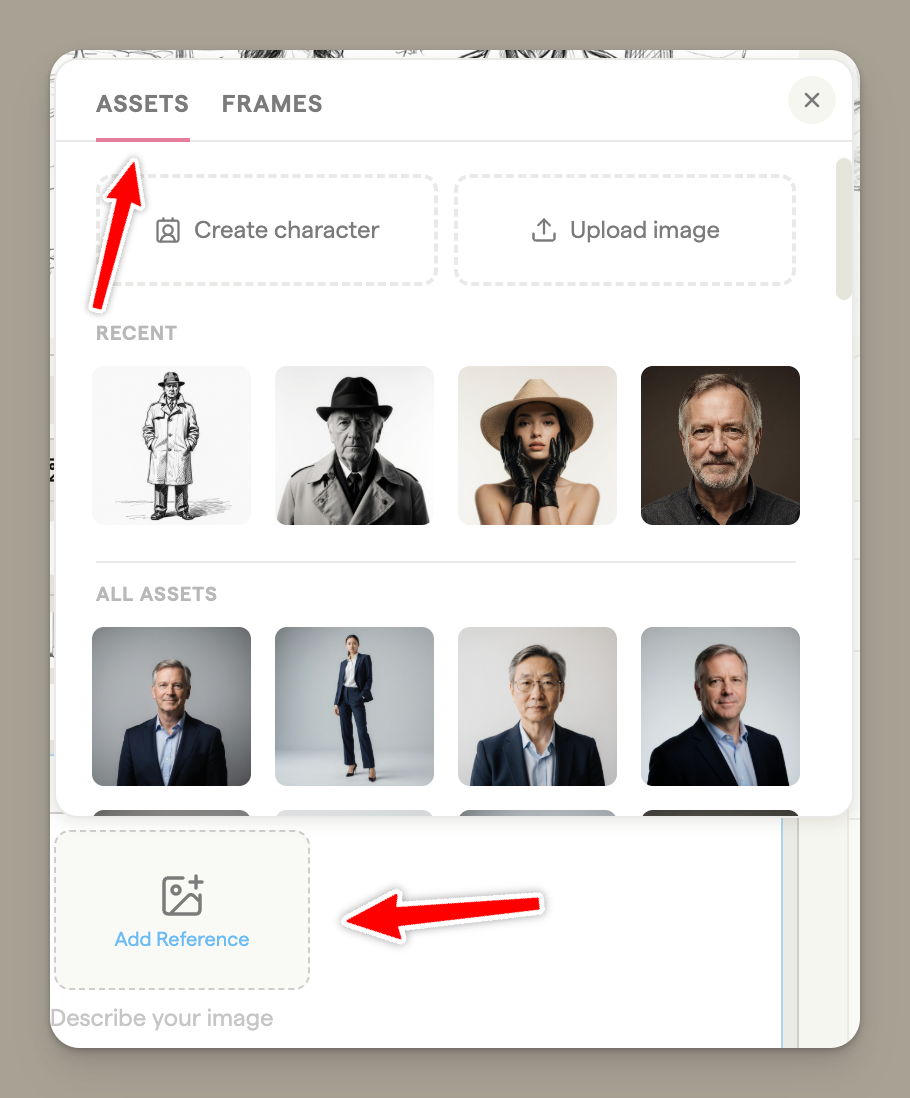
The Assets tab of the reference picker shows your team's Asset Library alongside images uploaded to this project, plus anything saved from the Playground:
| Feature | Description |
|---|---|
| Team Asset Library | Characters, locations and props your team has saved once, available in every storyboard |
| Upload images | Add character designs, location references, or style guides on the spot |
| Reuse across frames | The same asset is available for all frames, and for every project on the team |
You can attach up to four reference images to a single generation.
Using reference frames
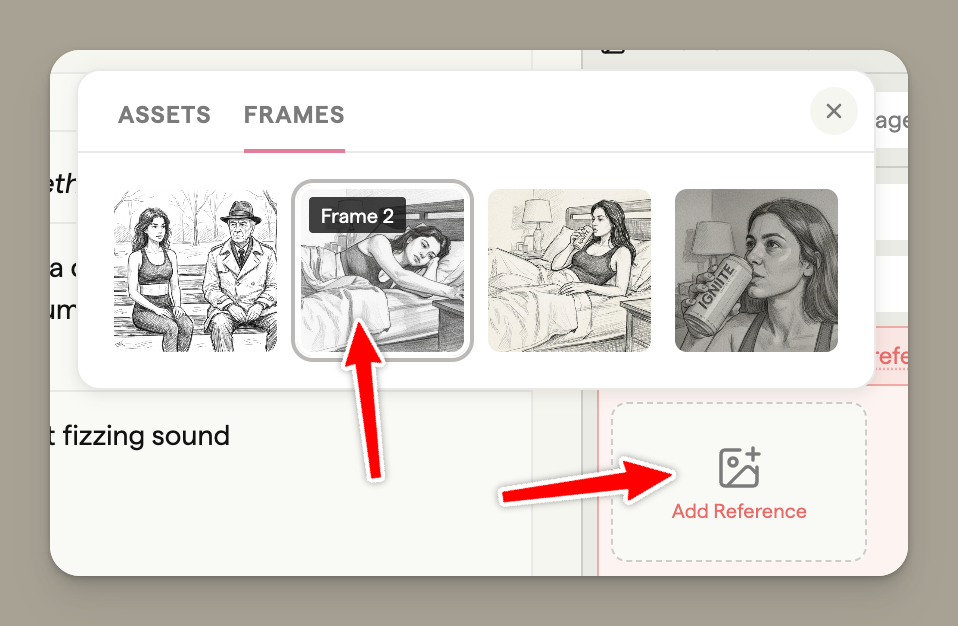
Use existing storyboard frames as references:
| Feature | Description |
|---|---|
| Maintain consistency | Reference a frame to keep characters or settings consistent |
| Build sequences | Use the previous frame to maintain visual continuity |
| Best for | Continuing scenes, character consistency, location matching |
Combining references
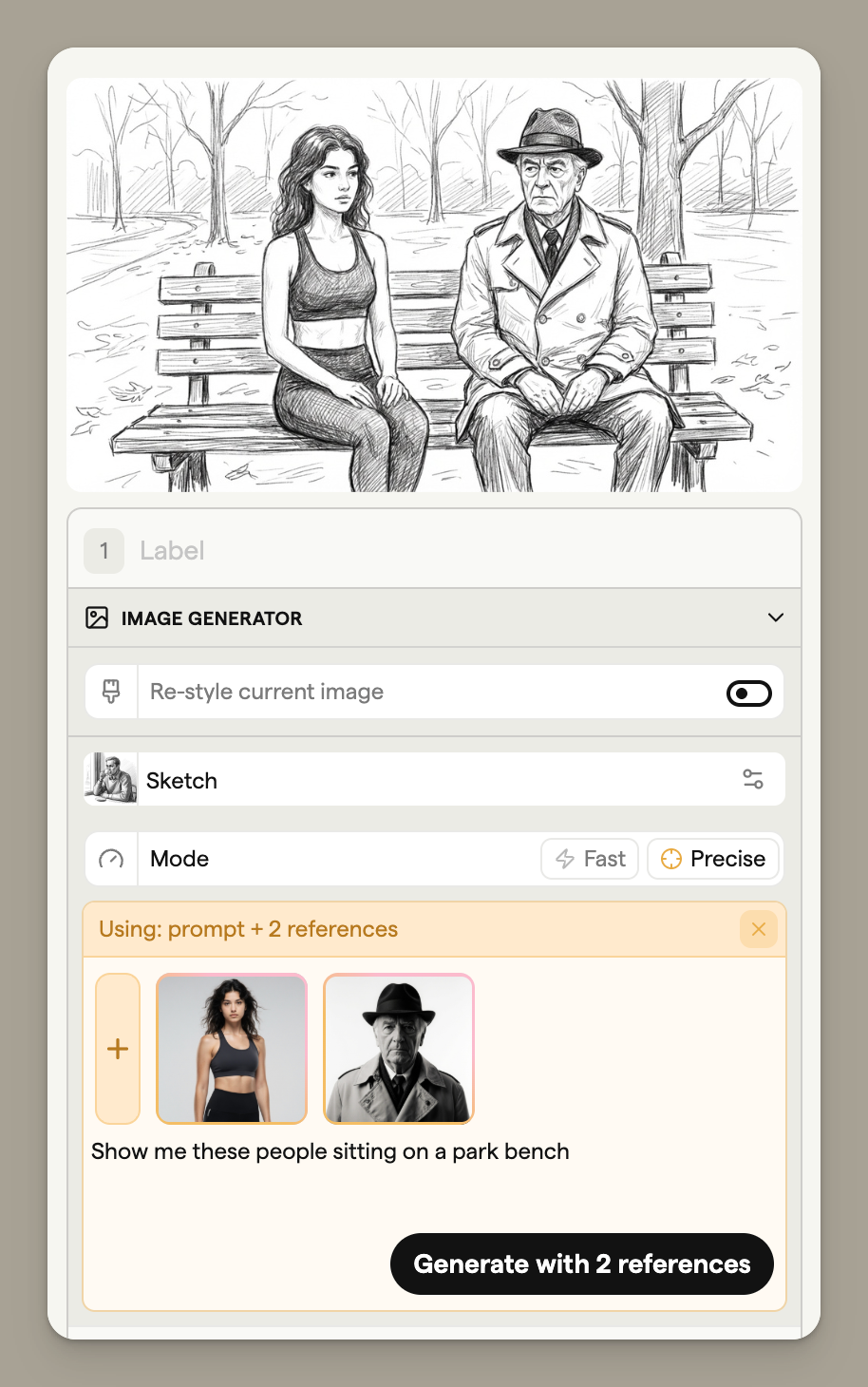
You can attach multiple reference images to combine elements:
- Add a character reference and a location reference
- Combine multiple character references for group scenes
- Mix assets and frames for maximum flexibility
Choosing a style
Pick a visual style that matches your project. Click the Style dropdown to see available options.
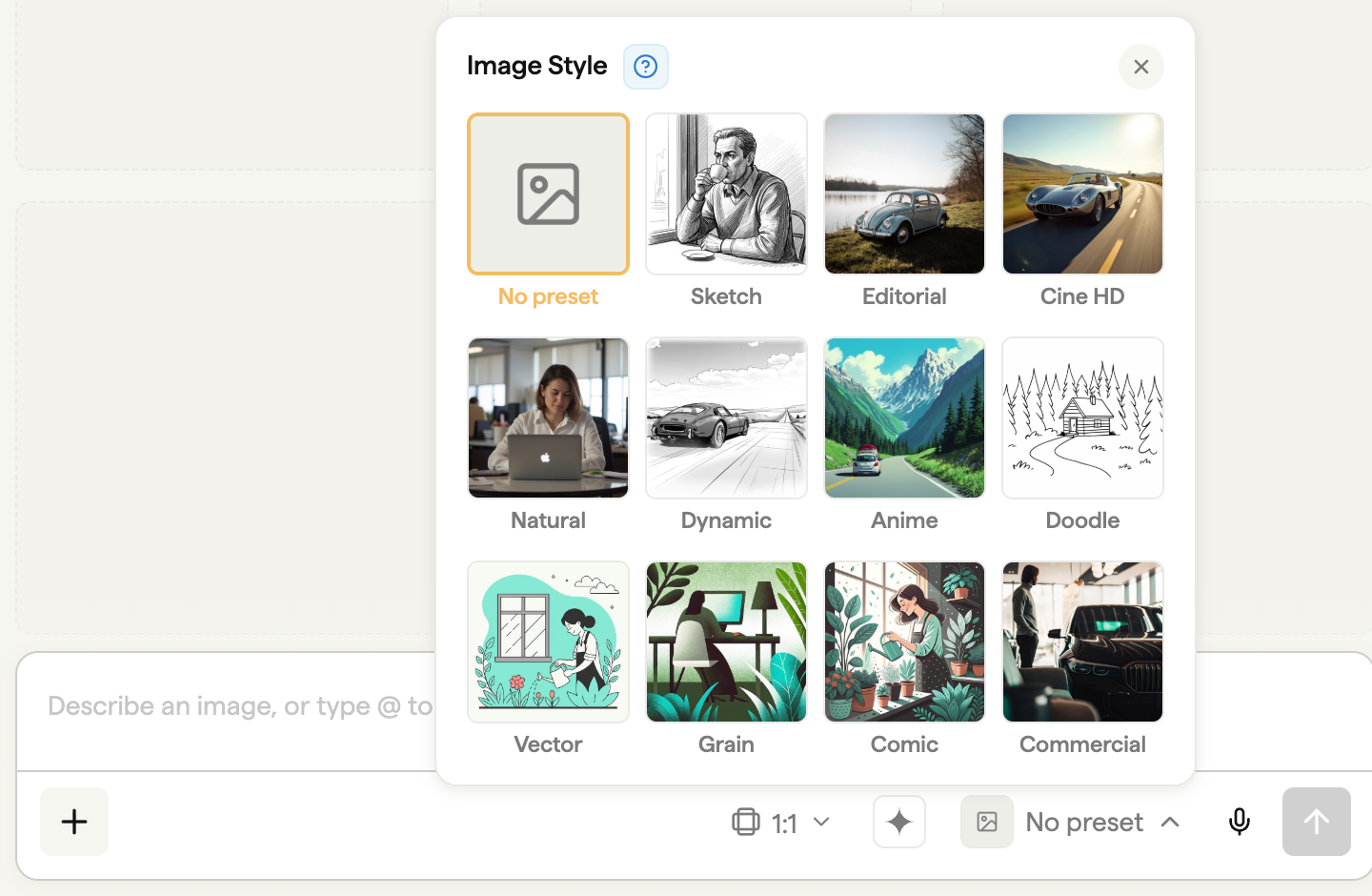
Each style produces distinctly different results. Preview the style thumbnails to find one that suits your needs. You can change styles at any time and regenerate images. Some styles also support a custom color palette for brand consistency.
Tip: Experiment with different styles early in your project to find the best match for your creative direction. See Styles & restyling for the full list and colour palette controls.
Writing effective prompts
The prompt describes what you want to see in your image. Good prompts are specific and descriptive.
Prompt basics
| Approach | Example |
|---|---|
| Be specific | "A detective in a trench coat examining a clue under a streetlight" rather than "a person" |
| Include details | Describe lighting, mood, colors, and environment |
| Mention important elements | Characters, objects, settings, and actions |
Note: Select the images you want to reuse with @mentions or the reference picker. Typing "from frame 5" as plain text doesn't attach that frame's image. Type
@and pick Frame 5 instead.
Camera angles and shot framing
When generating an image in Canvas without reference images attached, you can select a shot type to control the camera framing. Click the Shot type dropdown to choose from available options.
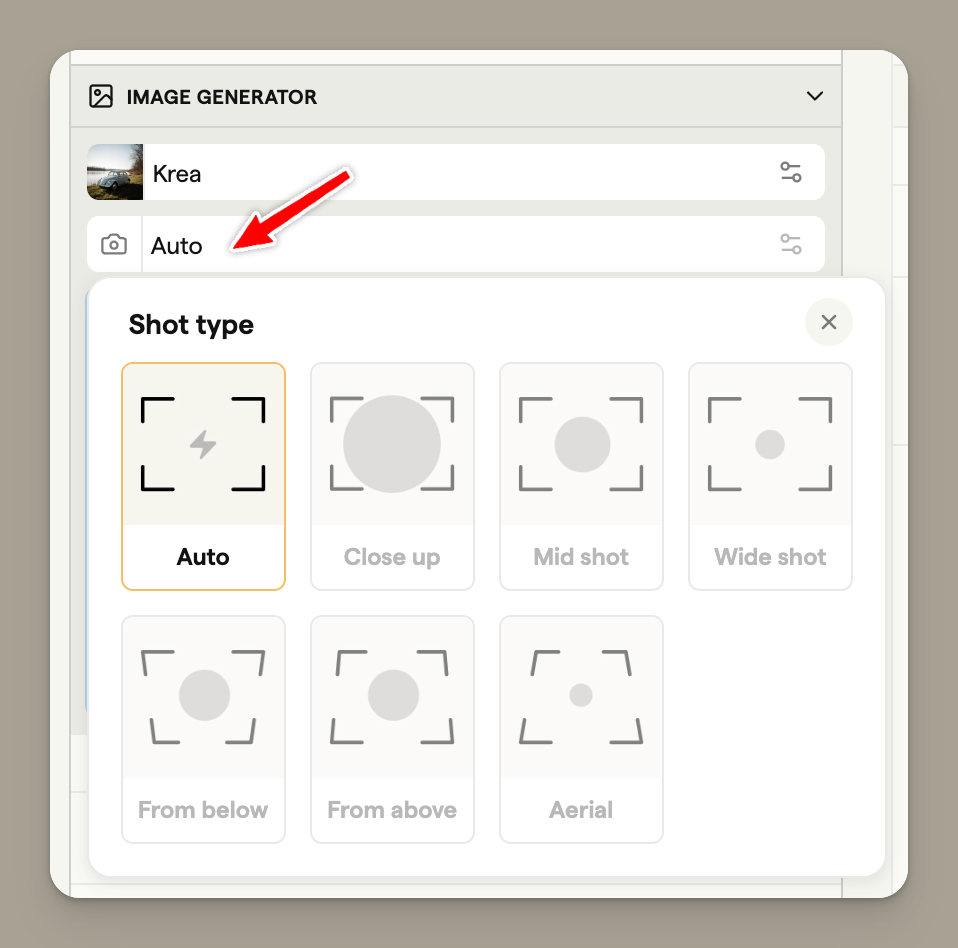
| Shot type | Description |
|---|---|
| Auto | AI determines the best framing |
| Close up | Tight framing on subject's face or details |
| Mid shot | Subject framed from waist up |
| Wide shot | Full subject with surrounding environment |
| From below | Camera looking up at subject |
| From above | Camera looking down at subject |
| Aerial | Bird's eye view from directly above |
Note: The shot type selector is only available when no reference images are attached. When using references, specify your desired camera angle in the prompt instead (e.g., "Show me a close up of the character").
For reframing an existing image to a new angle, see the Camera reframe section above.
Restyle
The Restyle sub-tab changes the artwork style of the current image without rebuilding the scene. The layout, characters, and poses stay intact while the style swaps over.
See Styles & restyling for the full walkthrough.
Revisions
Every Canvas generation, Camera reframe, Restyle, drag-dropped local image, and inline grid generation creates a frame revision. Revisions survive reload, ride with the frame, and can be paged through, locked, or deleted. See Frame revisions for the full guide.
Image credits
The image generator uses a credit system:
| Action | Credit cost |
|---|---|
| Generating a new frame image or variation | 1 credit |
| Restyling or reframing an image | 1 credit |
| Saving an already generated image to your library or storyboard | No additional credits |
On credit-based plans, credits are used when you generate an image, including a Playground preview. Generating another variation uses another credit, even if you later choose a different revision. Saving the generated image to your library or storyboard does not use another credit. The three selectable models use the same one-credit charge, at either resolution. Legacy Workflow and Lifetime plans include unlimited image generation.
Note: Your monthly credit allowance depends on your plan. Solo gets 250/mo, Pro gets 1,000/mo, Team gets 2,000/mo, and Agency gets 3,000/mo. See Billing & plans for details.
The inline grid generator
The storyboard grid also has a quick generator for first-pass populating frames. Use it when you want to fill a fresh storyboard fast, then refine individual frames from the Generate sidebar. Each grid generation saves as a frame revision, so any sketch, restyle, or edit you make later keeps the history.
You can type @ in the inline prompt to select library images, just as you would in the Generate sidebar. The same four-reference limit applies.
Inline generator states
The generator input field changes color to indicate its current state and what type of generation will occur.
Prompt only (blue)
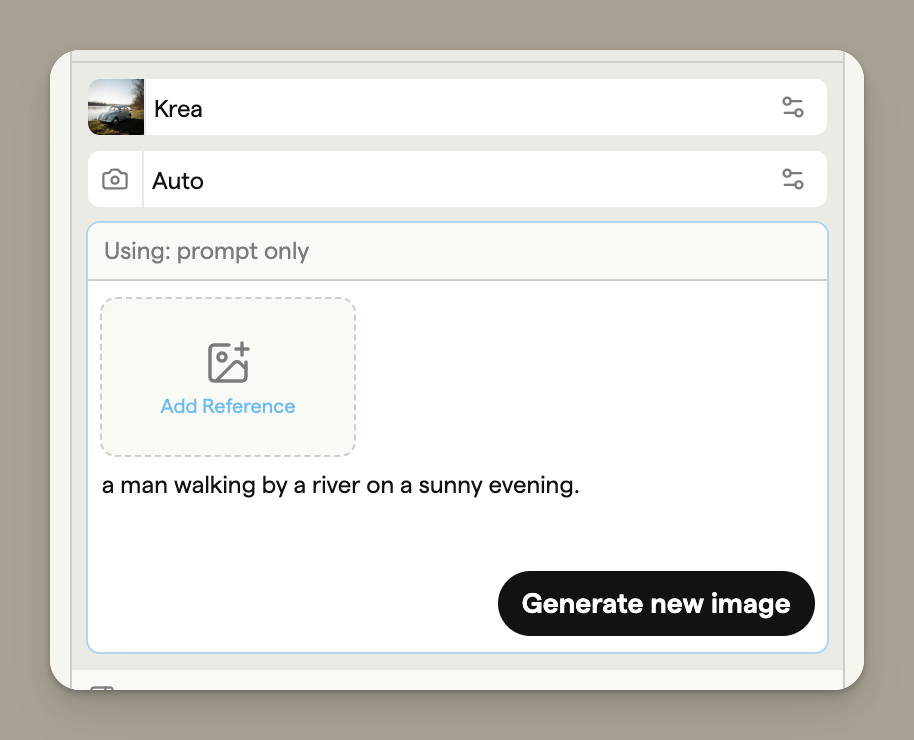
A blue outline indicates standard generation mode. Boords will create an image using your prompt text and selected style settings. This is the default state when no reference images are attached.
Reference attached (yellow)
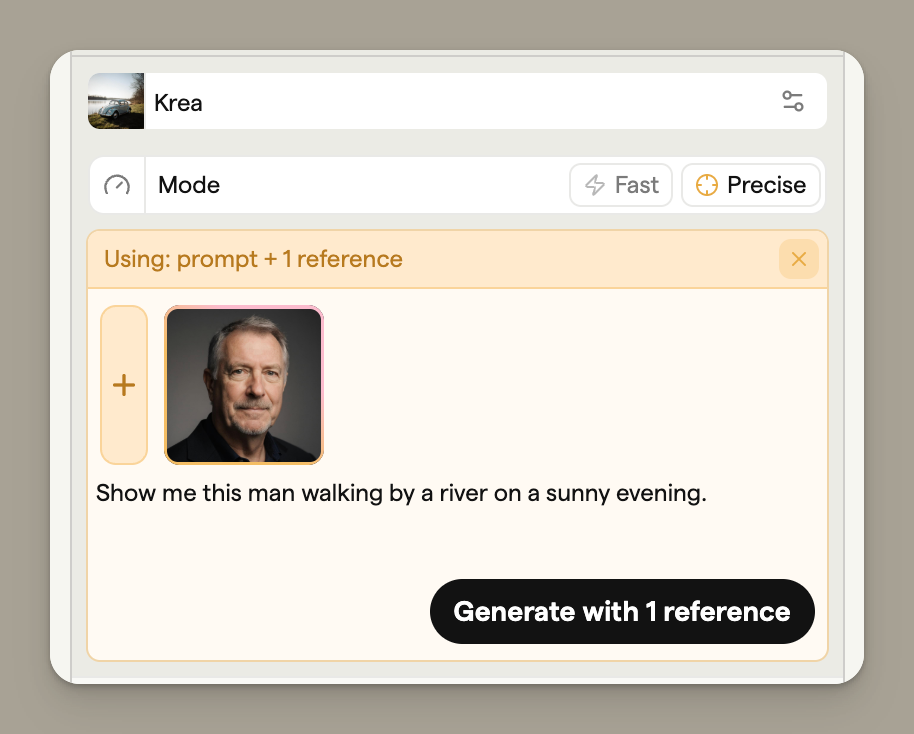
A yellow background indicates that reference images are attached. Boords will use these references along with your prompt to generate an image that incorporates elements from your reference images.
Reference required (red)
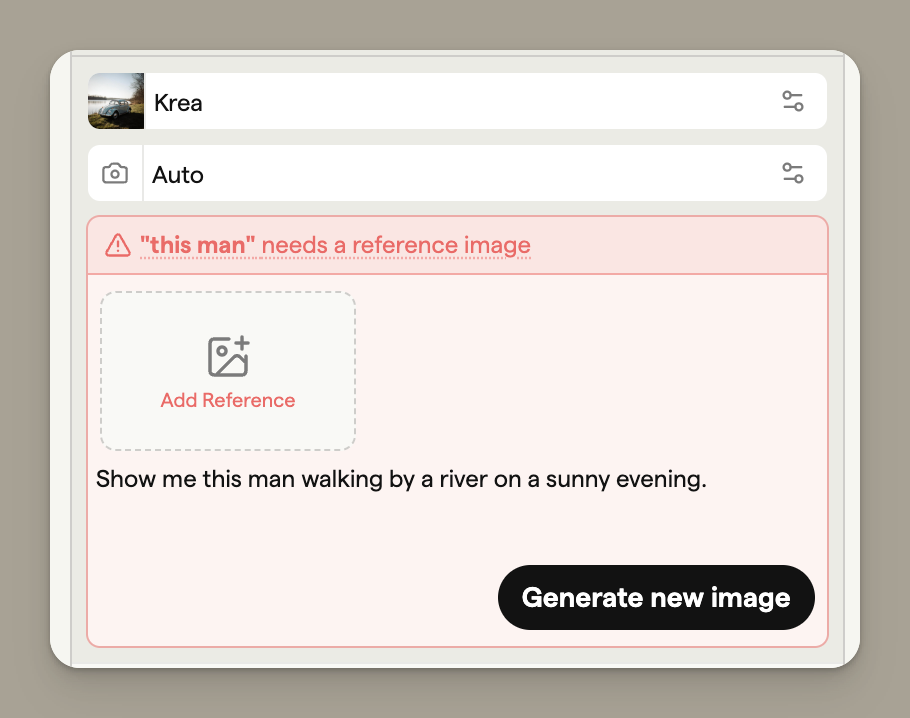
A red background indicates a problem: you've attached a reference to another frame, but that frame doesn't have an image yet. You need to generate or upload an image to the referenced frame first, then return to continue.
Tab to autocomplete
When your frame has text content (like action or dialogue fields), press Tab in an empty prompt field to automatically generate a prompt based on that content.
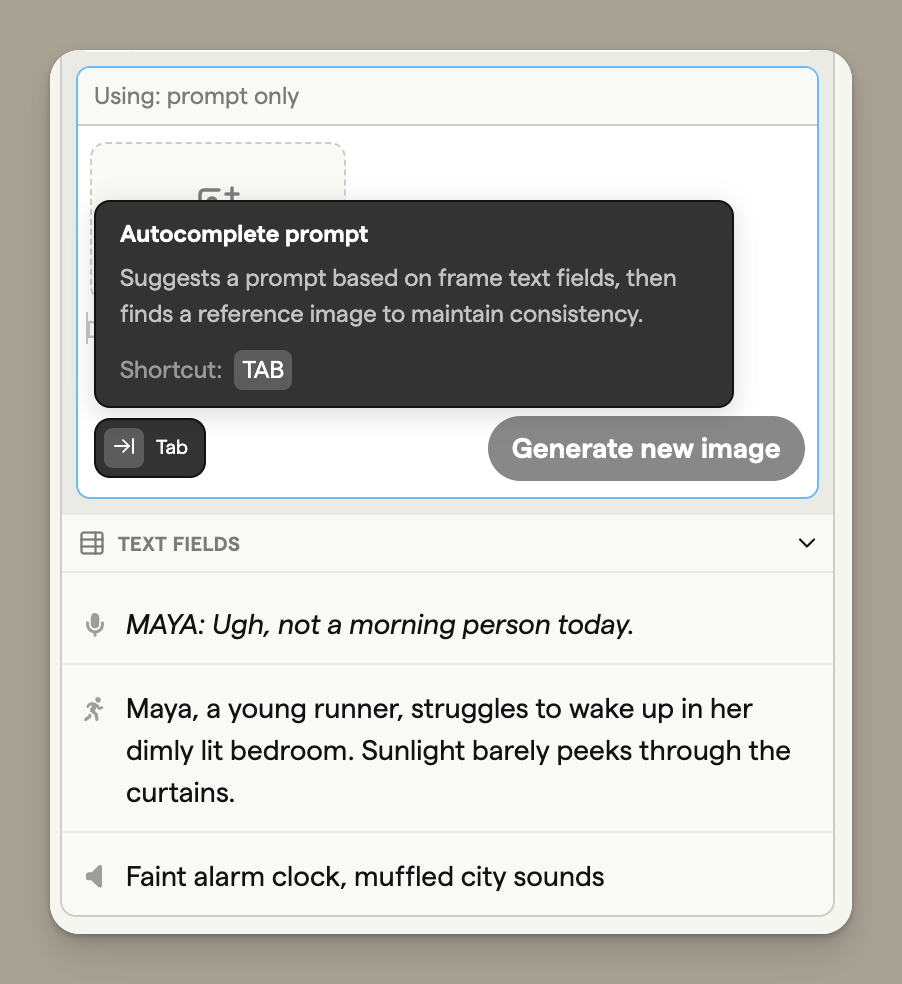
This feature:
- Reads your frame's text fields
- Generates an appropriate image prompt
- Optionally finds a relevant reference image from your storyboard
Tip: Tab autocomplete is a fast way to generate images that match your script content.
FAQ
Give the AI reference images for the characters and settings you want to keep. Type @ and select an image from your team's Asset Library or an earlier frame, or attach an image using the reference picker. Selecting an @mention includes that image as a reference.
Common mistakes:
- Writing "the same character as before" without attaching a reference
- Typing "the character from frame 5" as plain text instead of selecting Frame 5 with
@ - Assuming the AI remembers previous generations
For consistent characters and settings:
- Select saved characters, locations or props, or earlier frames, with
@in your prompt - Use the reference picker to attach existing frames or uploaded images
- Describe what each referenced subject should do in the scene
- Use the same style throughout your storyboard
The Image model menu shows an estimated generation time for each model: about 20 seconds for Nano Banana 2, 30 seconds for GPT Image 2.5 Flare and 60 seconds for GPT Image 2.5 Sunburst. These are estimates, and requests can take longer when a provider is busy.
The generate button requires:
- A prompt (the text field cannot be empty)
- Available image credits, or a plan with unlimited image generation
- No active generation in progress
Wait for the current generation to finish before starting another in the same control. Generation times vary by model; the Image model menu shows an estimate. On credit-based plans, each new generation uses an image credit.
Yes. Save your images to the team's Asset Library, then type @ in a prompt and select them. You can also upload images through the Assets tab in the reference picker. Character designs, locations and props all work as references.
- Describe what to keep or change about each reference
- Use Precise mode for higher fidelity (paid plans)
- Be specific about what you want to keep or change from the reference
- Use high-quality reference images when possible