
Styles & restyling
Choose and customize visual styles
Boords supports multiple visual styles for your storyboard images. Each style produces distinctly different results, and some styles offer additional color customization options.
You can pick a style anywhere you generate or restyle a frame in the Generate sidebar (Canvas, Camera reframe, or Restyle).
Available styles
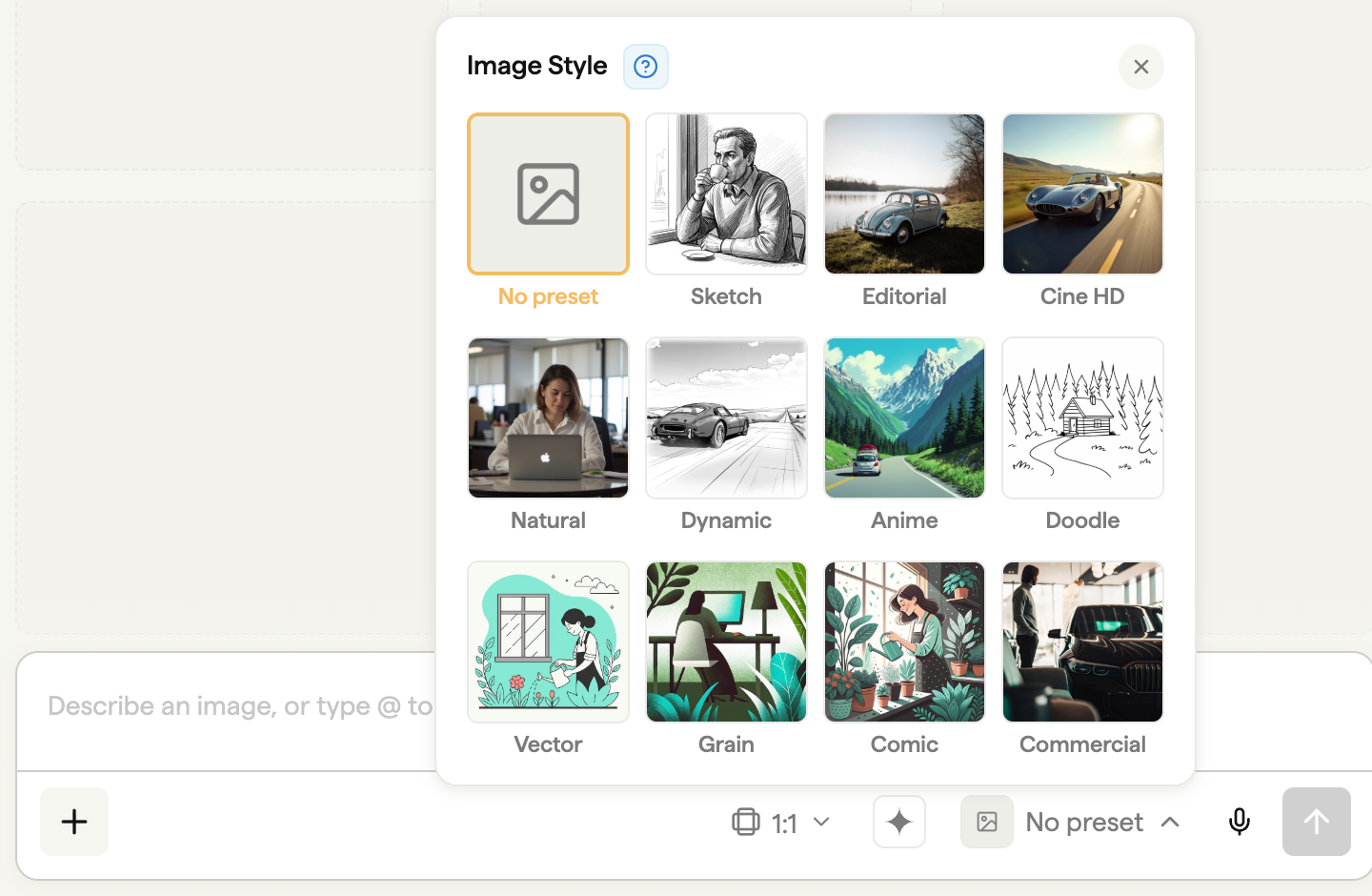
Choose from the following styles when generating images:
| Style | Description |
|---|---|
| Sketch | Traditional storyboard-style pencil sketches with loose linework |
| Editorial | Aesthetic photographic images with naturalistic lighting |
| Cine HD | High-definition cinematic images with dynamic camera and composition |
| Natural | Natural-looking snapshot photography style |
| Dynamic | Stylised images with bold strokes, good for movement and action |
| Anime | Expressive Studio Ghibli-inspired anime style |
| Doodle | Simple vector-style line art illustrations |
| Vector | Clean vector illustrations with smooth lines and flat colors |
| Grain | Digital illustrations with a textured, grainy finish |
| Comic | Bold comic book style with dynamic compositions |
| Commercial | Professional commercial photography style |
| No preset | Specify your own style in the prompt (e.g. "noir", "isometric") |
Tip: The Sketch, Editorial, and Cine HD styles work well for most storyboarding needs. Try the Doodle, Vector, or Grain styles when you need consistent brand colors across your images.
Styles and image models
Choose the visual style you want, then check the Image model menu before generating. Model availability depends on the style and operation. An incompatible model is marked Unavailable; Boords shows a compatible choice if your preferred model can't be used.
Some styles use a specific model automatically. In that case, and when using Camera reframe, the Image model menu is hidden. Your saved model preference is kept for the next compatible generation.
The same compatibility checks apply when restyling an existing frame. See Choosing an image model for the available models, resolution controls and plan limits.
Using the color palette
Some styles support a custom color palette, giving you control over the colors used in your generated images. This is especially useful for maintaining brand consistency or creating a cohesive visual style across your storyboard.
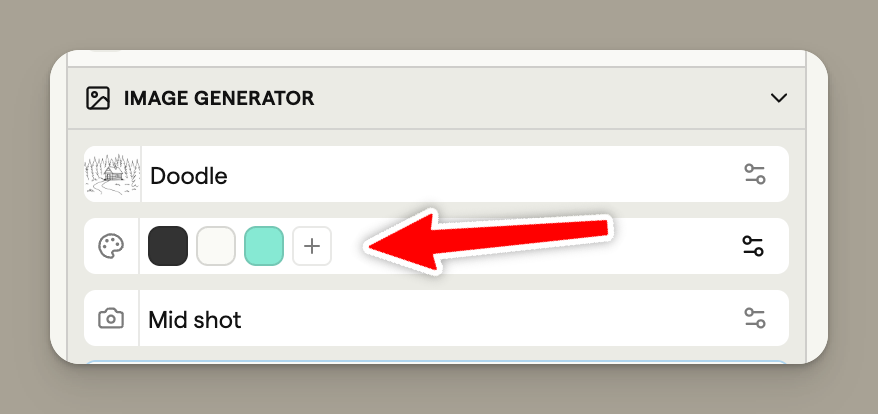
Styles with color palette support
The following styles support color customization:
- Doodle
- Vector
- Grain
- Comic
- Commercial
When you select one of these styles, a color palette selector appears below the style dropdown.
How to use colors
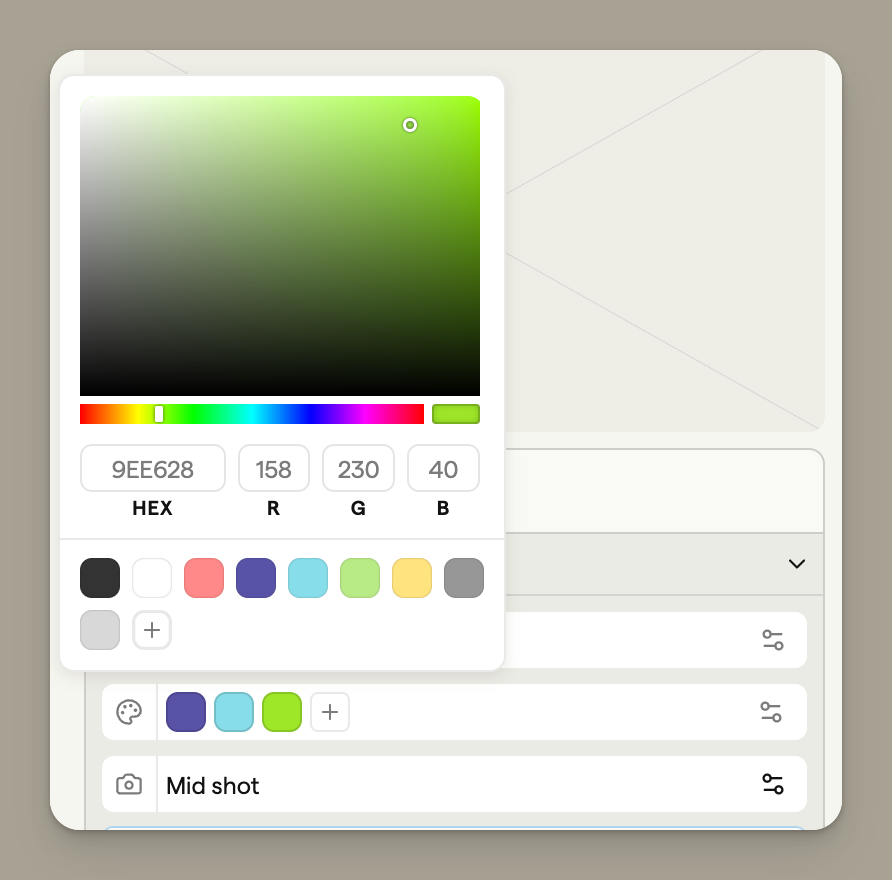
- Select a style that supports color palettes (Doodle, Vector, Grain, Comic, or Commercial)
- The color palette selector will appear with default colors
- Click any color swatch to open the color picker and choose a new color
- Click the + button to add additional colors (up to 4 total)
- Click the × on any color swatch to remove it
The AI will use your selected colors when generating the image, helping ensure your visuals stay on-brand.
Copying colors across frames
To apply the same color palette to all frames in your storyboard:
- Set up your desired colors on any frame
- Click the menu icon (three dots) next to the color palette
- Select Copy to all frames

This copies your current color settings to every frame in the storyboard, ensuring visual consistency throughout your project.
Tip: Set up your brand colors on the first frame, then copy them to all frames before generating images. This saves time and keeps your storyboard visually cohesive.
Restyle existing images
Want to try a new visual direction without rebuilding your frame from scratch? Restyle lets you change the artwork style while keeping the layout, characters, and poses exactly as they are.
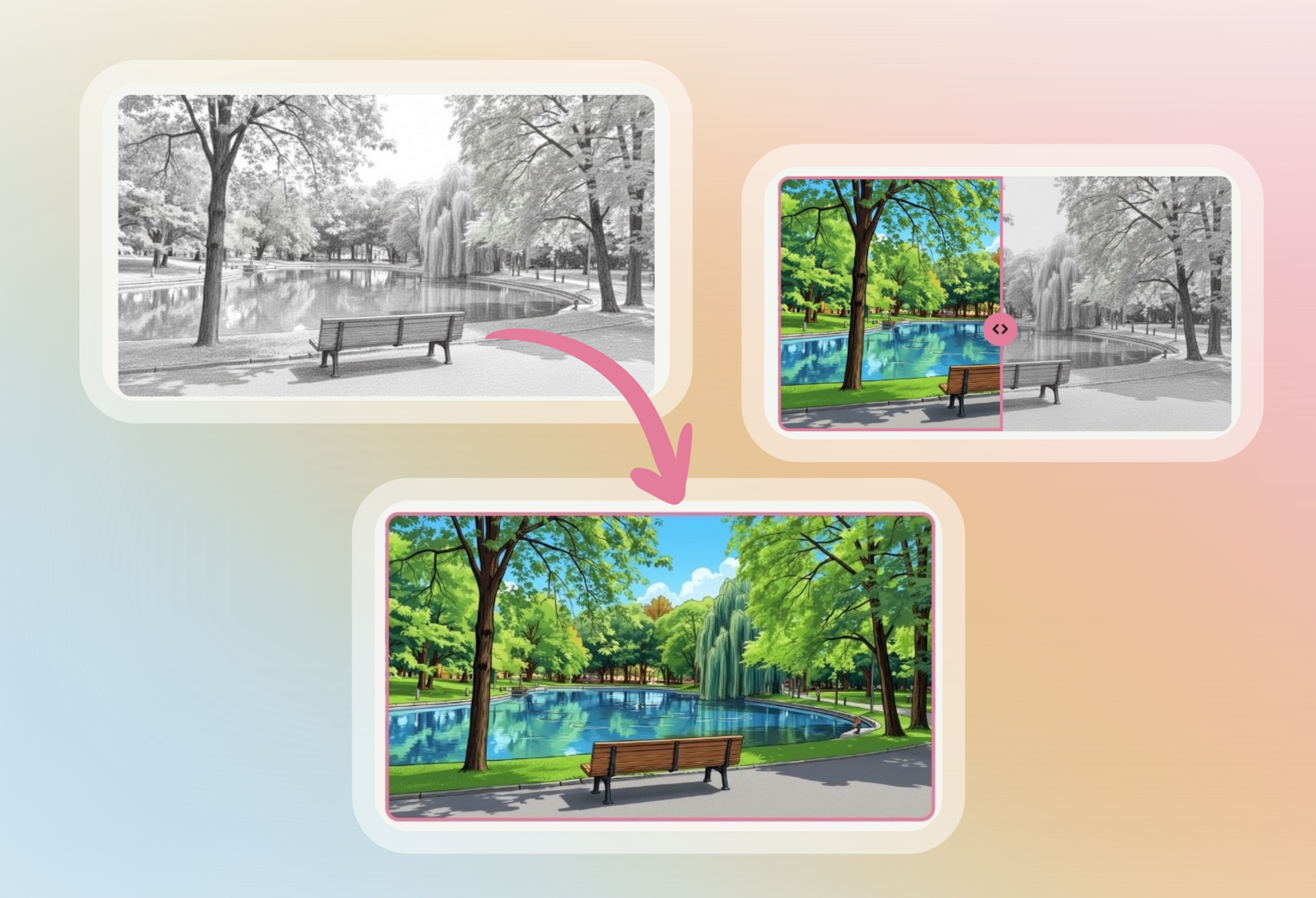
How to restyle a frame
Open the frame you want to restyle and switch to the Generate tab in the sidebar. Open the Restyle sub-tab.
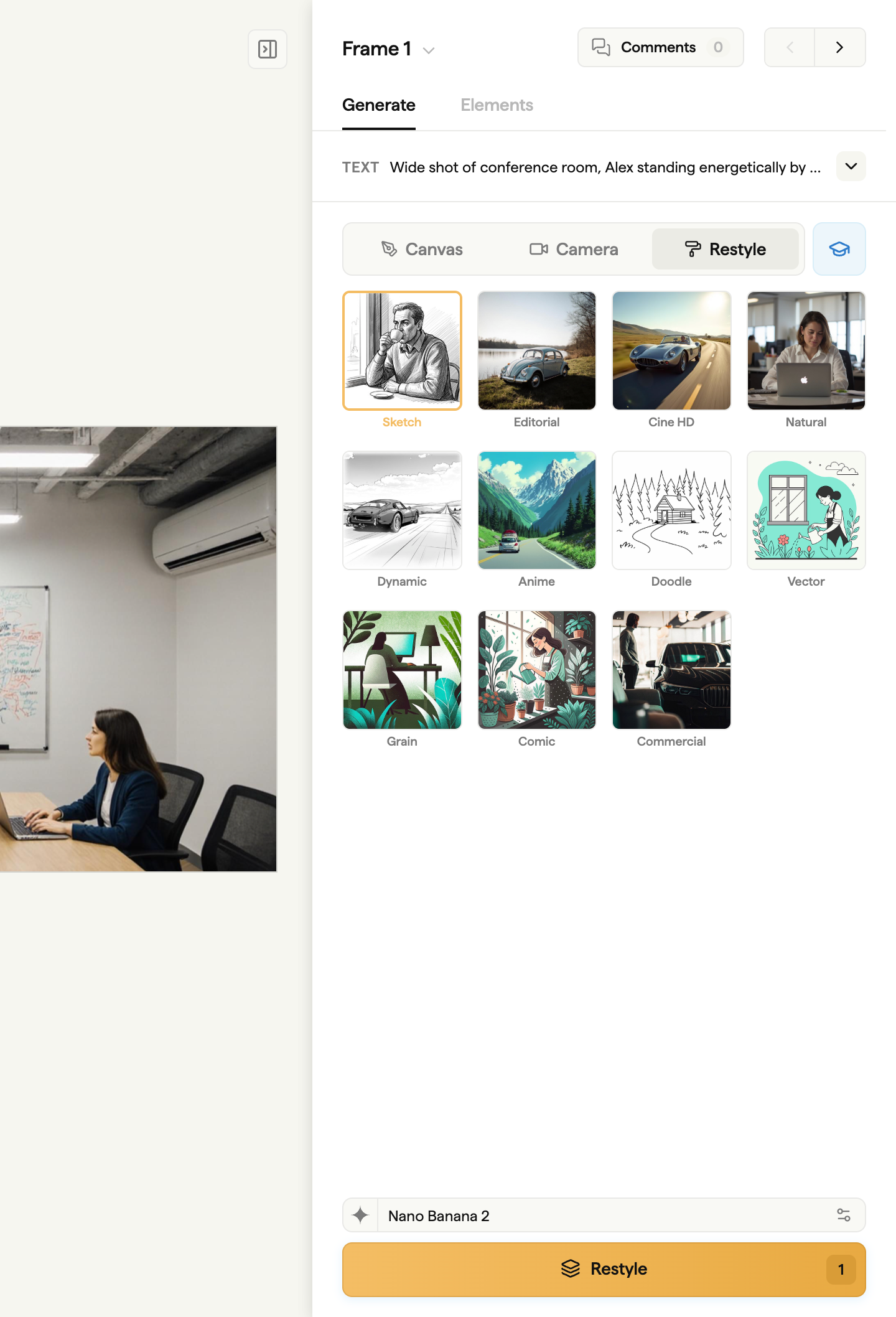
Boords generates a new version of your frame in the selected style, keeping the scene layout, characters, and poses intact. Every restyle is saved as a frame revision, so you can page back to the previous version at any time. See Frame revisions for more on how revisions work.
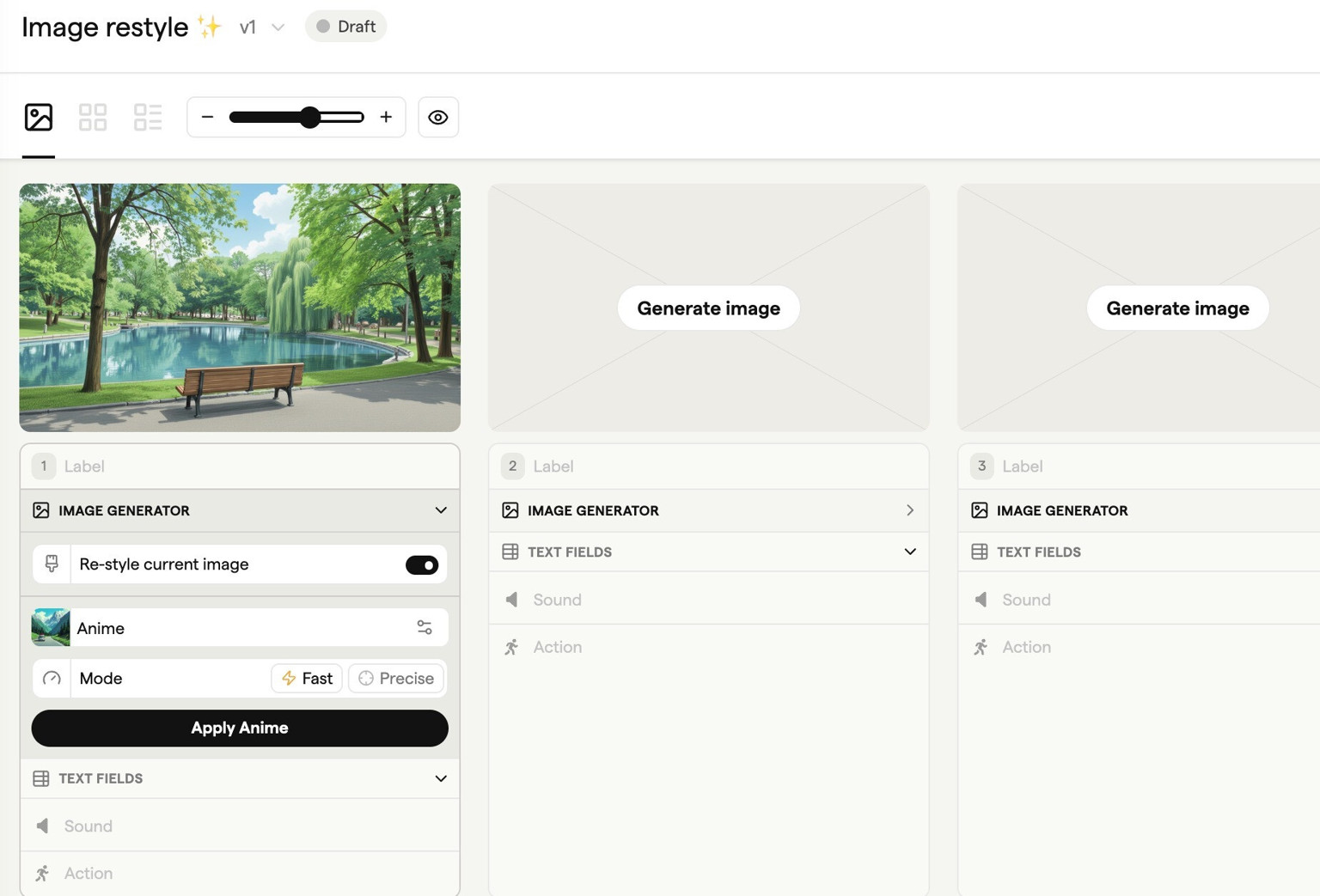
Restyling makes it easy to explore different looks, adjust the tone of your storyboard, or create quick alternatives, all without starting over.