Concepts
Understand storyboards, projects, and frames
Understand the key building blocks of Boords so you can organise your work and navigate efficiently.
| Concept | Description |
|---|---|
| Project | A folder for grouping related storyboards and scripts together |
| Storyboard | A collection of frames that tells your story |
| Frame | An individual panel within a storyboard |
| Animatic | A video preview of your storyboard with timing and audio |
| Script | A rich-text document for the writing stage, with versions, anchored comments, and a review link |
Projects
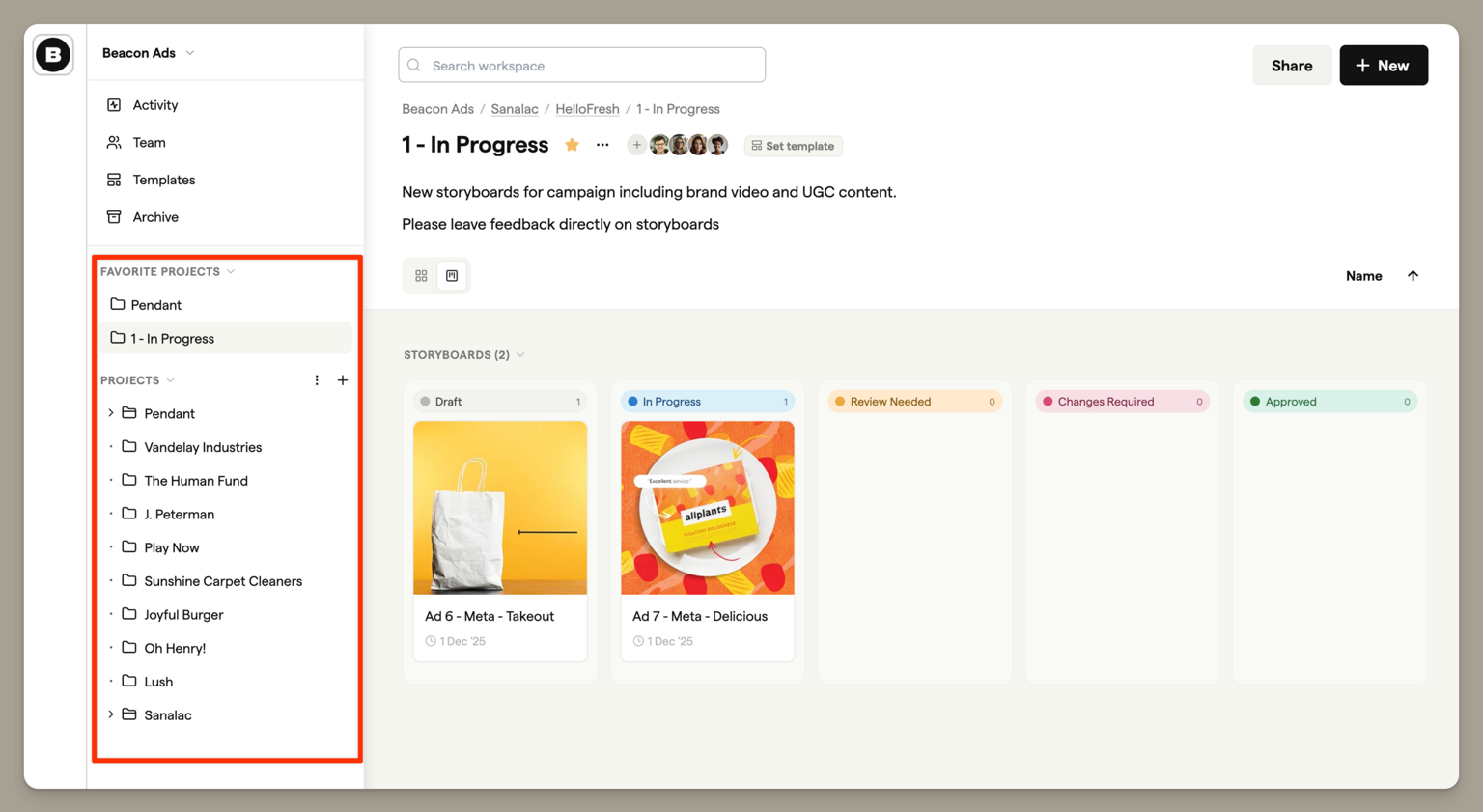
Projects are the top-level containers for organising your work. Think of them as folders that group related storyboards and scripts together.
Every storyboard and every script lives inside a project. You might create a project for each client, campaign, or production. This keeps your work organised and makes it easy to find what you need.
Sub-projects
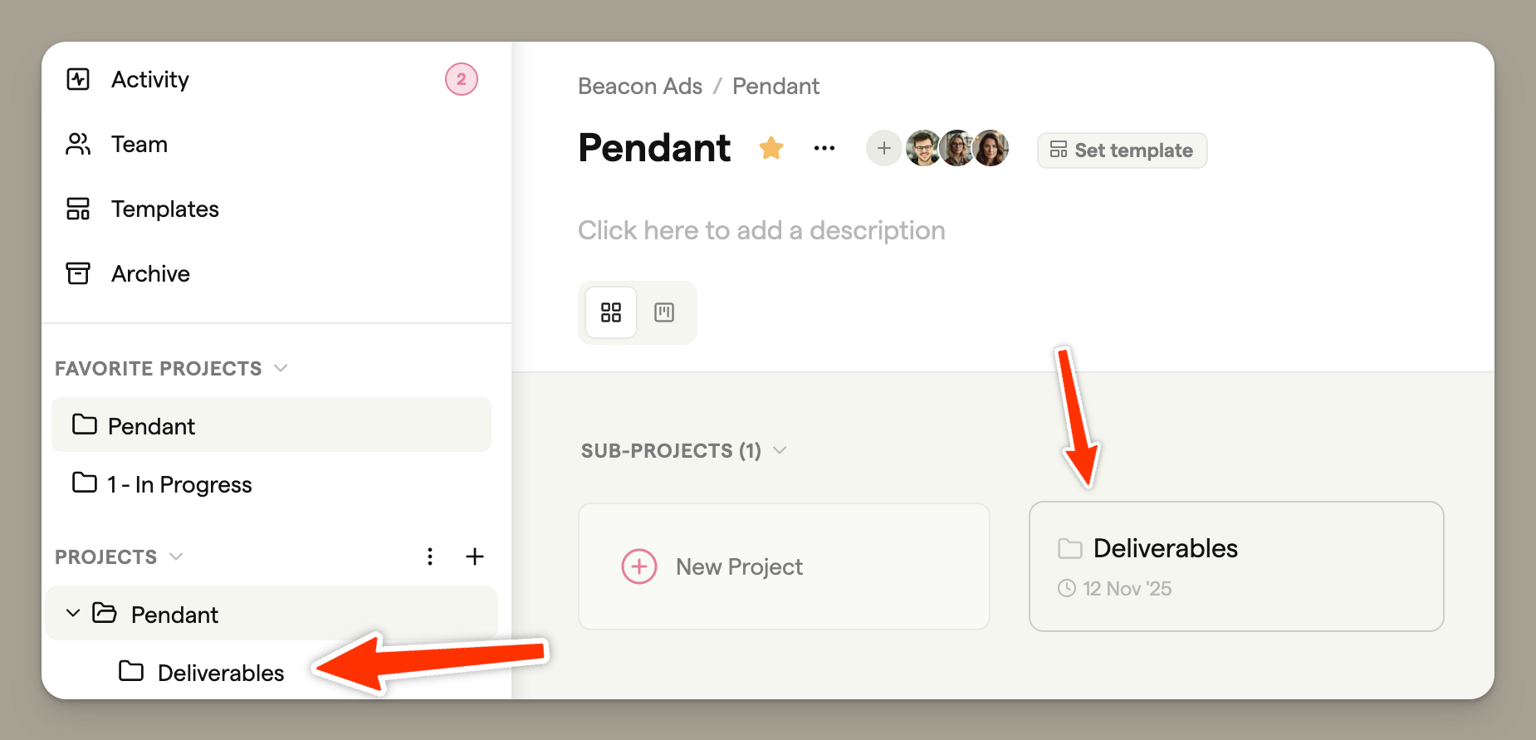
For larger productions, you can nest projects inside other projects. This lets you create hierarchies that match your workflow — for example, a main project for a TV series with sub-projects for each episode.
Storyboards
A storyboard is a sequence of frames that visualises your story, scene, or concept. It's where you'll spend most of your time in Boords.
Edit view
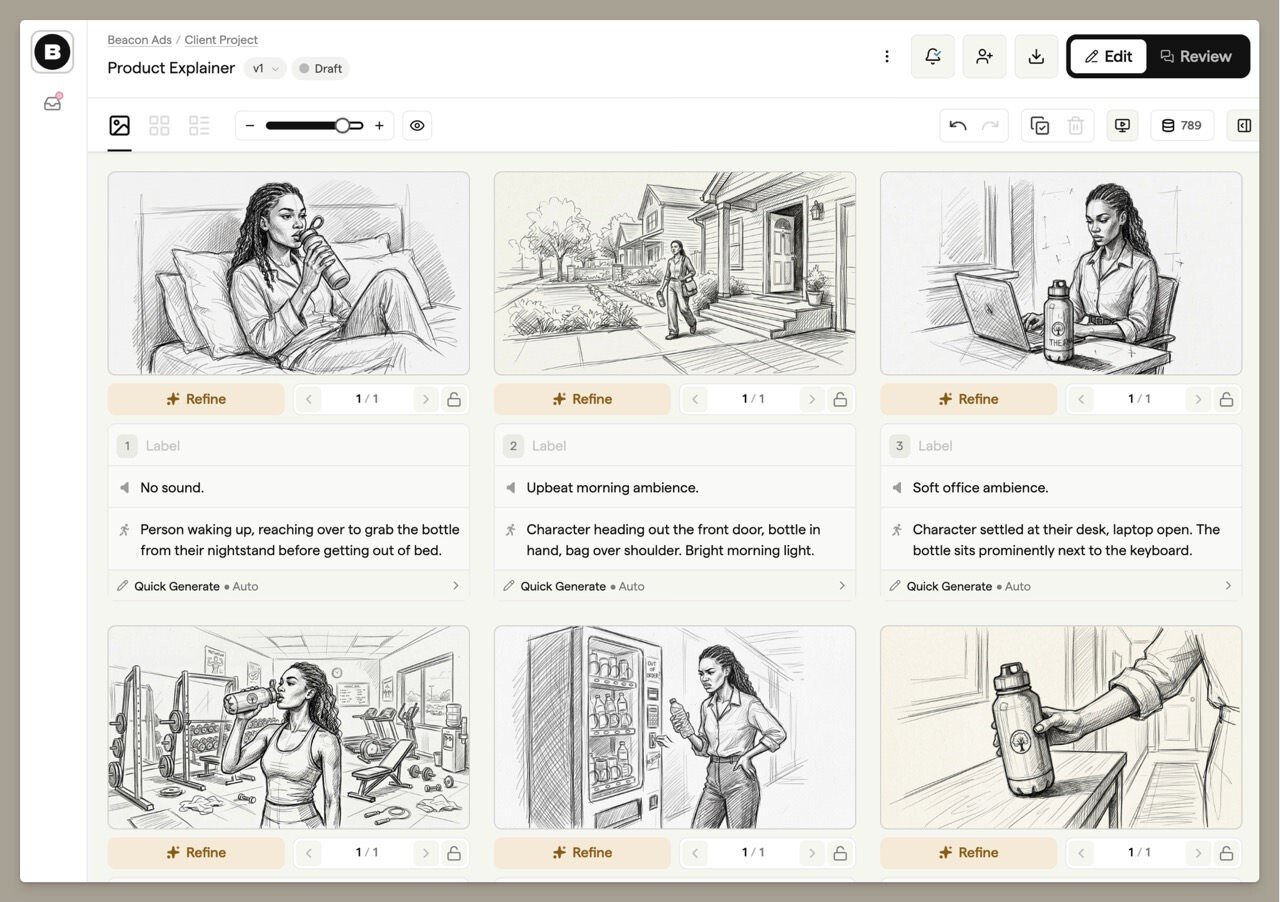
The Edit view is your workspace for building and refining your storyboard. Here you can add and arrange frames, draw or generate images, write dialogue and action descriptions, and adjust timing for your animatic.
Share view
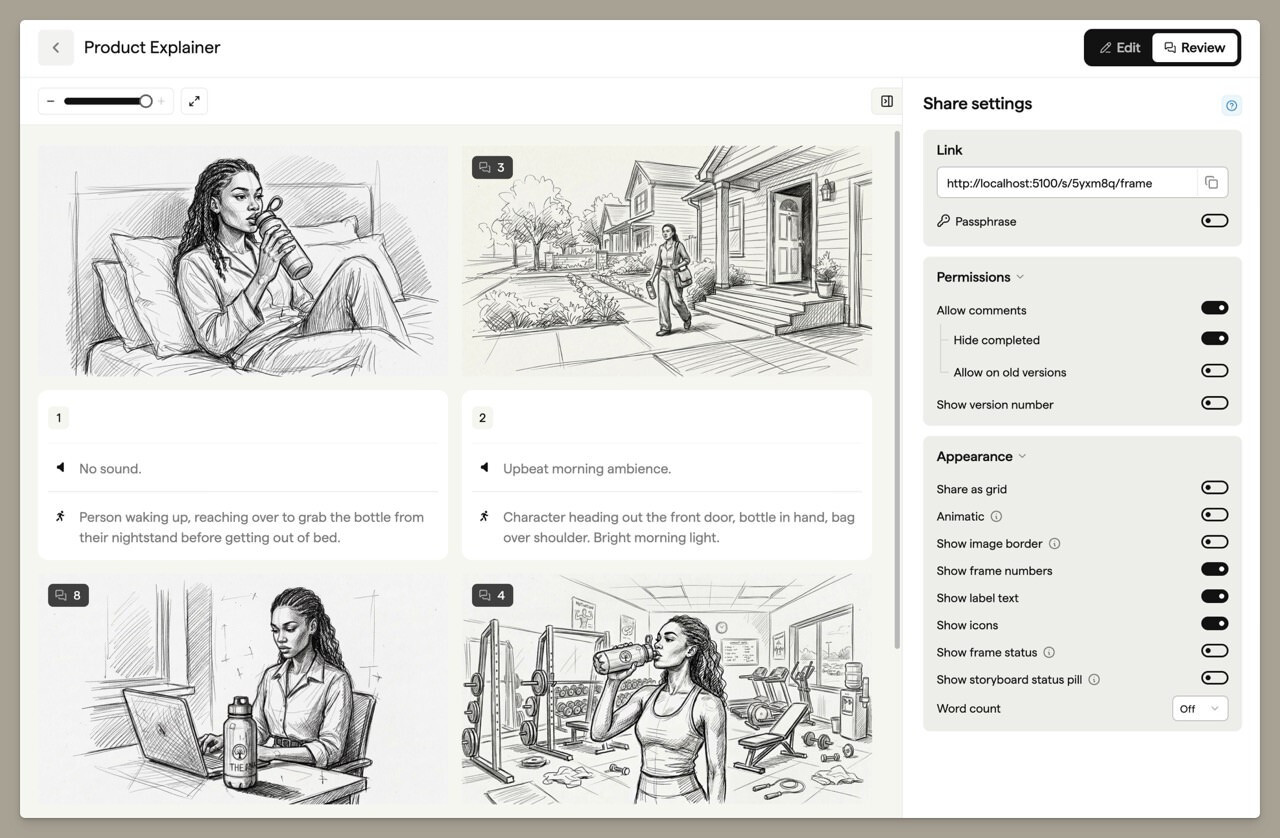
The Share view is a clean, client-ready version of your storyboard. It strips away the editing interface, making it perfect for sharing with collaborators, clients, or stakeholders. Open it with the Review option in the storyboard header's Edit / Review toggle.
You can customise what information appears in the Share view through the Share settings panel. Learn more about sharing links.
Versions
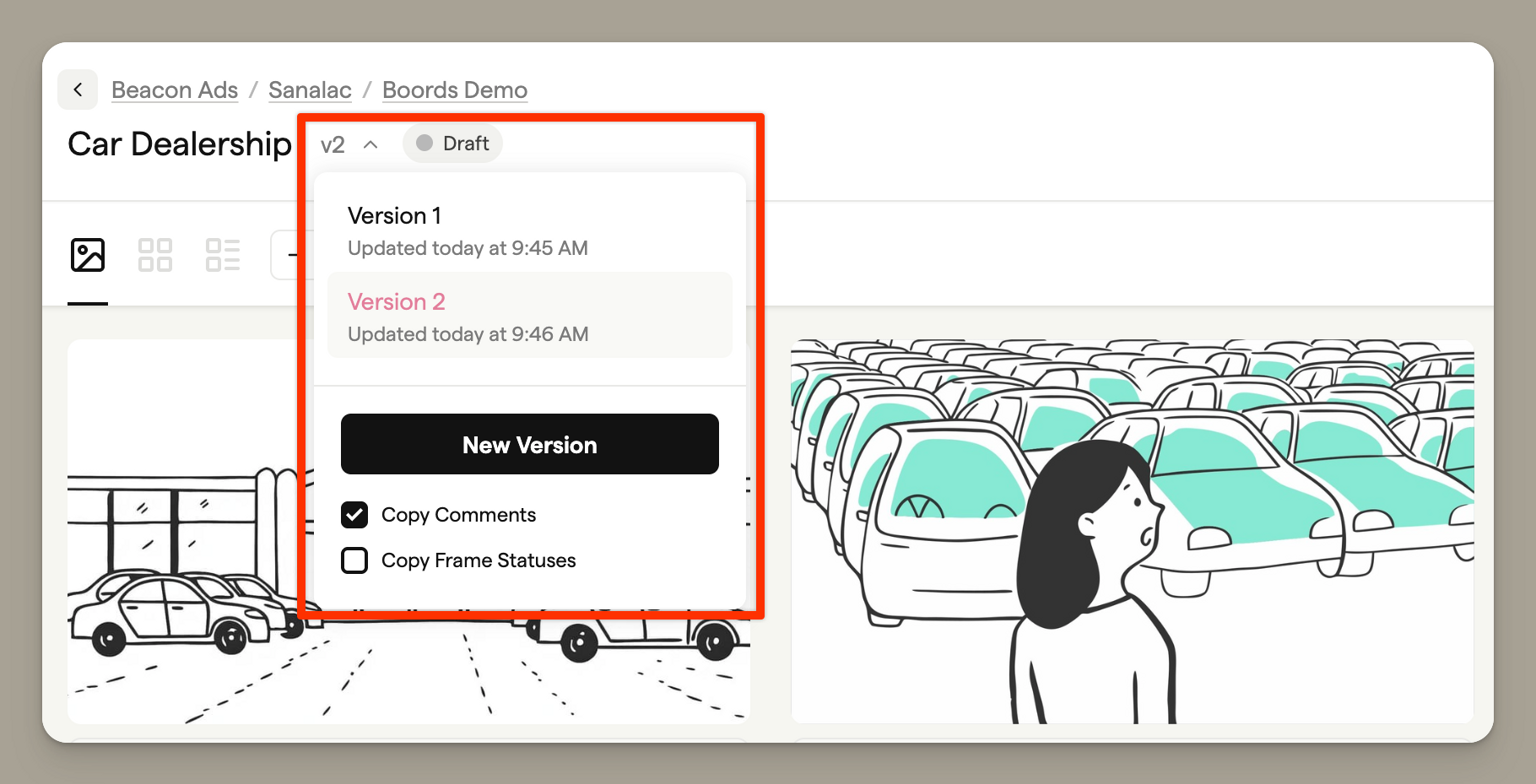
Versions let you save snapshots of your storyboard at different stages. This is useful for tracking revisions, comparing changes over time, or rolling back if needed. Each version captures the complete state of your storyboard at that moment.
Frames
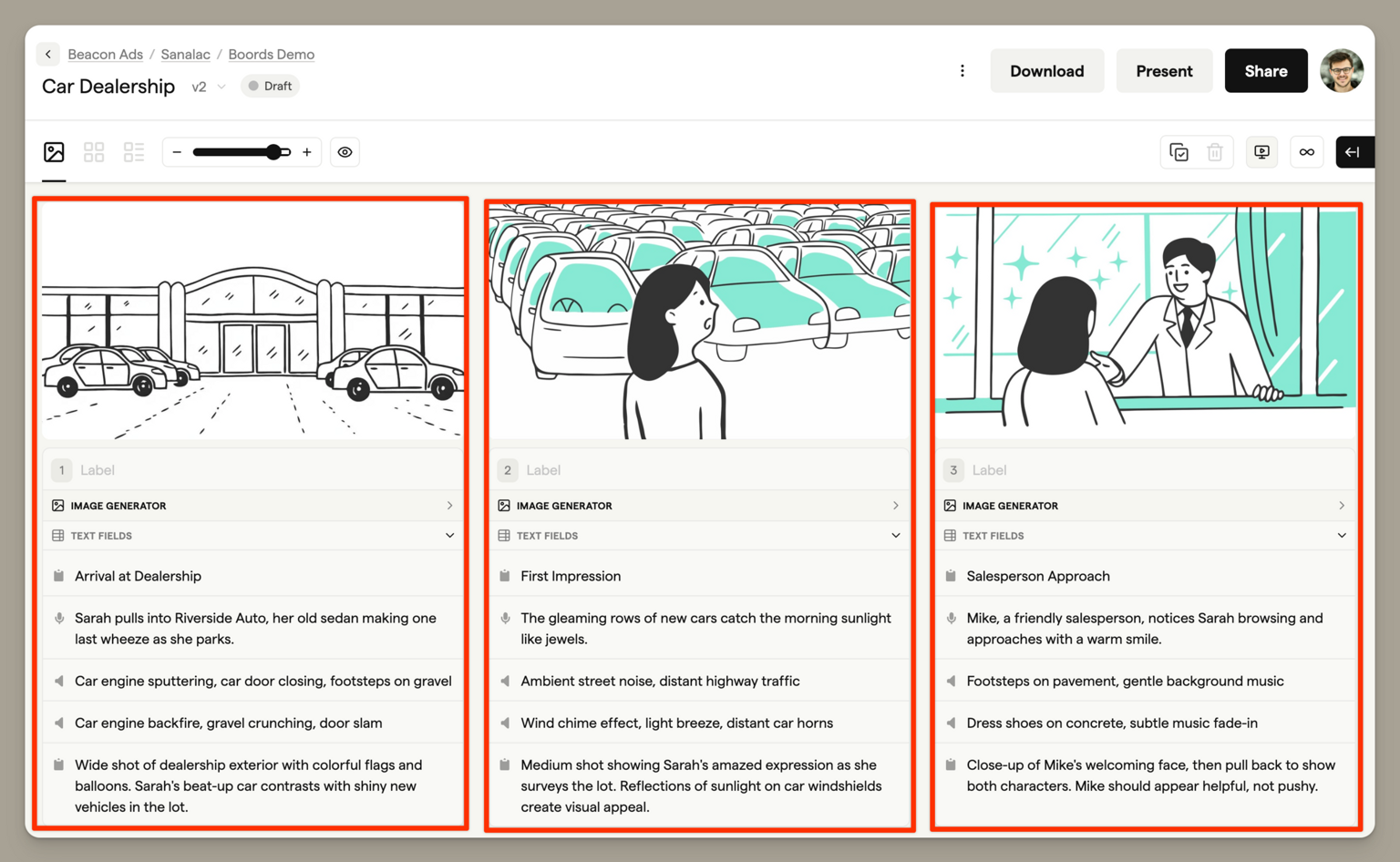
Frames are the individual panels that make up your storyboard. Each frame typically represents a single shot, scene, or moment in your story.
A frame can contain an image (drawn, generated, or uploaded), plus text fields for dialogue, action, notes, and other information. You can customise which fields appear on your frames to match your workflow.
Image Generator
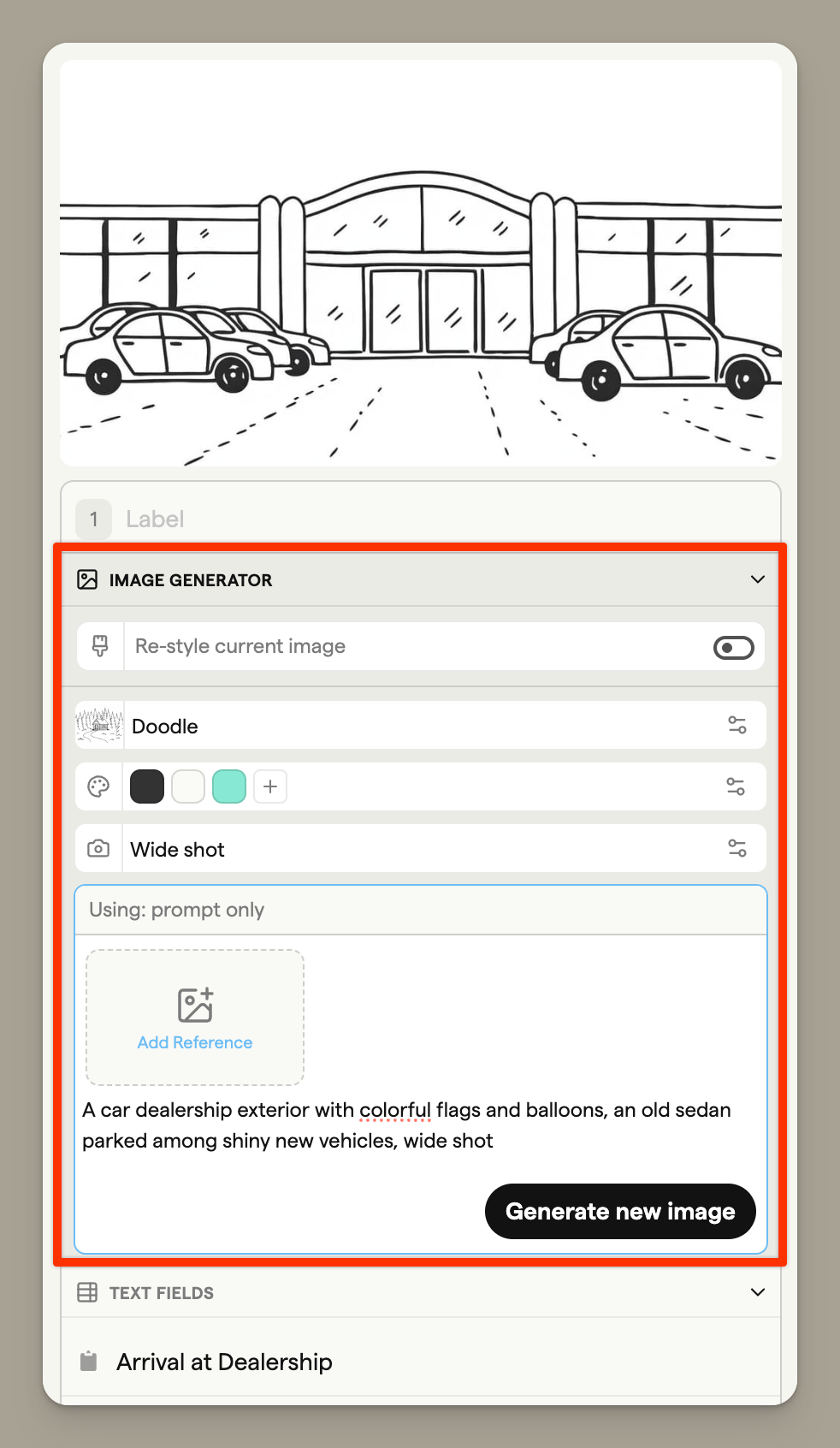
The Image Generator uses AI to create images from text descriptions. Simply describe what you want to see in your frame, and Boords will generate an image for you. This is a fast way to visualise ideas and iterate on concepts before committing to detailed artwork.
Learn how to generate images for your storyboards.
Frame fields
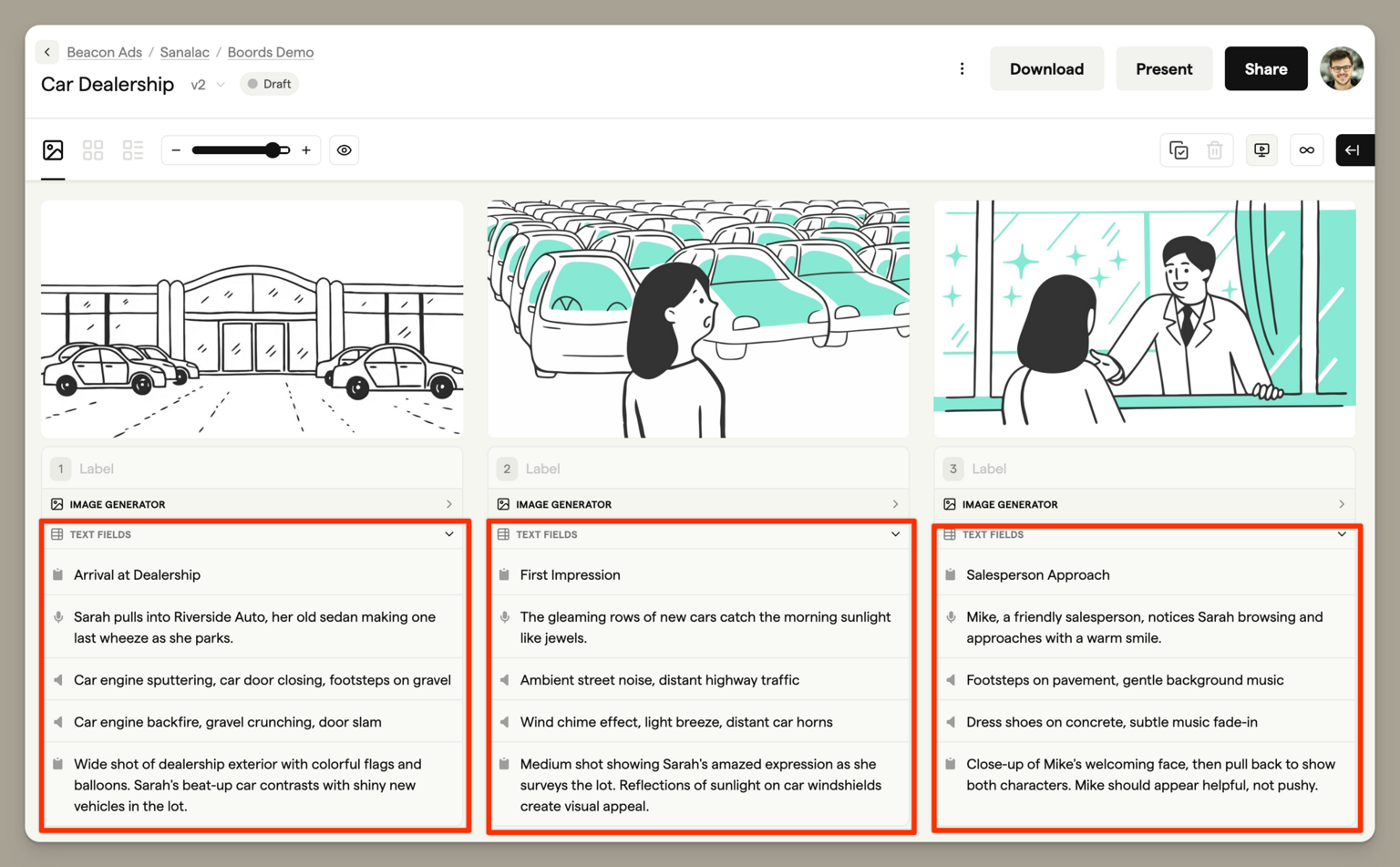
Frame fields are the text areas that accompany each frame image. By default, these include dialogue and action, but you can add custom fields to capture any information your workflow requires — camera directions, sound effects, timing notes, or anything else.
Frame Editor
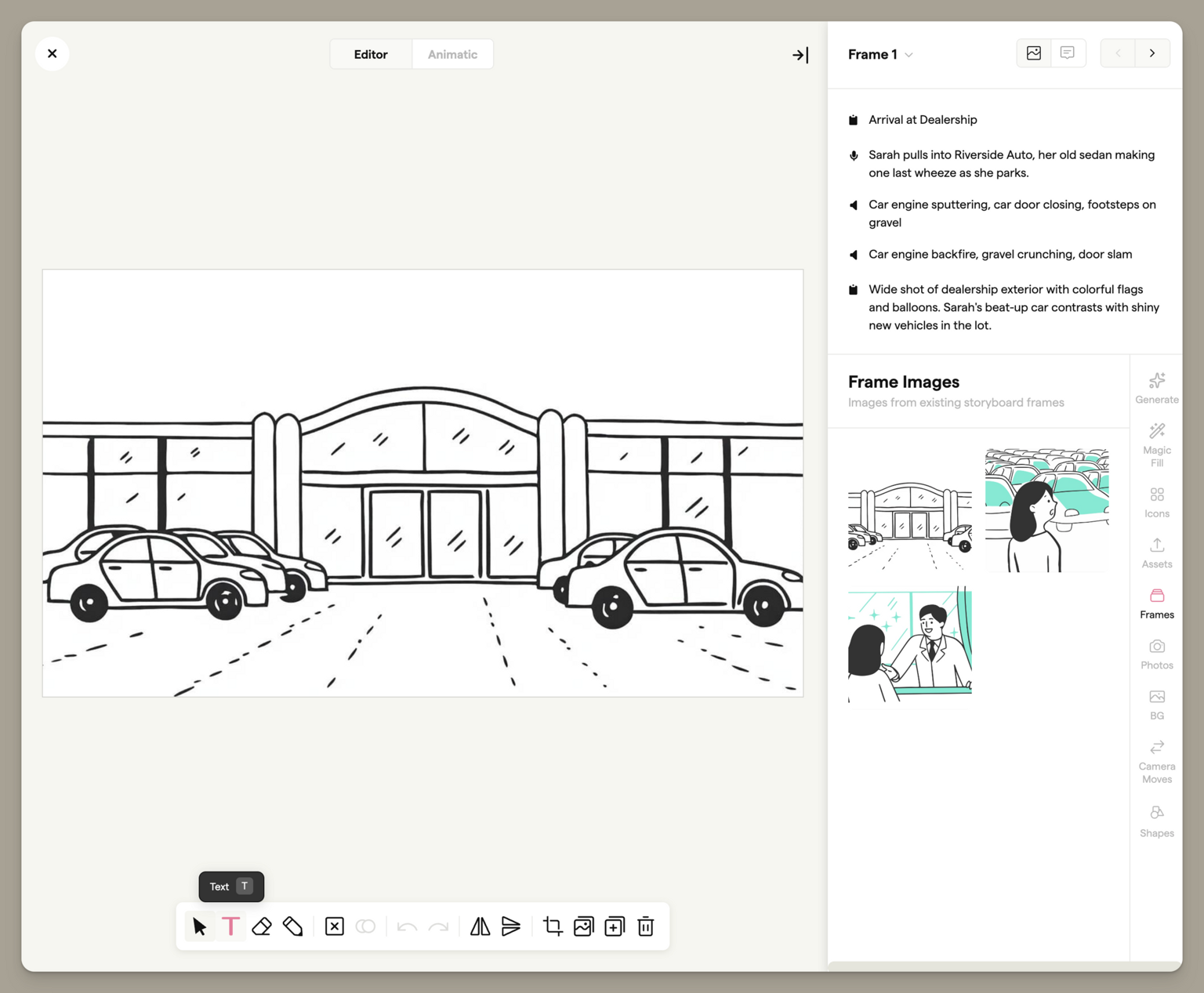
The Frame Editor is a built-in drawing tool for creating and editing frame images. You can draw freehand, add shapes and text, work with layers, and use various brushes and effects. It's designed for quick sketching and visual communication rather than final artwork.
Learn more about the frame editor.
Scripts
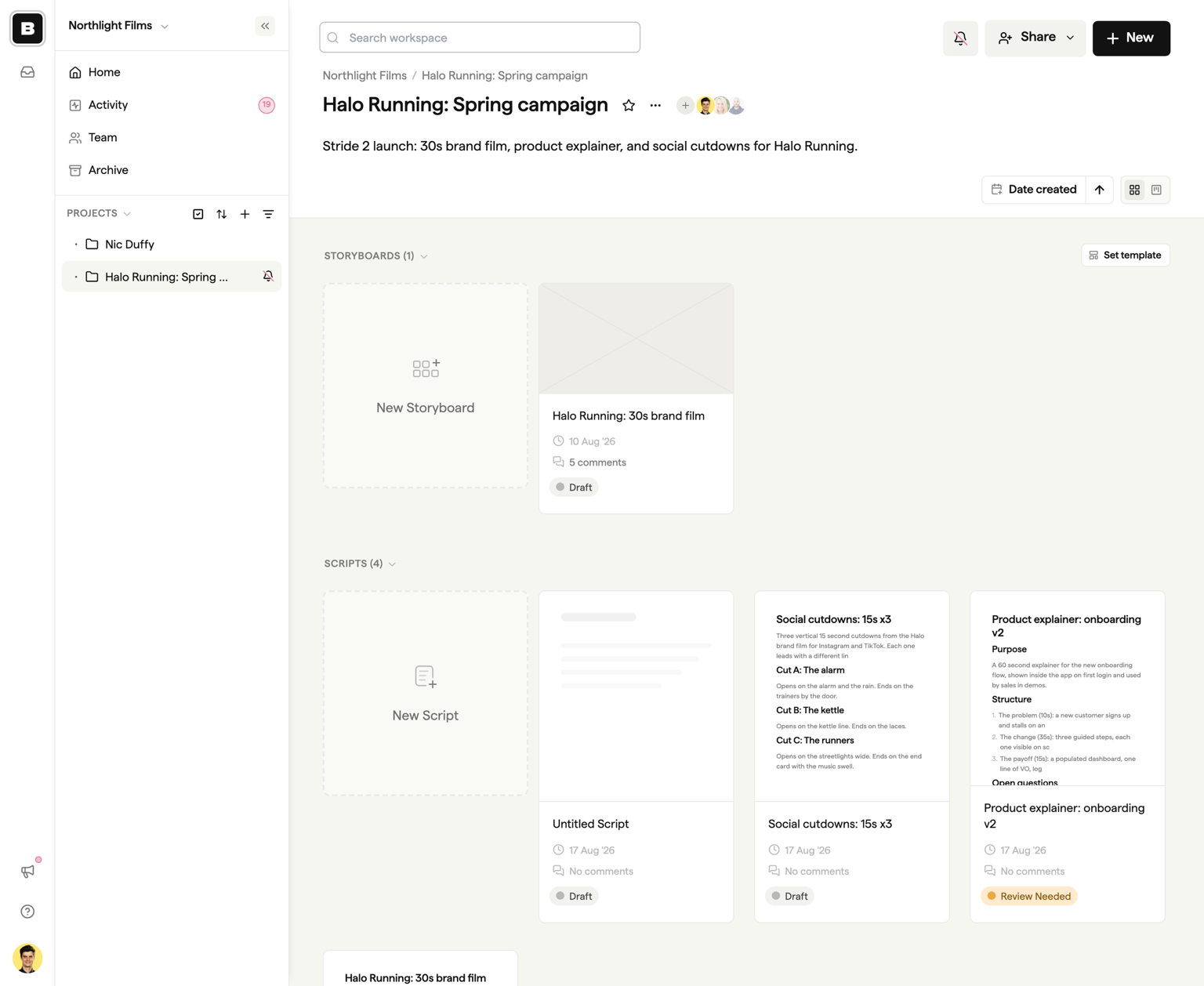
A script is a rich-text document for the writing stage of a video, before there is anything to board. Scripts live inside a project alongside its storyboards, and the project dashboard shows a Scripts section below Storyboards.
Like storyboards, scripts have versions, so each round of feedback can be kept as its own draft with its own status. Comments on a script are anchored to the exact lines of text, and each script has a review link that clients can open without an account. When the script is approved, you can turn it into a storyboard in the same project.
Learn more in the Scripts overview.
Animatic
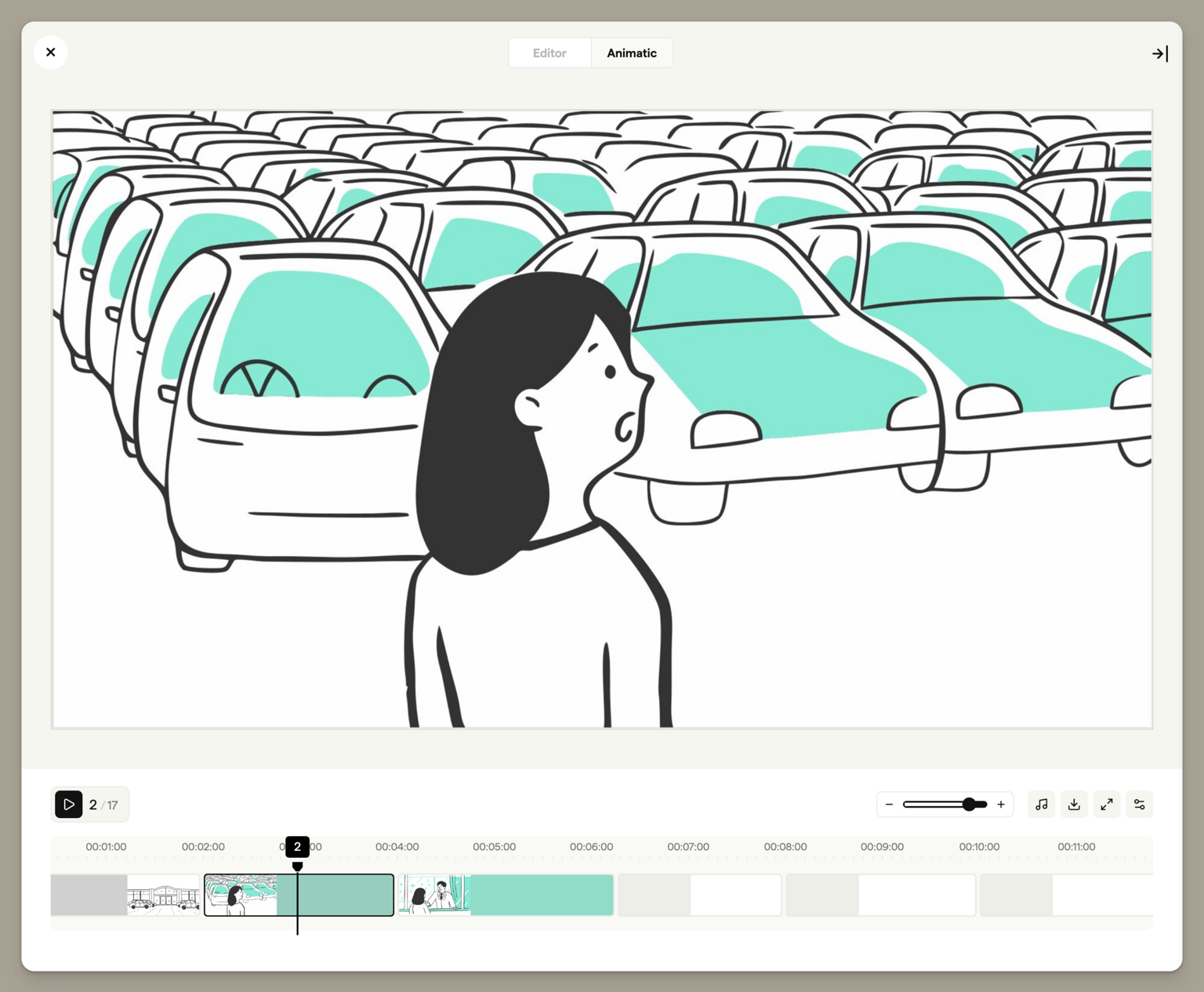
An animatic is a video version of your storyboard. It shows each frame for a set duration, giving you a sense of pacing and timing before you move into production.
You can adjust how long each frame appears, add an audio track, and export the result as an MP4 video. This helps you spot timing issues and communicate your vision to others in a dynamic format.