
Adding your own images
Upload your own artwork
There are several ways to add your own images to a storyboard in Boords, whether you're uploading in bulk, replacing a single frame, or building a reusable Asset Library for your team.
Uploading multiple images
When you have a set of images ready to turn into a storyboard, you can upload them all at once.
From a blank storyboard
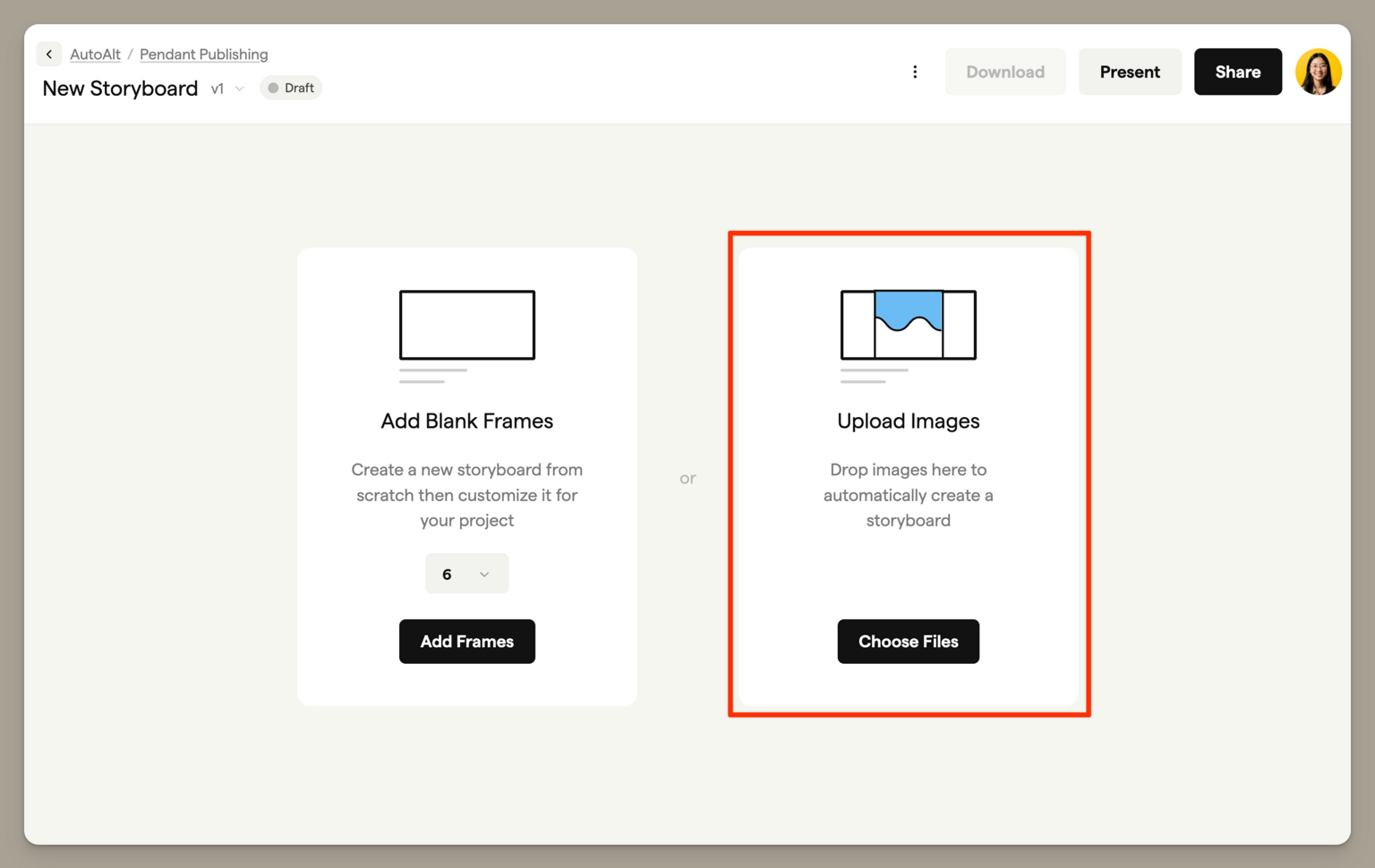
When you open an empty storyboard, click Add Images to see your upload options. Select Upload images to choose multiple files from your computer — Boords will create a new frame for each image.
Drag and drop to the canvas
You can also drag multiple images from your computer directly onto the storyboard canvas. Each image becomes a new frame, added in the order you selected them.
Replacing a frame image
To change the image on an existing frame:
Drag and drop onto a frame
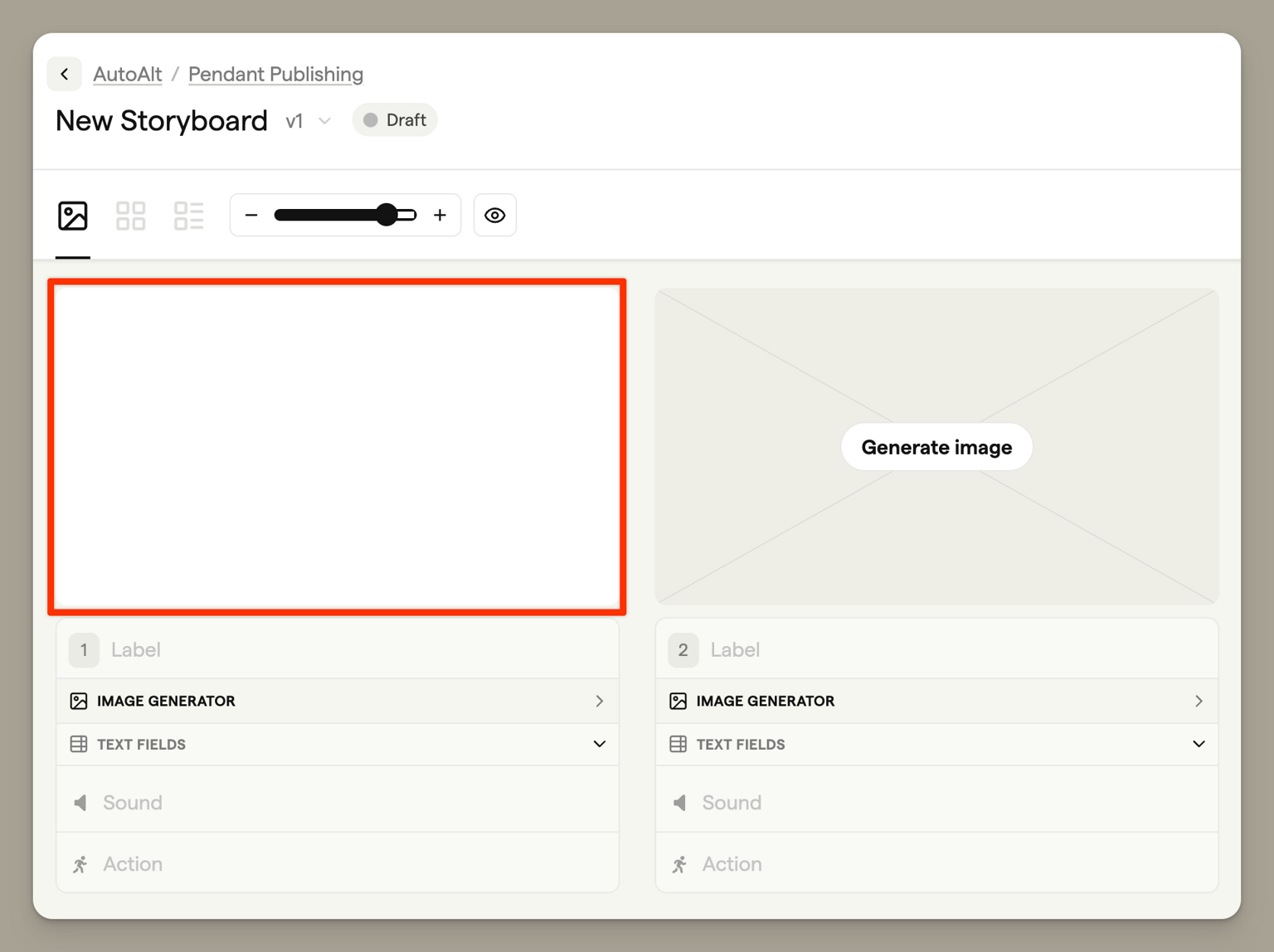
The quickest method — simply drag an image file from your computer onto any frame to replace its current image.
Using the frame menu
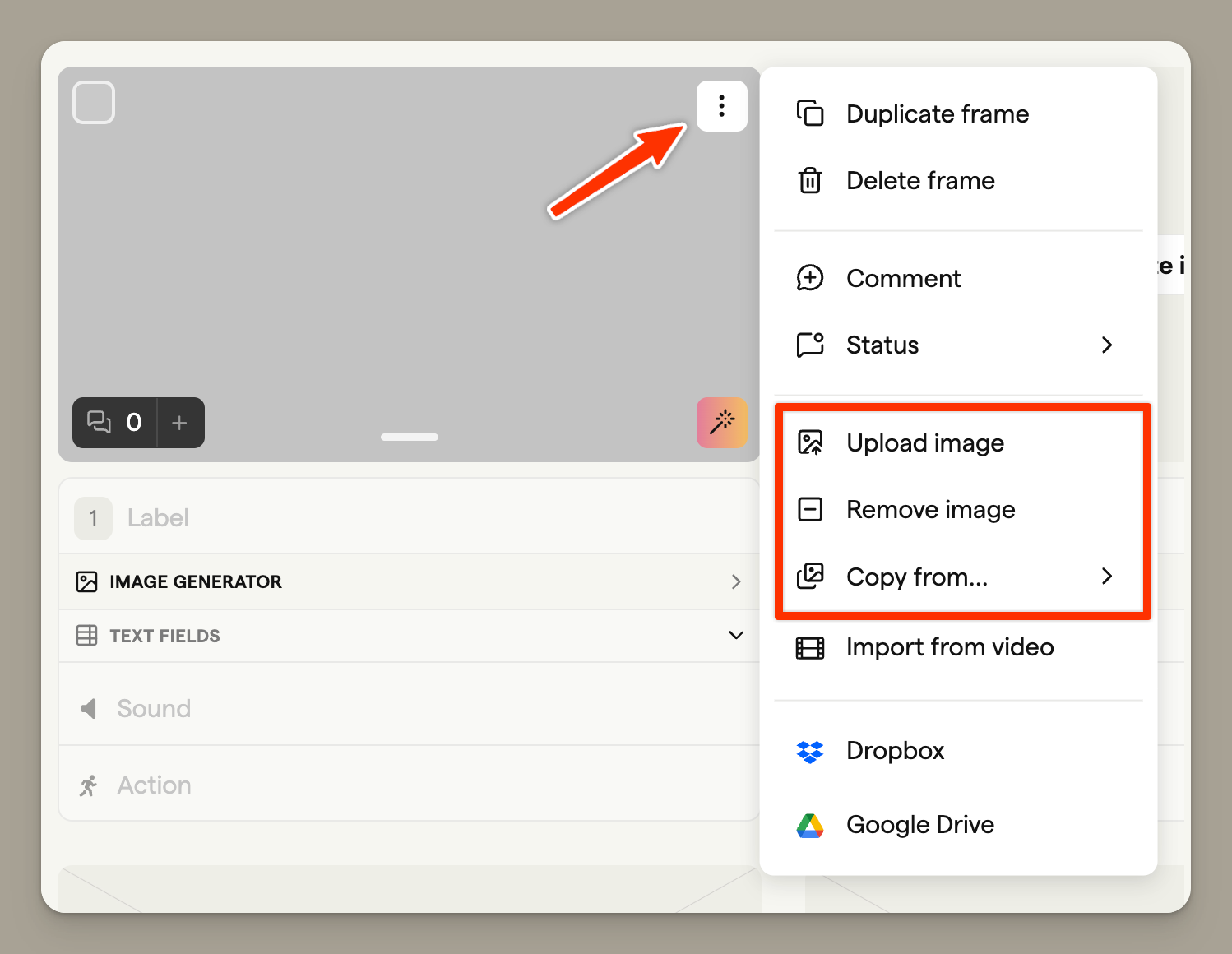
Hover over a frame and click the three-dot menu (⋮) in the top-right corner. From here you can:
- Upload image — Choose a new image from your computer
- Remove image — Clear the frame image entirely
- Copy from... — Reuse an image from another frame in the storyboard
Cloud storage integrations
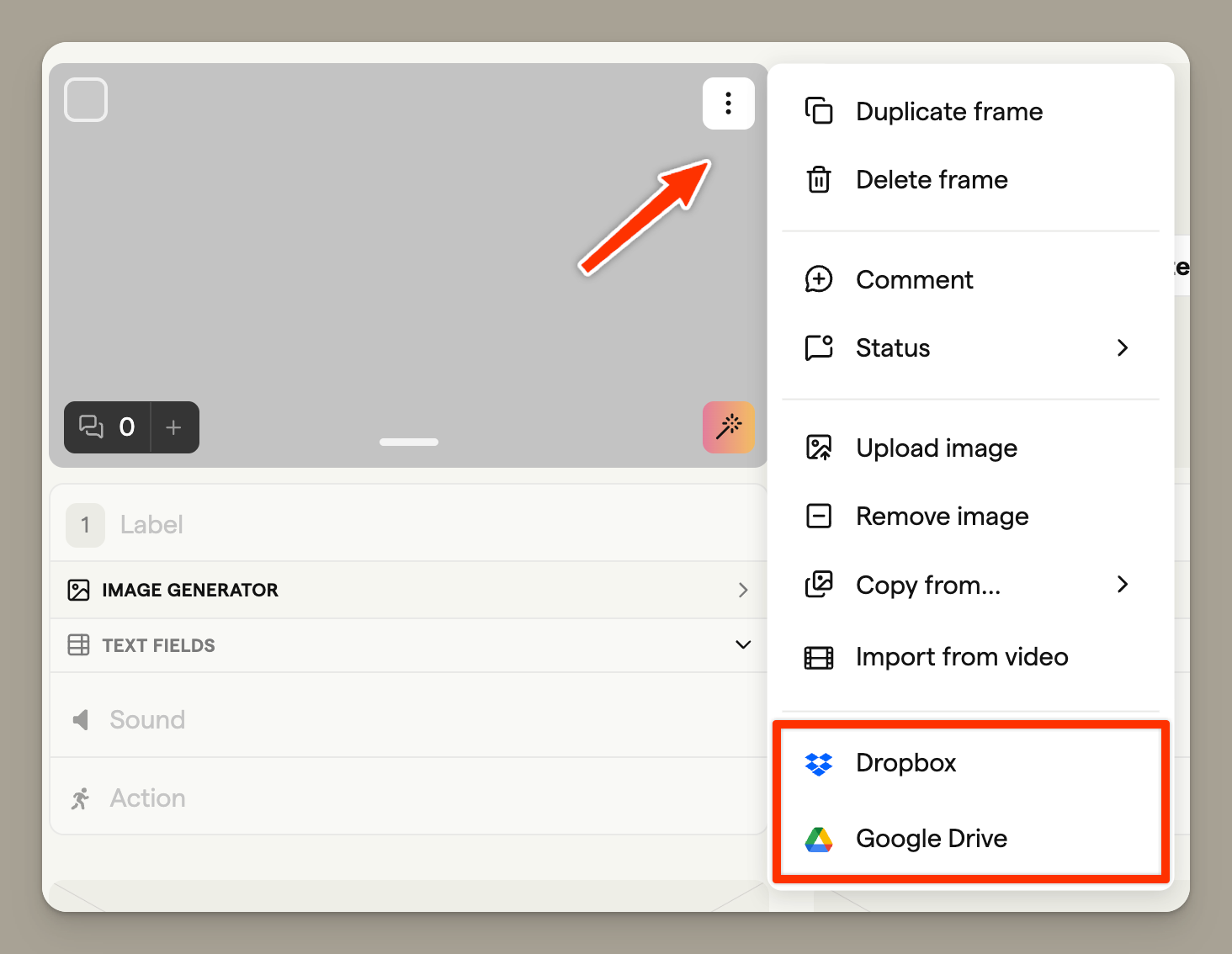
You can also import images directly from cloud storage:
- Dropbox — Select images from your Dropbox account
- Google Drive — Import from Google Drive
Navigating folders in Google Drive
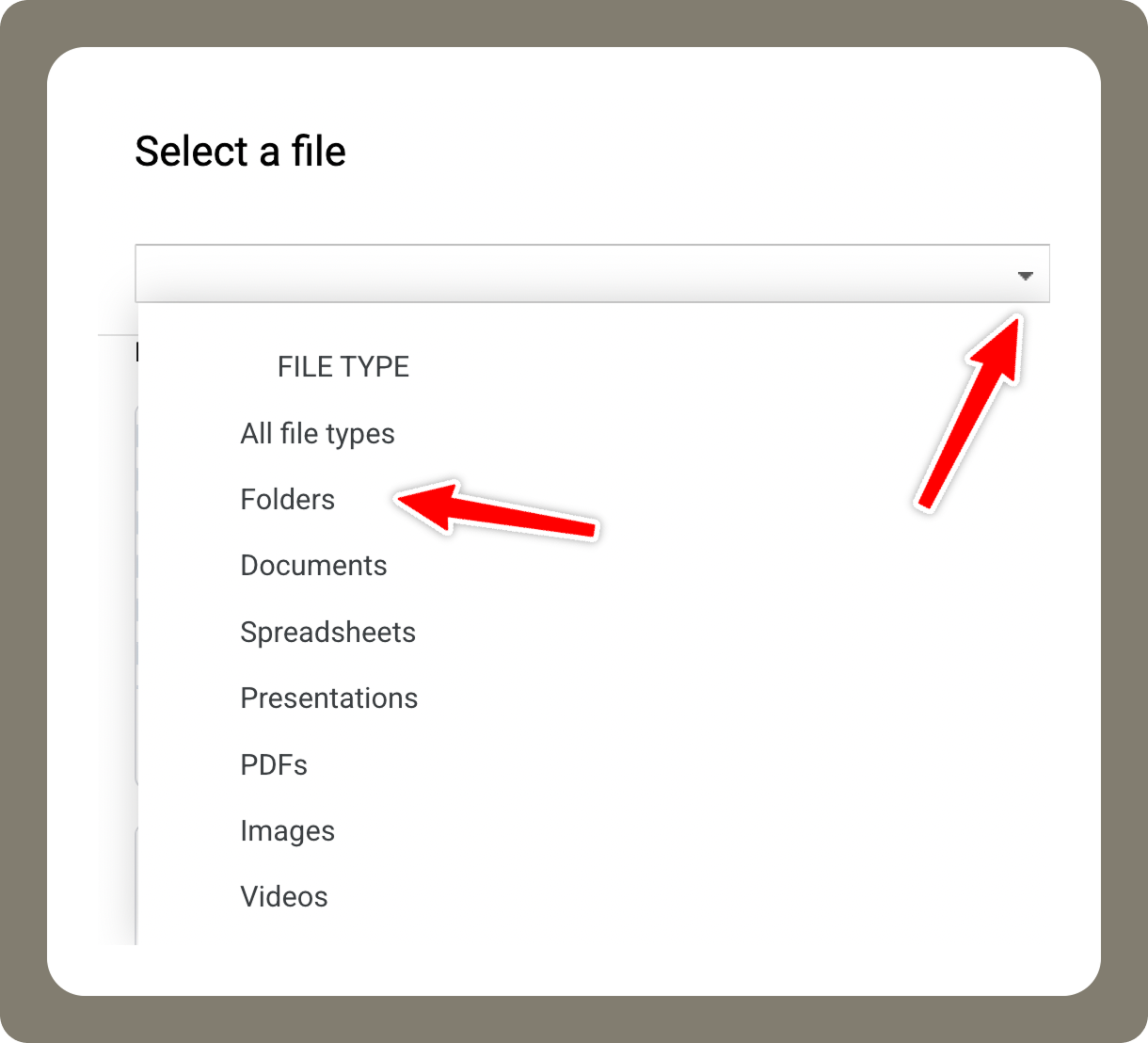
The Google Drive file picker requires a few extra steps to browse folder contents.
- Open the Advanced search options dropdown and select Folders to display your folders
-
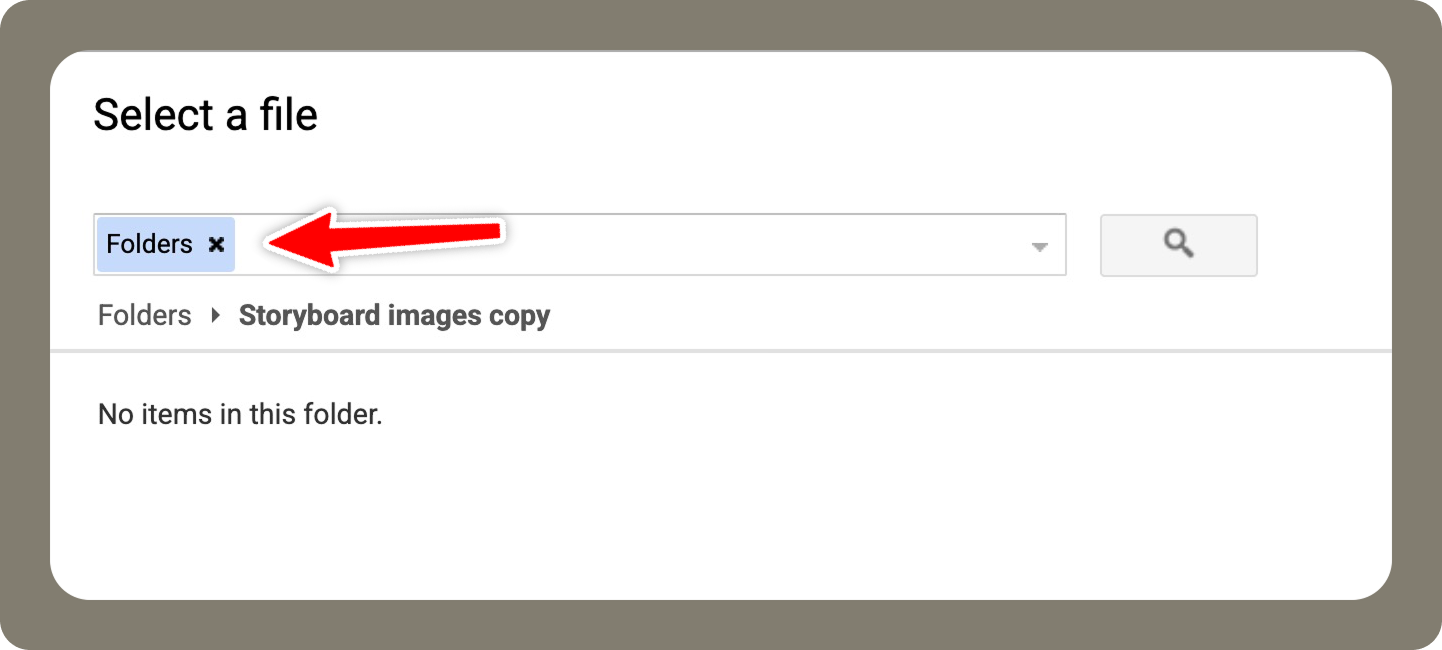
Double-click the folder you want to open
-
Remove the Folders filter from the search bar. Your images within the folder will then appear and can be uploaded to the storyboard
Using the Image Library
The Image Library tab in the storyboard sidebar holds images you can drop onto frames without re-uploading. It has two sections:
- Project assets: images uploaded to this project only.
- Saved Assets: your team's Asset Library, organised in the folders your team has set up. These are available in every project.
Adding images to the library
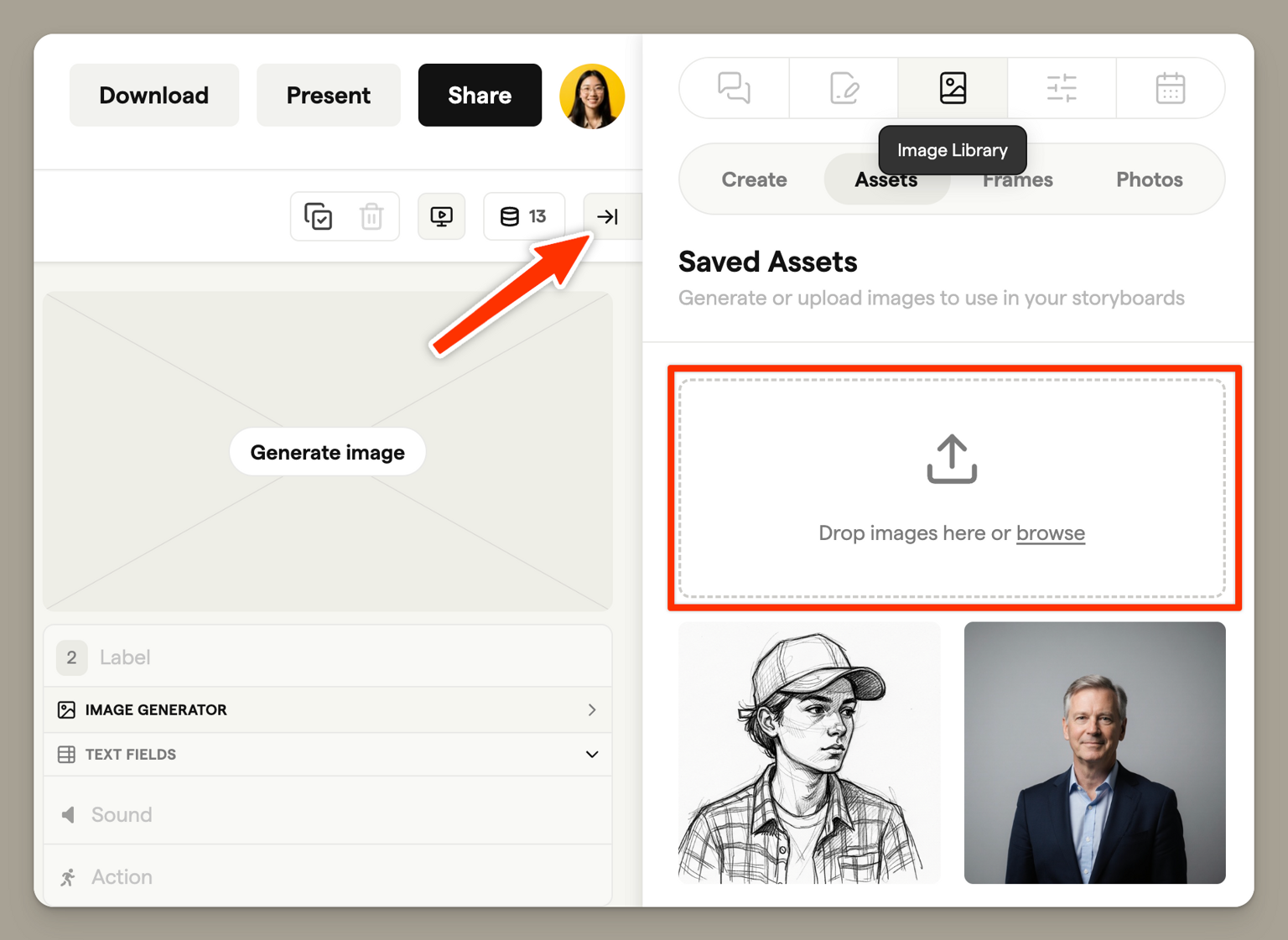
- Open the Image Library tab in the right sidebar
- Drag images into the upload area, or click browse to select files
- Your images are saved to the project under Project assets
To make a project image available to the whole team, open its menu and choose Add to Asset Library. It moves to the team library's Unfiled folder. See Asset Library for folders, renaming and permissions.
Applying library images to frames
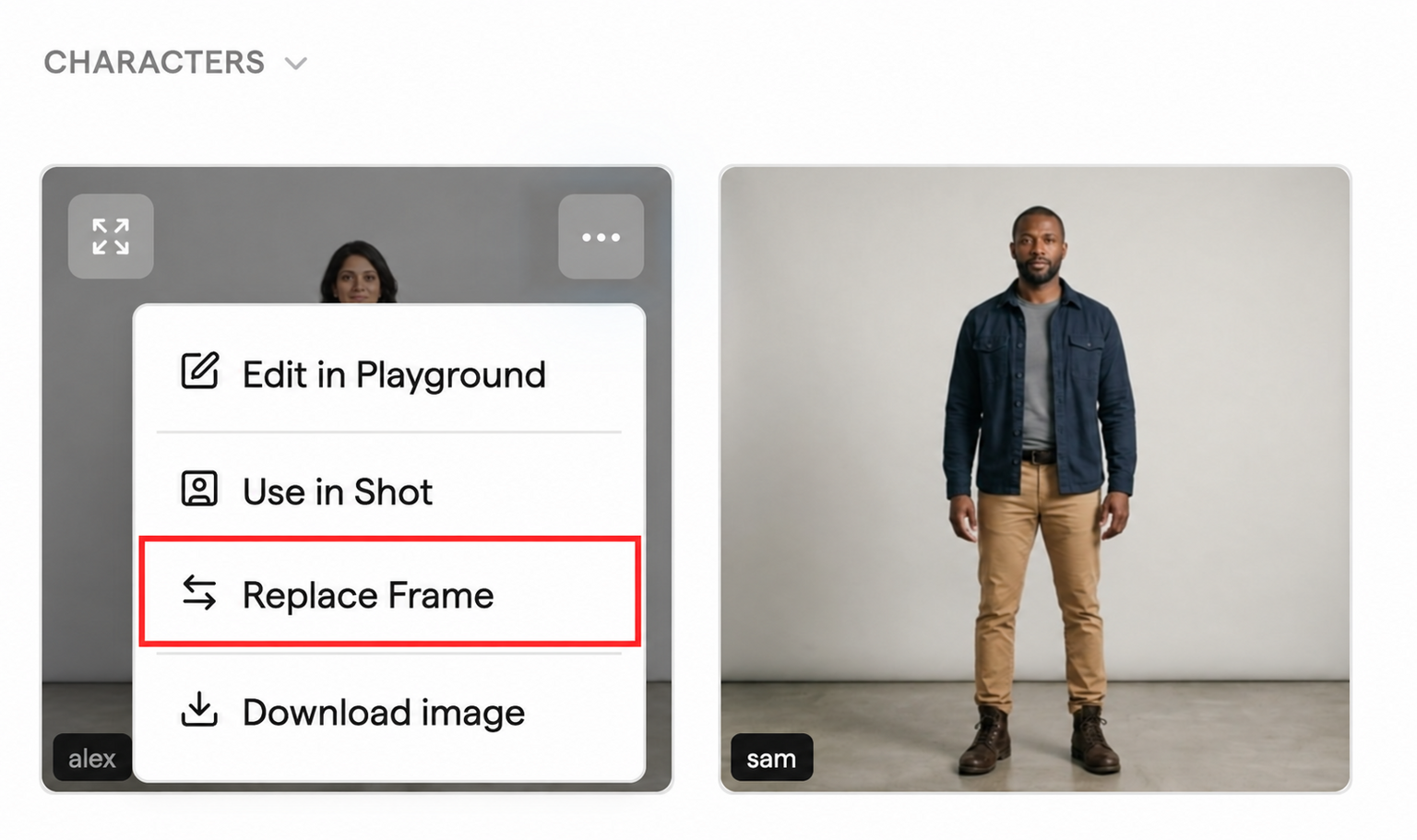
Open the image's three-dot menu and choose Replace Frame, then select the frame you want to update. You can also drag an image from either section directly onto a frame.
Move reusable images into the team Asset Library to select them by name with
@in AI prompts. Learn more in Using @mentions and Playground.
Video to GIF
You can extract animated GIFs from video files to use in your storyboard. GIFs can be up to 5 seconds in length.
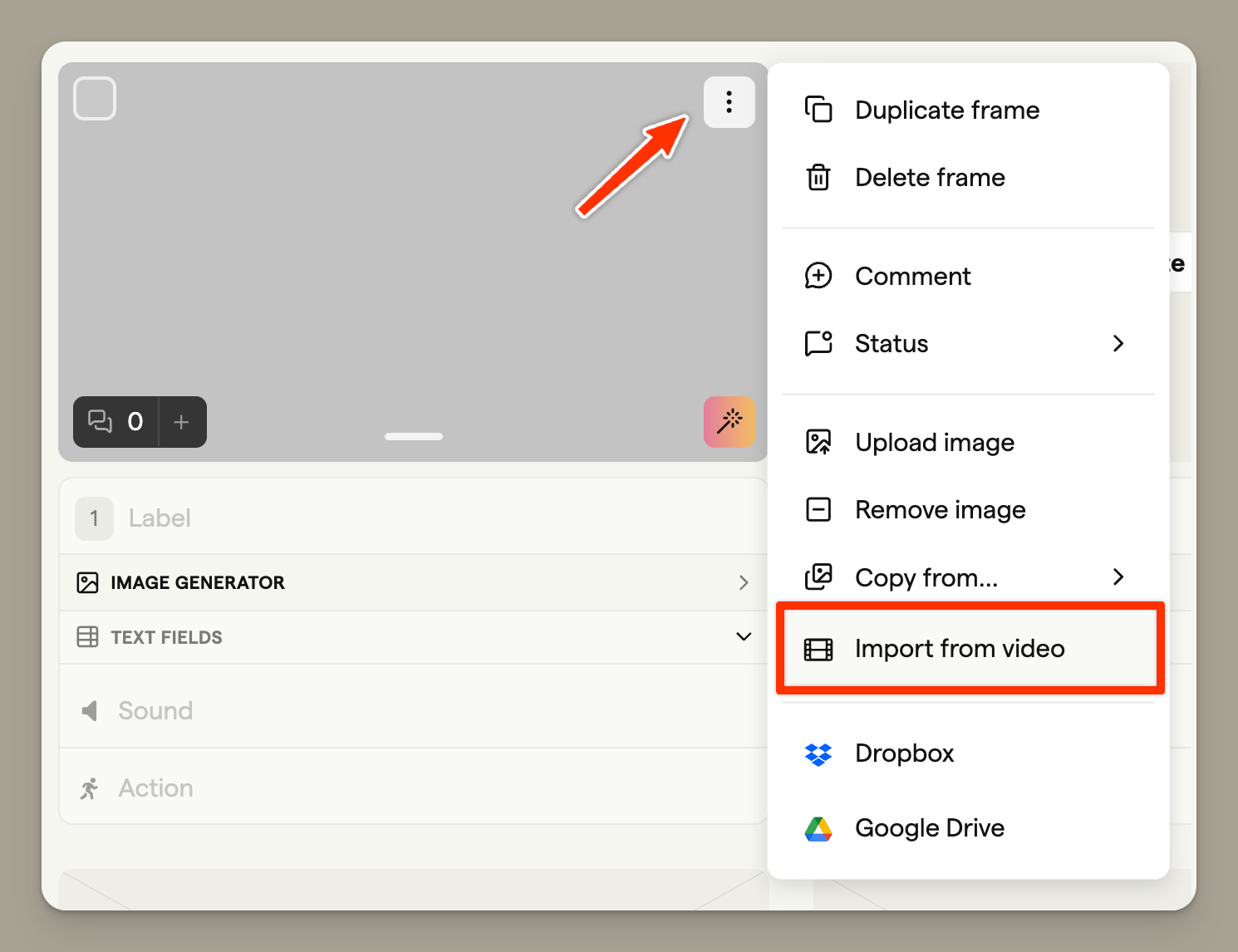
- Open the frame menu and select Import from video
- Drop a video file into the dialog, or click to browse
- Use the trimmer to select which portion of the video to capture
- Click Trim to generate a preview
- Click Upload to add the frame to your storyboard
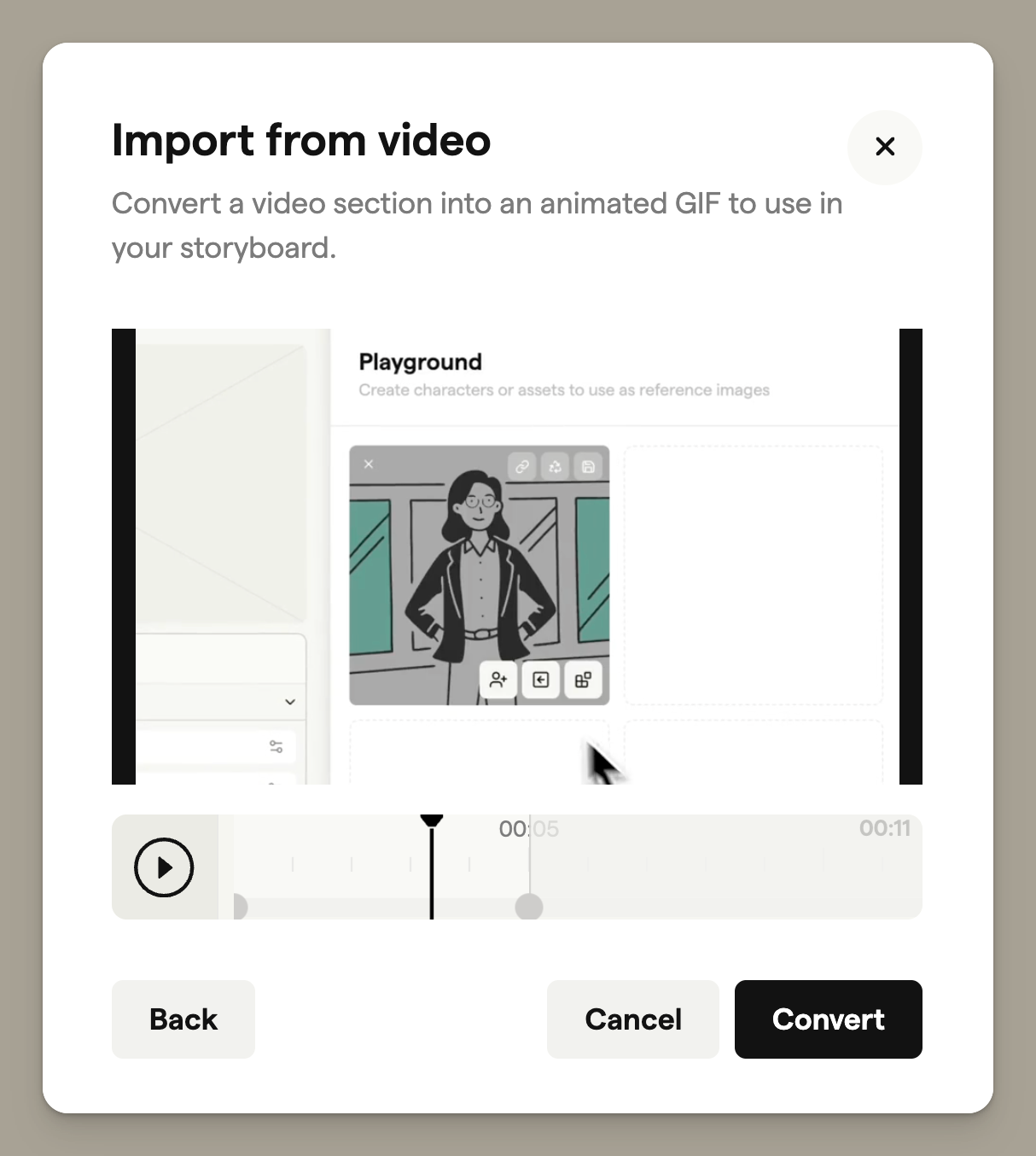
The video import tool converts your selected clip into an animated GIF, which displays in your frame. This is perfect for capturing motion or showing brief action sequences.
Supported file formats
Boords accepts JPG and PNG image files. For video import, most common video formats are supported including MP4, MOV, and WebM.
For best results, use images that match your storyboard's aspect ratio to avoid cropping.