
Storyboard views
Switch between storyboard, script, and frame views
Boords lets you view and work with your storyboard in different ways. Each view helps you focus on a specific task, whether you’re reviewing a storyboard, editing frames, editing frame text in bulk, or sharing your work.
Global view
The global view gives you a big-picture overview of your storyboard. This is the first view you’ll see when opening a storyboard.
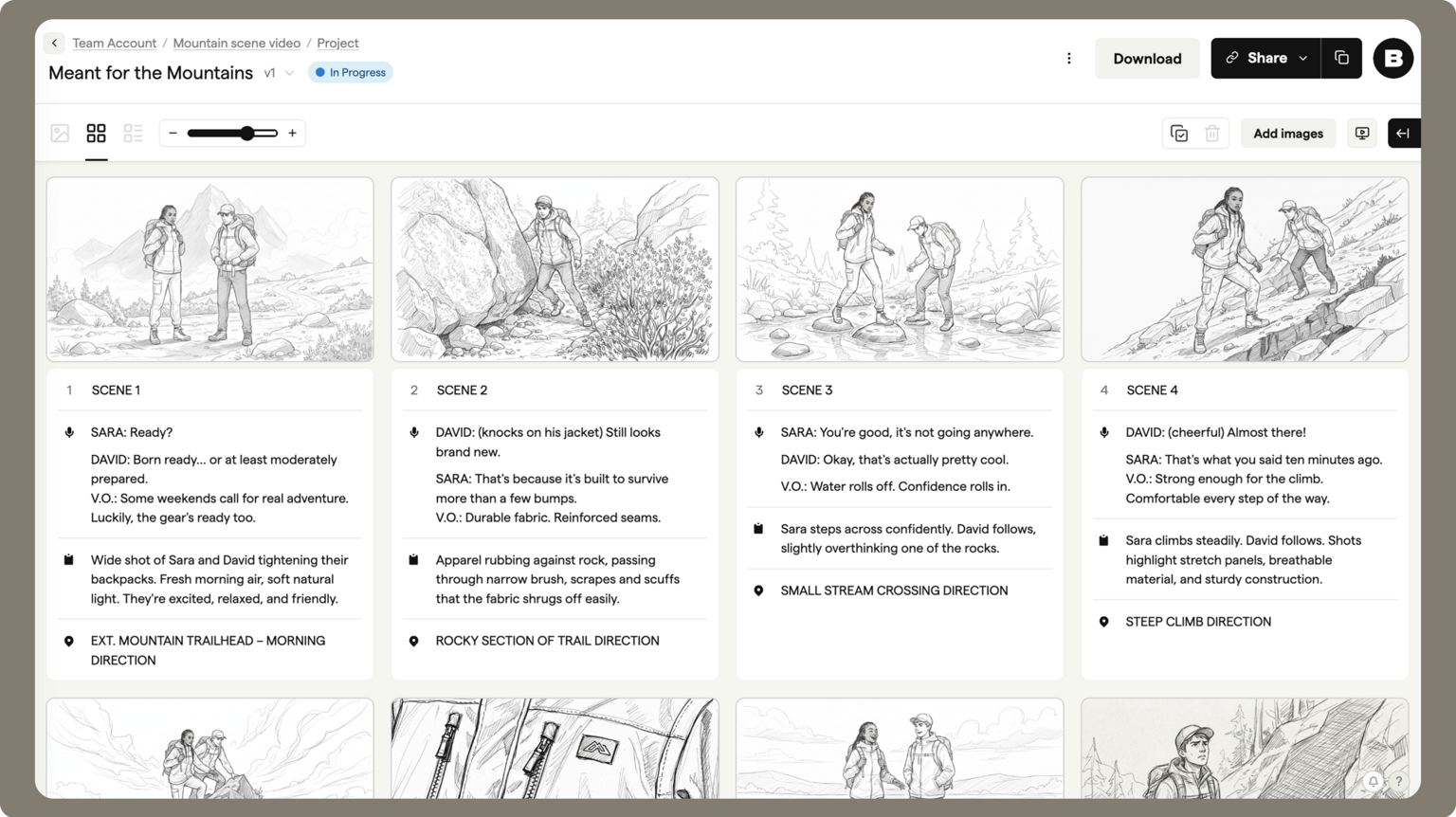
From the global view, you can:
- Zoom in and out to make frames appear larger or smaller
- Scan the full storyboard
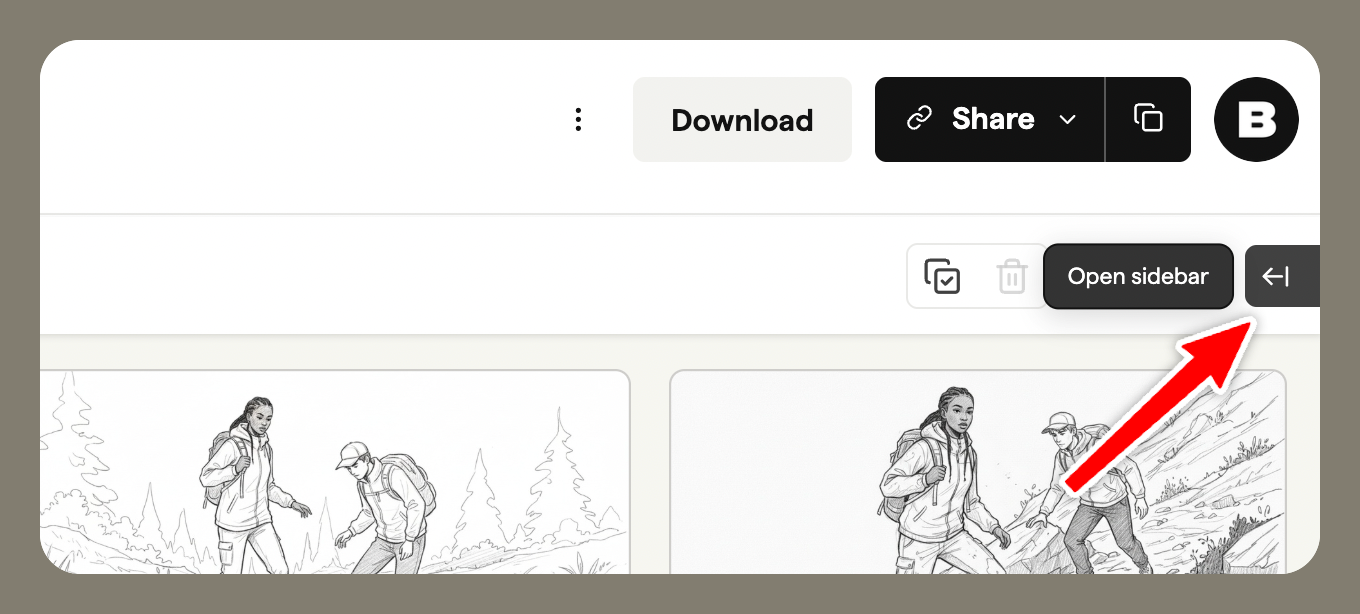
- Open the sidebar to access comments, the storyboard script view, image library, note settings, and the activity log
- Download your storyboard as a PDF or other formats
- Open the animatic player
Storyboard edit views
The storyboard edit views let you focus on specific parts of your storyboard.
Generator view (AI image generator)
The generator view is for generating or editing AI-generated images for your frames.
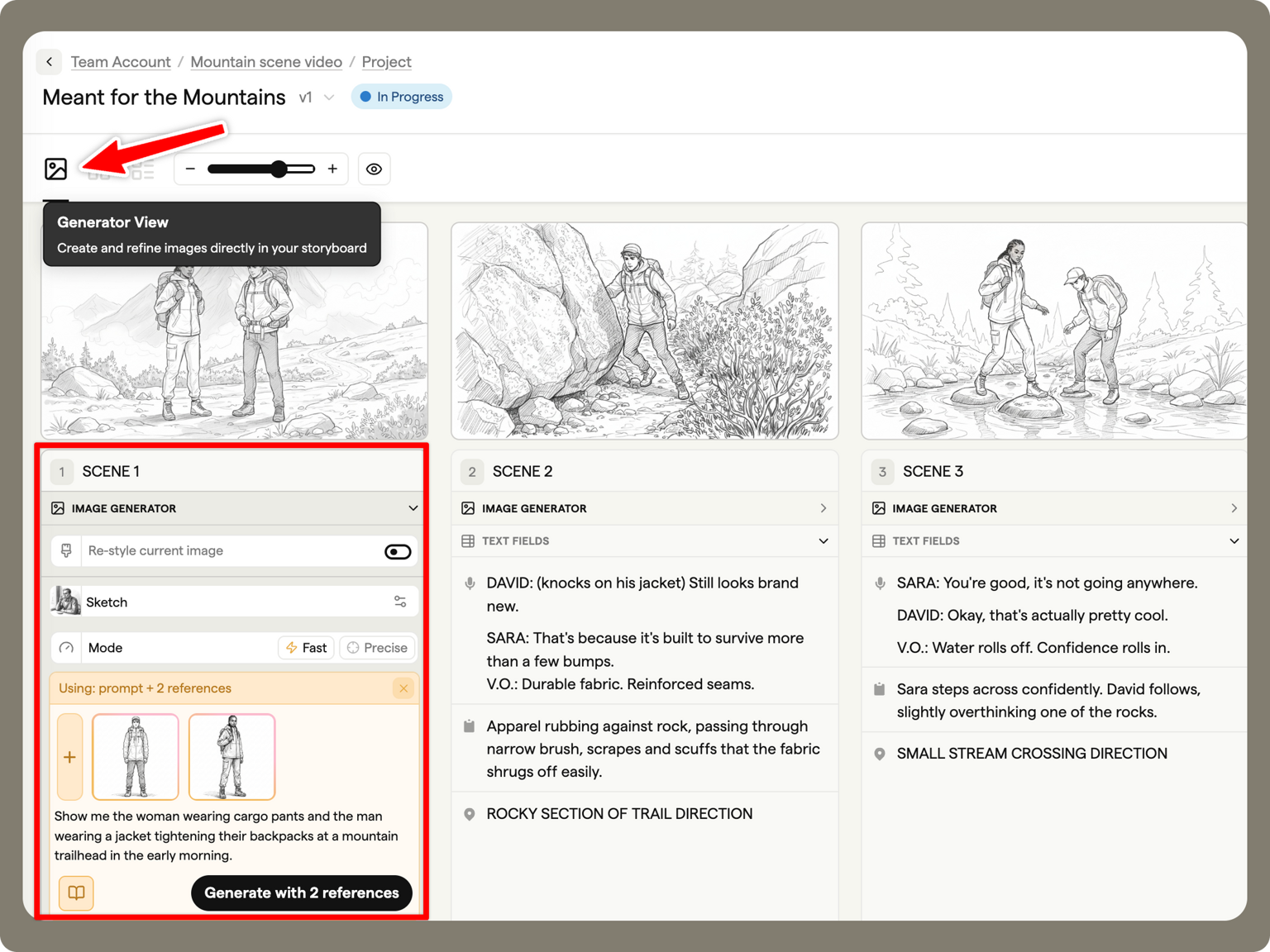
Best for: Quickly visualizing ideas or iterating on visuals using AI.
Grid view
The grid view shows all frames in a classic grid layout.
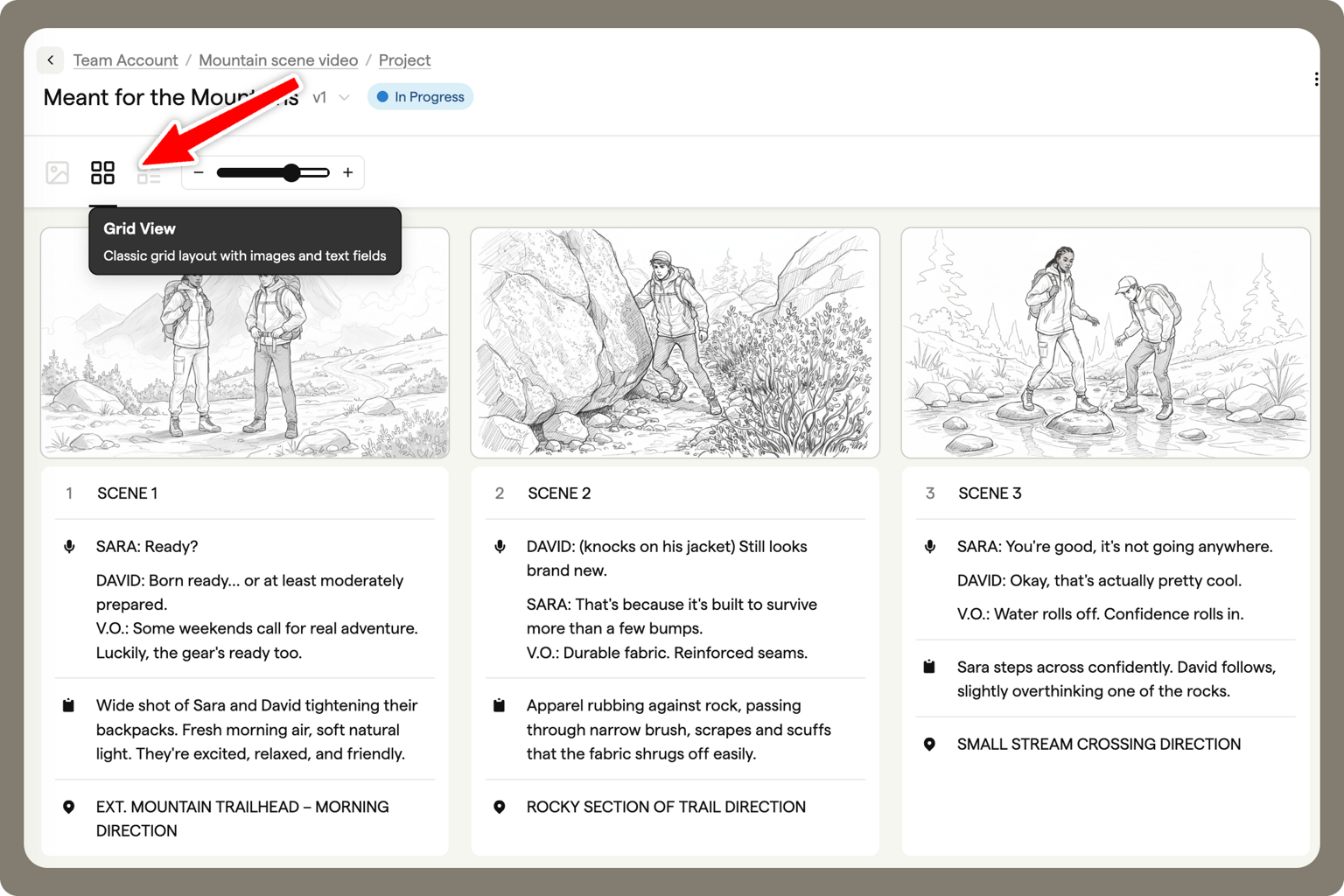
Best for: Reviewing shot order, rearranging frames, and making edits across multiple frames.
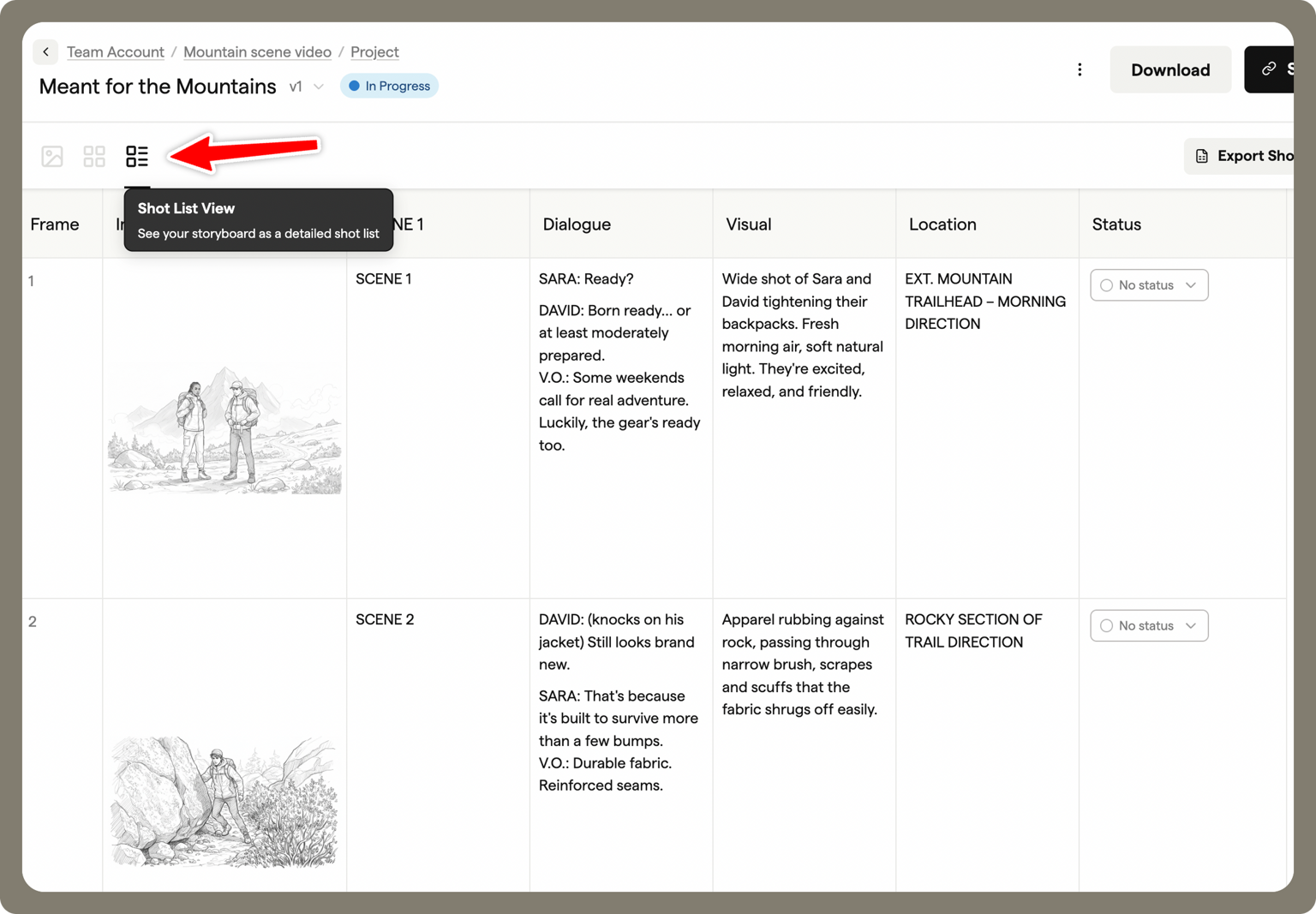
Shot list view
The shot list view presents your storyboard as a structured shot list.
Storyboard script view
The storyboard script view can be accessed from the sidebar in the global view.
This is a view of your storyboard's frame text, laid out like a script so it is quick to edit. It is not a Script document. Scripts are separate, shareable rich-text documents that live in your project alongside storyboards; see the Scripts overview.
It lets you quickly view and edit the text notes for your storyboard.
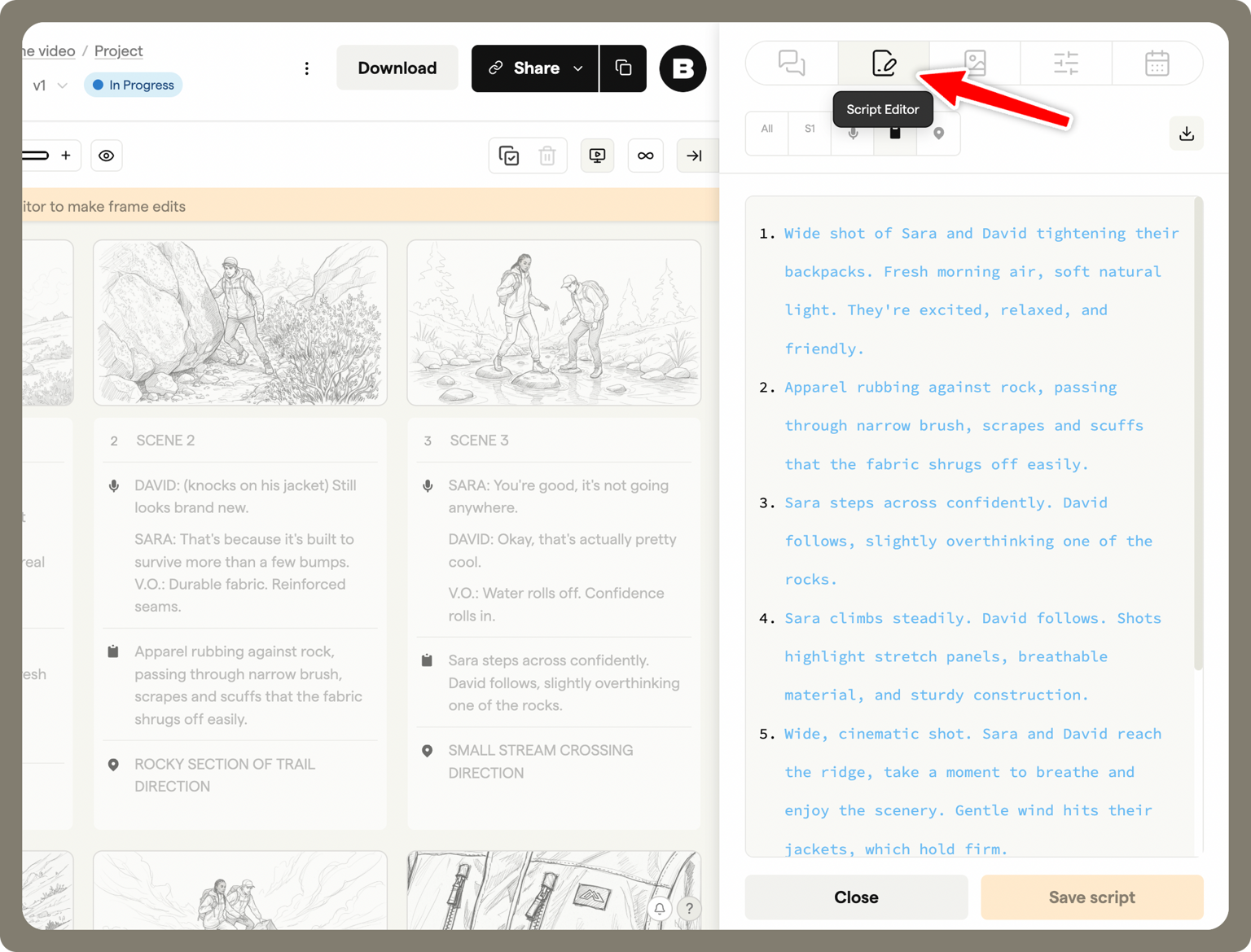
With the storyboard script view, you can:
- Edit notes across multiple frames and have changes applied to the storyboard
- Focus on a specific scene or shot without scrolling through the whole board
- Keep your storyboard in sync. Updates are reflected immediately in the frames
Best for: Efficiently editing dialogue, shot notes, or other text across multiple frames.
Frame editor
Double-click a storyboard frame to open the frame editor, where you can work on individual frames in detail.
In the editor, you’ll see your frame on a canvas with a toolbar at the bottom and a sidebar on the right.
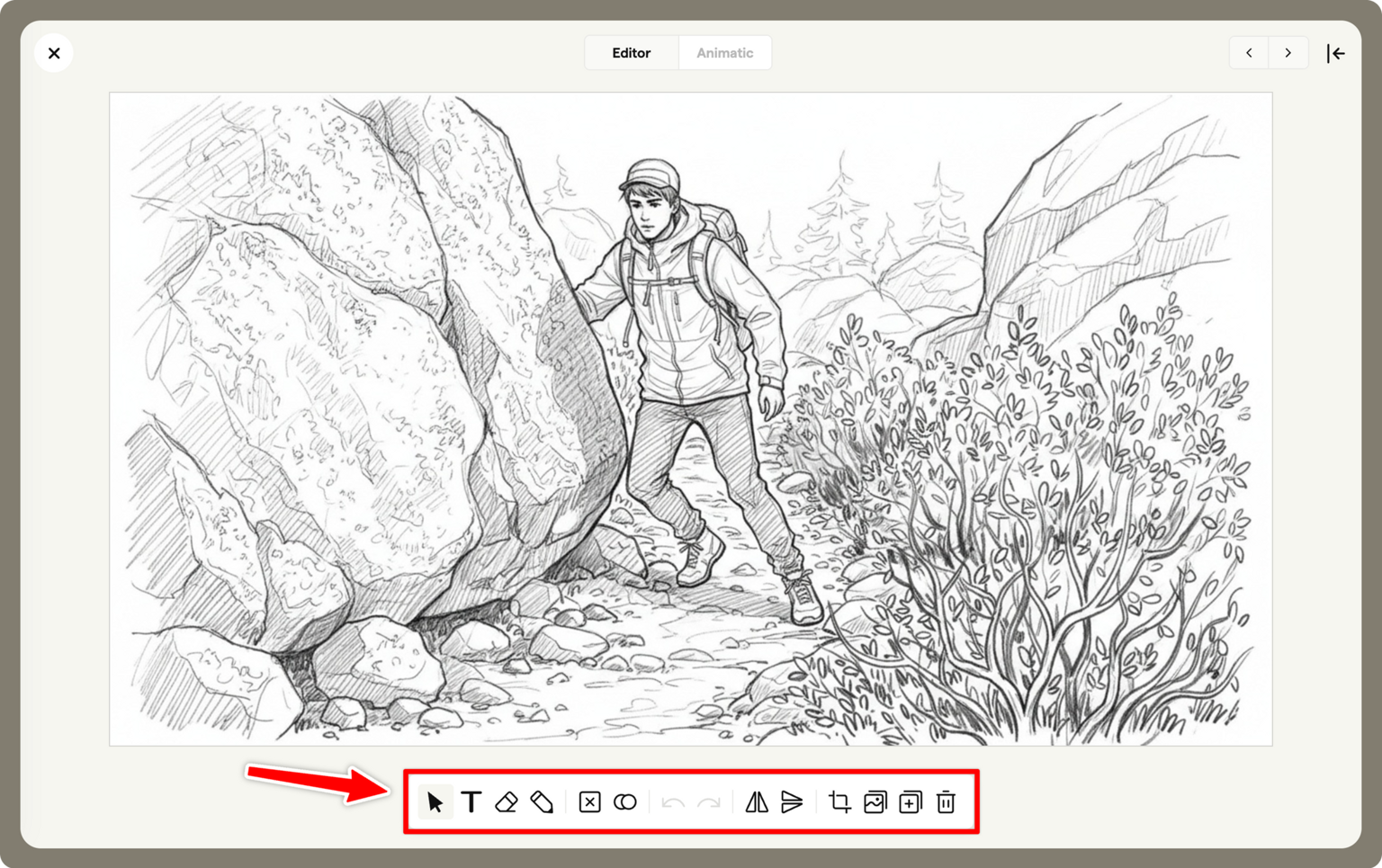
The editor allows you to:
- Draw and annotate directly on the frame
- Place shapes to highlight elements or indicate movement
- Add text to a frame
- Import images from your computer, the image library, or other frames
- Use camera overlays (zooms, pans, and moves) to show shot direction
You can find a full guide to all frame editor features here.
Best for: Fine-tuning individual frames - sketching, annotating and communicating camera moves within a shot.
Sharing view
Switch to the sharing view by selecting Review in the storyboard header's Edit / Review toggle. This opens the client-ready version of your storyboard that you can send to others for review.
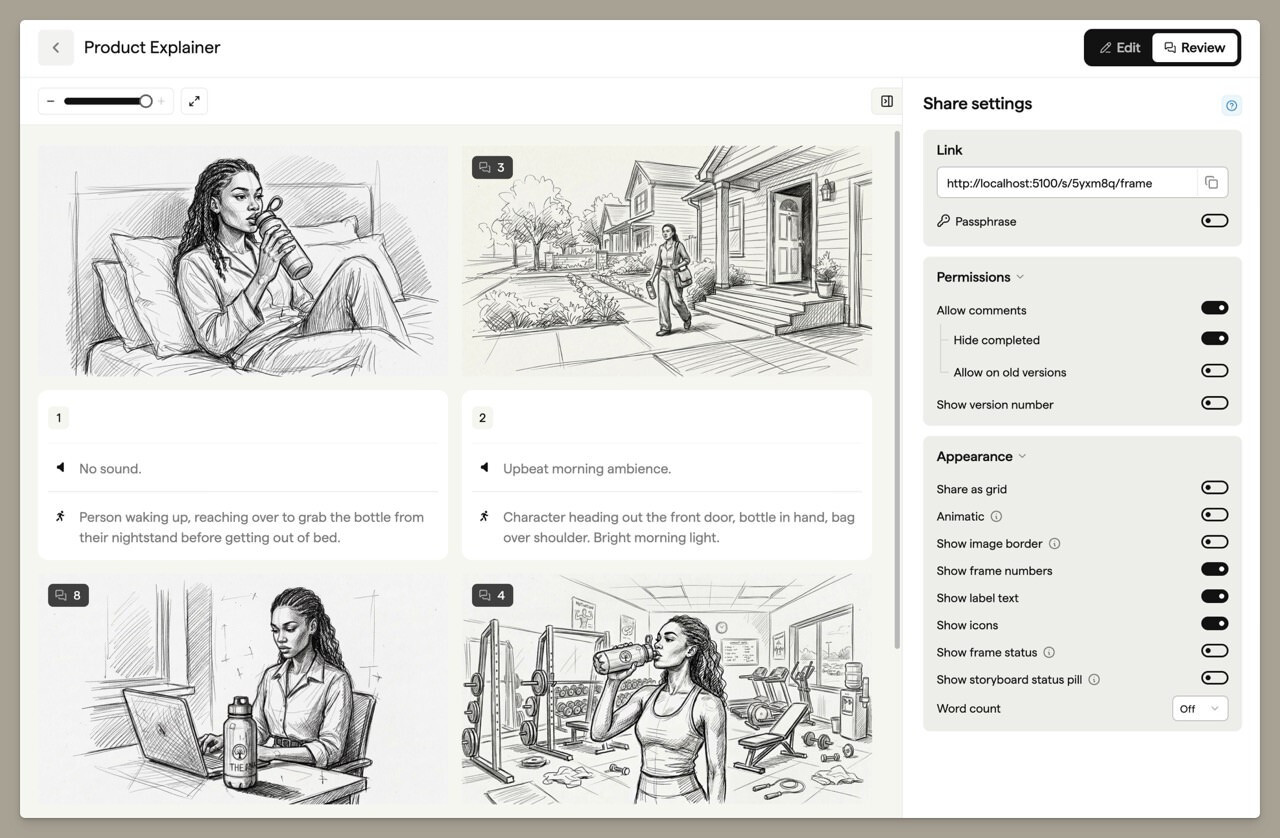
- Viewers can access the storyboard in their browser and add comments
- A Boords account is not required. They’ll view your work as guests
- Manage the shareable link, password, and display options from the Share settings panel
- Email the review link to reviewers and see when they open it, using the Share settings and Activity tabs
Best for: Sharing your storyboard externally and collecting feedback from clients or collaborators.