
Profile
Learn how to update your profile settings
Your profile settings control how you appear to other team members and include information used for billing.
To update your profile, go to Settings → Account → Profile.
Name
Your display name appears throughout Boords — in comments, activity logs, and anywhere your contributions are shown. Enter your first and last name so team members can easily identify you.
Email address
Your email address is used for logging in and receiving notifications. To change it, you'll need to enter your current password for security.
Profile image
Upload a profile photo to help team members recognise you. Images should be JPG or PNG format, under 1MB in size.
Country and VAT number
You can optionally set your country of residence and VAT number. This information is used for billing and tax purposes.
Password
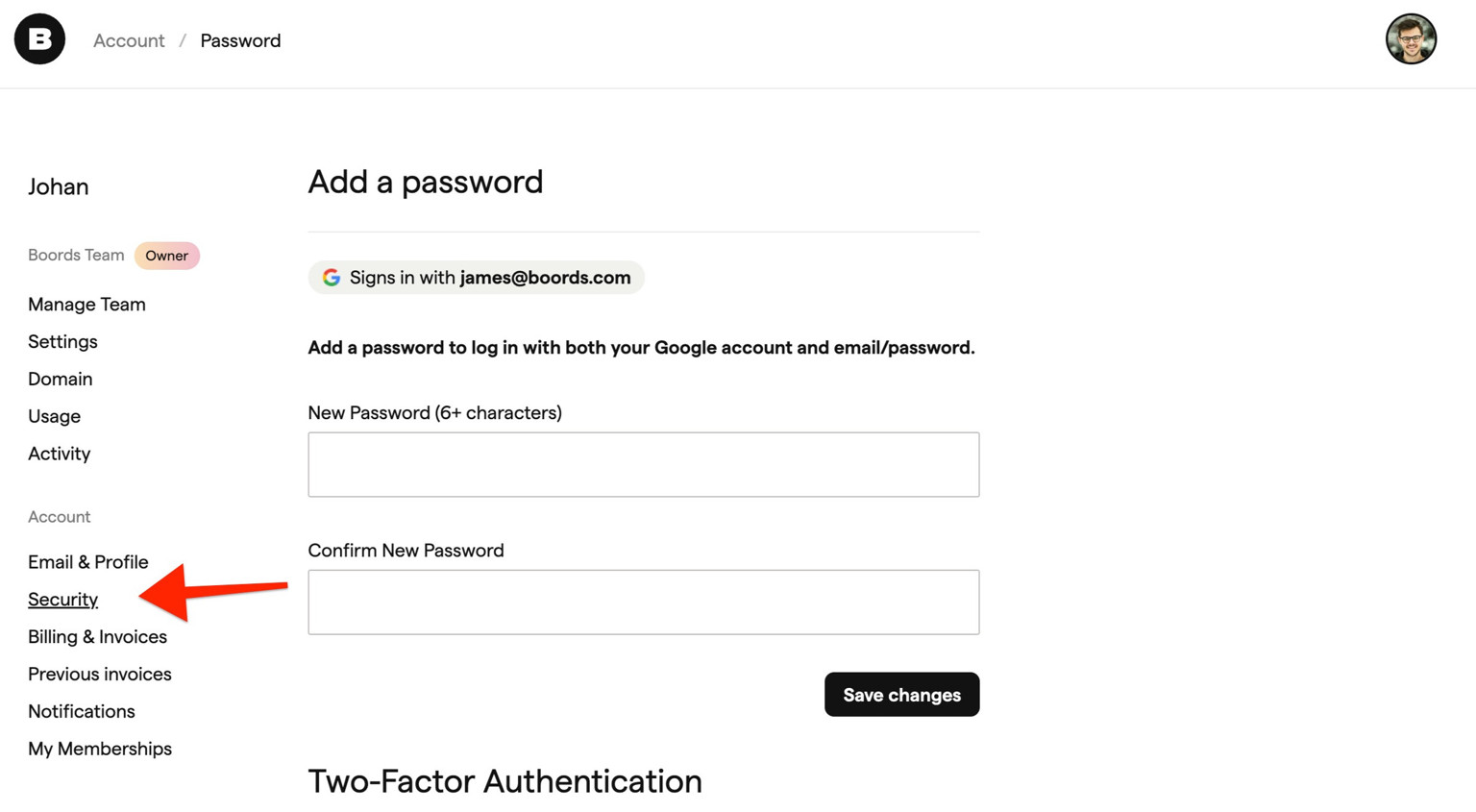
Manage your password and add additional security to your account at Settings → Account → Security.
Changing your password
To change your password, enter your current password followed by your new password twice to confirm. Passwords must meet minimum security requirements shown on the page.
Google sign-in users
If you signed up using Google, you can add a password to your account. This lets you log in with either your Google account or email and password — useful if you want a backup login method.
Team password rotation
Admins on Agency teams can require a new password every 90 days. If your team has this turned on, it applies when you sign in with your email and password. Signing in with Google is not affected.
Starting 14 days before your password expires, a banner shows how long you have left. Click Change password in the banner to choose a new one.

If your password expires, Boords asks you to choose a new one before you continue. Enter your current password, then your new password twice, and click Save new password. Your new password must be different from your current one. You can also click Sign out instead and change it later.
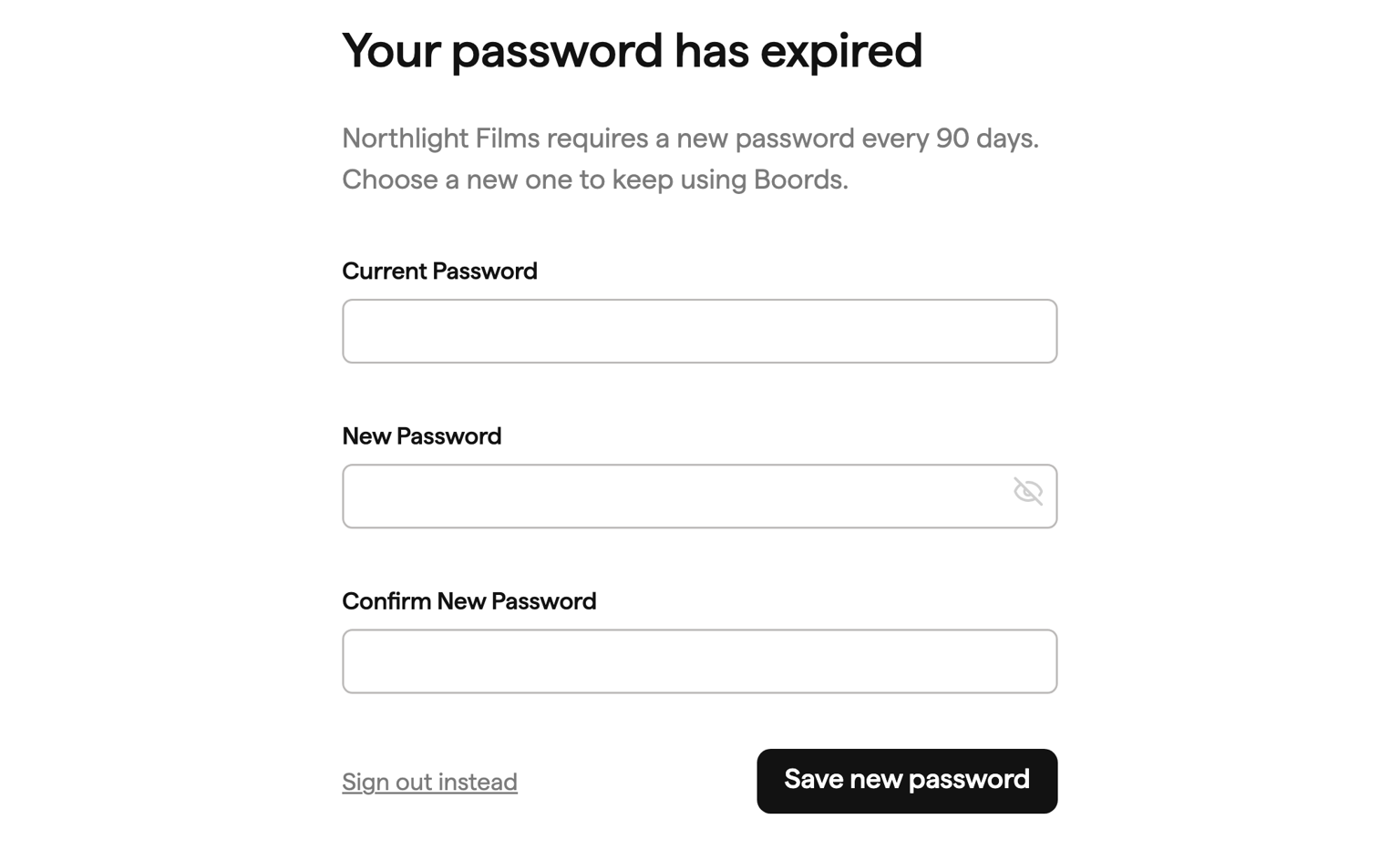
If you belong to more than one team with password rotation, the earliest deadline applies.
Two-factor authentication
Two-factor authentication (2FA) adds an extra layer of security to your account. When enabled, you'll need to enter a code from an authenticator app each time you log in, combining something you know (your password) with something you have (your device).
This feature is available on the Team and Agency plans.
Enabling 2FA
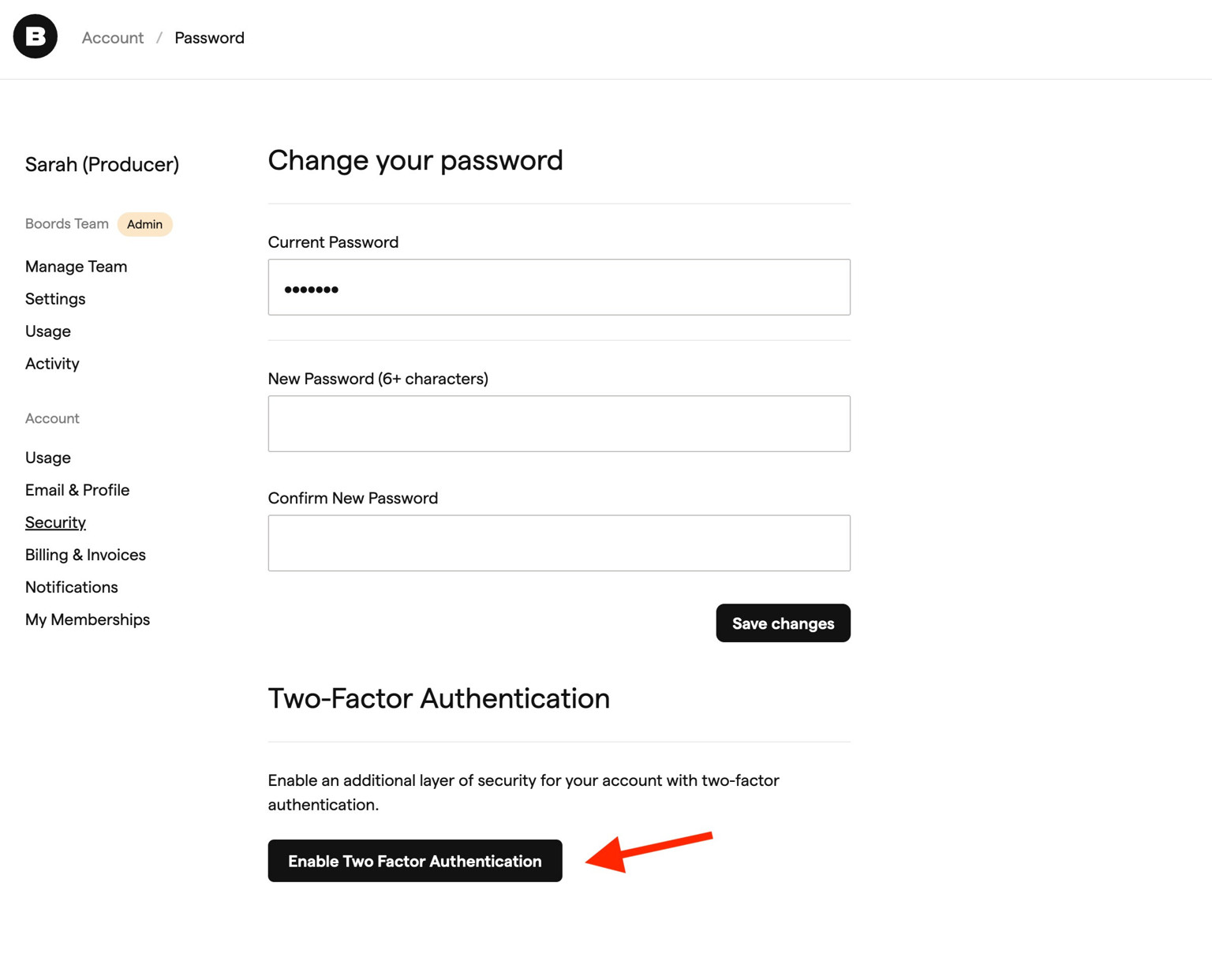
To enable 2FA, go to Settings → Account → Security and scroll to the Two-factor authentication section.
Click Enable Two Factor Authentication.
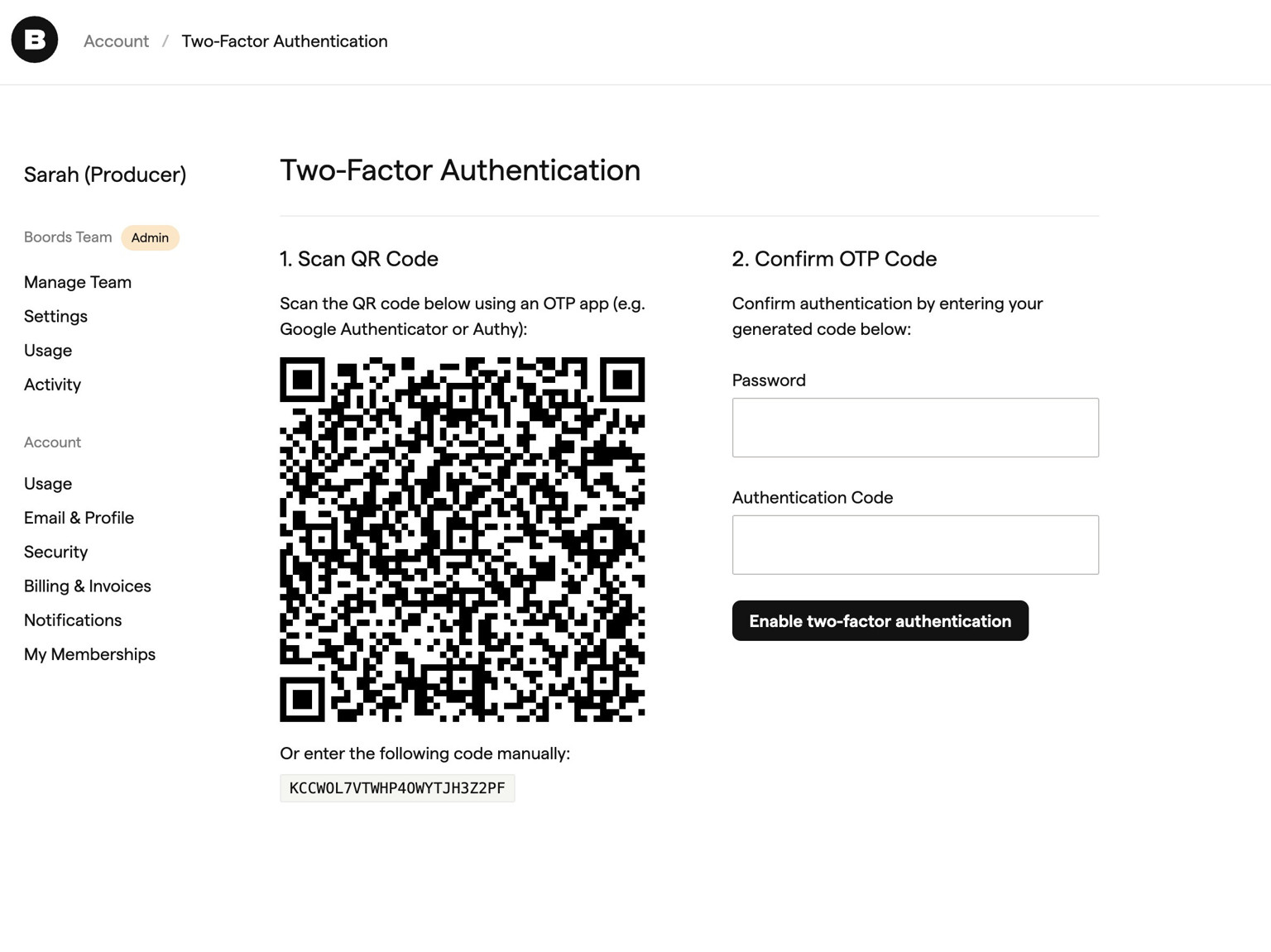
You'll be prompted to scan a QR code with your authenticator app — for example, Google Authenticator, Authy, or 1Password.
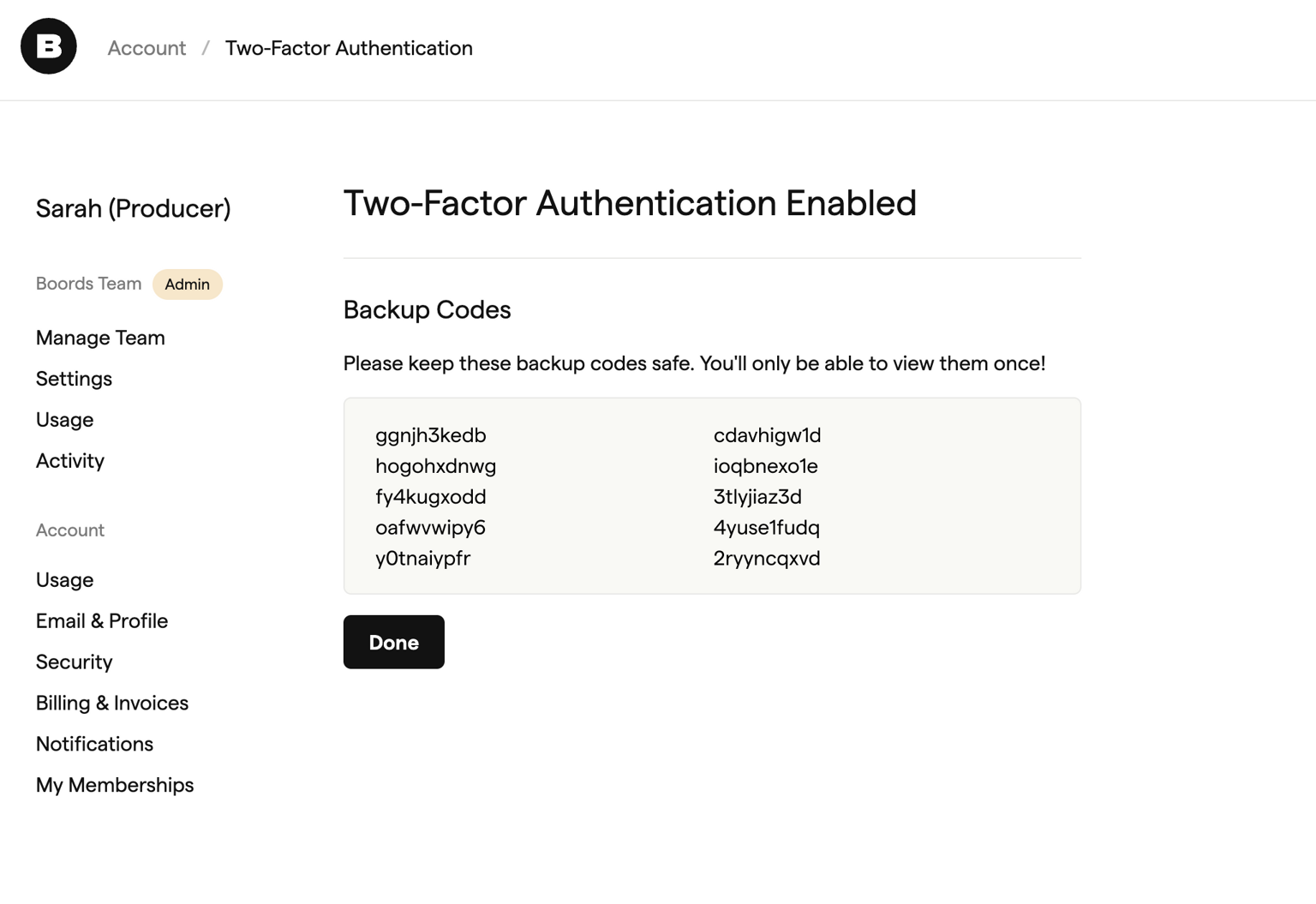
After successful setup, you'll see a list of backup codes. Save these somewhere safe — you can use them to sign in if you lose access to your authenticator app. These codes are only shown once.
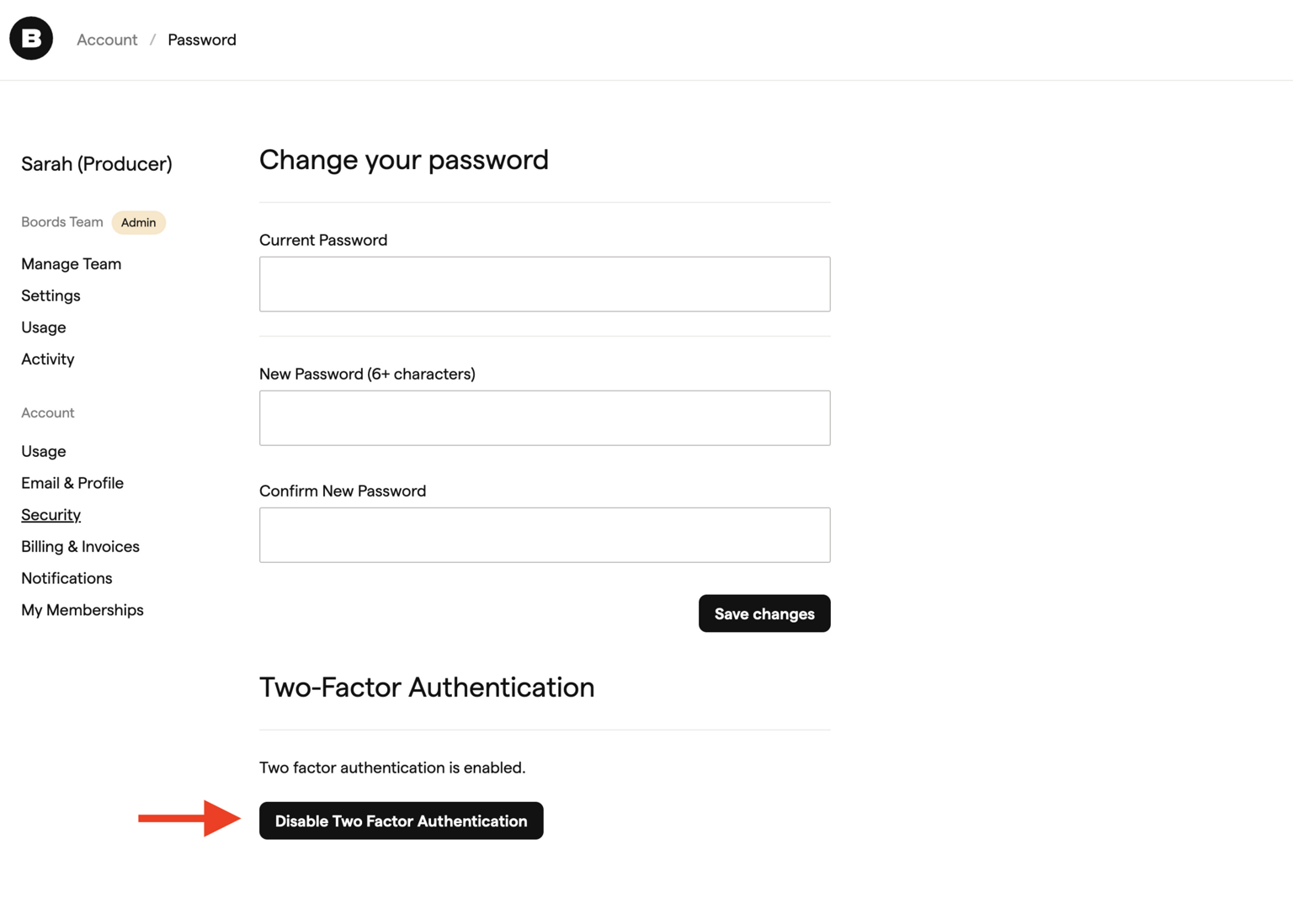
Once enabled, you'll see an option to disable 2FA on the same page.
Logging in with 2FA
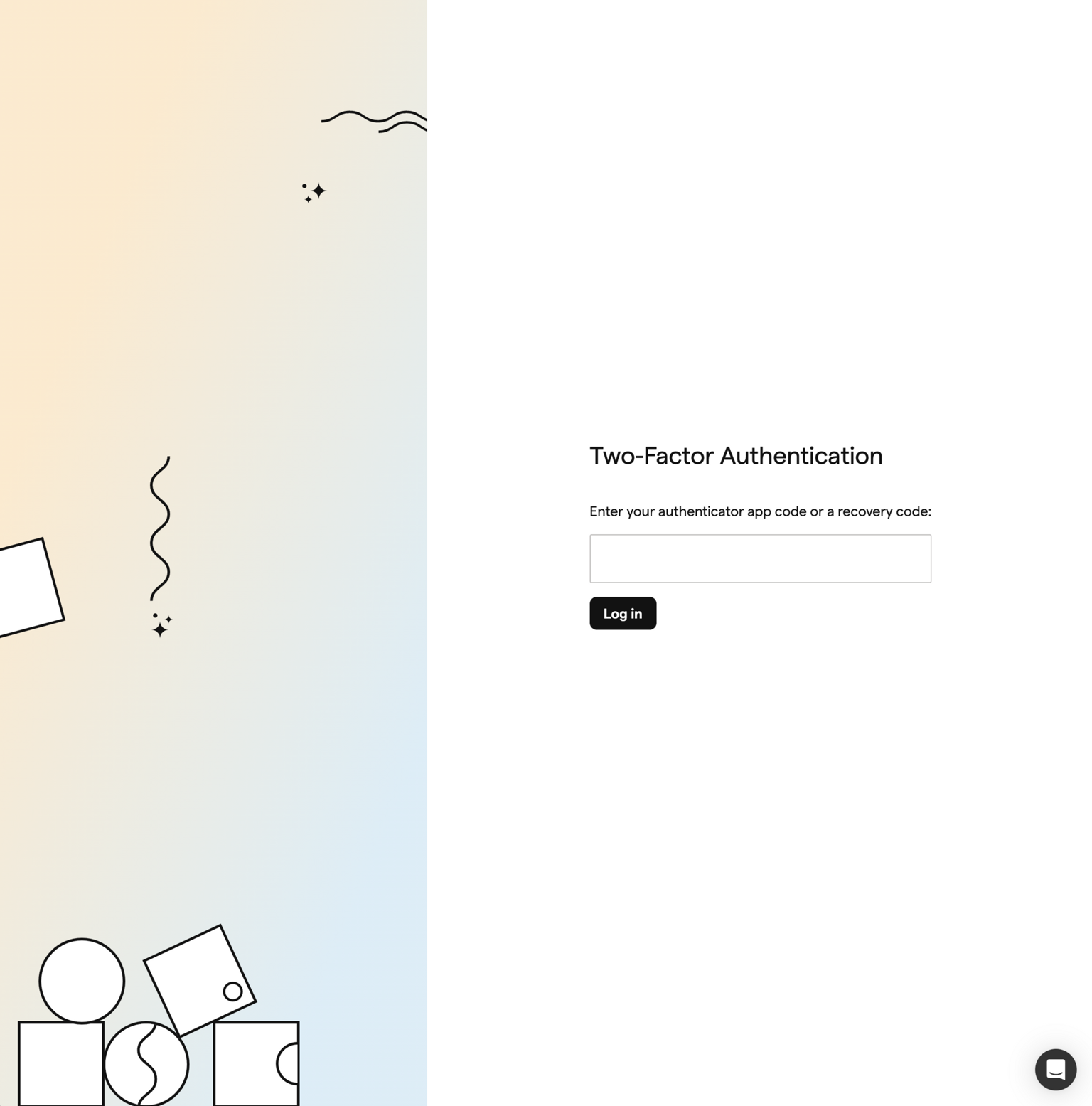
When 2FA is enabled, you'll see an additional screen after entering your email and password. Enter the code from your authenticator app, or use one of your backup codes.
Theme
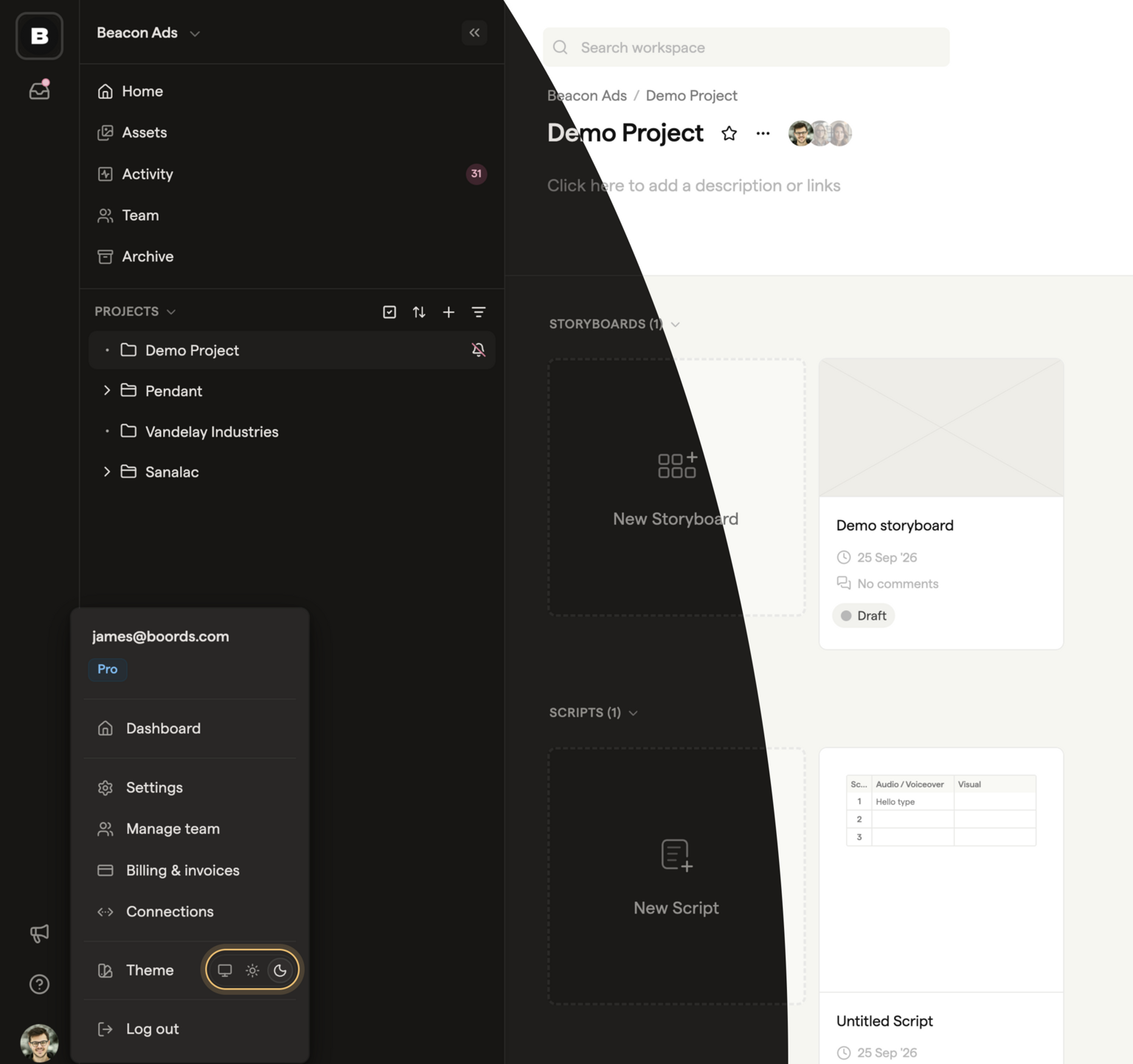
Boords comes in light and dark. To switch, click your avatar at the bottom left of the app, then pick an option on the Theme row:
- System follows your computer's light or dark setting. This is the default
- Light always uses the light theme
- Dark always uses the dark theme
Your theme is saved in your browser, not your Boords account, so set it on each computer or browser you use. Share links follow each viewer's own setting, and PDF exports always stay light.
Deleting your account
If you need to delete your Boords account, you'll find the option at the bottom of Settings → Account → Profile. Account deletion is permanent and cannot be undone.