
Team settings
Change your team name, logo, custom subdomain, and password rotation policy
Customise how your team appears across Boords and to your clients.
Team name
Your team name appears throughout Boords—in the sidebar, on shared storyboards, and in notification emails.
To change your team name:
- Go to Settings → Team → General
- Enter your new team name
- Click Save
Team names must be at least 2 characters long.
Team logo
Your team logo appears in the sidebar and can optionally be displayed on shared storyboards.
To upload a team logo:
- Go to Settings → Team → General
- Click on the avatar to upload a new image
- Select an image file (JPG or PNG, less than 1MB)
If you don't upload a logo, Boords will display your team's initial as the default avatar.
Custom subdomain
This feature is available on the Team and Agency plans.
Create a branded workspace for your team and clients. Instead of the standard app.boords.com, your team can access Boords at yourcompany.boords.com.
To set up a custom subdomain:
- Go to Settings → Team → Domain
- Enter your company name
- Review the preview URL shown below the input
- Click Save
Your subdomain will be automatically formatted as a URL-friendly slug (lowercase, with hyphens replacing spaces).
Once set, all your shared storyboard links will use your custom subdomain, giving clients a branded experience when viewing your work.
Password rotation
This feature is available on the Agency plan.
Require everyone on your team who signs in with a Boords password to choose a new one every 90 days. People who sign in with Google are not affected.
To turn on password rotation:
- Go to Settings → Team → General
- Scroll to Password rotation
- Click Enable password rotation
Only team admins can see this setting.
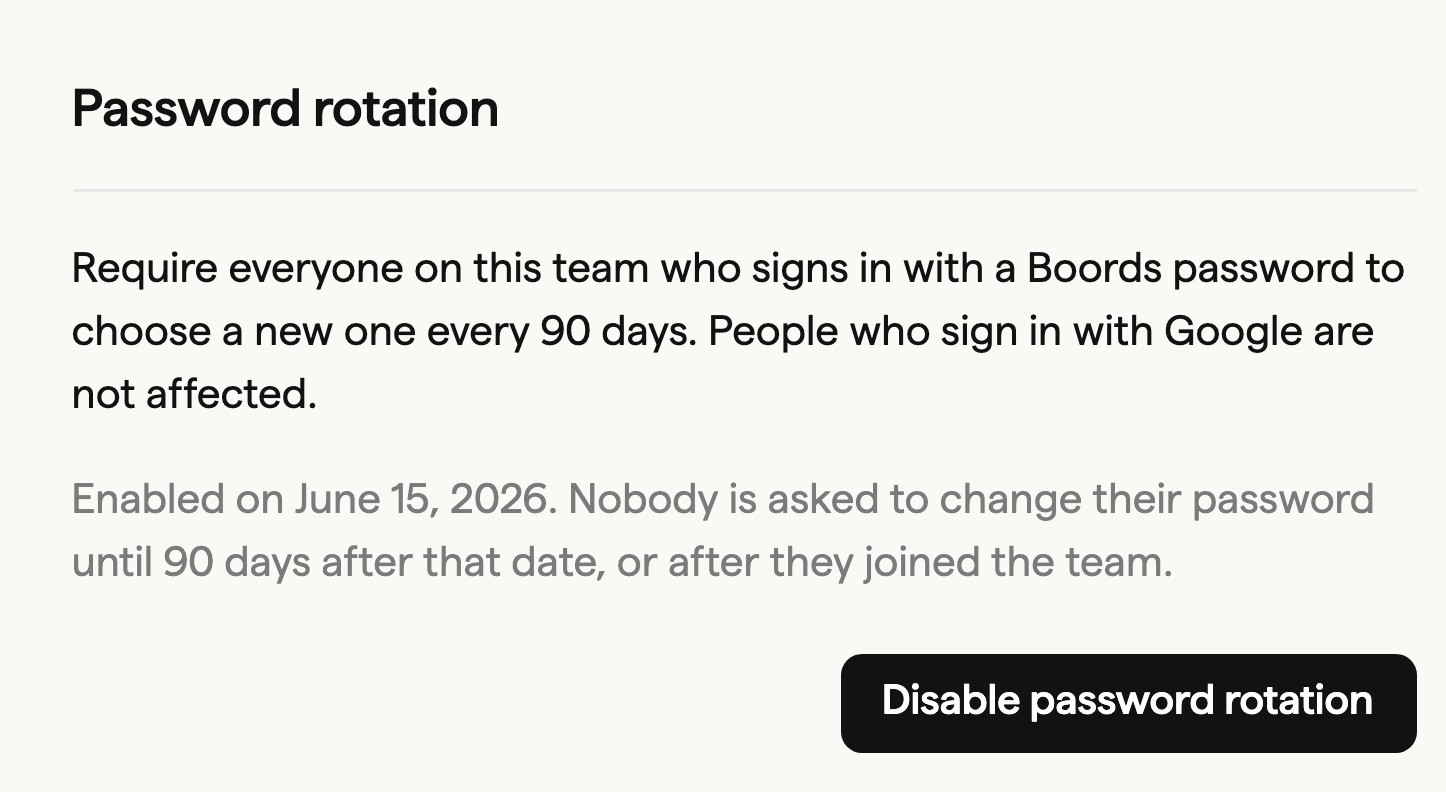
Nobody is asked to change their password straight away. Each person's first deadline is 90 days after you enable the policy, or 90 days after they join the team if that is later.
What your team sees
Starting 14 days before their deadline, each person sees a banner in Boords with a link to change their password. Once the deadline passes, they must choose a new password before they can keep using Boords. They can't reuse their current password. See Team password rotation for the full member experience.
Turning it off
To stop requiring password changes, go to Settings → Team → General and click Disable password rotation. If you turn it back on later, everyone gets a fresh 90 days.
FAQ
No. The policy only applies when someone signs in with a Boords email and password. Anyone who signs in with Google is never asked to change their password.
No. Nobody is asked to change their password until 90 days after you enable the policy. People who join the team later get a full 90 days from the day they join.
Boords uses the earliest deadline across all of their teams, so one password change covers every team.