
Inviting & managing users
Add teammates and control access
Boords is built for teams. Whether you're a studio managing multiple projects or an agency collaborating with clients, you can invite your team and control exactly what each person can access.
Inviting team members
You can invite people to join your team so they can collaborate on storyboards. Each person you invite will receive an email with a link to join your team.
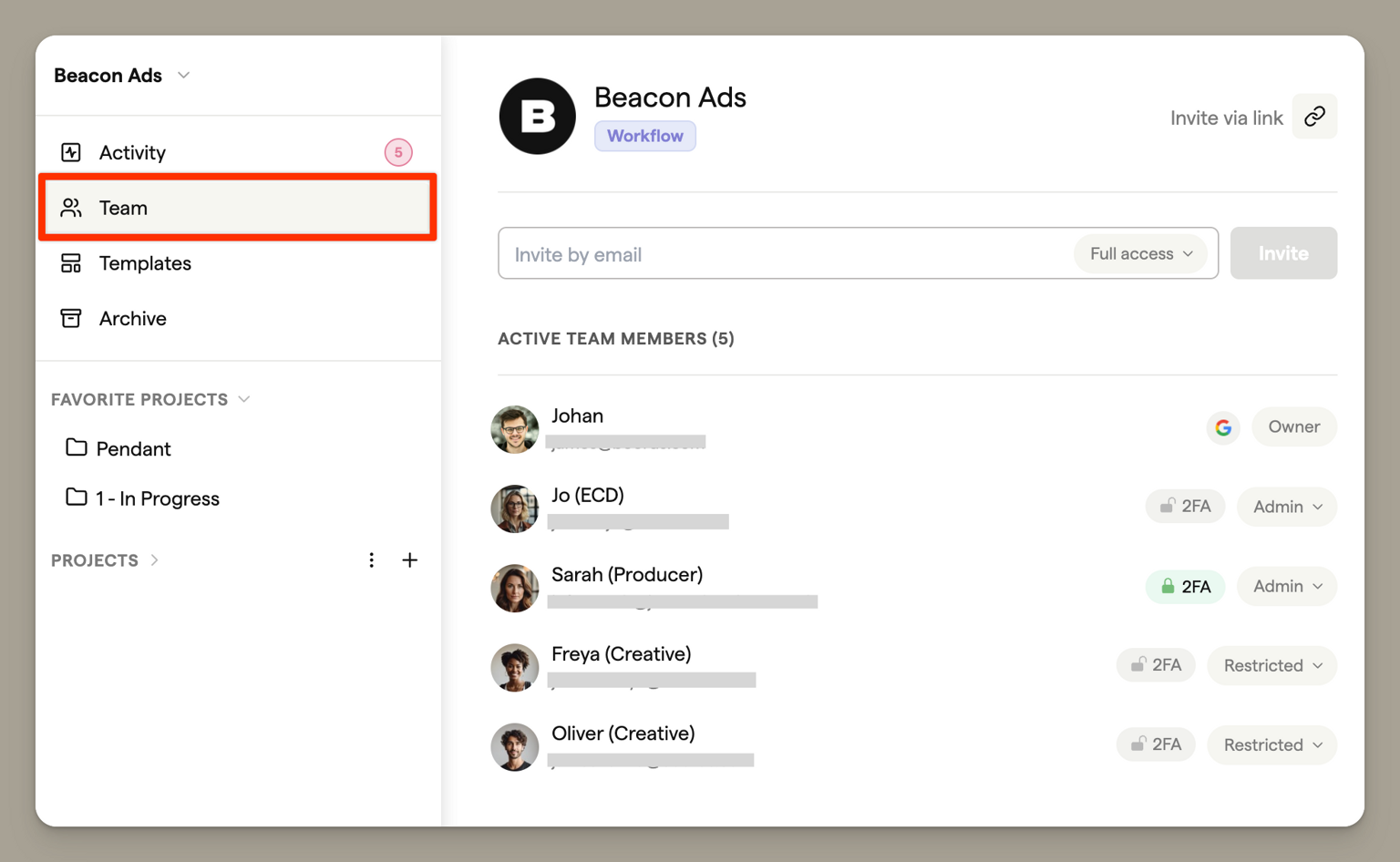
How to invite someone
- Open the team menu in the sidebar
- Click Invite
- Enter their email address
- Choose a role from the dropdown
- Click Invite
The person will receive an email invitation. Once they accept, they'll appear in your team list and be able to see and edit the projects they've been granted access to.
You can also invite people directly from a project or storyboard using the share menu.
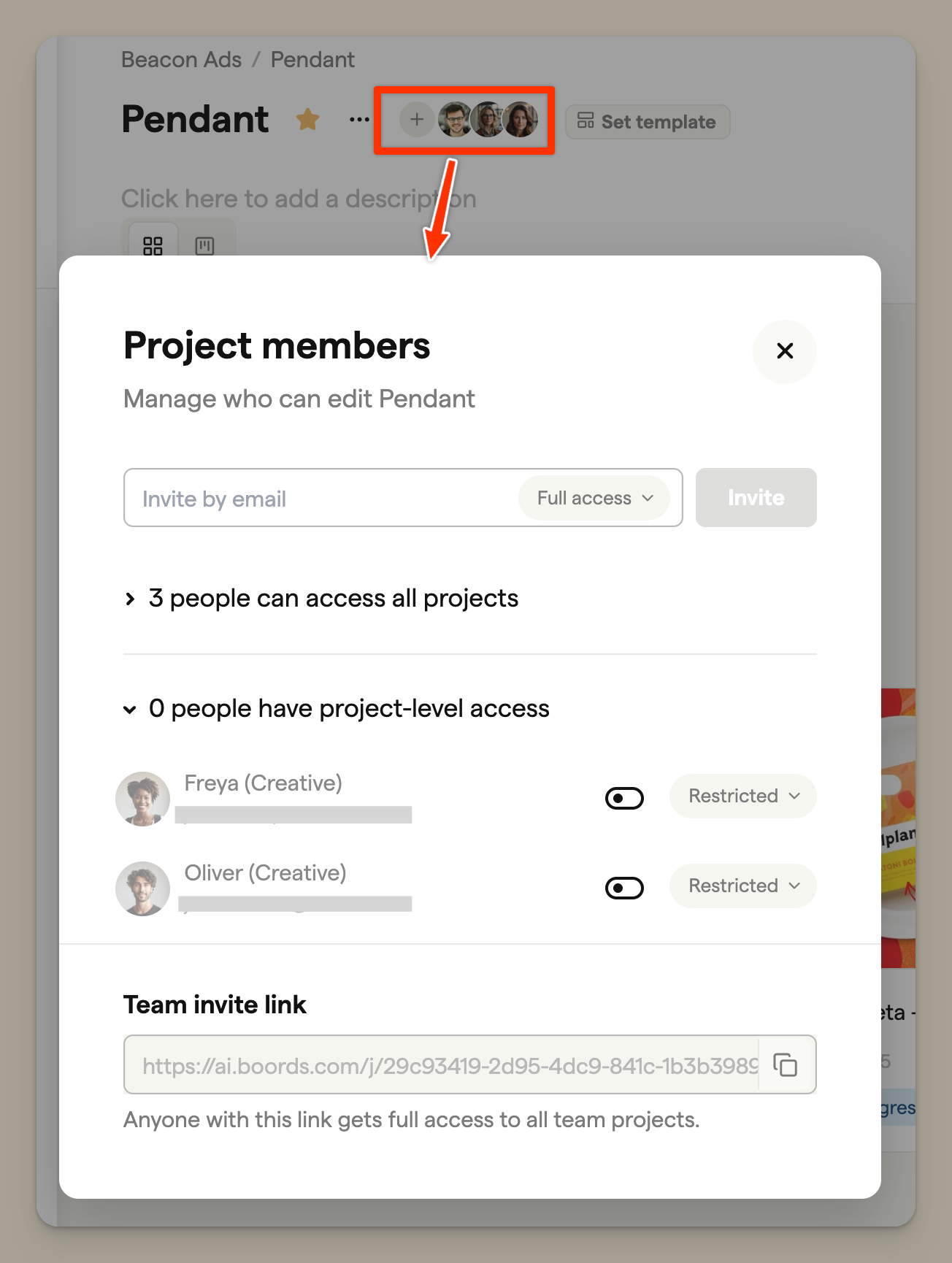
Choosing a role
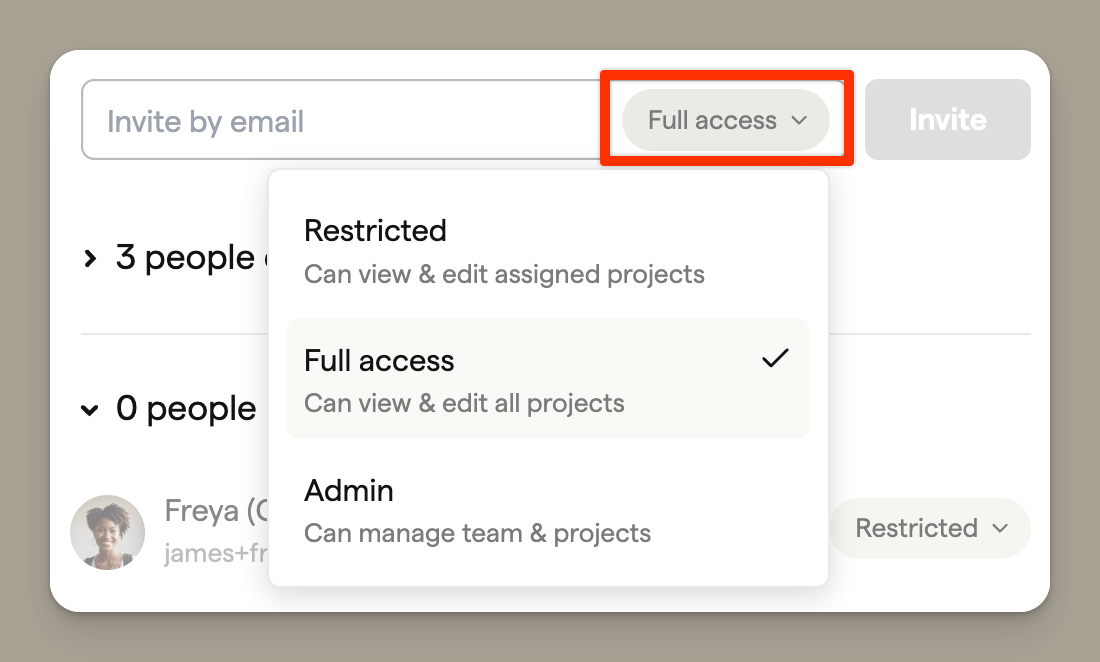
When inviting someone, you'll choose what level of access they have:
| Role | Access level |
|---|---|
| Full access | Can view and edit all projects |
| Admin | Can manage the team and all projects |
| Restricted | Can only view and edit projects they're assigned to |
The Restricted role is available on the Team and Agency plans.
Billing
Your plan includes a set number of seats. Solo is for one person, Pro includes 5 seats, Team includes 10, and Agency includes 30. If you need more seats, you can upgrade your plan any time from Billing.
Resending an invitation
If someone hasn't accepted their invitation, you can resend it:
- Open the team menu in the sidebar
- Find the pending invitation
- Click to resend
Using an invite link
Instead of inviting people by email, you can share a link that lets anyone join your team.
Invite links are available on the Team and Agency plans.
To enable the invite link:
- Open the team menu in the sidebar
- Click the link icon next to "Invite via link"
- Toggle Enable invite link on
- Copy the link and share it
Anyone who joins through this link gets full access to all team projects. Each person who joins will be added to your team and count towards your total seats.
You can disable the invite link at any time to prevent new people from joining.
Guest access
You don't need to invite clients or stakeholders as team members just to get their feedback. Guests can view and leave comments on shareable storyboards without creating an account or using a seat on your team.
This is ideal for sharing work with clients for review and approval. Simply share a link to your storyboard and they can view it and leave comments straight away.
Only invite someone as a team member if you want them to actually edit storyboards.
Team roles
You can give your teammates different permissions according to the level of access that you'd like them to have.
If you need to change someone's role on the team, click the menu next to their name and select the new role you'd like to give them. You'll also be able to remove them from the team here, if necessary.
Owner
The person who first sets up a team automatically becomes the Owner. This person is responsible for billing and is able to access all projects within the team. They can also administer teammates (invite new teammates, change roles and remove teammates). Teams can have only one Owner.
Admin
Team members with an Admin role can do everything that an Owner can do, except access billing information. Teams may have as many Admins as they need.
Full access
Full access users can see all projects within the team account. They can also create new projects, but they aren't able to administer teammates.
Restricted access
Restricted access users can only view the projects that they've been added to. Unlike full access users, they won't be able to view all projects within the team account.
They can edit storyboards and scripts and can comment on frames but they can't create or delete storyboards and they won't be able to access the admin settings (e.g. to add or remove teammates).
Managing project access
To grant or remove a restricted user's access to a project:
- Open the project from the dashboard, or open any storyboard within the project
- Open the team menu
- Find the user under "project-level access"
- Use the toggle to grant or remove their access
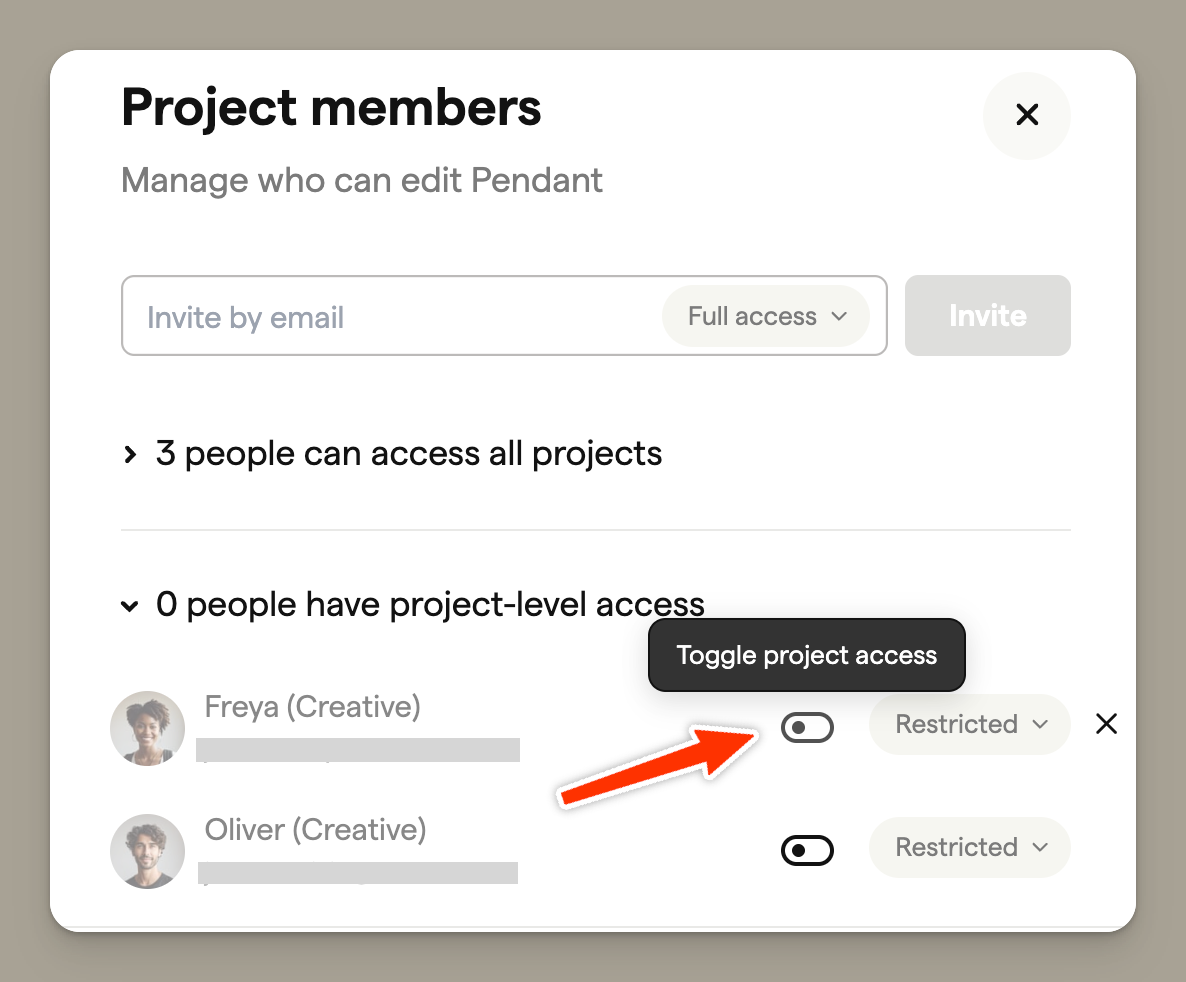
You can manage access from either the Project Dashboard or from within any storyboard — whichever is more convenient.
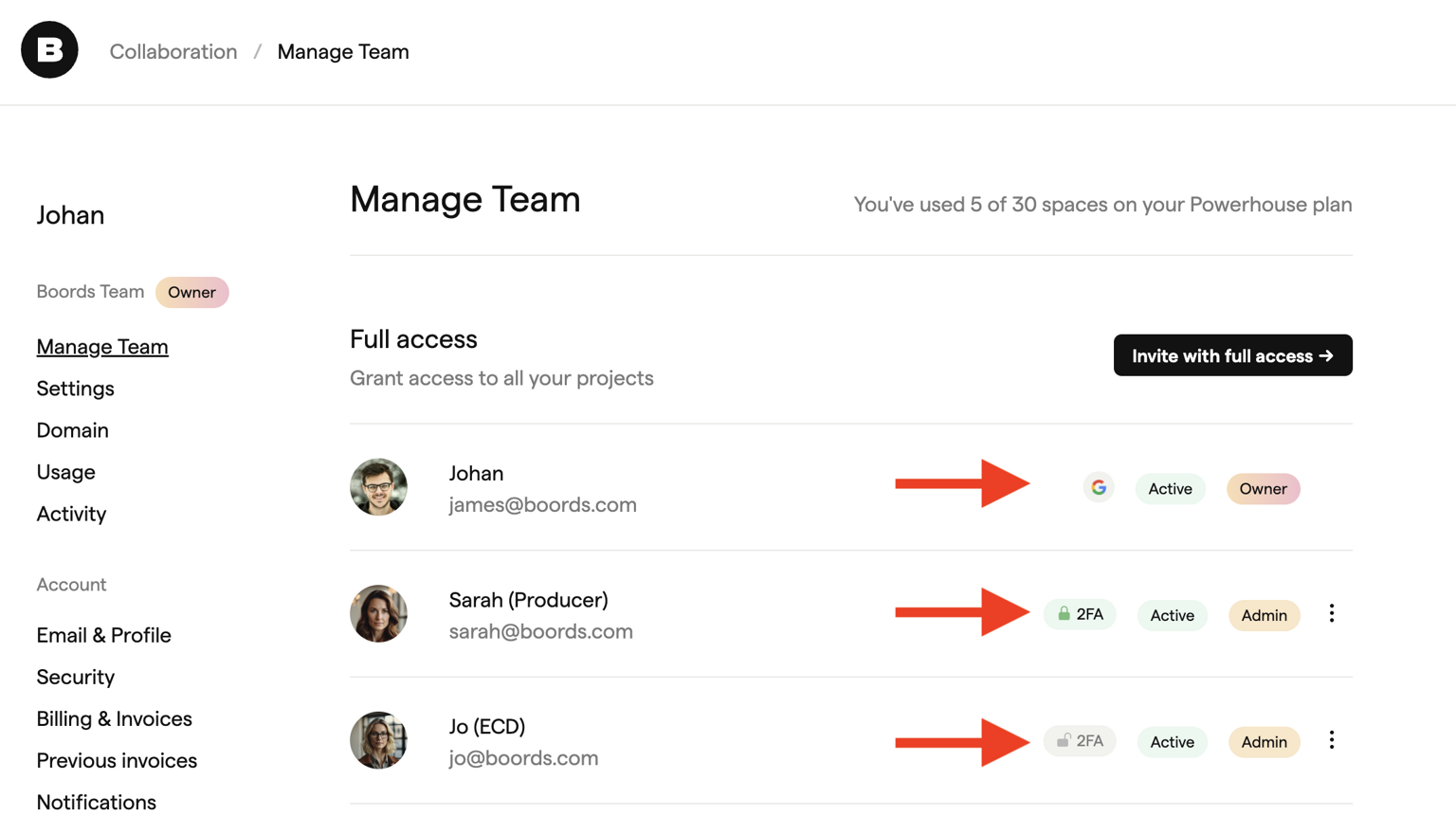
Two-factor authentication status
Team admins can see whether each team member has enabled two-factor authentication (2FA). This helps you monitor your team's security posture.
Each team member shows one of three statuses:
| Status | Meaning |
|---|---|
| Signs in with Google | User authenticates via Google |
| Two-factor enabled | User has 2FA set up |
| Two-factor not enabled | User has not enabled 2FA |
Joining an existing team
If you've been invited to join a Boords team, this video will explain everything you need to know about finding your way around!