Activity & notifications
Track changes and stay updated
Learn how you can stay up to date with activity in your Boords account.
Activity Log
The Activity Log is available on all paid plans.
The Activity Log gives your team a clear, chronological history of the work happening in your Boords workspace.
Whether you're reviewing changes on a single storyboard or looking at everything happening across your team, the Activity Log helps you stay informed.
The Activity Log appears in two places:
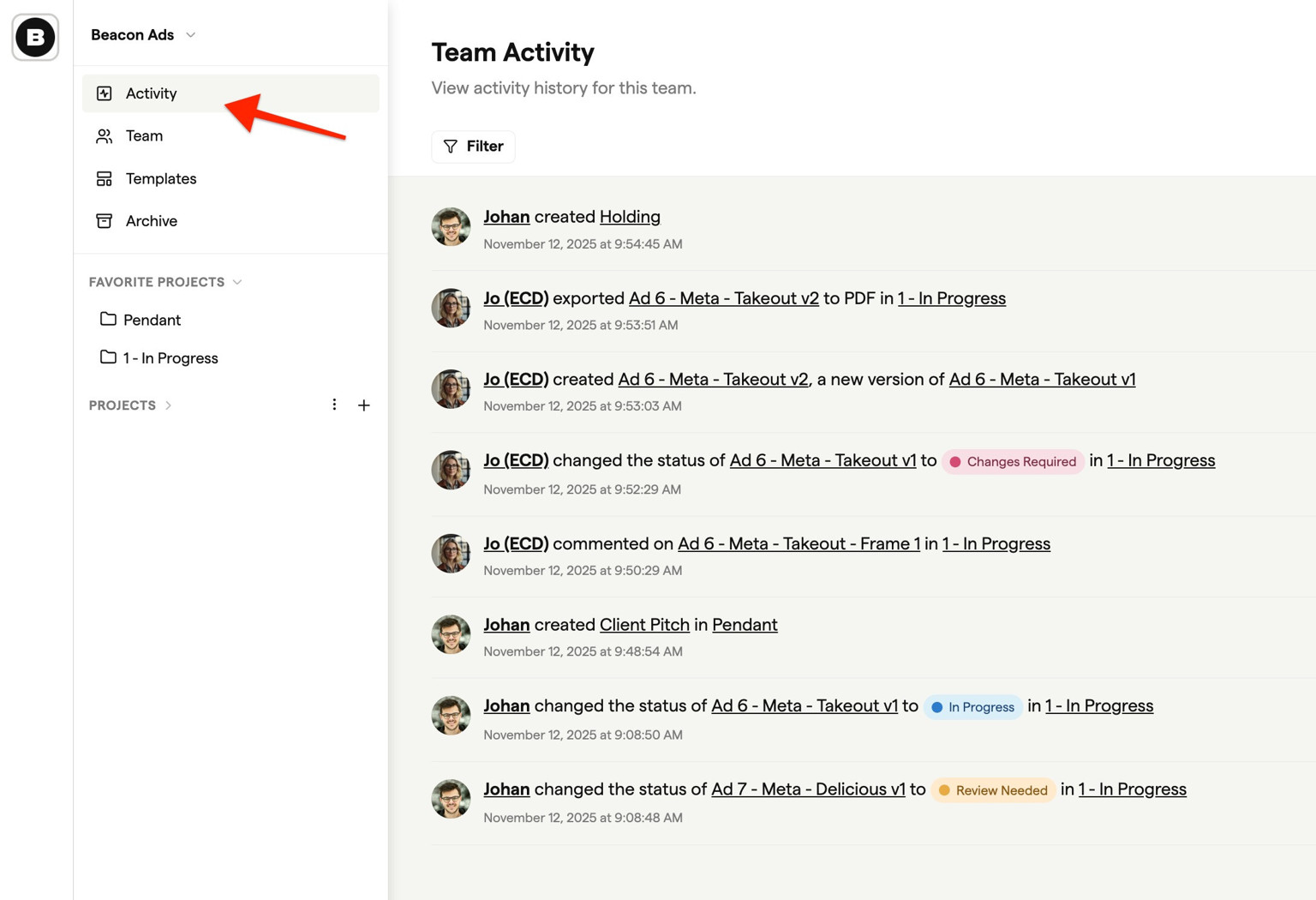
Team activity page
You'll see a small pink unread badge in the sidebar, which means that there's new team activity since you last viewed it.
When you click it, you'll see a full history of your workspace's activity, accessible from the Project Dashboard for owners and admins.
Storyboard activity panel
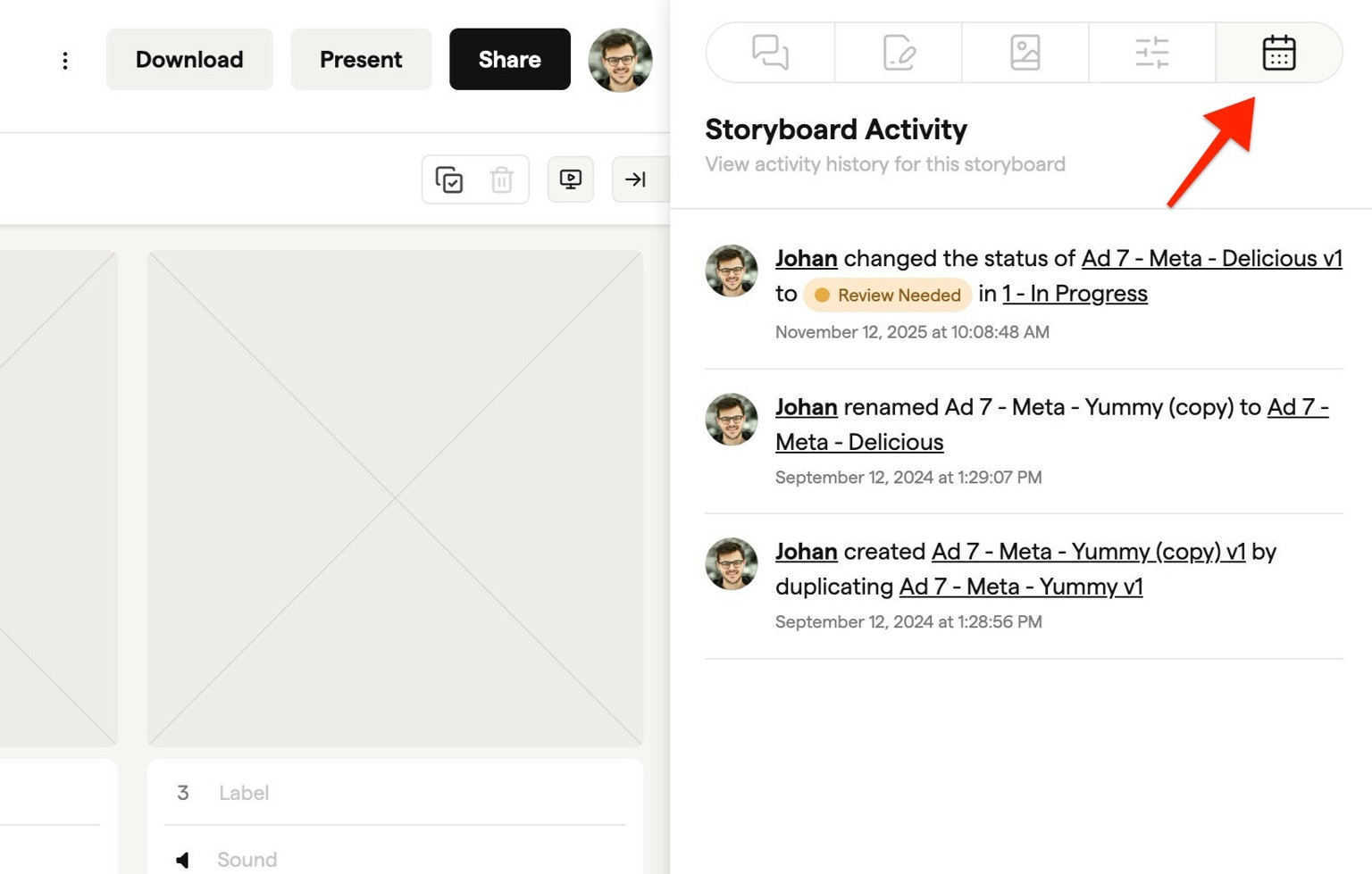
A focused view in each storyboard's sidebar that shows the activity for the storyboard you're currently editing. The same feed also appears under the Activity tab of the Share settings panel when you're in the Review view.
Searching & filtering
The Activity Log updates regularly (about every 90 seconds), so it always feels close to real-time. You can also refresh the page manually if you want the latest information straight away.
Many entries include handy links, directly to frames or storyboards, so it's easy to jump to the thing that's changed. Actions from guests on shareable links appear too, using the name they enter when performing an action. When you email a review link, the log also records when each reviewer first opens the storyboard.
When you're looking at the Team Activity page, you can filter the feed to quickly find exactly what you need.
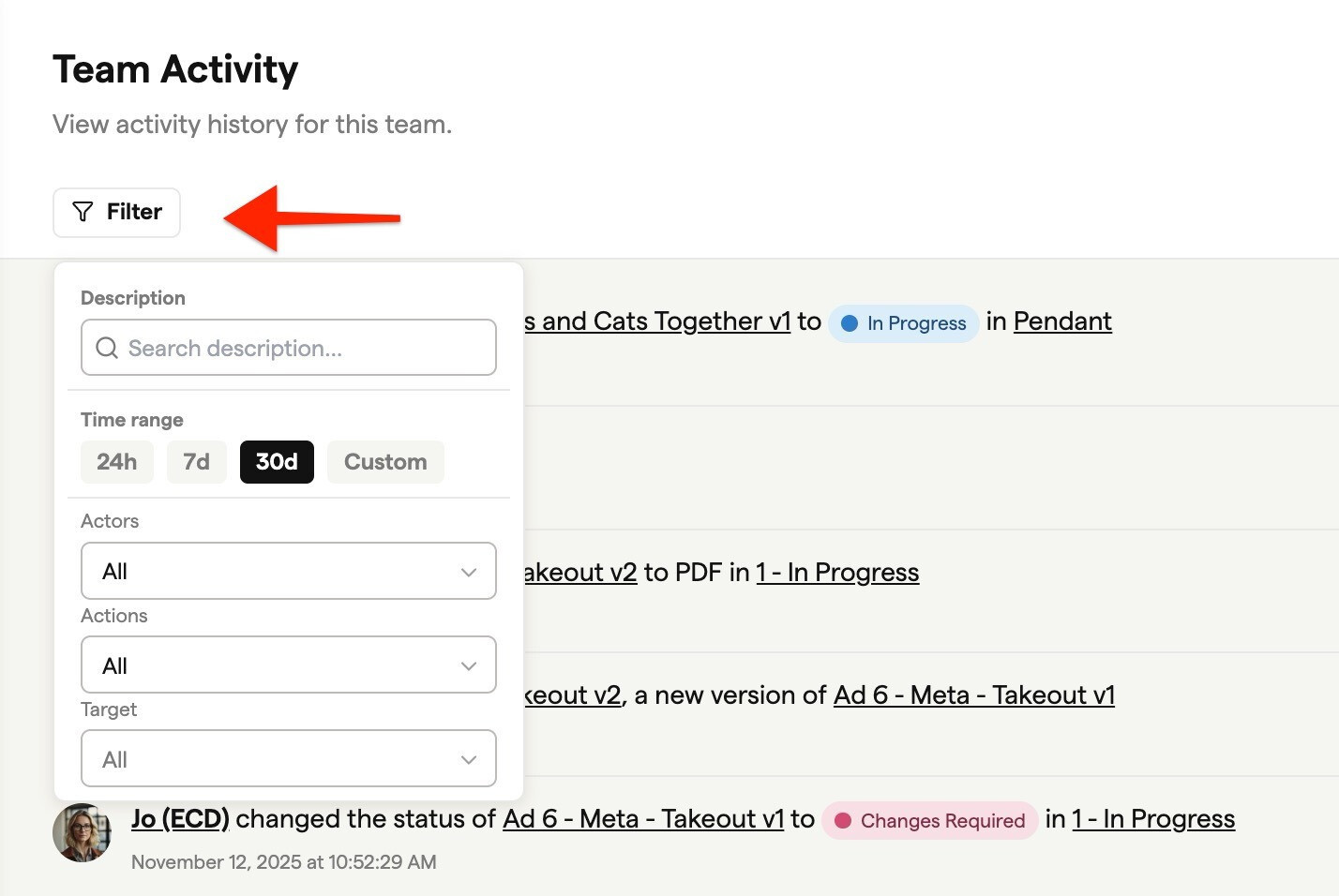
You can:
- Search by text
- Filter by time range
- Filter by teammate or guest
- Filter by storyboard, project, or other targets
- Filter by action type (e.g., status change, comment, export)
If the feed looks empty, try widening your filters or clearing them entirely.
Visibility
Within a workspace:
- Account owners and admins can access the full team activity page.
- Full and restricted access teammates won't see the team activity page, but they can view the storyboard-level activity panel for storyboards they have access to.
If you don't see Activity where you expect it, check your role or plan.
The Activity Log includes a wide range of actions, everything from storyboard creation to exports, comments, approvals, status changes, and more.
Guest activity is recorded too, labelled with the name they provide when performing actions like commenting or approving.
Note: If something doesn't appear immediately, remember the feed auto-refreshes, or you can refresh manually to see the latest updates.
Events list
The Activity Log can display the following events:
| Target | Action | Action Type | Summary |
|---|---|---|---|
| storyboard | created | create | Actor created a storyboard in project |
| storyboard | status_updated | update | Actor changed storyboard status |
| storyboard | commented | create | Actor commented on storyboard (optionally frame N) |
| storyboard | comment_completed | update | Actor marked a comment as complete |
| storyboard | comment_reopened | update | Actor marked a comment as incomplete |
| storyboard | exported | read | Actor exported the storyboard to a filetype |
| storyboard | shared | create | Actor sent a review link for the storyboard to reviewers in project |
| storyboard | viewed | read | A reviewer opened a shared storyboard in project |
| storyboard | new_version_source | create | Actor created a new version (source side) |
| storyboard | new_version_destination | create | Actor created a new version (destination side) |
| storyboard | duplicated_source | create | Actor duplicated (source side) |
| storyboard | duplicated_destination | create | Actor duplicated (destination side) |
| storyboard | duplicated | create | Actor duplicated storyboard |
| storyboard | access_granted | update | Actor granted access to a member on a storyboard |
| storyboard | access_removed | update | Actor removed access to a member on a storyboard |
| storyboard | moved | update | Actor moved storyboard to another project |
| storyboard | renamed | update | Actor renamed storyboard |
| storyboard | restored | update | Actor unarchived storyboard |
| storyboard | archived | delete | Actor archived storyboard |
| storyboard | deleted | delete | Actor permanently deleted storyboard |
| project | created | create | Actor created a project |
| project | renamed | update | Actor renamed project |
| project | restored | update | Actor unarchived project |
| project | archived | delete | Actor archived project |
| project | deleted | delete | Actor permanently deleted project |
| team_membership | role_changed | update | Actor changed a teammate's role |
| team_membership | project_access_granted | update | Actor granted project access to a teammate |
| team_membership | project_access_removed | update | Actor removed project access from a teammate |
| team_membership | deleted | delete | Actor removed a teammate from the team |
| invitation | sent | create | Actor sent an invite (team or project) |
| invitation | resent | update | Actor re‑sent an invite |
| invitation | revoked | delete | Actor deleted an invite |
| invitation | accepted | update | Recipient accepted an invite |
Script activity panel
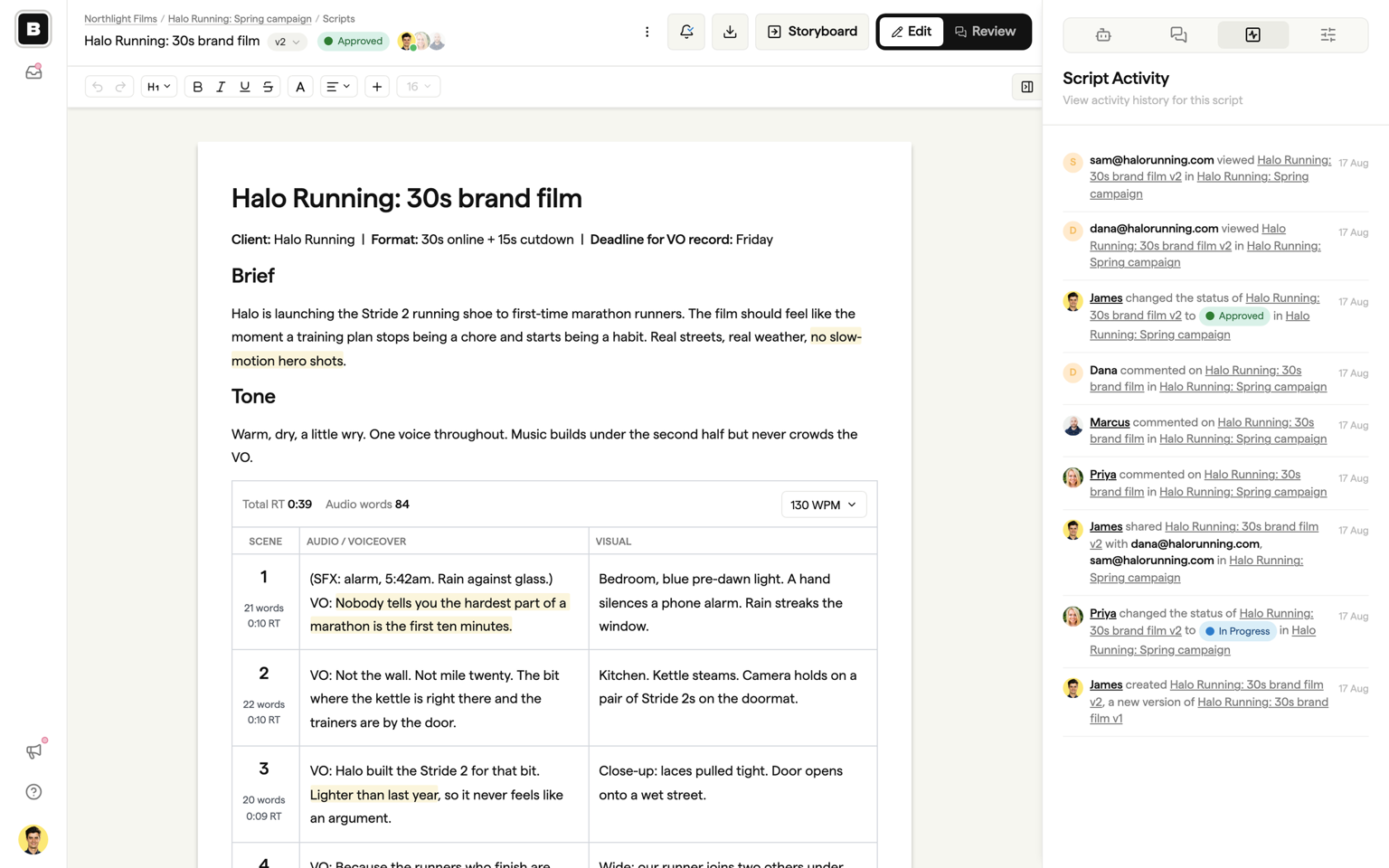
Scripts have their own Activity panel in the script sidebar (the Activity tab). It records the script's history: comments and completed threads, status changes such as an approval, new versions, shares, and read receipts showing when each direct-send recipient opened the script. Script events also appear in the team activity page. See Review and sign-off for how the approval trail works.
Comment notifications
Boords sends email notifications when comments are added to storyboards and scripts, helping your team stay on top of feedback without constantly checking the app.
How notifications work
When someone leaves a comment on a storyboard or a script, team members receive an email summary. These emails are batched together, so you won't be flooded with individual emails if there's a busy discussion happening.
When someone marks your comment as complete, you'll also receive an email letting you know it's been addressed.
New comments and completed comments also appear in the Activity Log, so you can see everything in one place.
Managing notifications
You can control comment notifications at three levels:
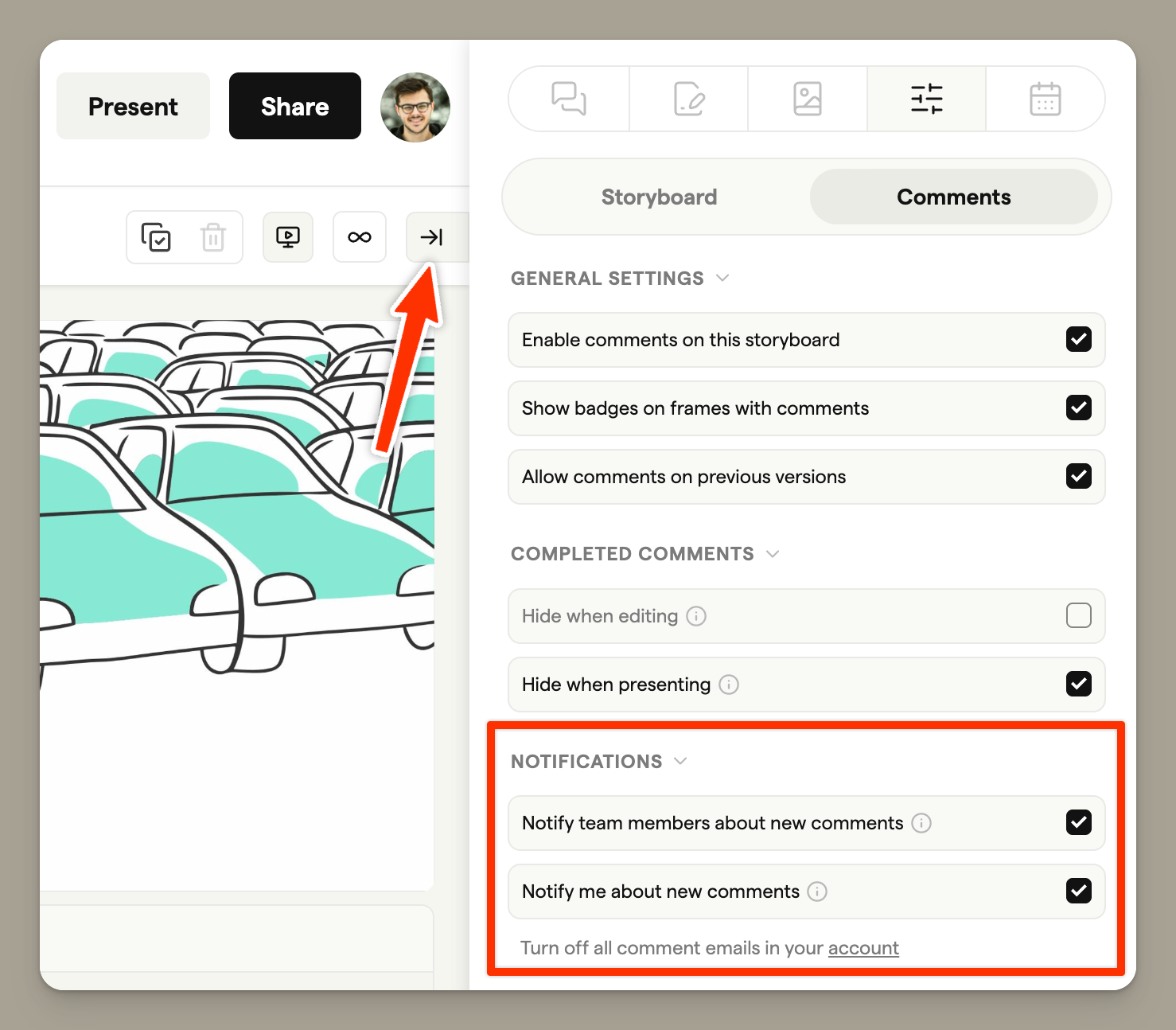
Account level
Turn all comment emails on or off in your account settings. This applies to all storyboards and scripts across your workspace.
Storyboard level
Storyboard owners can disable notifications for a specific storyboard in the comment settings panel. When turned off, no team members will receive emails for that storyboard.
Personal preferences
Even if a storyboard has notifications enabled, you can choose not to receive emails for specific storyboards. Open the comment settings panel and toggle off your personal notifications for that storyboard. You'll still be able to see comments in the Activity Log.
Script notifications
Each script has its own bell in the script header, working just like the storyboard bell: turn on Follow in Inbox to get an inbox notification for every new comment on the script (including guest comments on the review link), and use Email me about new comments to control comment emails for that script. Following a script covers every version of it. Mentions, replies, and completed threads on scripts appear in your inbox, email, and Slack in the same way as storyboard comments. See Notifications for the details.