
Animatics are a central part of the pre-production process. While specialist animatic software is available, you can do a good job of creating a simple animatic in Photoshop in a few steps.
- Create your document

- Add a timeline
- Add your frames
- Time your frames out
- Playing your animatic through
- Exporting your animatic
Storyboard software for video agencies & brand teams
One workspace for storyboards, animatics, comments, and approvals. Spend time on the creative, not the back-and-forth.
Step 1. Create your document
Fire up Photoshop, then create a new document 1920px wide, 1080px high. These dimensions are also known as HDTV1080p, or Full HD. It's the size of most short-form video.
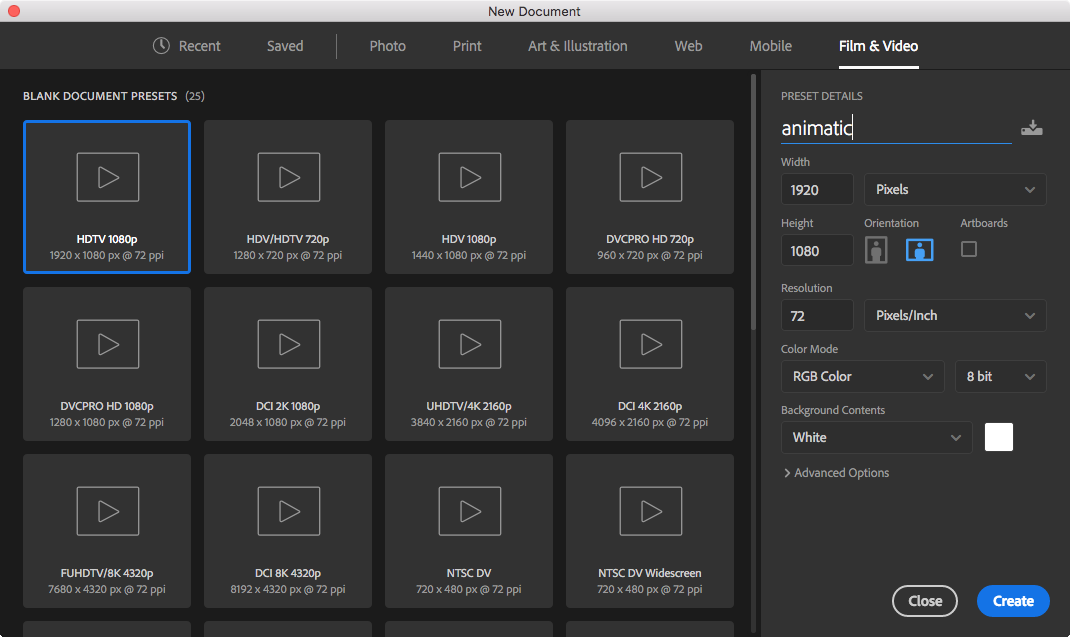 Creating a 1920x1080 document in Photoshop
Step 2. Add a timeline
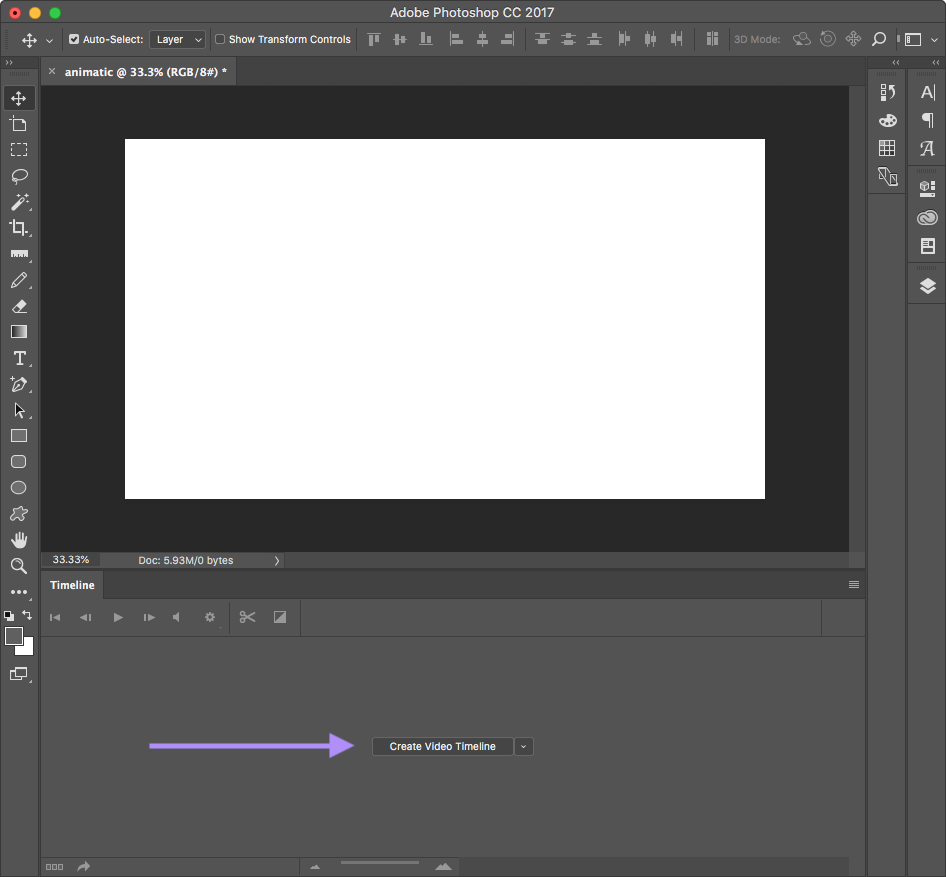
Click "Create Video Timeline" within the Timeline panel at the bottom of the UI. If you can't see the Timeline panel, you can open it by selecting 'Window > Timeline' from the menu.
Step 3. Add your frames
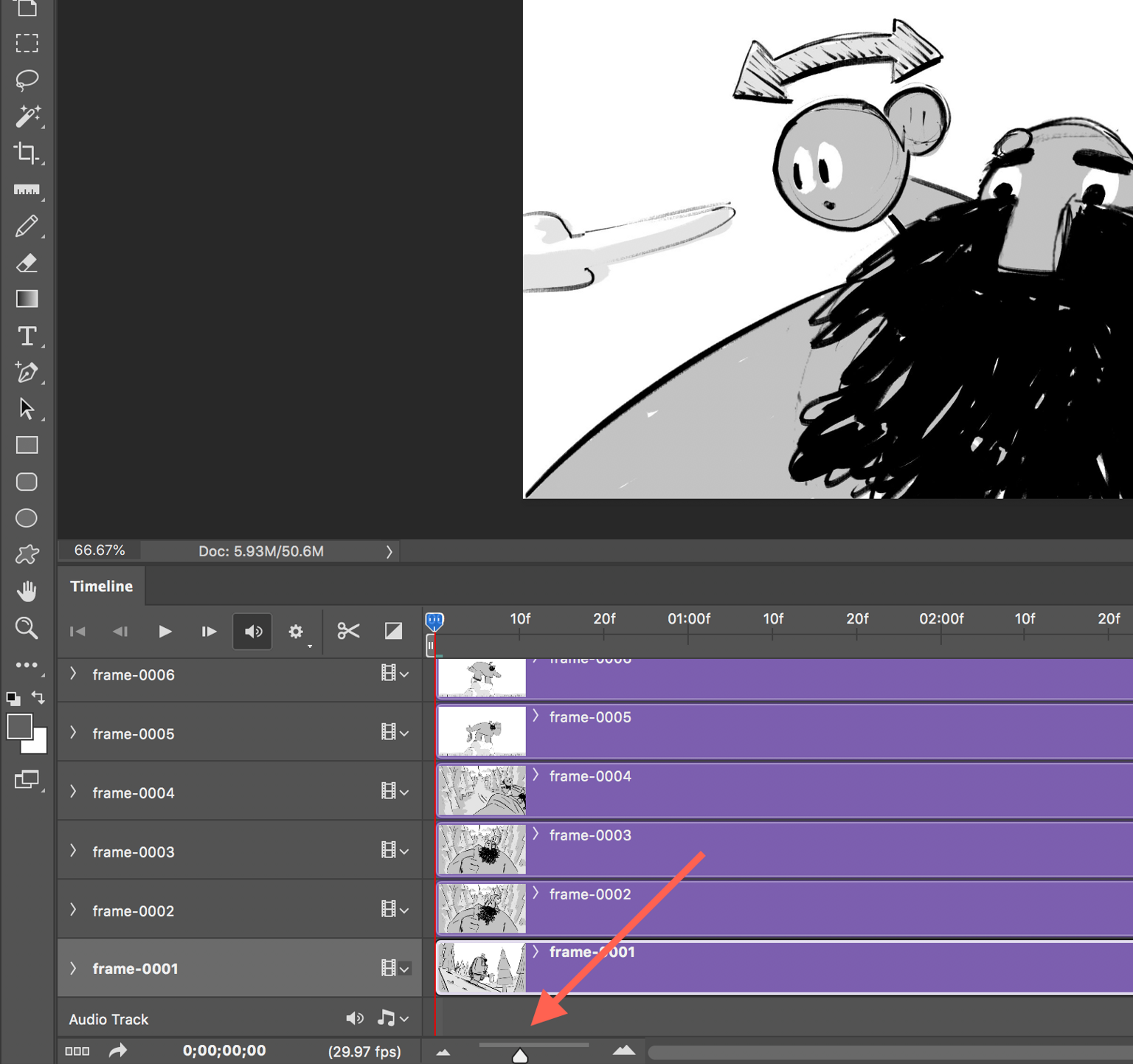
Drag your storyboard images into the empty artboard. This will create references to those frames on your Timeline. When you first drag your images in, there's a good chance the Timeline won't fill the whole horizontal width of your screen. Use the Timeline zoom tool at the bottom of the Timeline panel to zoom in or out.
The Timeline zoom tool
Step 4. Time your frames out
Now for the fun part - timing out your animatic! Drag the end point of each of your frames to the left until you have a 'staircase' of frames. Your first frame should be at the top, the last frame at the bottom.
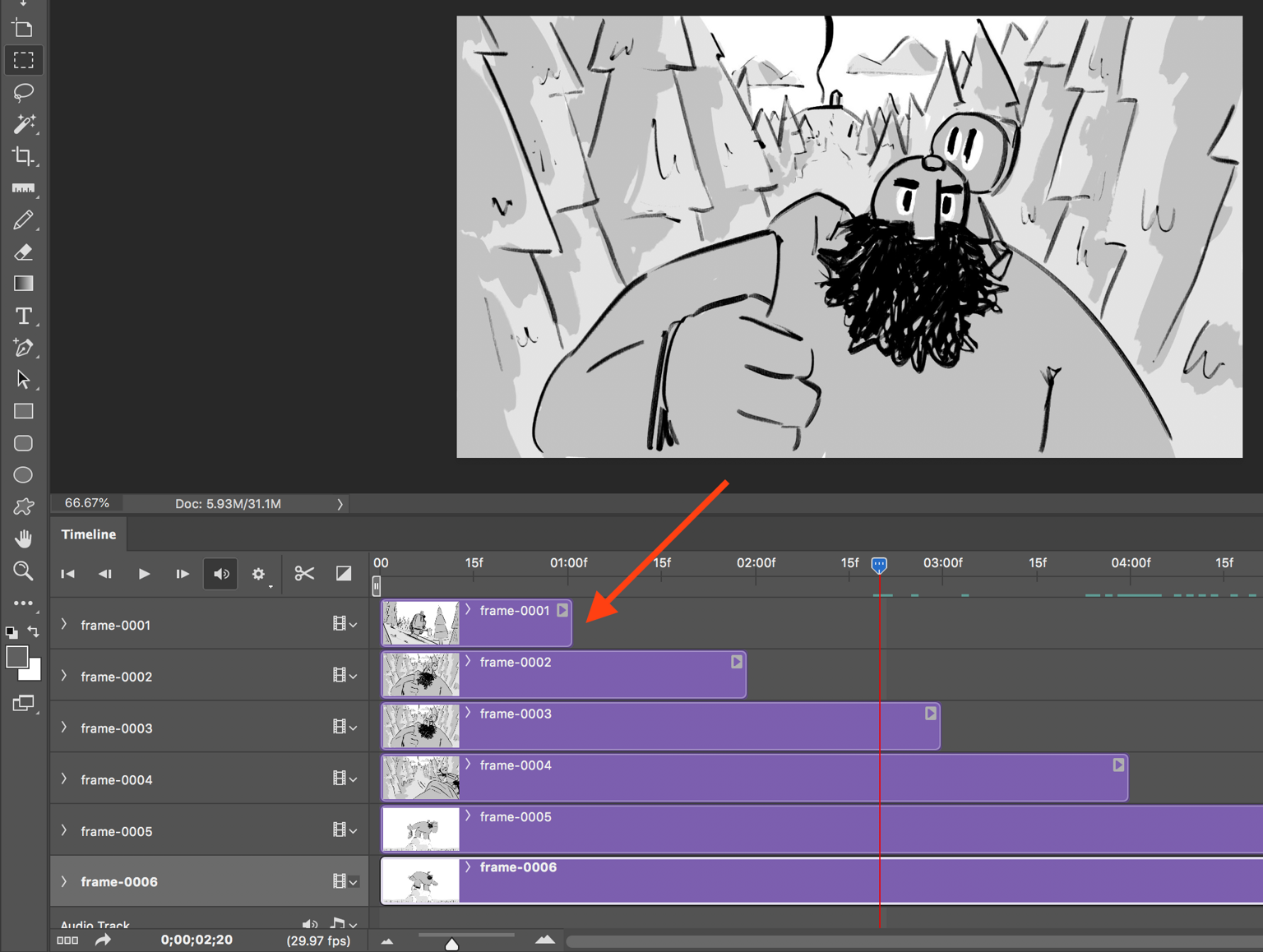 The end point of frame-0001
We don't need to alter the start points of each frame, because Photoshop will only show the top visible frame at any given point. The end point of the last visible frame in your Timeline defines the duration of your animatic.
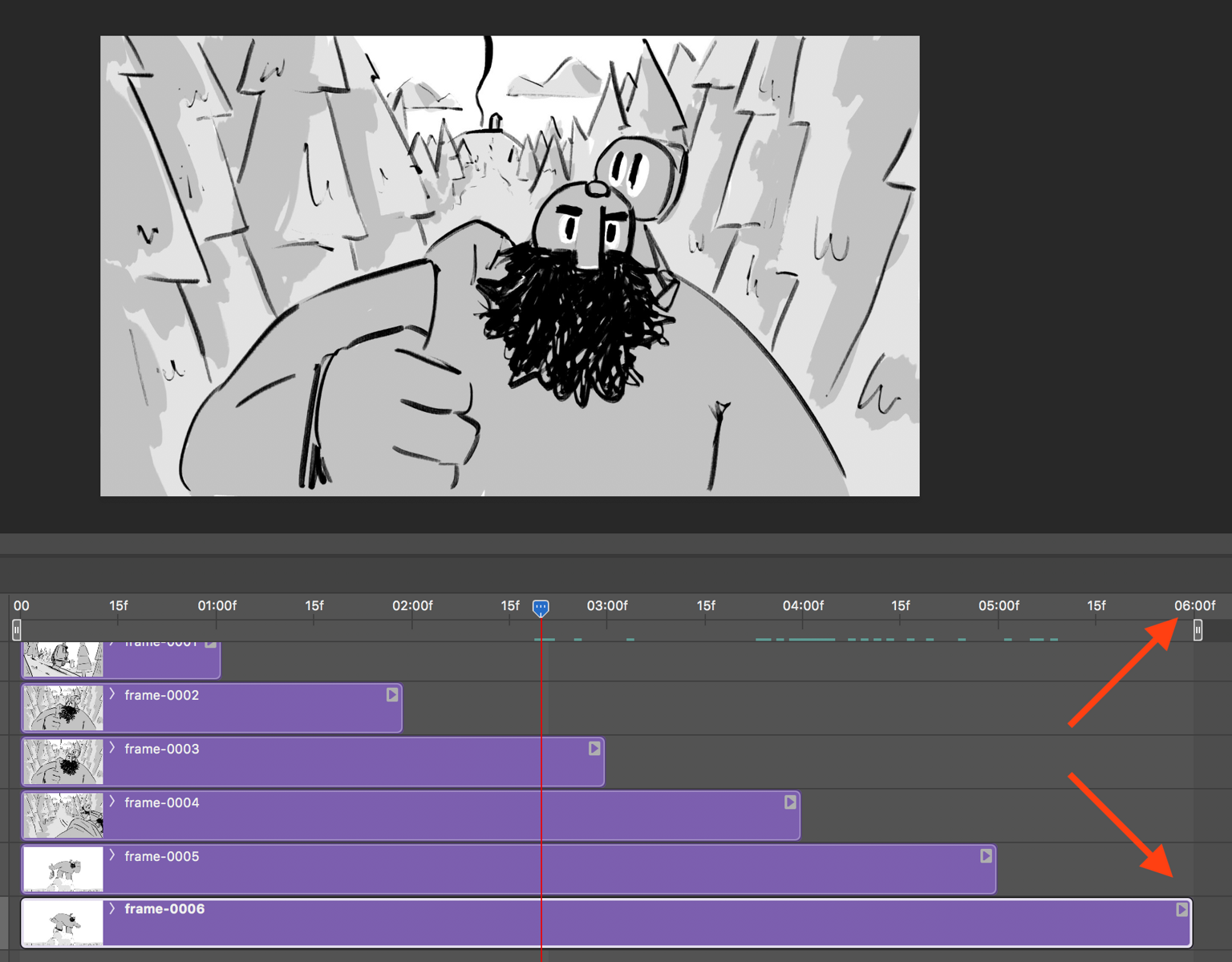 The last visible frame defines your animatic duration
Step 5. Playing your animatic through
Play your animatic through by using the 'Play' or 'Step' buttons in the Timeline UI. 'Play' will continuously play your animatic (it loops by default, although you can turn this off). 'Step' will move your animatic forward one frame at a time. You can also play and pause your animatic by pressing the space bar.
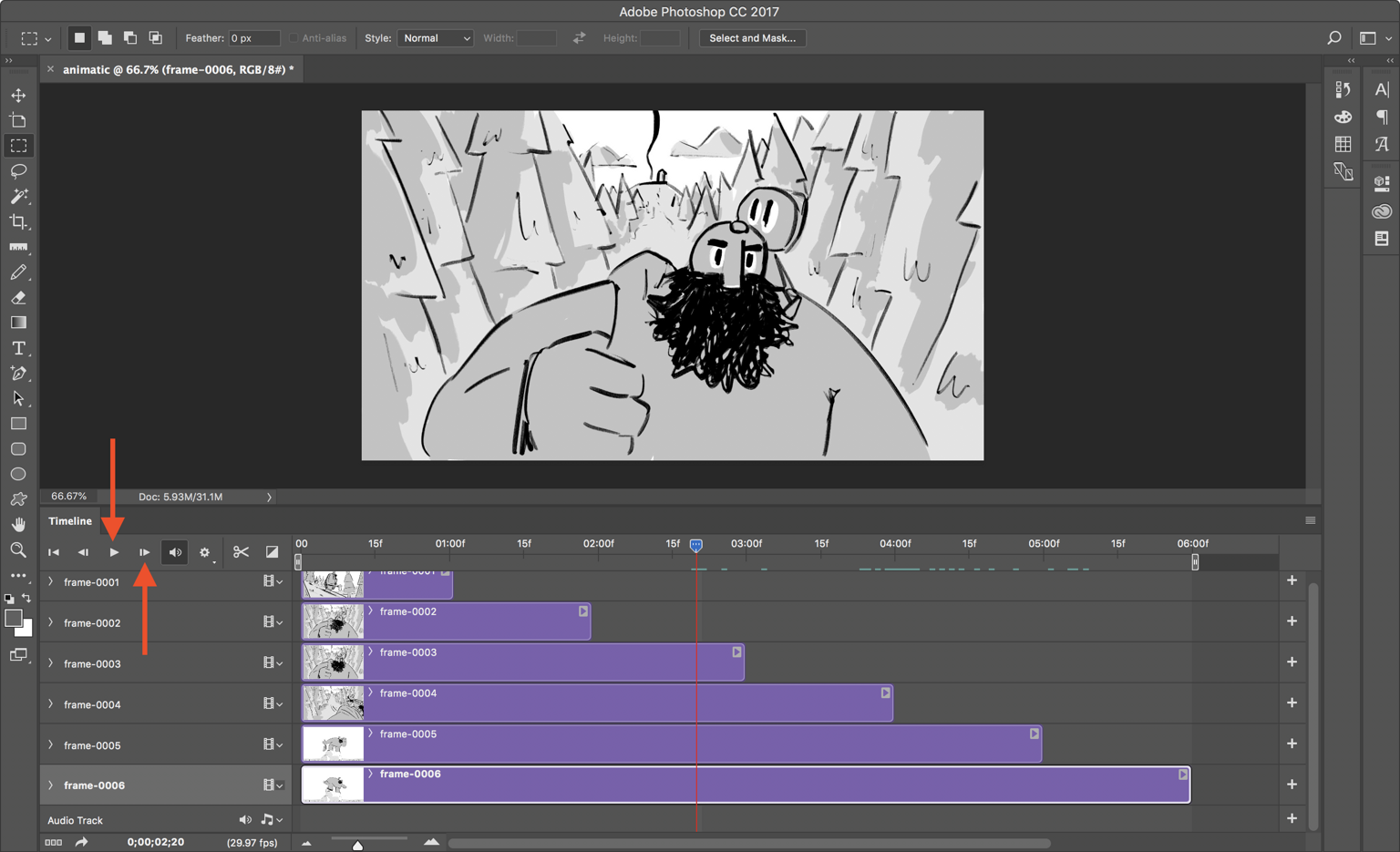 Play and Step controls
Get your FREE Filmmaking Storyboard Template Bundle
Plan your film with 10 professionally designed storyboard templates as ready-to-use PDFs.

Step 6. Exporting your animatic
When you're happy with the timing of your animatic, it's time to export it. Go to 'File > Export > Render video', choose your MP4 export settings, and you're off to the races.
Sharper preproduction, less back-and-forth
Workflow tips and Boords product updates for video and brand teams, twice a week.
Related links
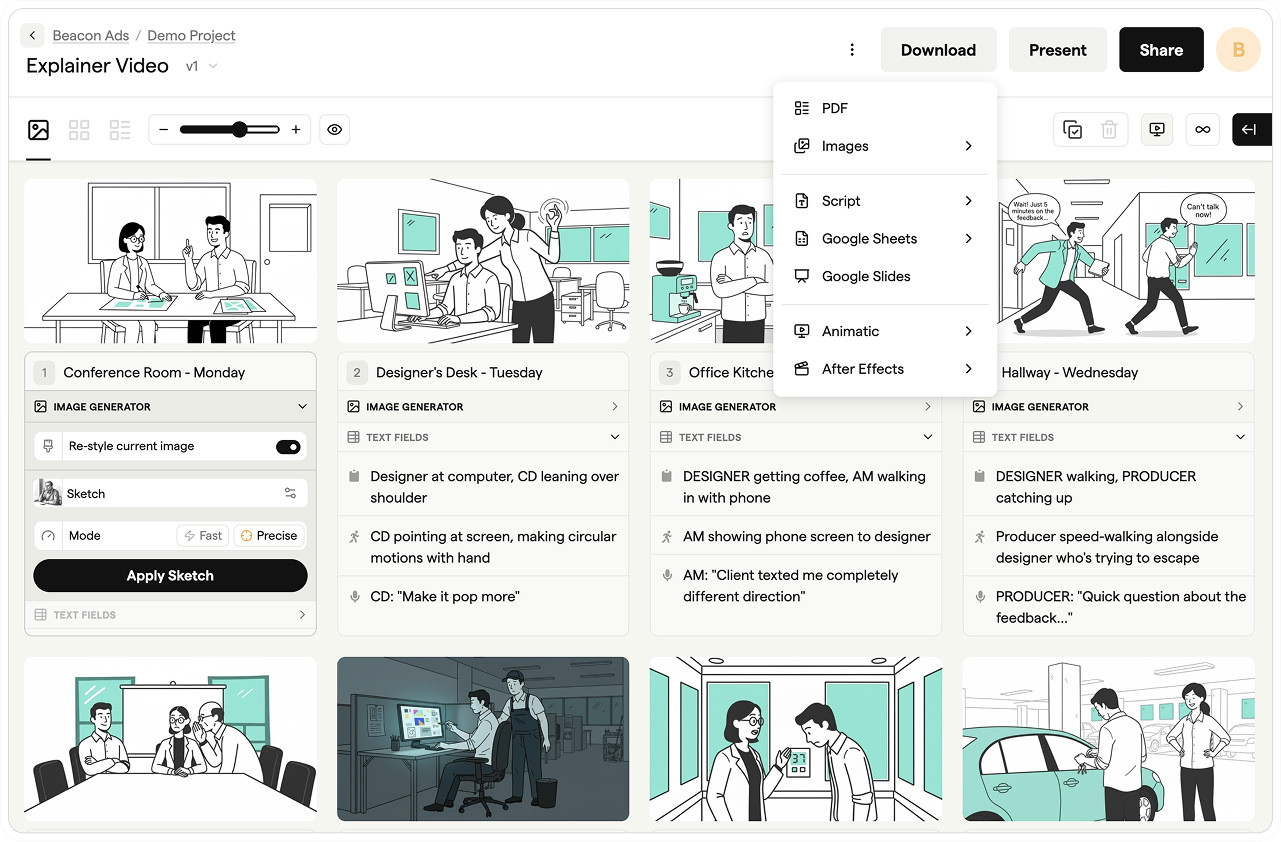
Create animatics automatically from your storyboards.
With our online animatic maker you can add frame timings, audio, and subtitles, then save to MP4 or After Effects.