
Sharing links
Share storyboards, scripts, and projects with a link
Share your storyboards, scripts, and projects with clients and stakeholders using shareable links — no Boords account required for viewers.
Sharing storyboards
Every storyboard has a unique shareable link that you can send to anyone. Viewers can browse frames, watch the animatic, and leave feedback directly on the link.
Opening the shareable view
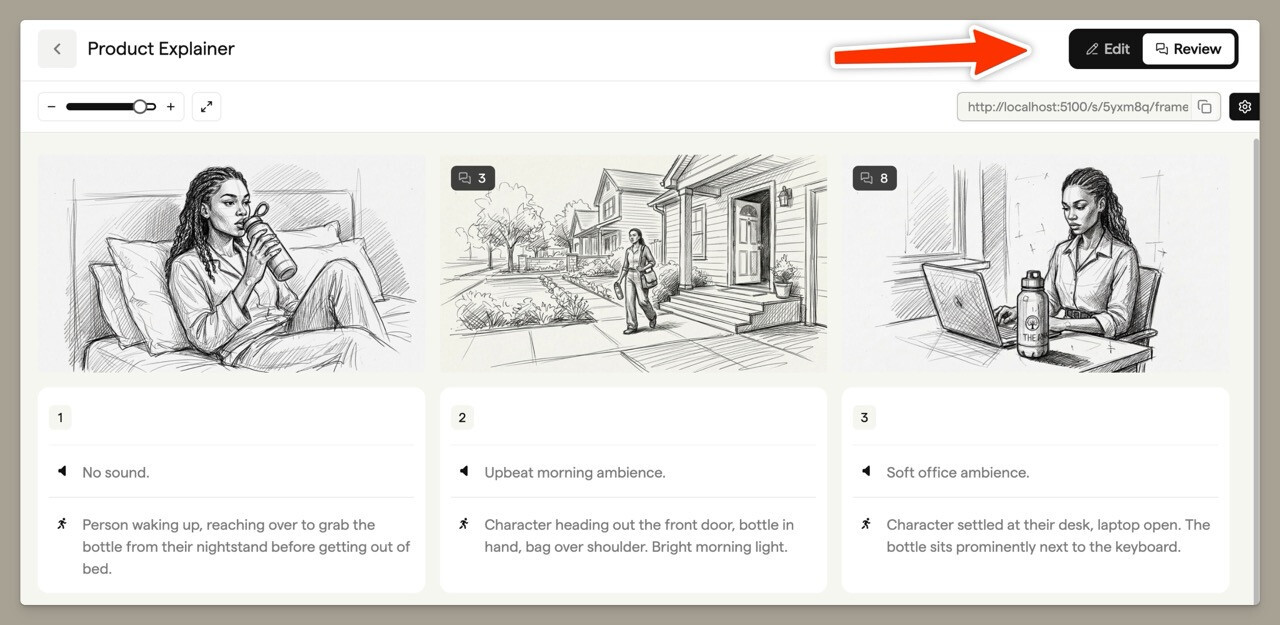
Every storyboard header has an Edit / Review toggle. Switch to Review to open the shareable view, the clean, client-ready version of your storyboard that viewers see. Switch back to Edit to return to your workspace at any time.
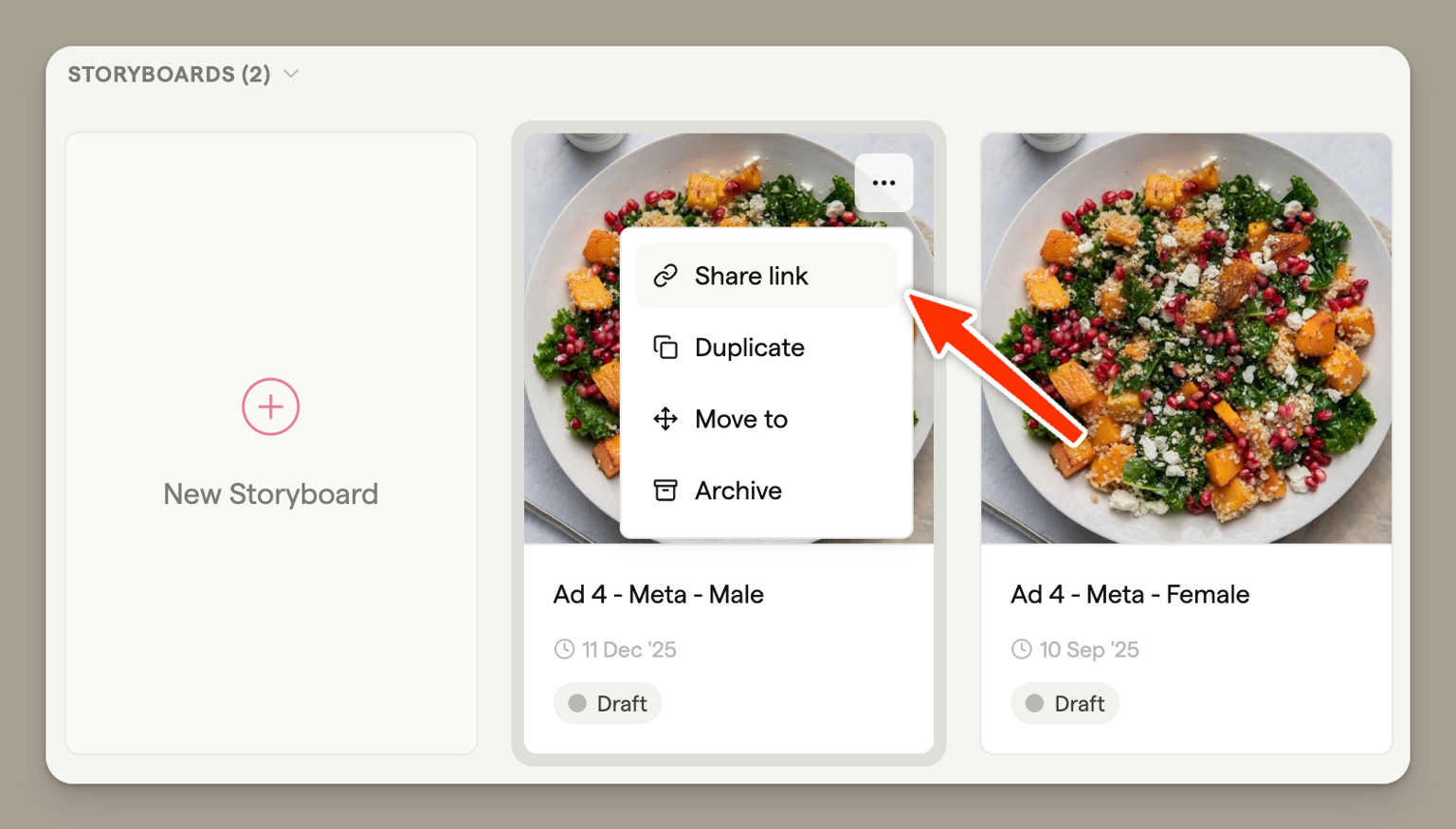
You can also open a storyboard's shareable link straight from the project view. Click the three-dot menu on any storyboard card and select Share link.
The Share settings panel
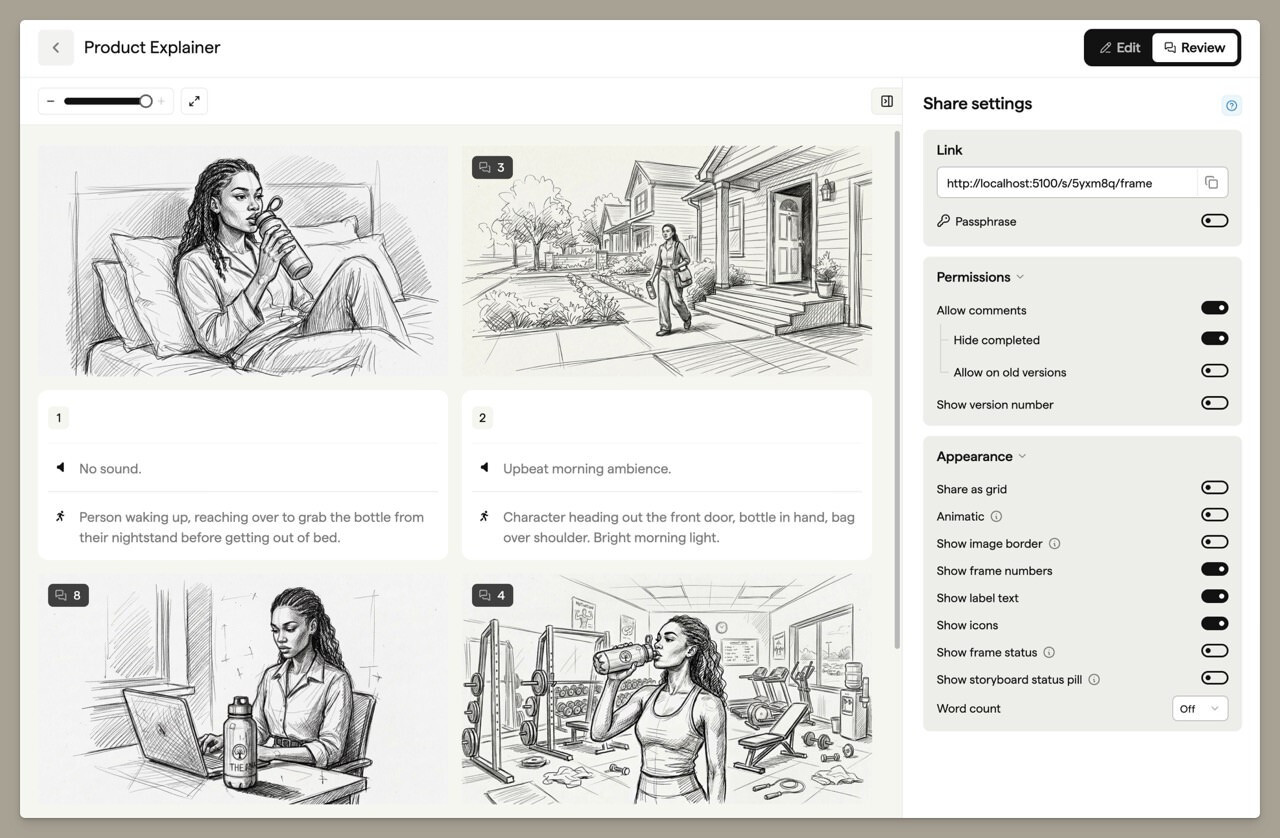
In the shareable view, your shareable link is shown ready to copy. Click the settings button to open the panel, which has two tabs.
- Share settings. Manage the shareable link, send it to reviewers by email, and control the password, display preferences, permissions, and zoom.
- Activity. See a feed of activity on this storyboard, including when reviewers open your link. A dot appears on the tab when there's new activity since you last opened it. The Activity tab is available on all paid plans.
Sending a link for review
Rather than copying the link and pasting it into your own email, you can have Boords email the review link directly to your reviewers.
In the Share settings tab, type one or more reviewer email addresses into the Add reviewer emails field. Each address becomes a chip. Press Enter, Tab, or comma to add another, and use Backspace to remove the last one.
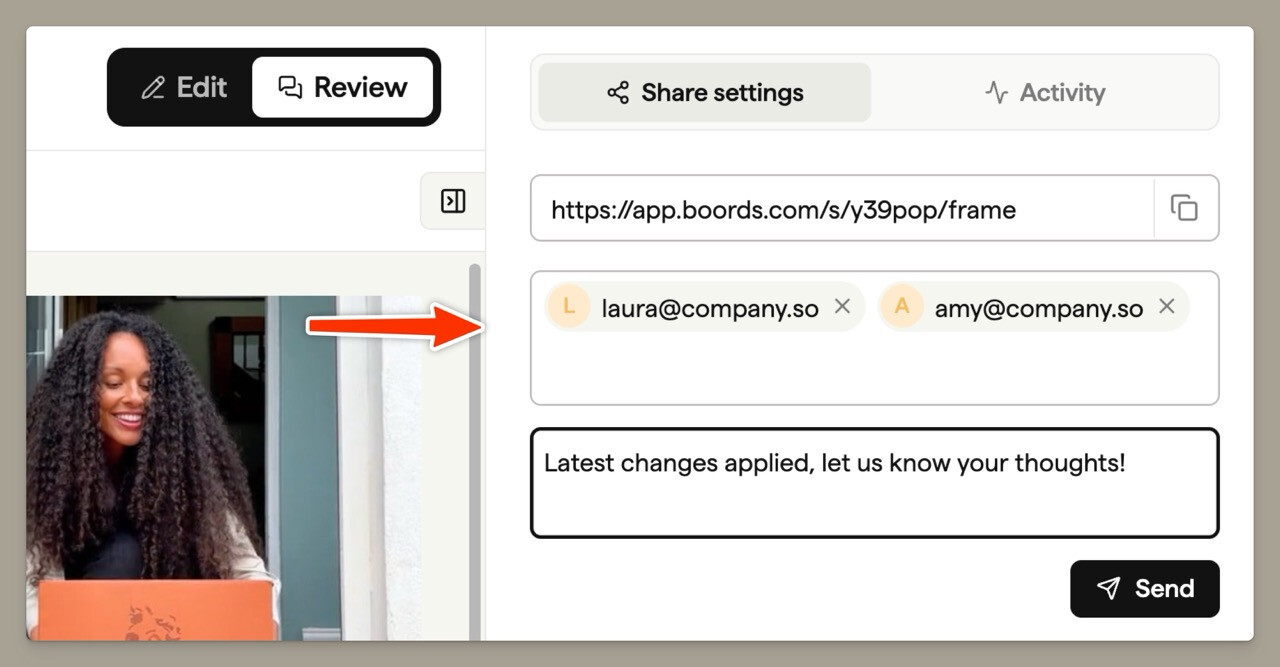
Once you've added at least one reviewer, an optional message field and a Send button appear. Add a short note if you like, then click Send. Each reviewer gets their own email with a link straight to your storyboard.
Because Boords sends the link for you, it knows who your reviewers are. You can see when each person opens the storyboard in the Activity tab and the Activity Log.
The Share storyboard window
Owners and admins can also open sharing controls straight from the storyboard header, without switching to the Review view. Click the Share storyboard button in the header to open a window with two tabs.
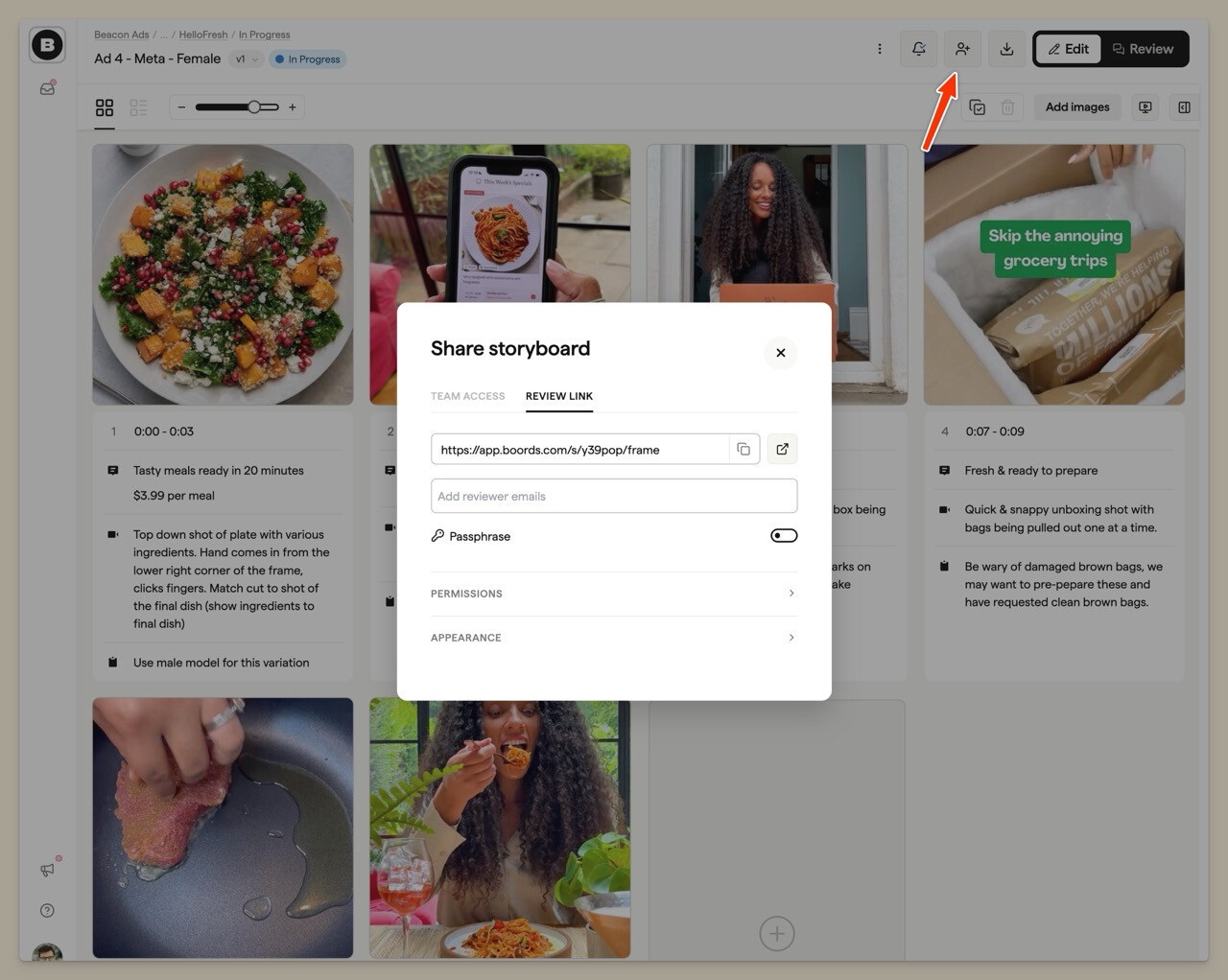
- Review link. Copy the shareable link, send it to reviewers by email, and manage the passphrase, permissions, and display options. This gathers the sharing controls described above into one window.
- Team access. Invite teammates to edit the storyboard. This is covered in Inviting & managing users.
Security
Password protection
This feature is available on all paid plans.
Add a password to your shareable link to control who can access it. Open the Share settings panel, turn on Passphrase, and enter your chosen password. Anyone visiting the link will need to enter this password before viewing the storyboard.
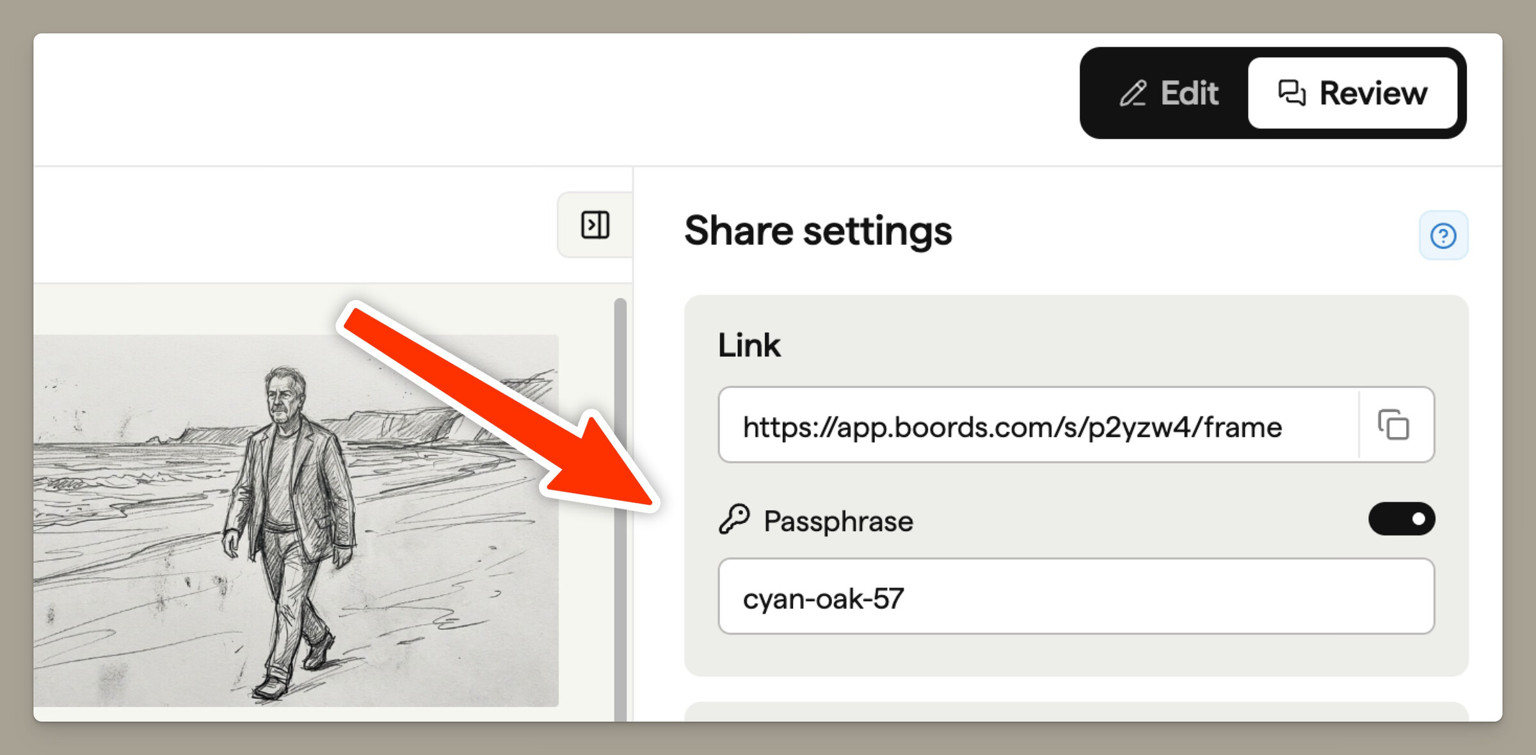
If you email a review link directly to reviewers, they get in without entering the passphrase. Anyone else who only has the link still needs it. This keeps the passphrase out of your emails while the link itself stays protected.
Display preferences
Control how your storyboard appears to viewers from the Share settings panel.
Share as grid
When enabled, viewers see all frames displayed in a grid layout. This gives an overview of the entire storyboard at a glance. Viewers can click any frame to zoom in and see it in detail.
Animatic
When enabled, viewers can watch your storyboard as an animatic — a video-like playback of your frames with timing. This is ideal for reviewing pacing and flow with clients.
You can enable both Share as grid and Animatic to give viewers the choice of how they want to review your work. If only Animatic is enabled, viewers go straight to the player view.
Show image border
Display a border around each frame image. Useful for frames with white or transparent backgrounds.
Show frame numbers
Display the frame number on each frame, helping viewers reference specific frames in their feedback.
Show label text
Show the labels for each frame field (such as "Action" or "Dialogue") alongside the content.
Show icons
Display icons next to frame fields for visual clarity.
Show frame status
Display the approval status badge on individual frames. This shows whether each frame is marked as Draft, In Progress, Review Needed, Changes Required, or Approved.
Word count
Display the word count on frames. Use the dropdown to choose whether to count words from All fields or a specific field like Dialogue or Action. This helps voice-over artists and editors estimate timing.
Permissions
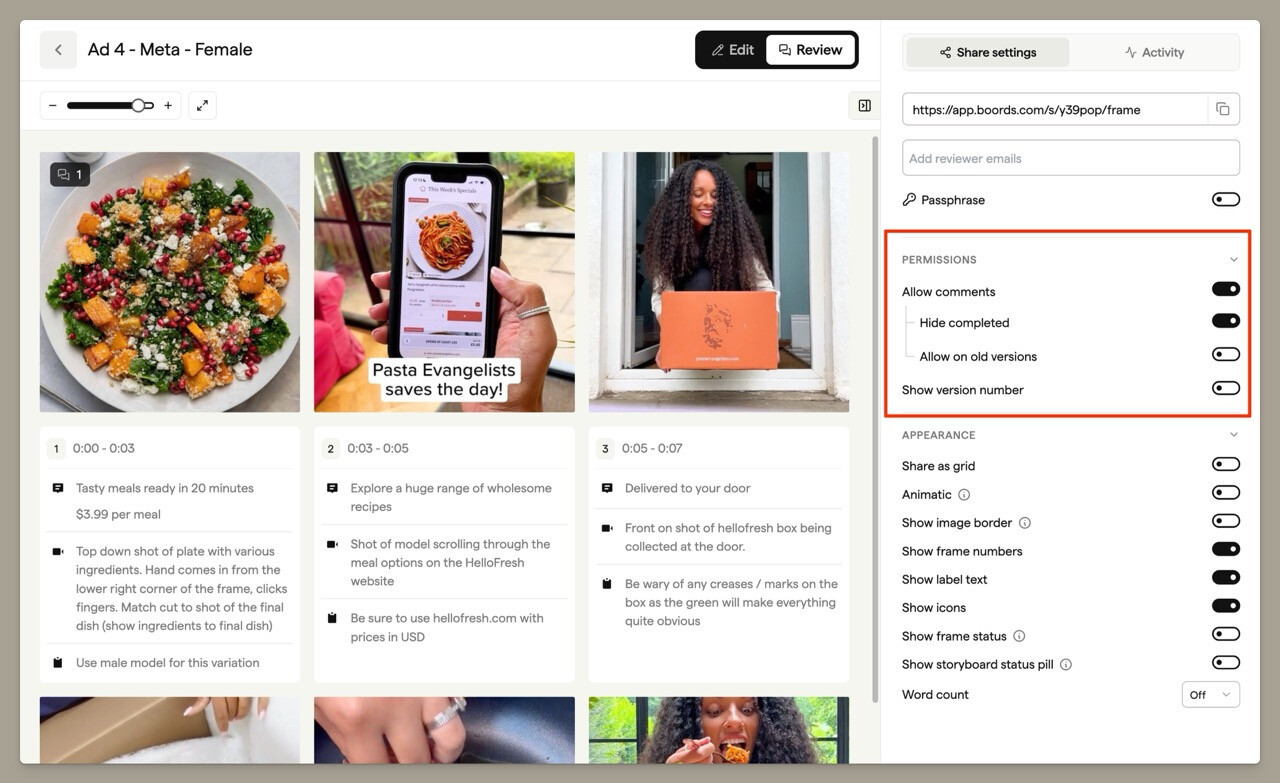
Control what viewers can do and see on your shared link from the Share settings panel.
Show storyboard status pill
Display the overall storyboard status (Draft, In Progress, Review Needed, Changes Required, or Approved) as a pill badge on the shared view. This gives clients visibility into where the storyboard sits in your workflow.
Comments
Enable viewers to leave comments on your storyboard. When turned on, guests can add feedback directly on frames without needing a Boords account.
For full details on how commenting works, see Commenting overview.
When comments are enabled, two additional options appear:
- Hide completed — Hide comments that have been marked as complete, so viewers only see outstanding feedback
- Allow on old versions — Let viewers comment on previous versions of the storyboard, not just the latest
Show version number
Display which version of the storyboard viewers are looking at. This helps avoid confusion when you've made multiple revisions.
When enabled, additional options appear:
- Allow guest version switching — Let viewers navigate between different versions of the storyboard to compare changes
- Show new version message — Display a notification to viewers when a newer version is available, prompting them to view the latest
Sharing scripts
Scripts have a review link that works the same way as a storyboard's shareable link: guests open it in their browser, read the script, and comment on exact lines without a Boords account. Each script has one stable link that always shows the newest version, so you send it once and it stays correct through every review round.
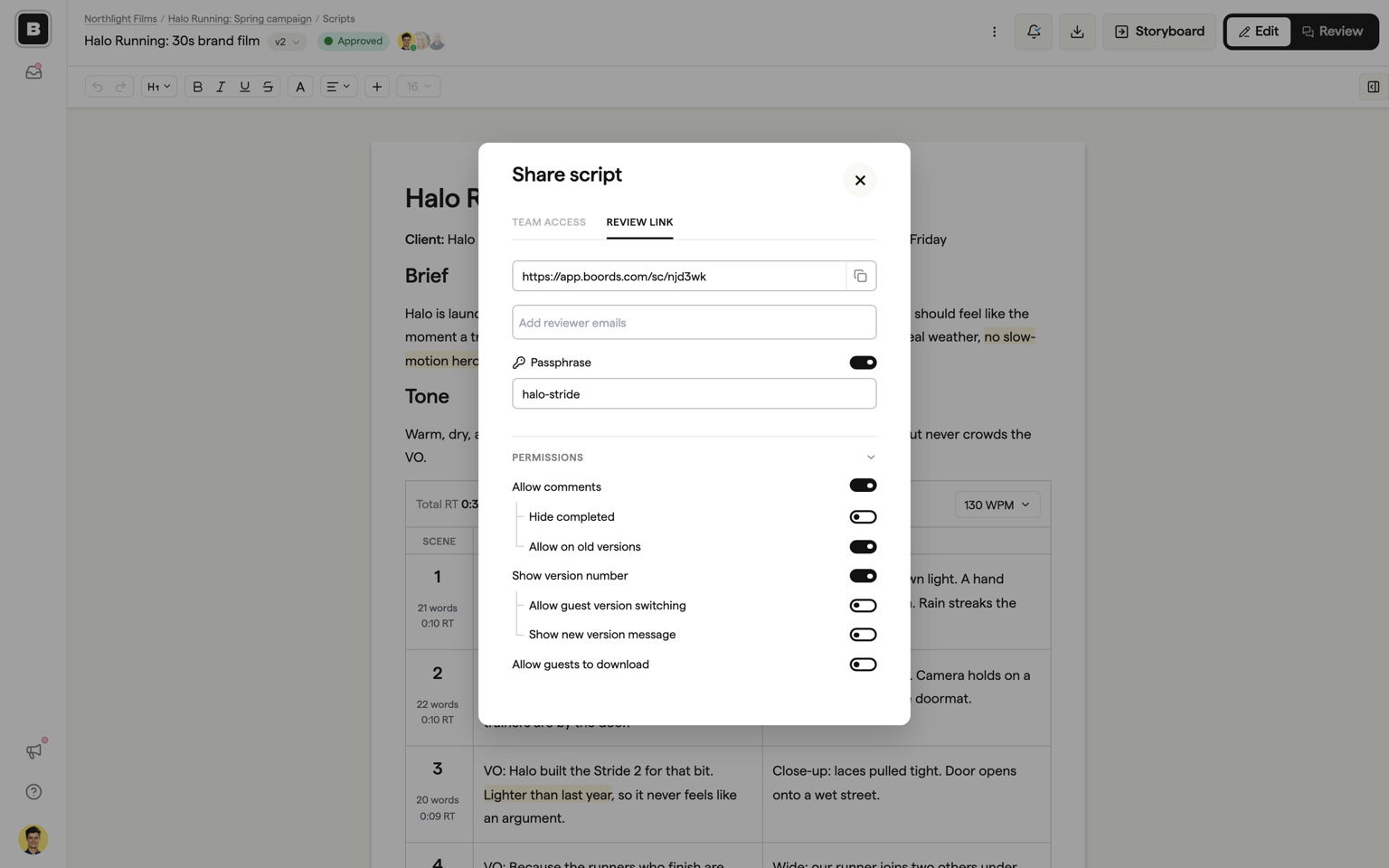
You will find the same controls you know from storyboards:
- Copy the review link, or email it directly to reviewers with a personal message and see read receipts in the script's Activity panel
- Passphrase protection for the link (paid plans), with direct-send recipients bypassing it through their personal link
- Permissions: allow comments, show the version number, allow guest version switching, show the new version message, and allow guests to download the script (off by default)
Open these from the Settings tab in the script sidebar, the Share script dialog (click the facepile in the header), or the Share action on the script's dashboard card. See Review and sign-off for the full walkthrough.
Sharing projects
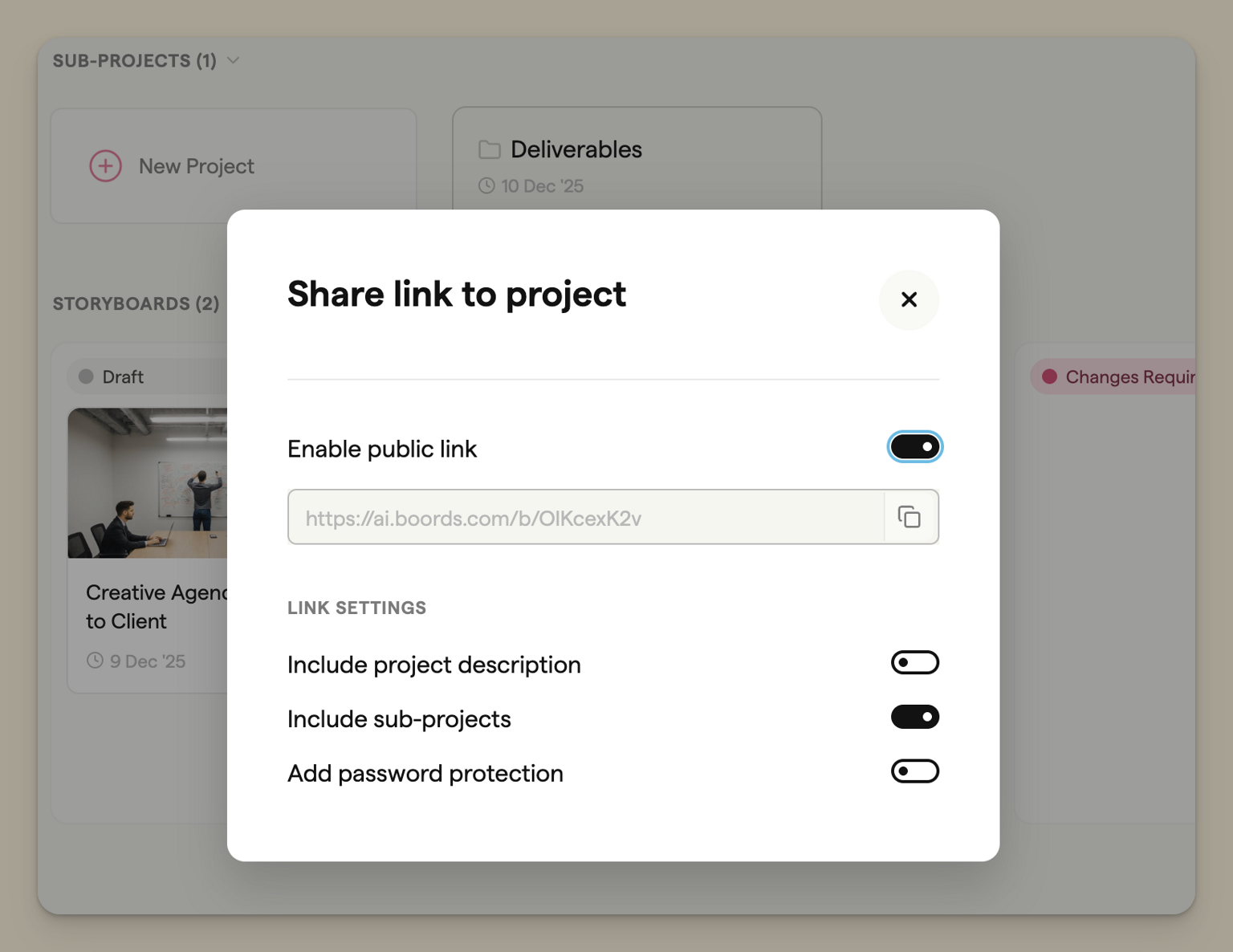
Share an entire project — including all its storyboards — with a single link. This is useful when you want to give clients access to multiple storyboards at once, such as all the episodes in a series or all the scenes in a campaign.
Project sharing is covered in detail in Projects. Here's a quick overview:
- Open the project you want to share
- Click the Share button in the project header
- Toggle Enable public link to generate the shareable URL
- Optionally enable Include project description, Include sub-projects, or Add password protection
- Copy the link and share it with your recipients
FAQ
Check that the Animatic toggle is enabled in your share settings. If it's turned off, guests will only see the grid or frame view. Current paid plans include the animatic editor; see pricing for the feature comparison.
Yes, if you enable the Comments toggle in your share settings. Guests will be asked to enter their name when commenting. For more details on how commenting works, see Commenting overview.
On paid plans, open the Activity tab in your storyboard's share settings to see review activity. When you send review links through Boords, you can see when each named reviewer opens the storyboard in the Activity tab and the Activity Log.
Shareable links are always active, but you can add password protection to control access. If you've shared a link and want to revoke access, enable the Passphrase option and set a new password that you don't share, or you can simply archive the storyboard.