Templates
Build reusable storyboard templates for your team
Templates help your studio maintain consistency across client projects and reduce setup time when creating new storyboards.
This feature is available on the Team and Agency plans.
Whether you're working with multiple clients who each have specific format requirements, or you want to standardise how your team sets up storyboards, templates let you define the settings once and apply them instantly.
| Role | Can create/edit templates | Can use templates |
|---|---|---|
| Owner | ✓ | ✓ |
| Admin | ✓ | ✓ |
| Full teammate | — | ✓ |
| Restricted teammate | — | ✓ |
Accessing templates
To access templates, click your team name in the sidebar and select Templates from the menu.
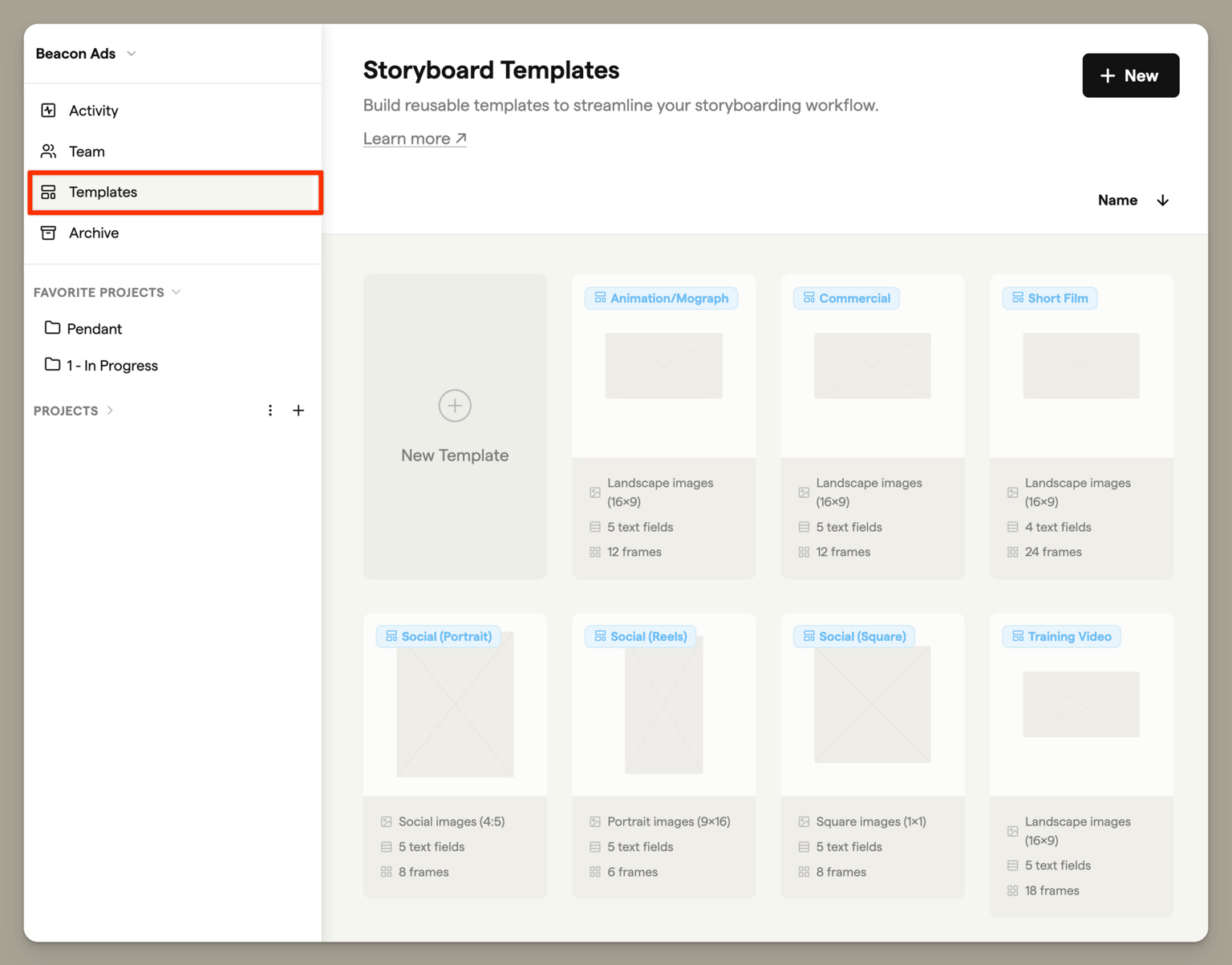
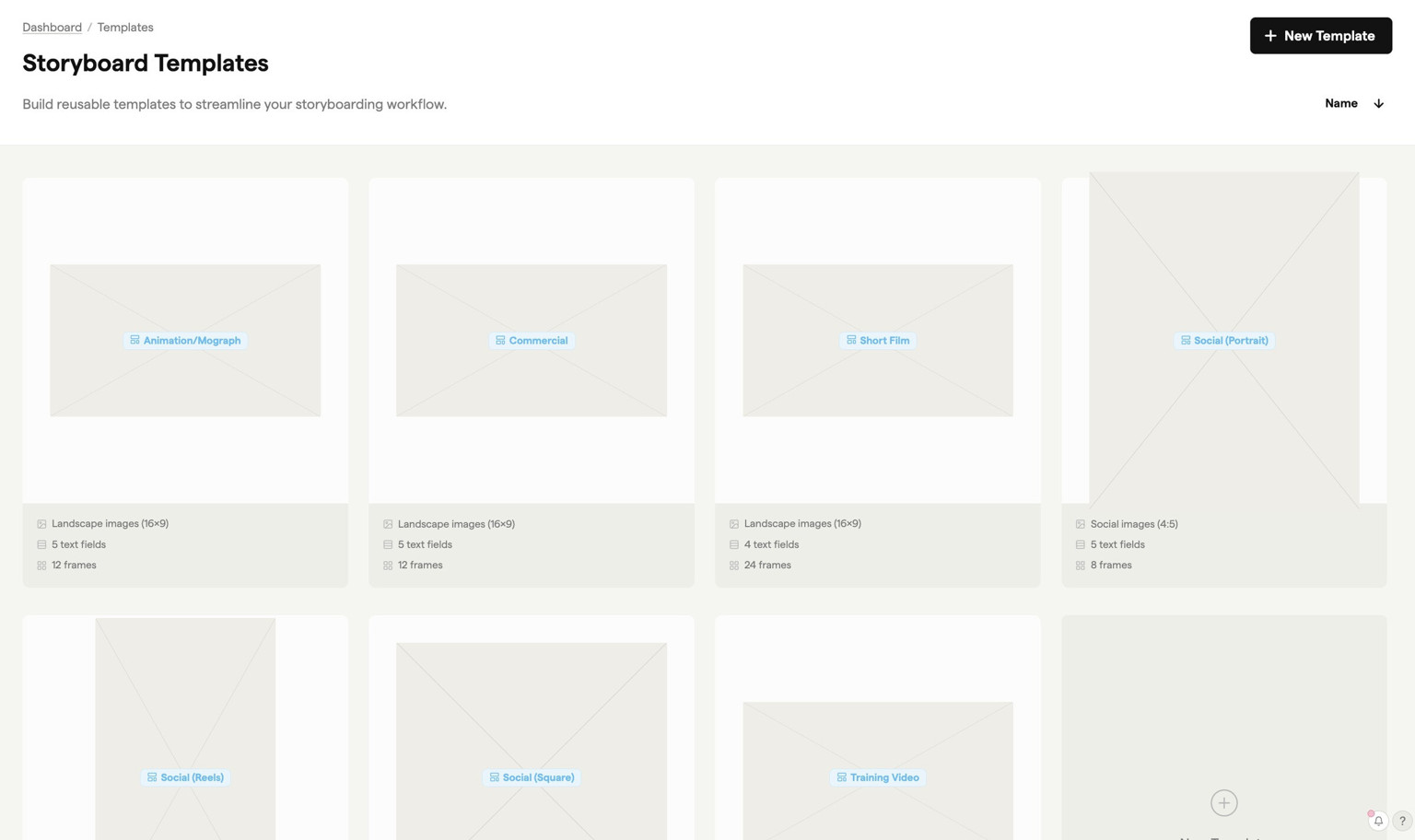
You'll find several pre-built templates to get you started.
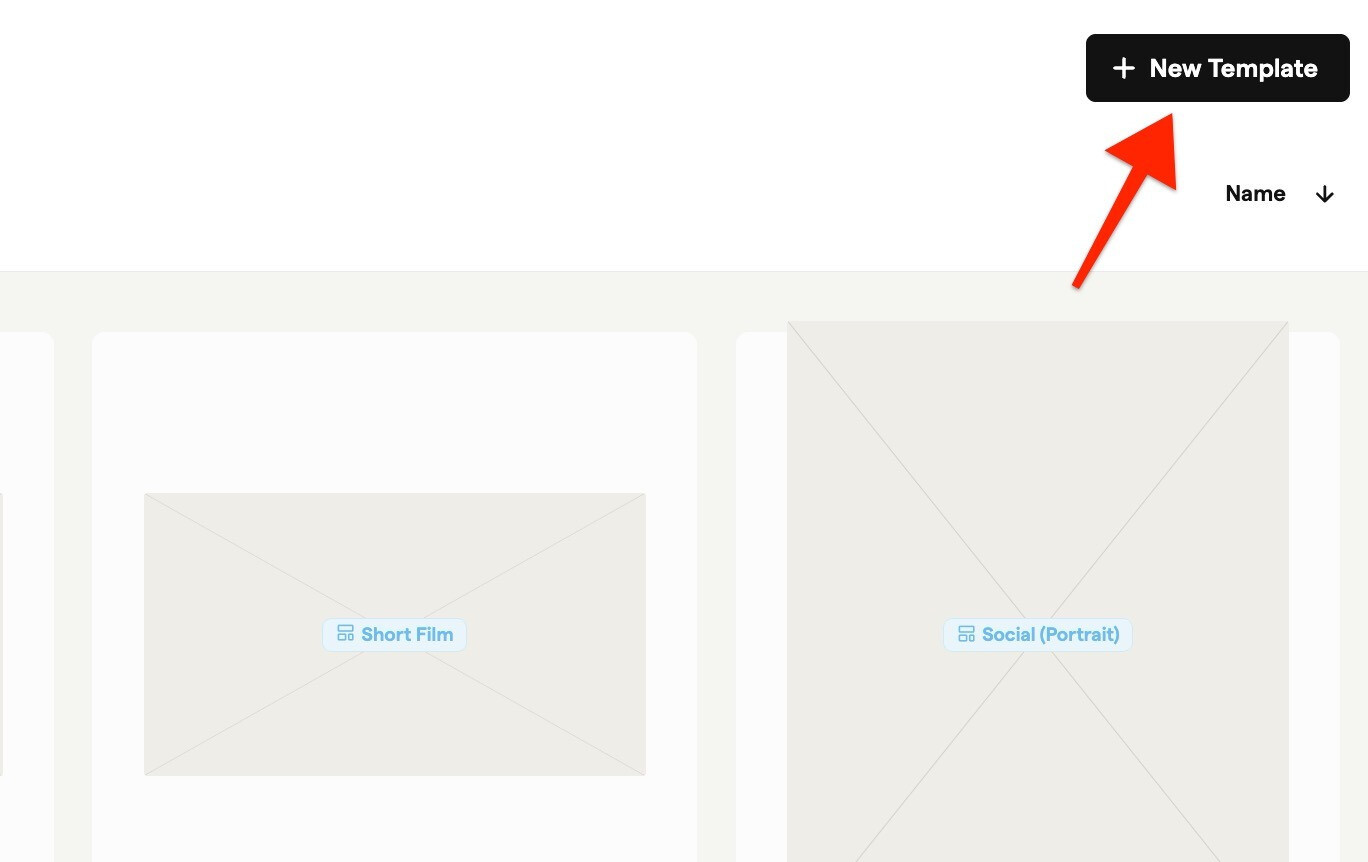
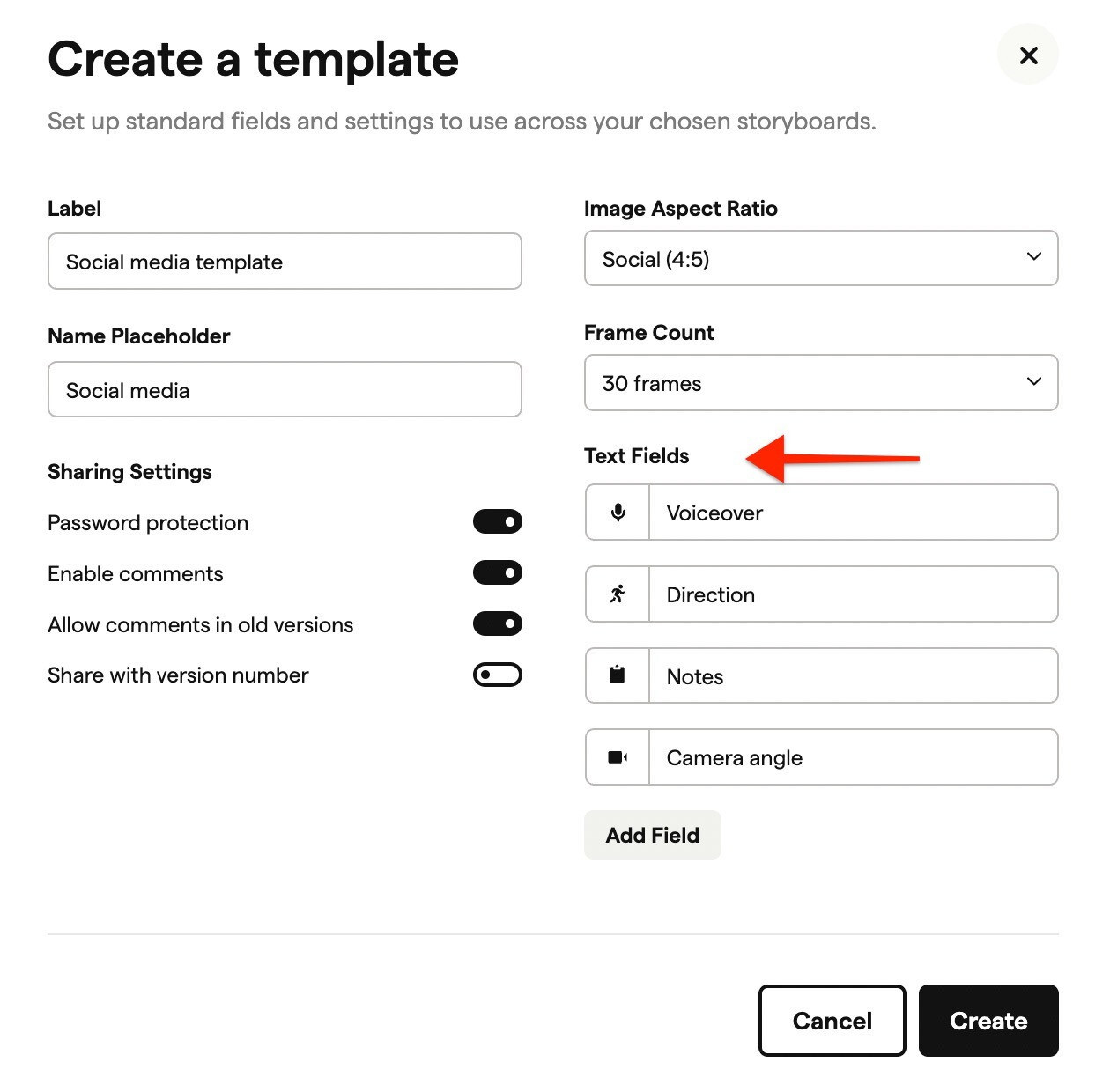
To create your own, click + New Template.
Setting up a template
Here's how to configure your template:
Label and Name Placeholder: Give your template a label to identify it (e.g. "Client A - TV Spots"), and set a name placeholder to prompt consistent storyboard naming.
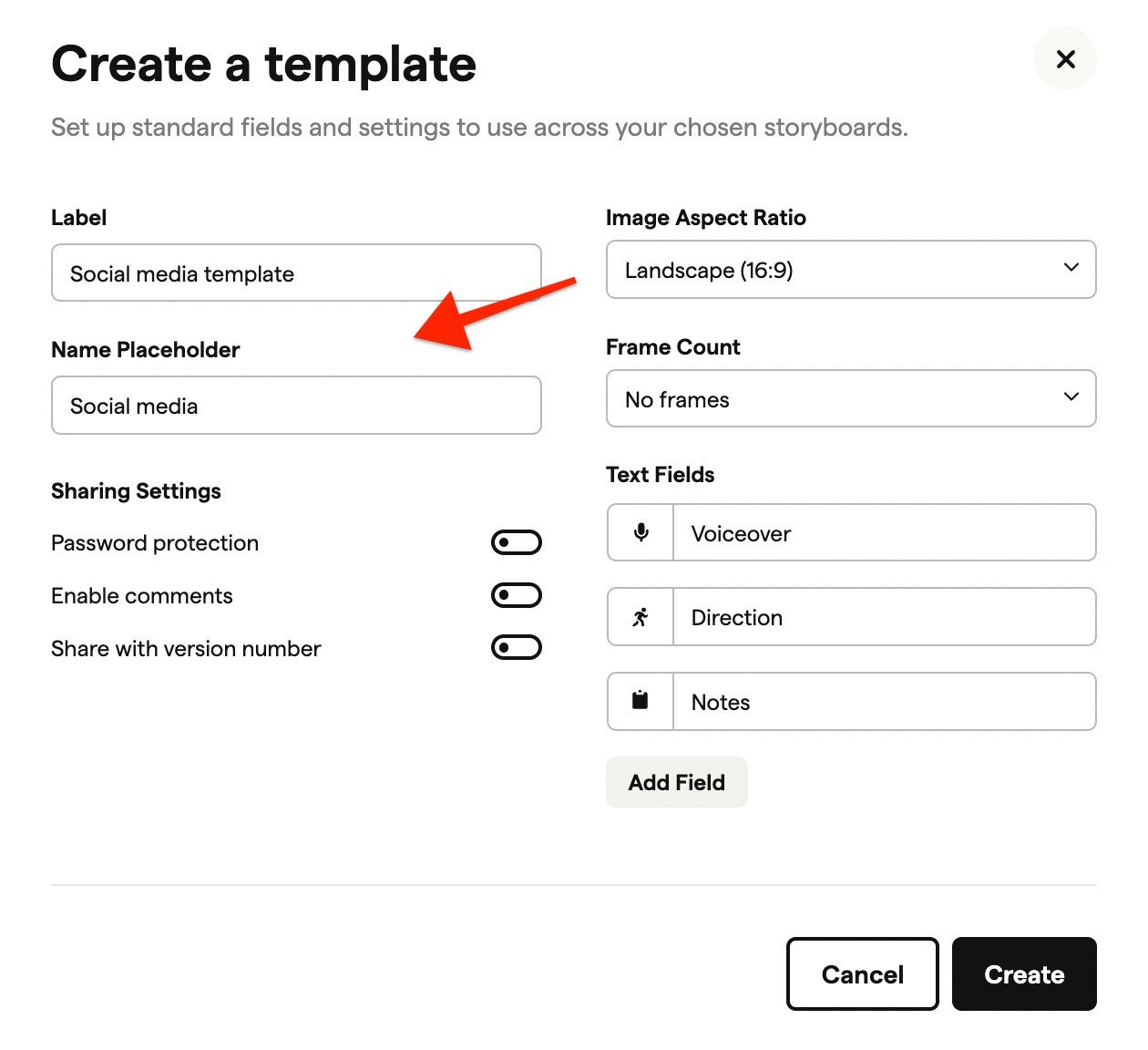
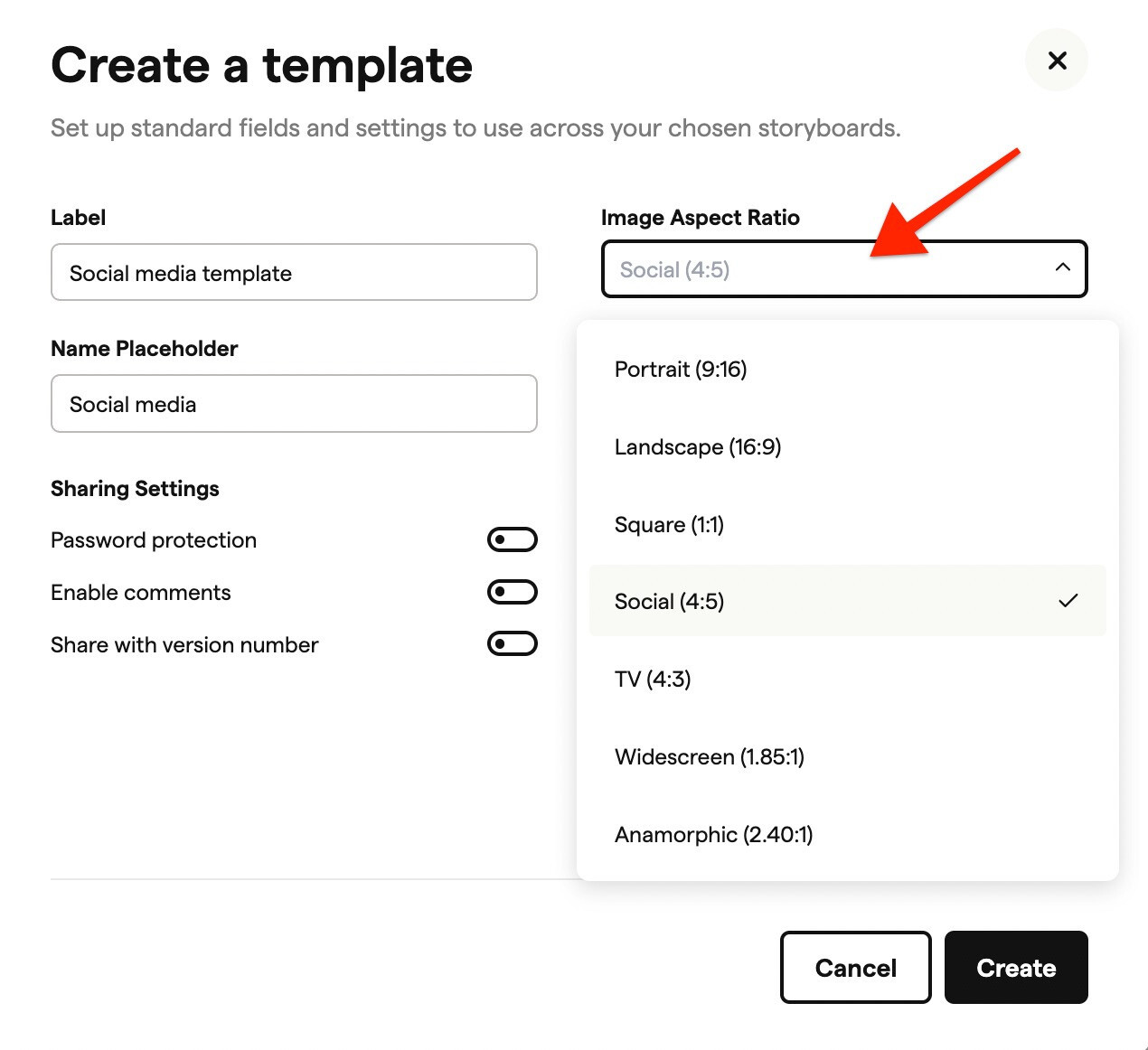
Aspect Ratio: Choose the aspect ratio that matches your deliverable format.
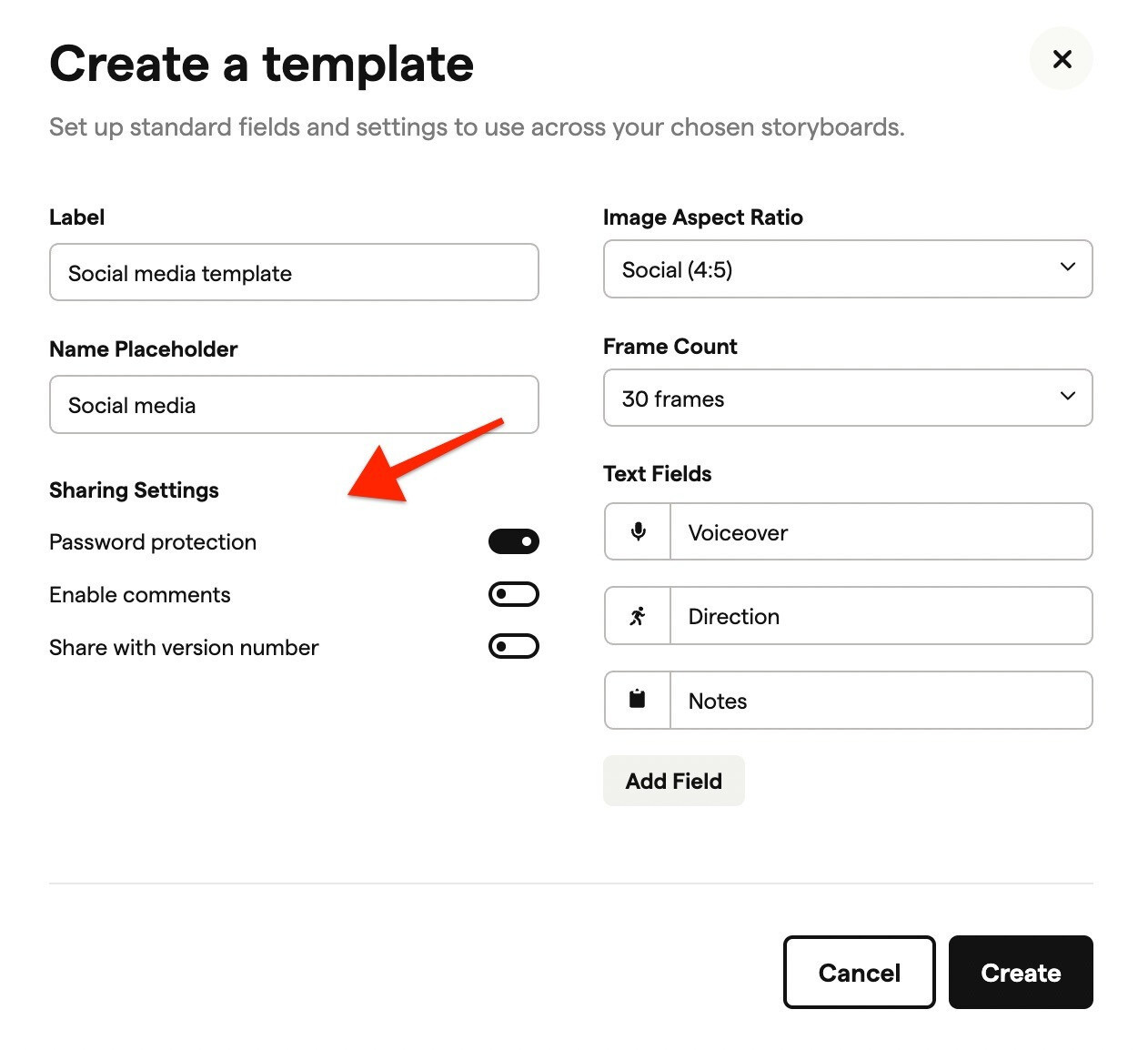
Default Frame Count: Set how many frames new storyboards should start with.
Sharing Settings: Configure commenting and password protection. When comments are enabled, you can also choose whether to allow comments on previous versions.
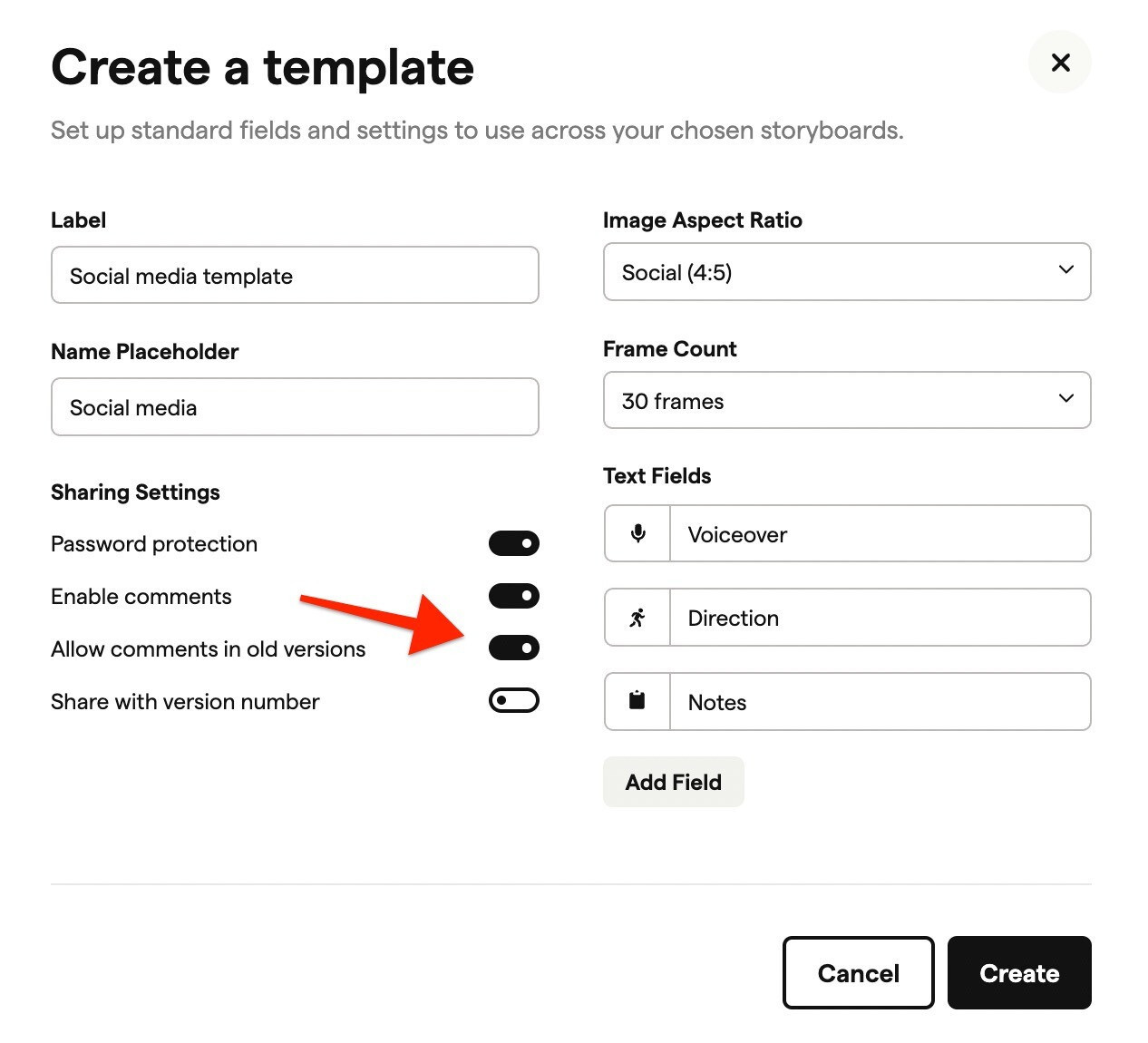
Frame Settings: Choose which custom text fields appear on each frame.
Managing templates
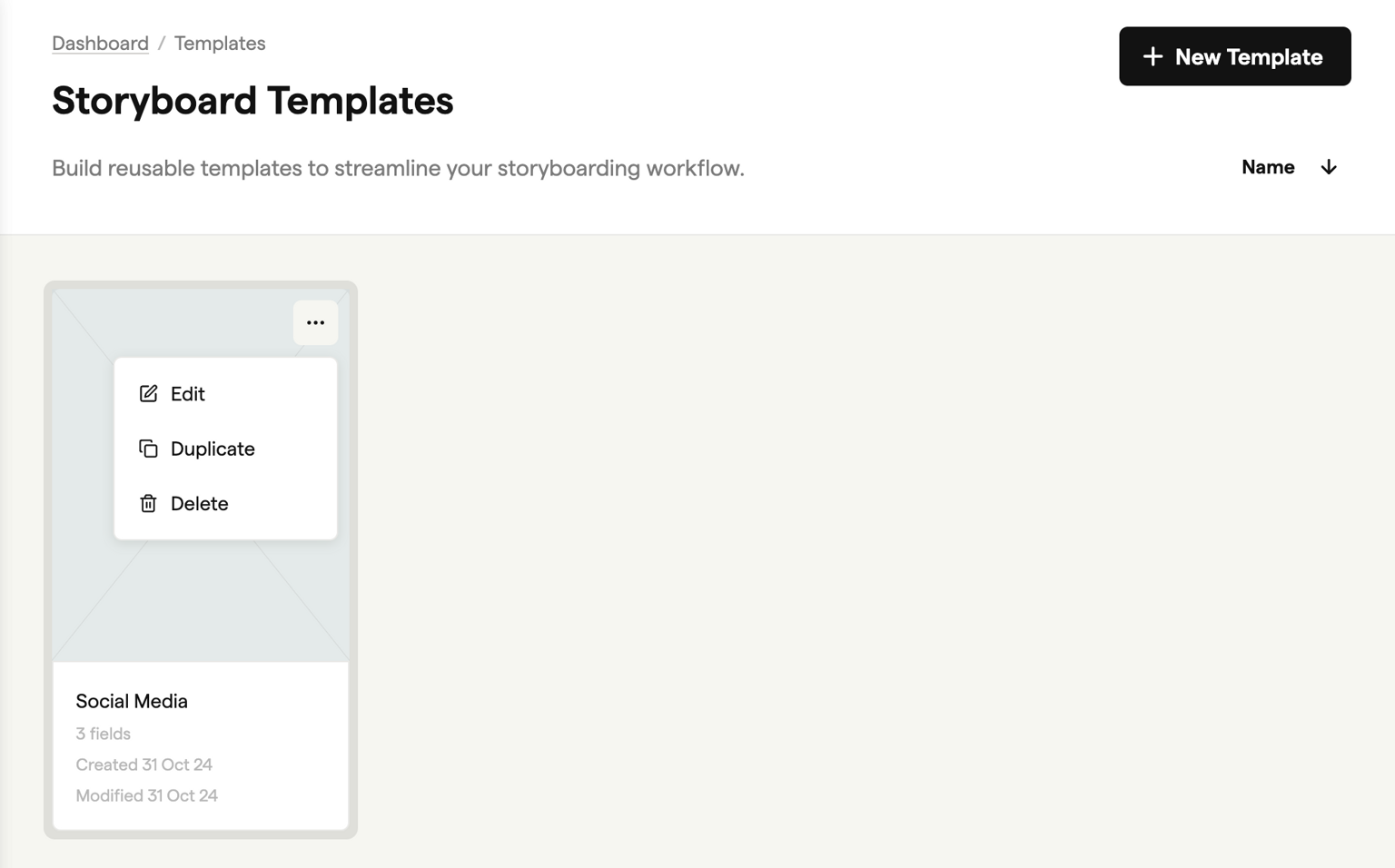
Your templates appear in the Templates section where you can edit, duplicate, or delete them.
Assigning a template to a project
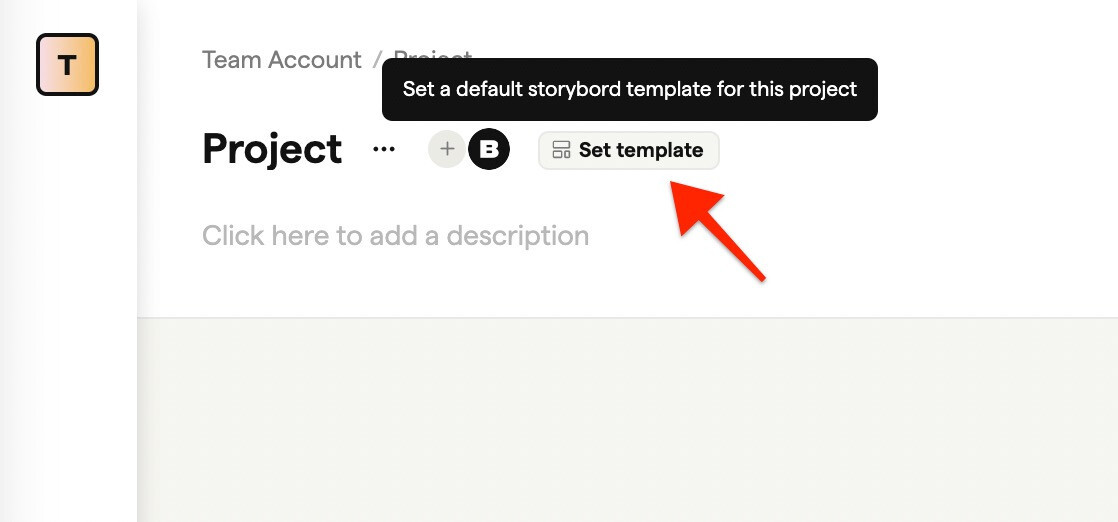
You can assign a template to a project so that all new storyboards in that project use the same settings automatically.
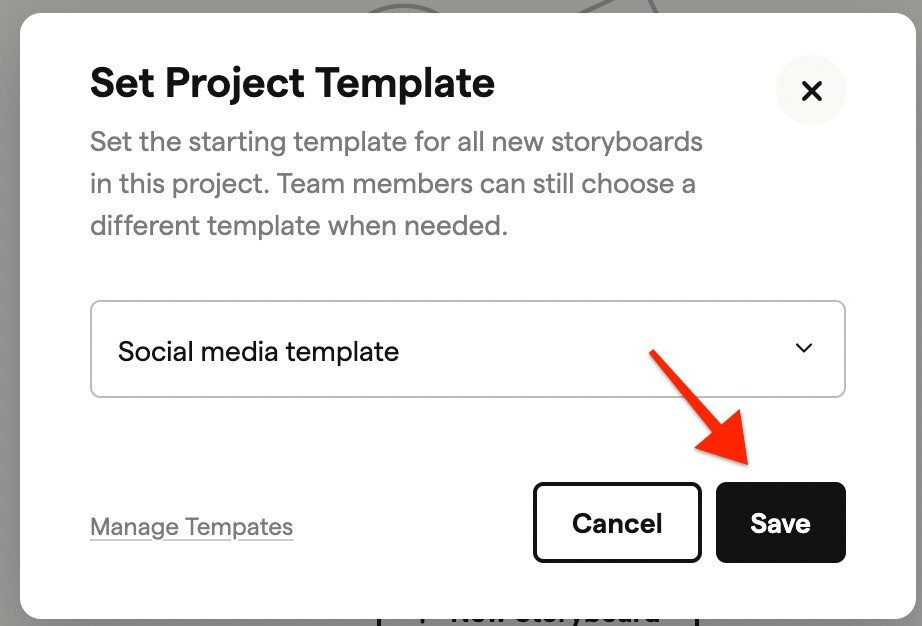
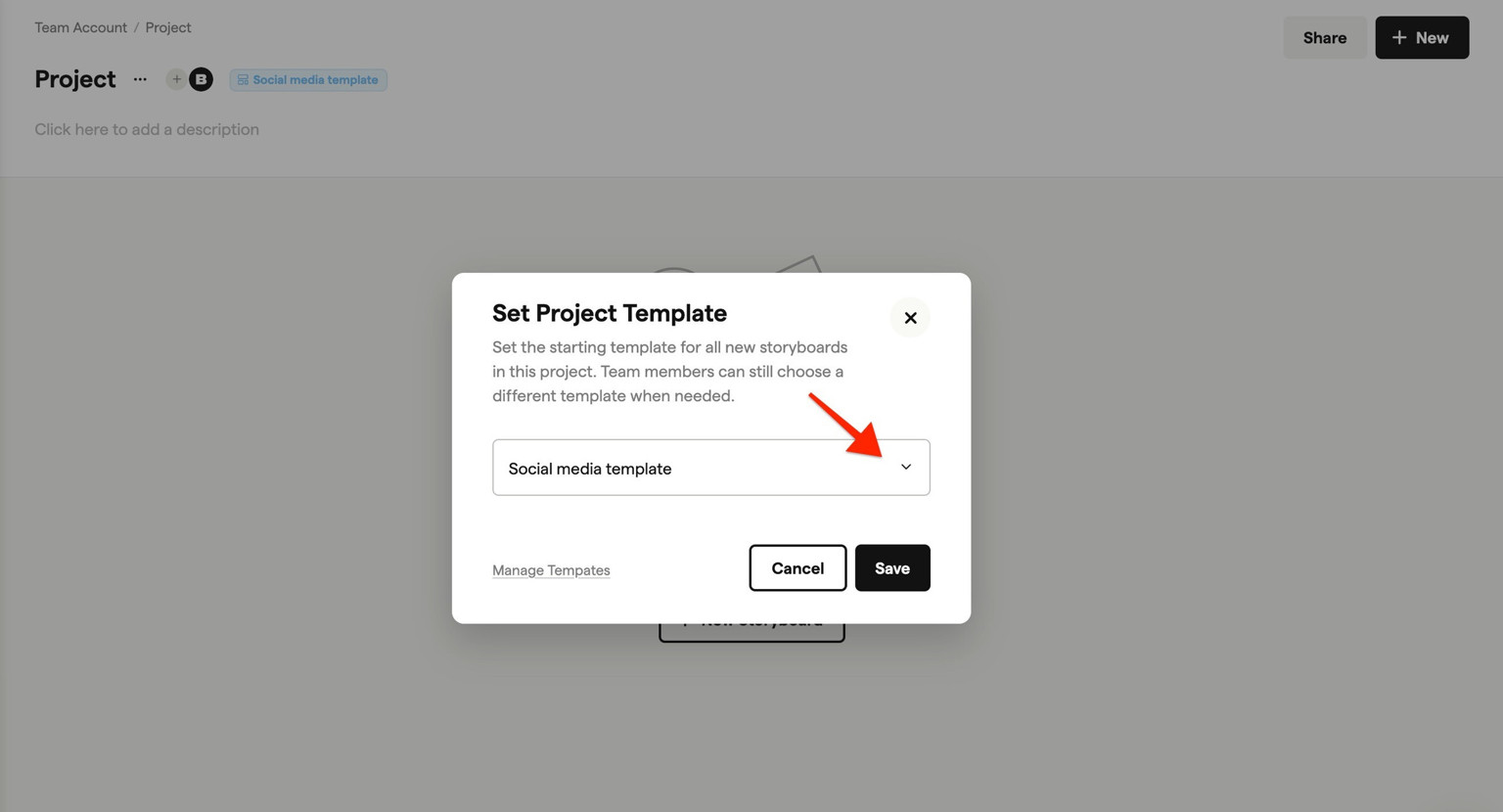
Click Set template on the project.
Choose the template you want to apply.
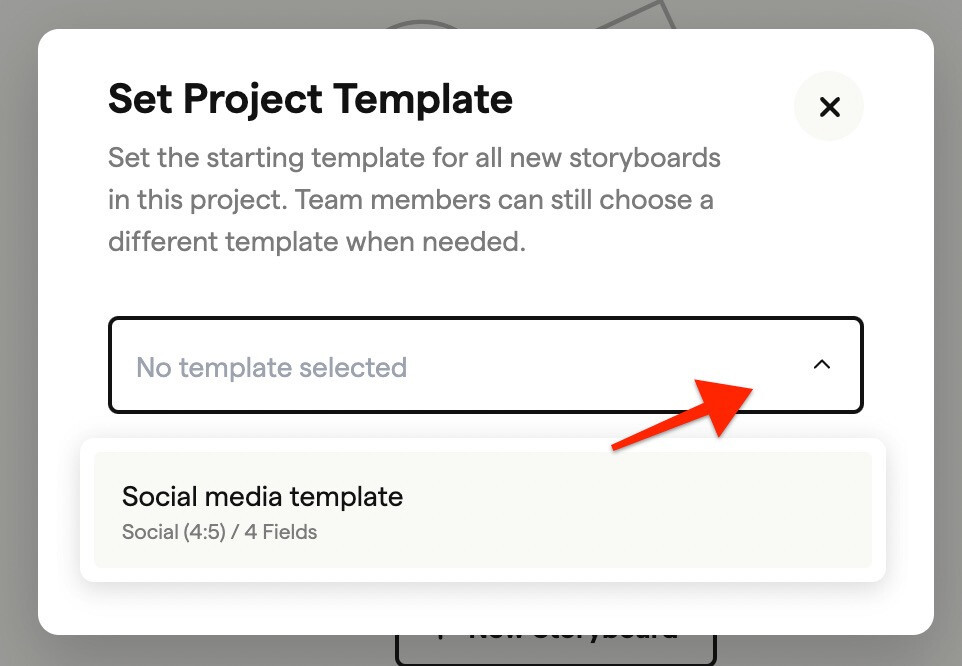
Click Save to confirm.
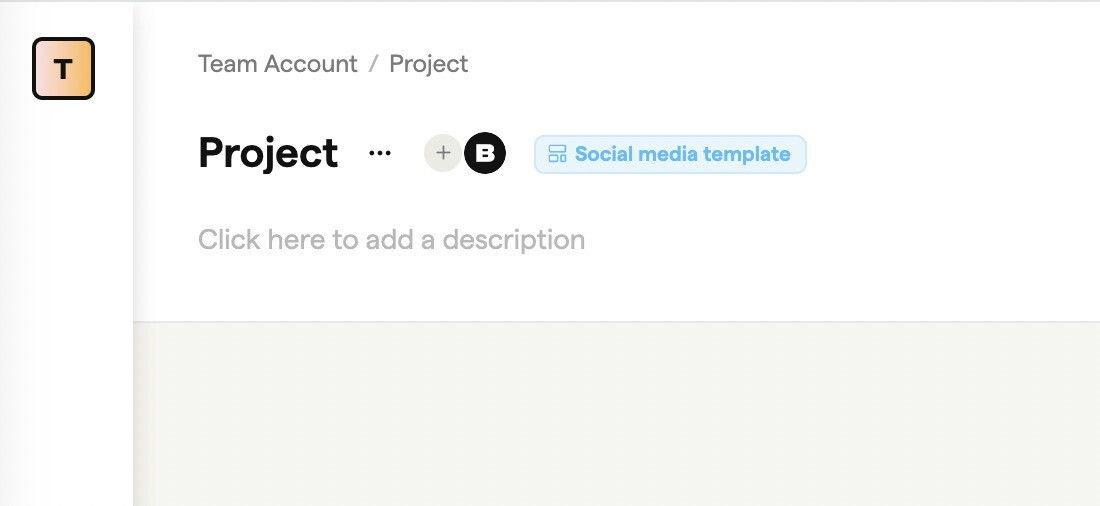
The assigned template will now appear at the top of the project.
Creating storyboards with templates
When a template is assigned to the project
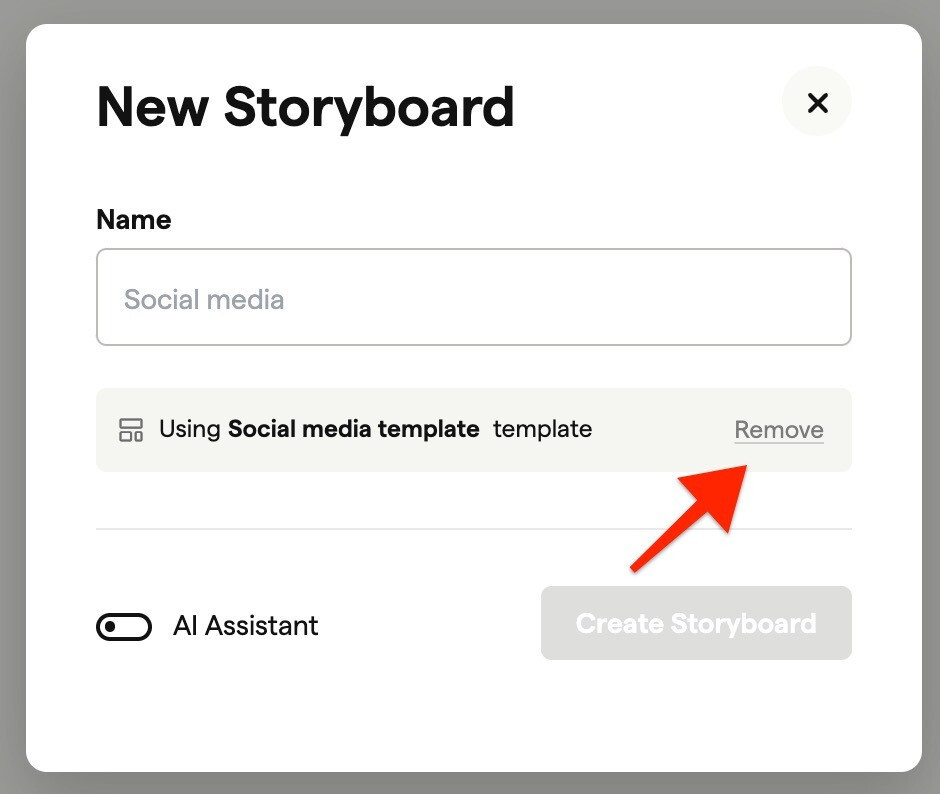
If the project has a template assigned (shown in blue at the top), that template applies automatically to new storyboards.
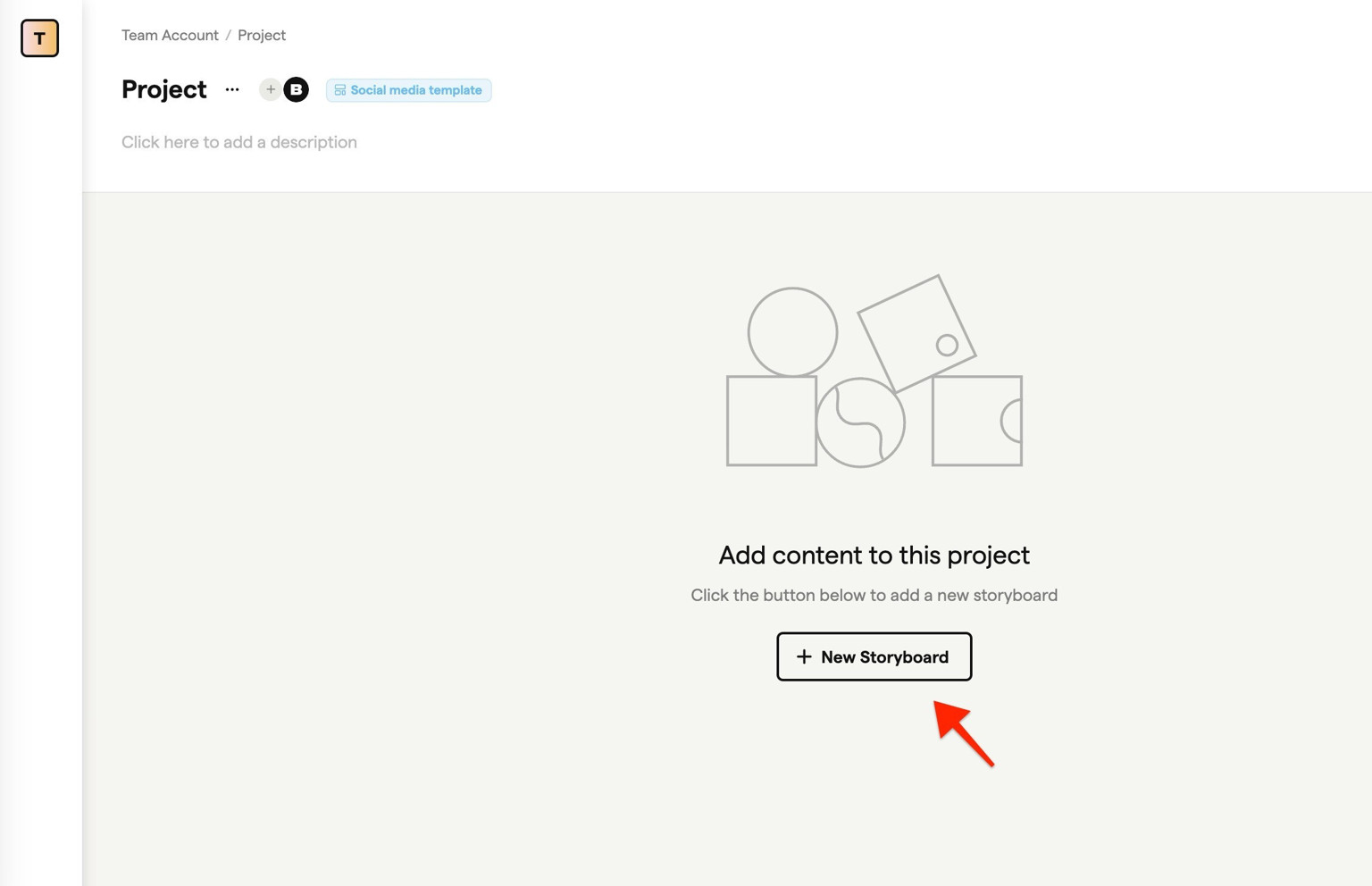
Click New Storyboard to create a storyboard with the assigned template.
Templates aren't available when using the AI Assistant. Disable the AI Assistant to use a template.
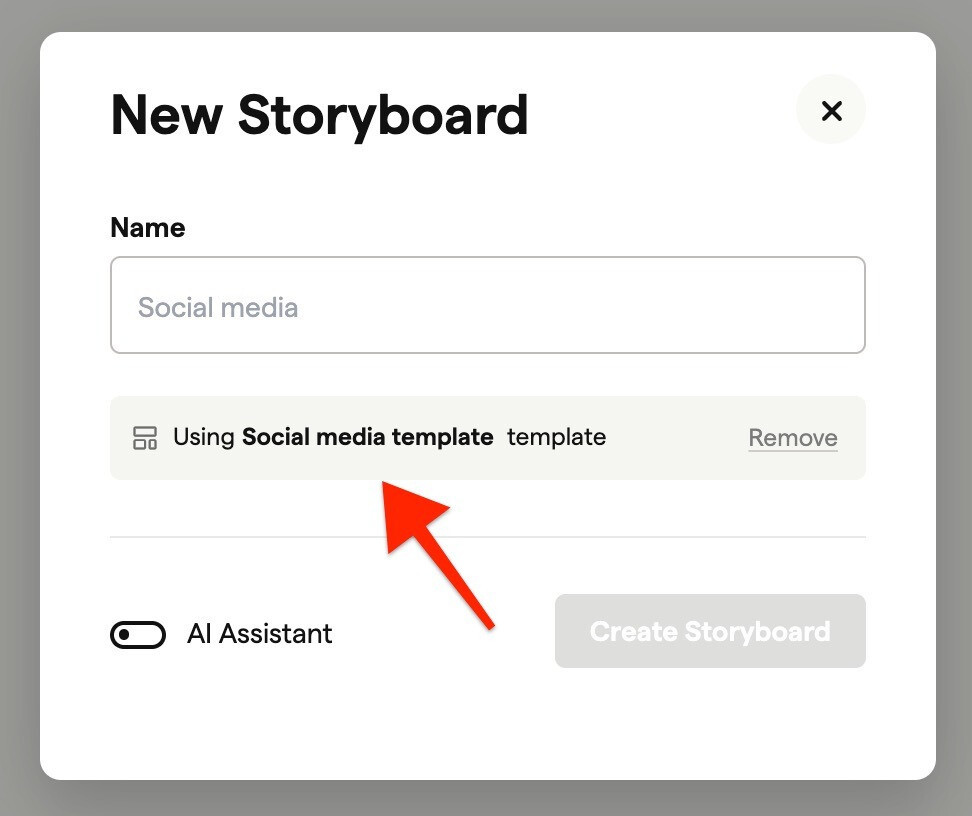
To remove the template from the project, click Remove.
To choose a different template, use the template dropdown on the project.
When no template is assigned
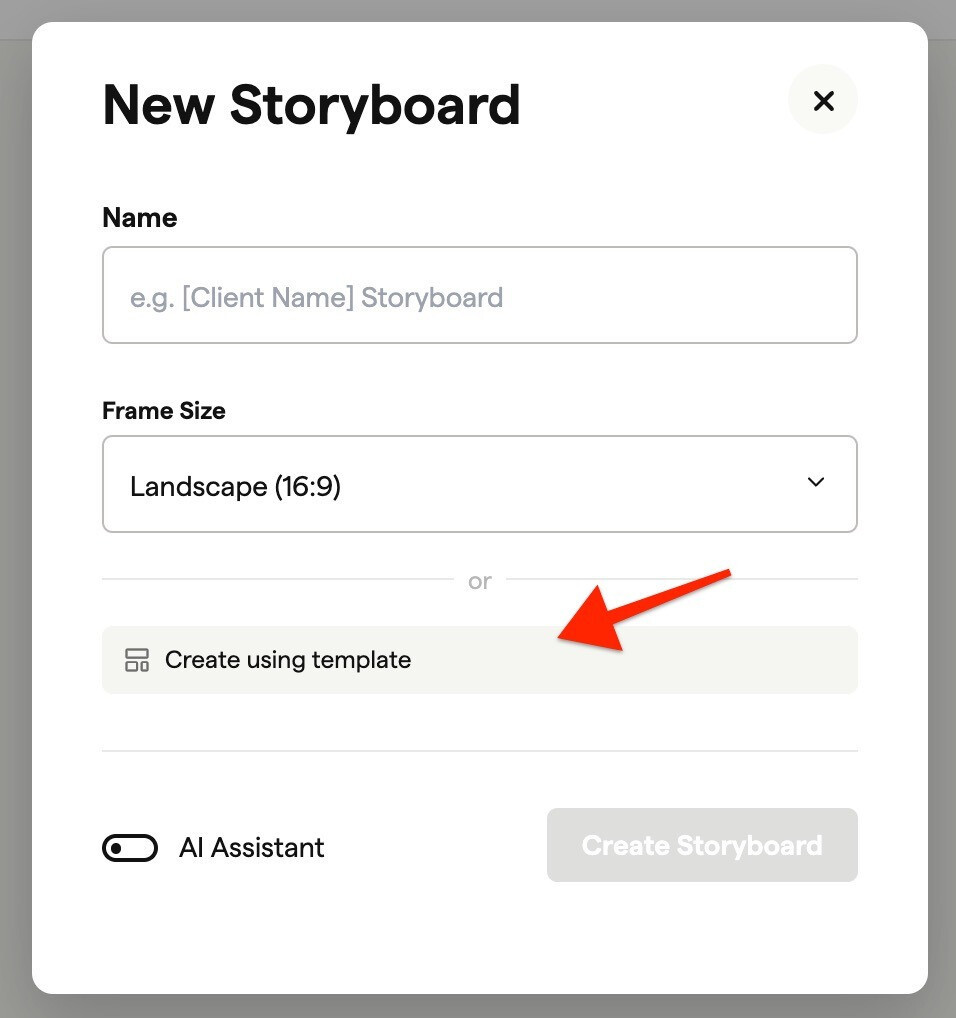
If the project doesn't have a template, you can select an aspect ratio to continue without one.
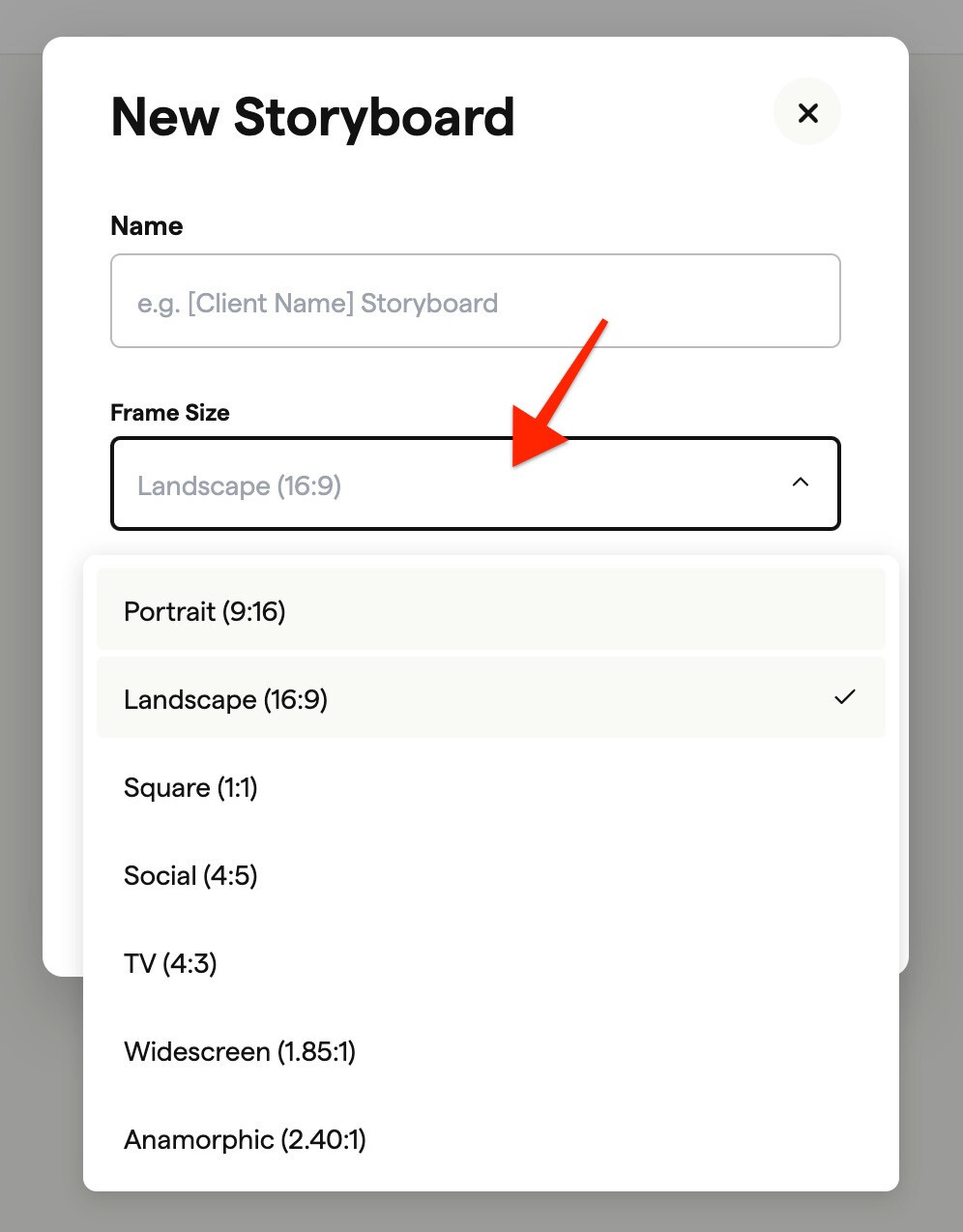
Or click Create using template to choose a template for this storyboard.