
Animatics
Set frame timings, add audio, and share animatics
An animatic is a timed sequence of storyboard frames, often used to test pacing, timing and flow before moving into production.
The Animatic Tool turns your storyboard into an animatic quickly, allowing you to adjust frame timings, add audio and share the result for review. It’s a great way to preview how your storyboard will play out before moving into production.
Accessing the Animatic Tool
To start creating an animatic:
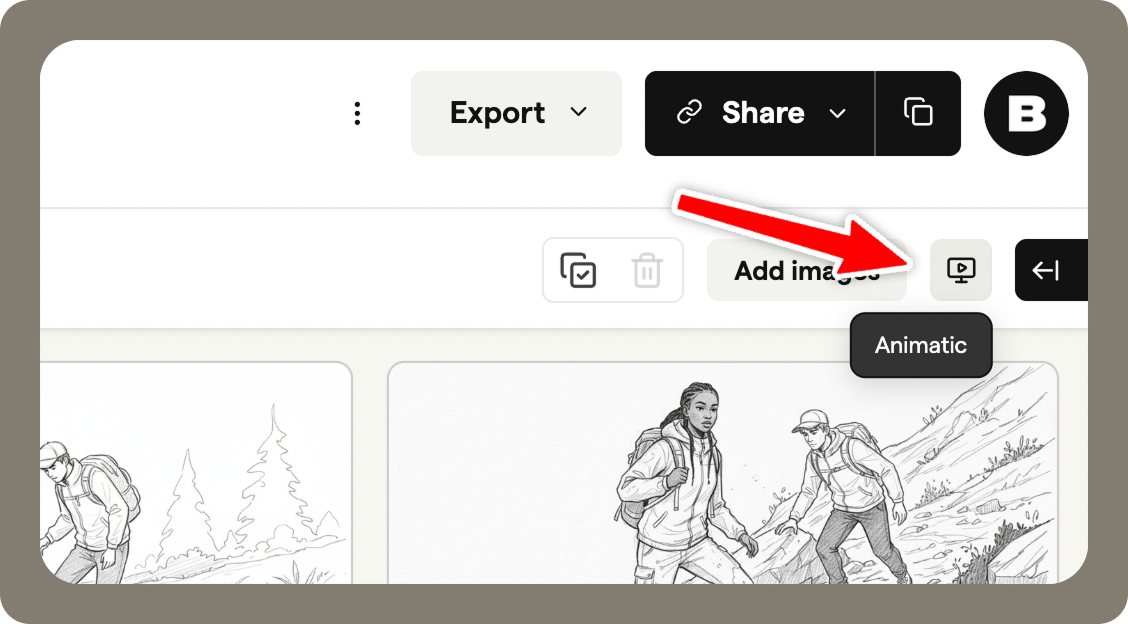
Open the storyboard you want to work on. Click Animatic in the top toolbar.
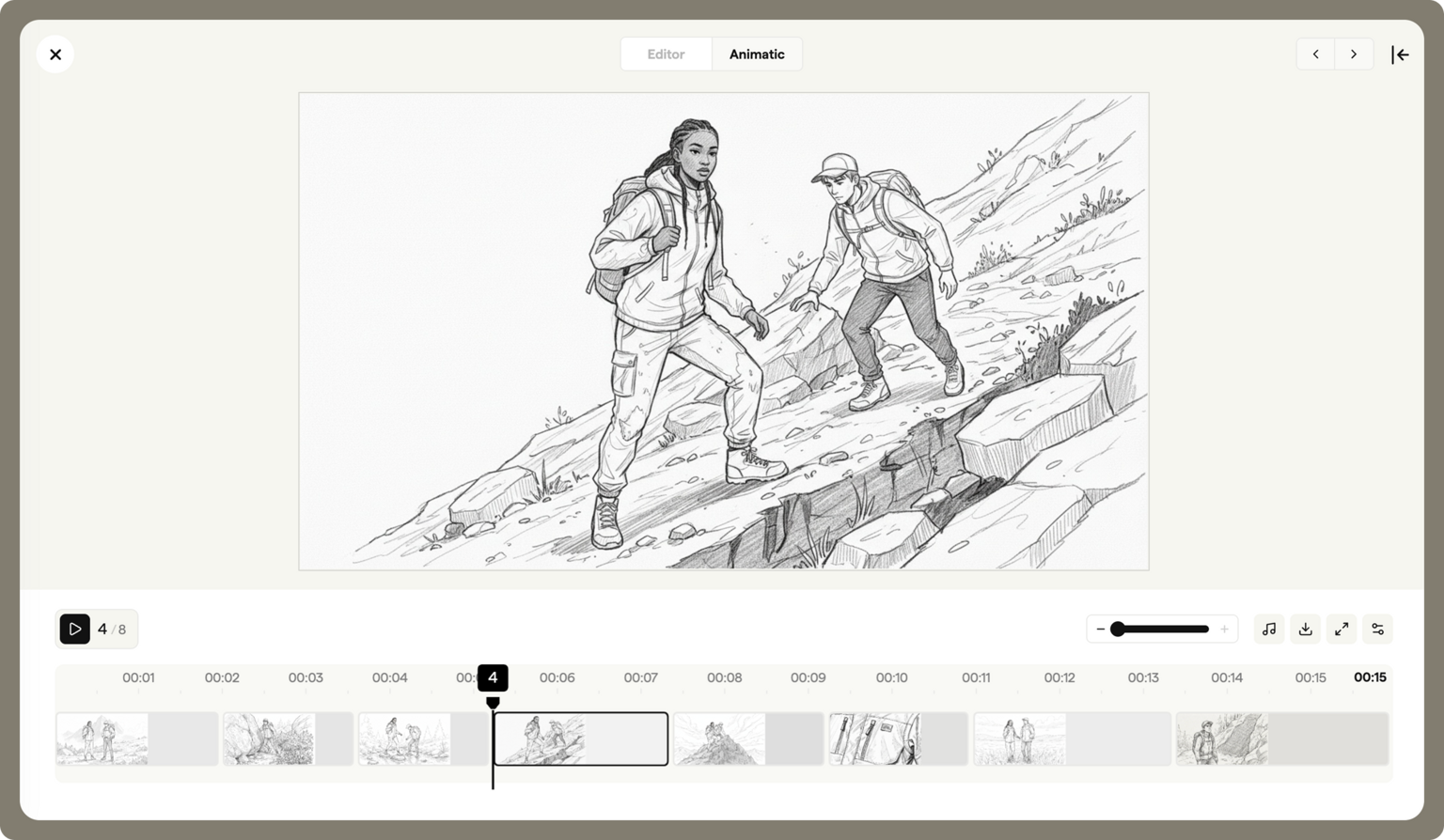
The timeline view opens, showing all frames in sequence along with playback controls.
Animatic settings
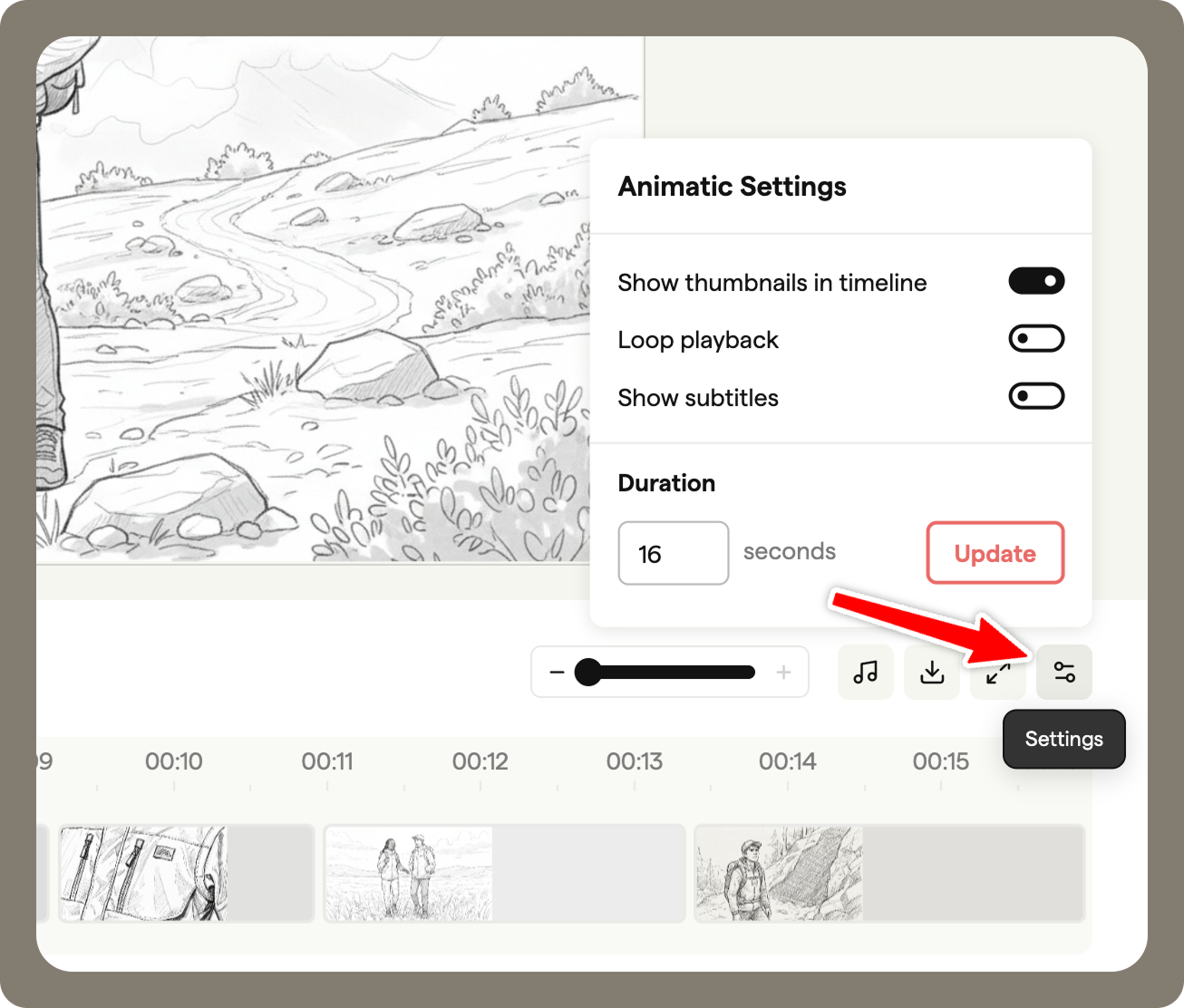
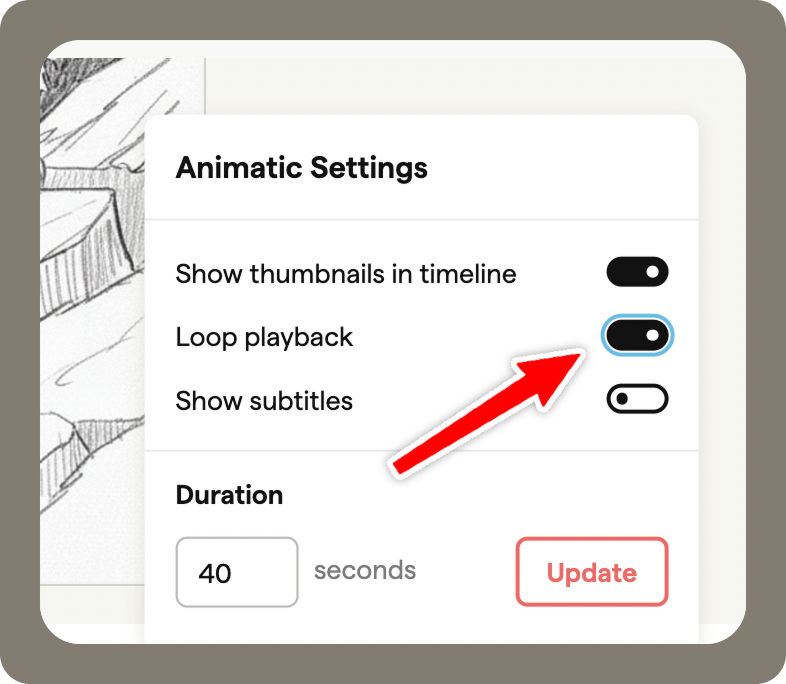
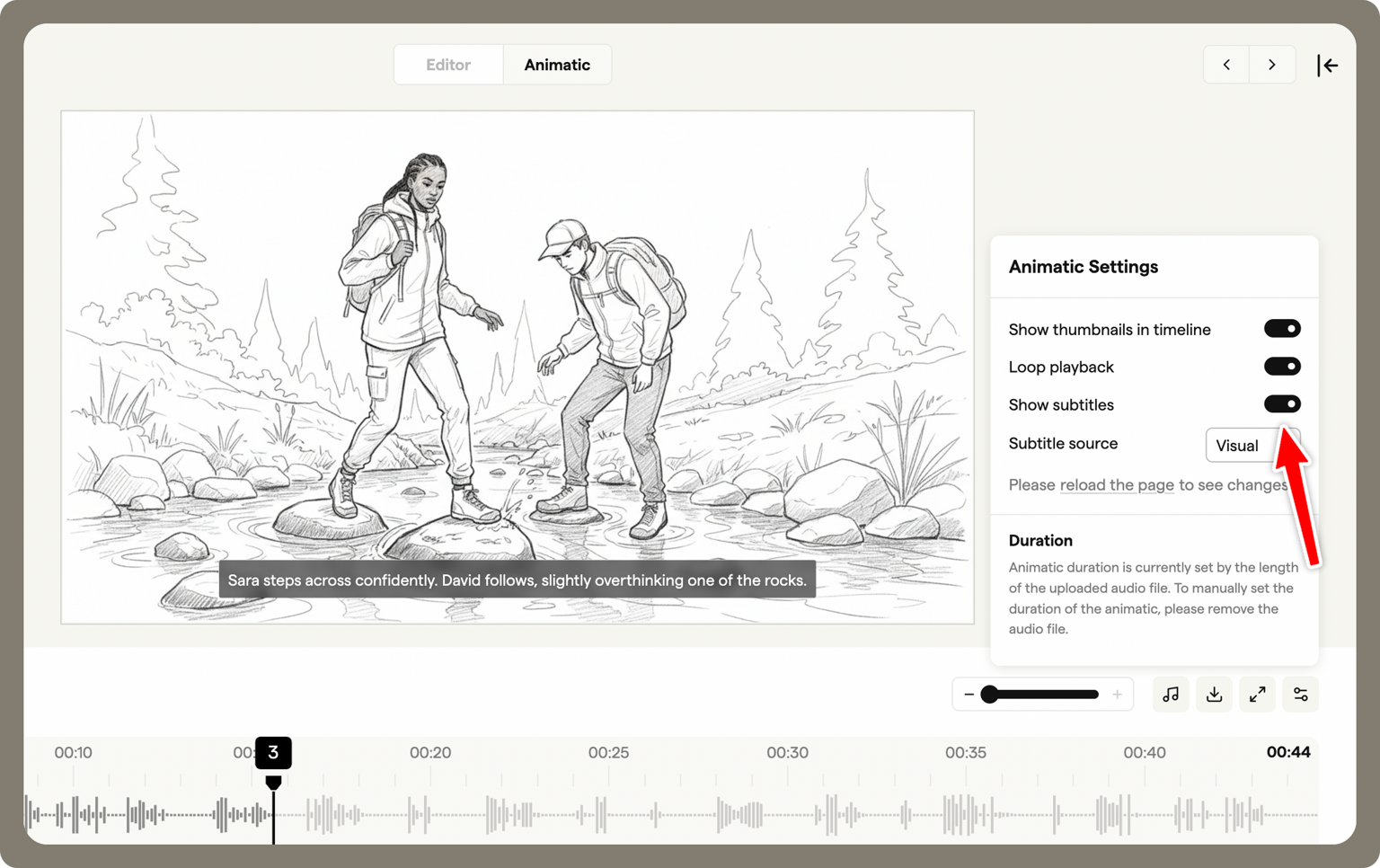
The settings let you customise how your animatic looks and plays. From the Settings menu (bottom-right corner), you can:
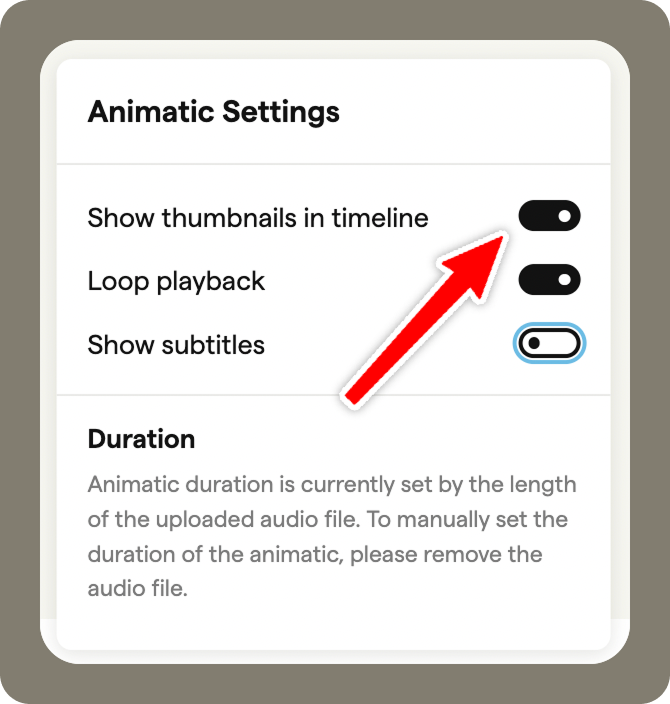
- Show frame thumbnails in timeline - display a small preview of each frame on the timeline
- Loop playback - make the animatic repeat automatically
- Show subtitles - overlay frame notes during playback to help with syncing
- Set animatic duration - define the total length if no audio file is uploaded
These options help you control both the visual presentation and playback behaviour of your animatic.
Frame timings
If you’re not uploading audio, you can set the total duration of your animatic in the settings.
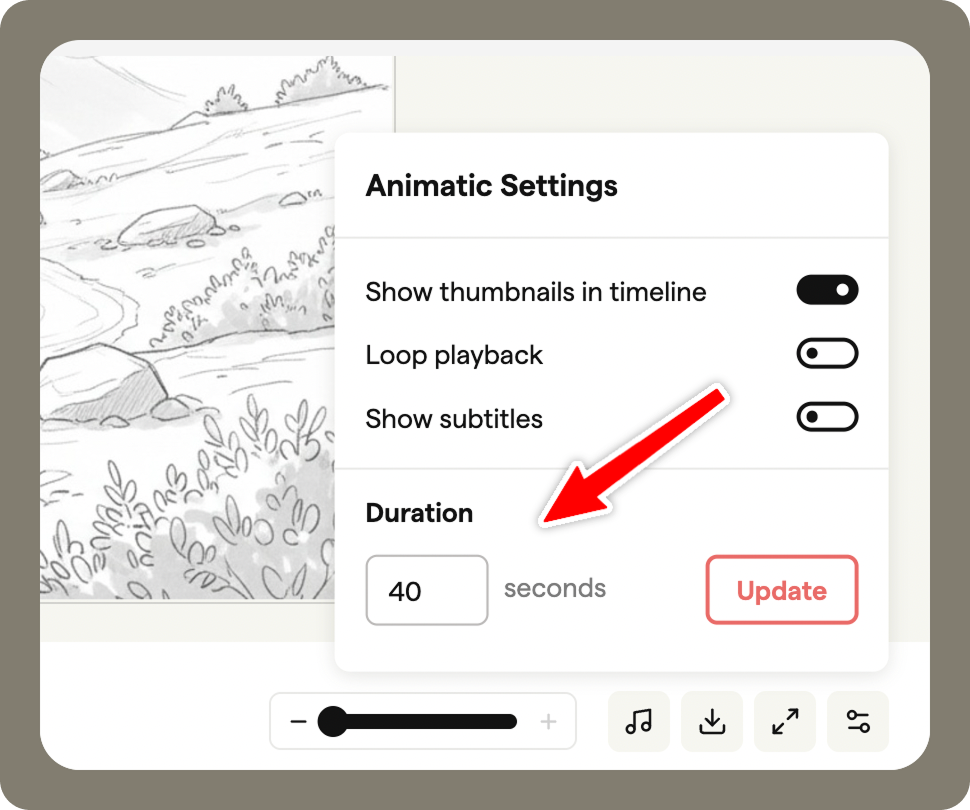
If an audio file is uploaded, the duration of the animatic will be set to the length of the audio. This ensures your frames stay in sync with the soundtrack.
On the timeline, each frame can be stretched to adjust its length.
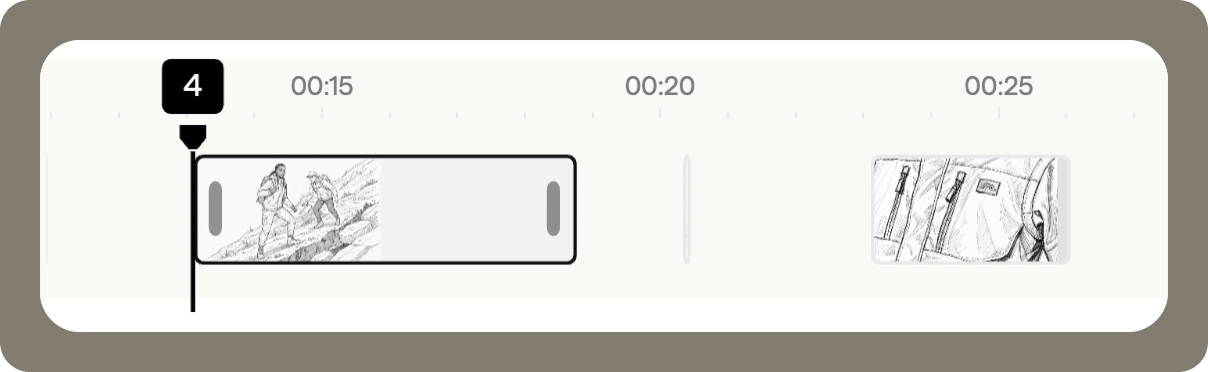
Enable Loop playback if you want the animatic to replay continuously.
Adding and syncing audio
You can upload a sound file to synchronise your frames with audio. Click Sound, then select Choose file.
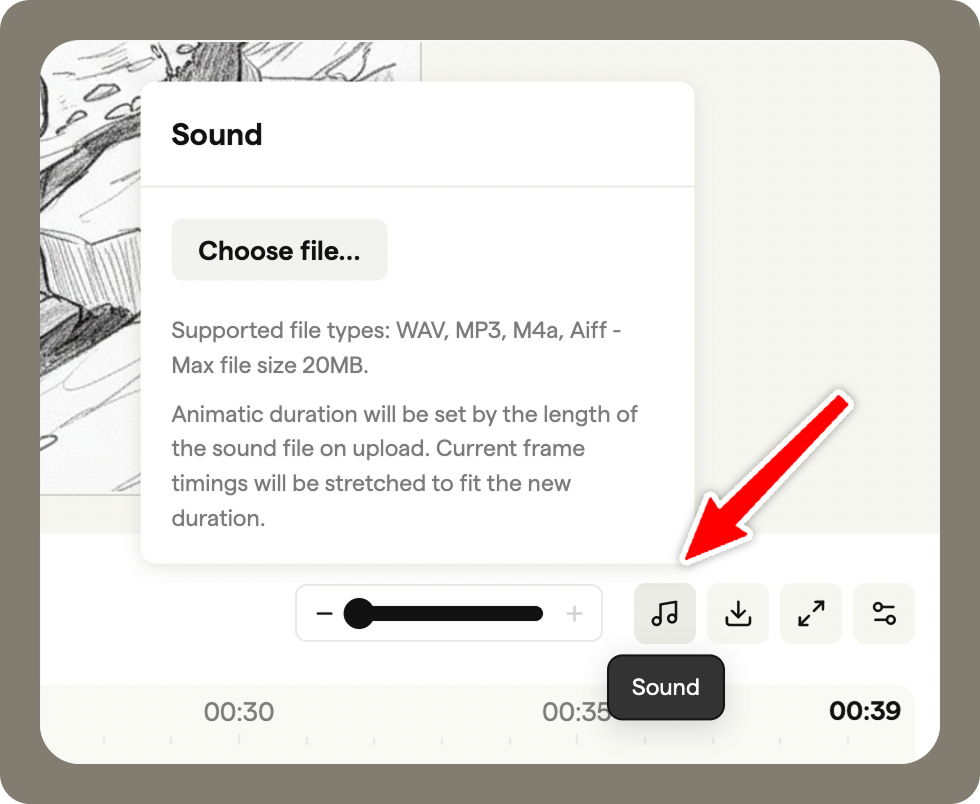
Upload a file from your device (max 20MB).
Once uploaded, the timeline will match the duration of your audio file automatically. The waveform appears on the timeline to help you line up frames with key beats, making it easy to match visuals to sound.
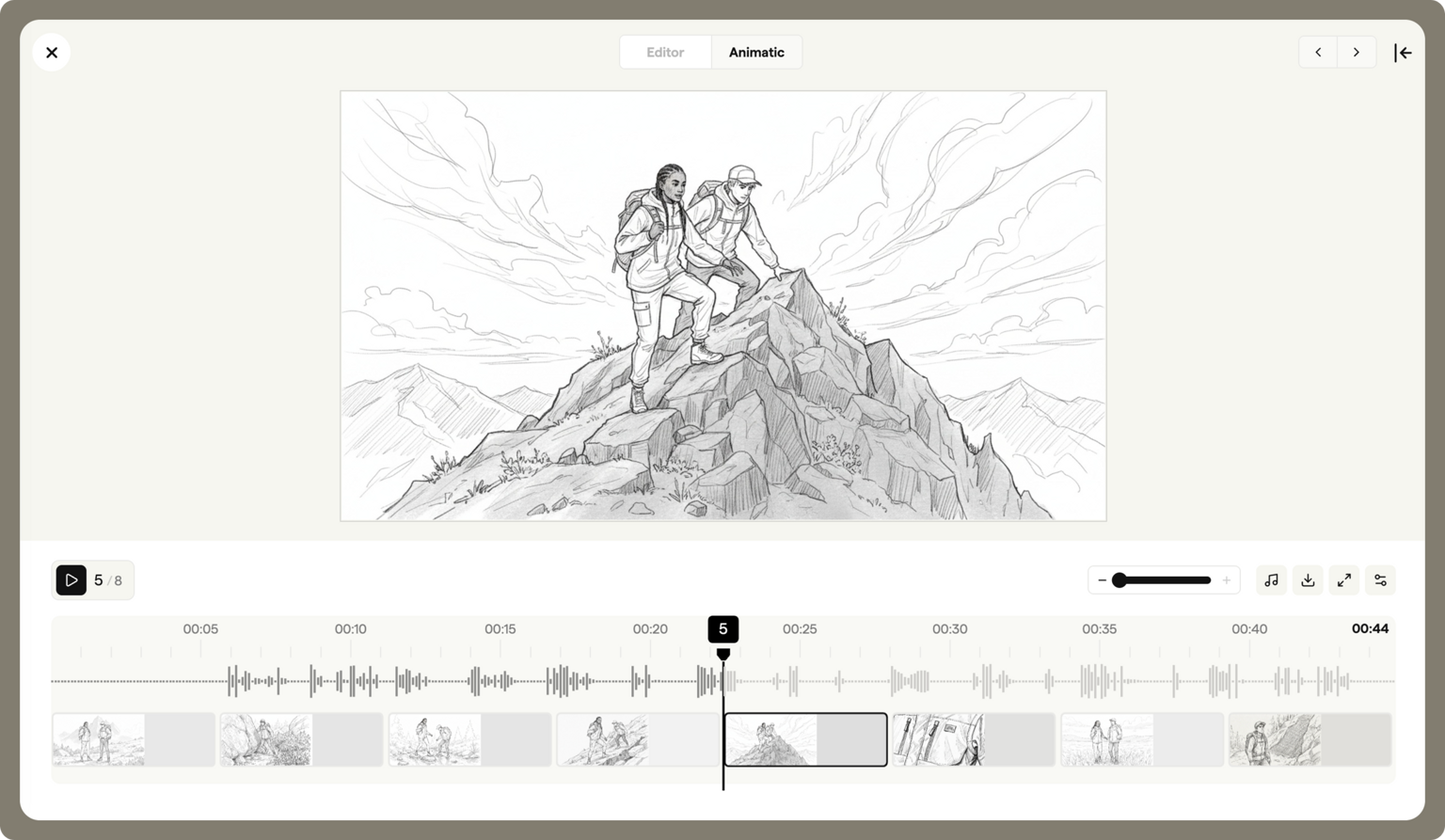
Enable Show subtitles in the settings to see the storyboard notes for each frame overlayed on the playback. This can be a helpful guide when syncing.
Timeline thumbnails
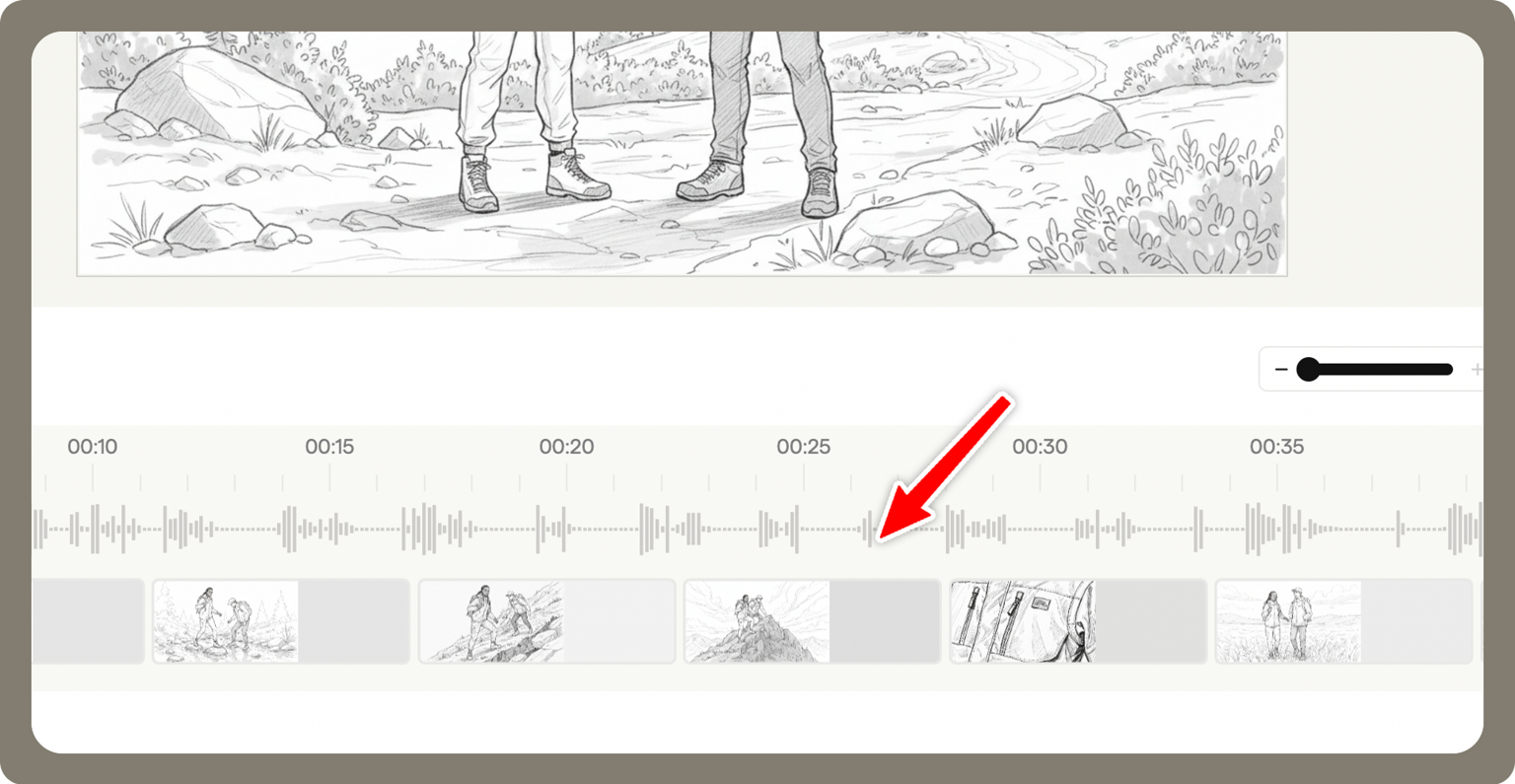
You can enable Show thumbnails in timeline to display small previews of each frame directly on the timeline.
Thumbnails make it faster to navigate long animatics and check that frames are in the right order, without needing to play the animatic repeatedly.
Sharing your animatic
When your animatic is ready for review, you can:
- Share it using a sharing link, giving collaborators or clients easy access.
- Download it as an MP4 file for offline playback or presentation.
Both options allow reviewers to see the animatic as intended, without needing access to the Boords storyboard itself.