
Review and sign-off
Review links, anchored guest comments, passphrases, and the approval trail
Share a script with your client through a review link, take their feedback anchored to the exact lines they mean, and keep a record of who approved what and when.
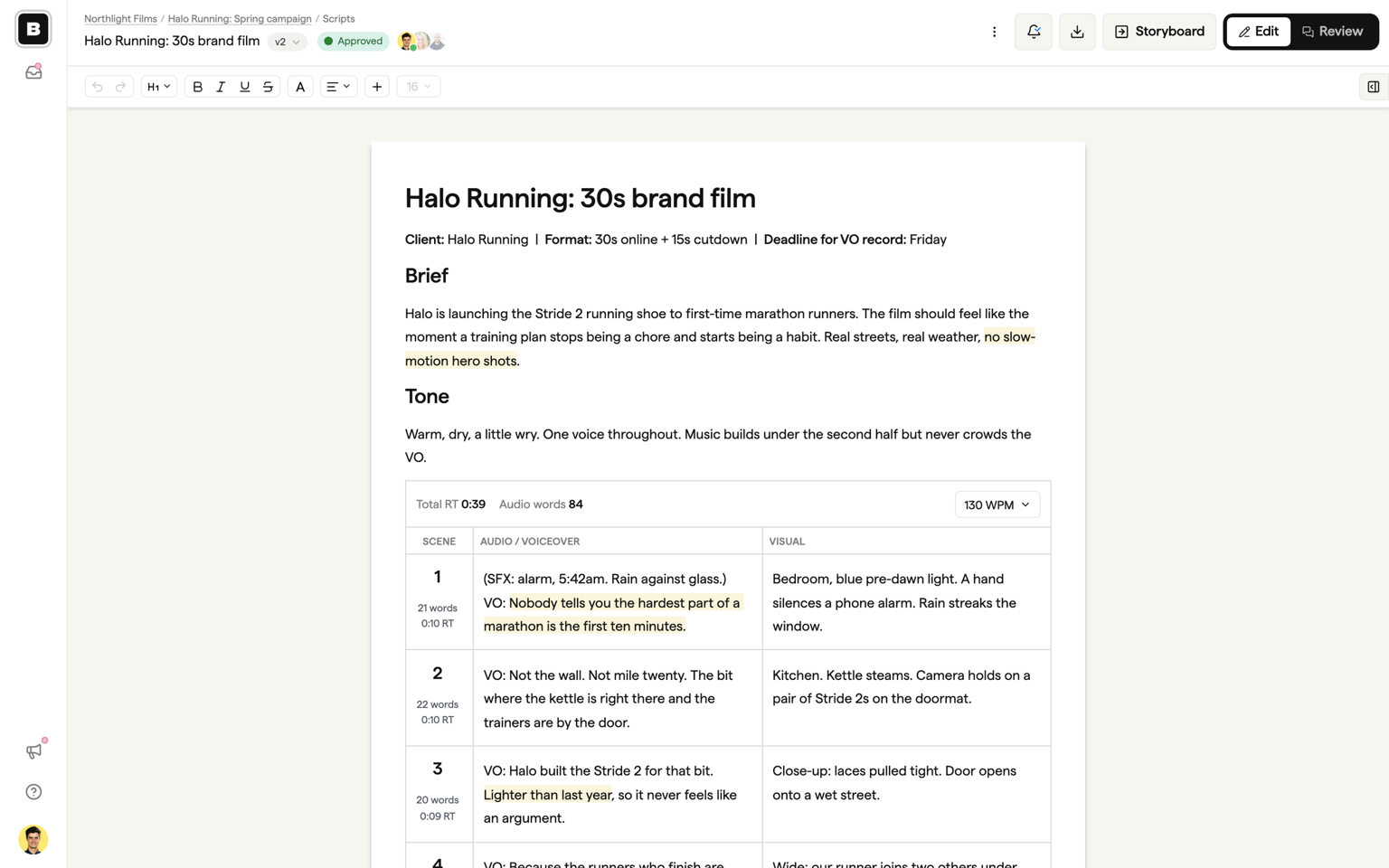
Edit and Review
Every script has two modes, switched with the toggle in the header. Edit is your team's workspace: the live document, the formatting bar, and the sidebar with the Agent, comments, activity, and settings. Review is the shareable version of the script: a clean, read-only view of the same document with a comments panel, exactly as a client will see it.
Click Review at any time to see the version you are editing the way a reviewer will.
The review link
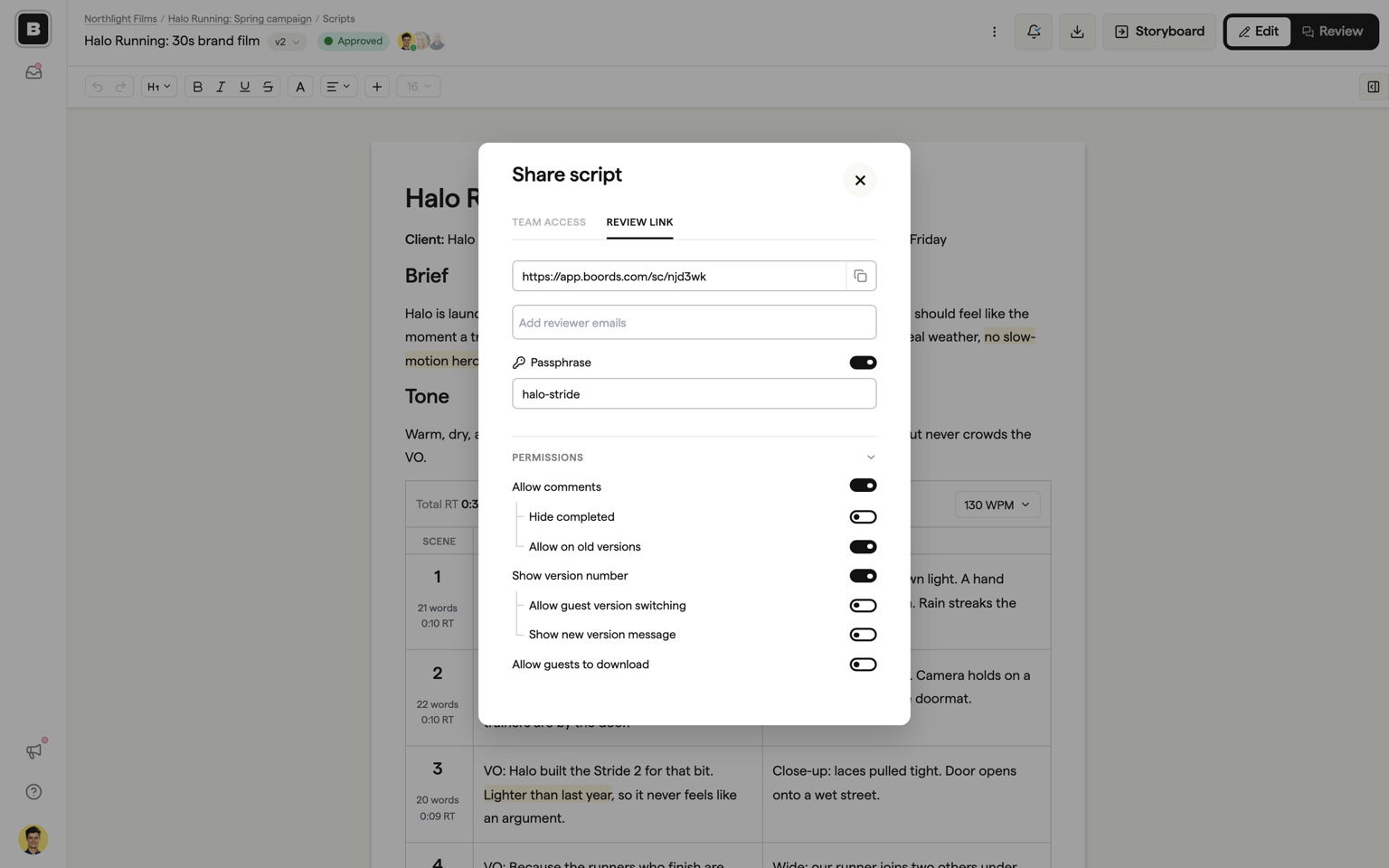
Each script has one stable review link. Copy it from the Settings tab in the sidebar, from the Share script dialog (click the facepile in the header), or from the Share action on the dashboard card. The link always shows the newest version of the script, so you can send it once at the start of a project and it stays correct through every round.
Guests can open the link, read the script, and leave comments with no Boords account, no login, and no seat on your plan.
If you copy the link while looking at an older version, you get an exact-version link instead. That link always shows that specific version, even after you create newer ones, which is useful when you need someone to look at a particular round.
Comments anchored to the line
Comments on a script are attached to text, not to the document as a whole. Guests and team members select the words they want to talk about, click the comment bubble that appears, and write. The thread shows the quoted text at the top so nobody has to guess what "this line" refers to.
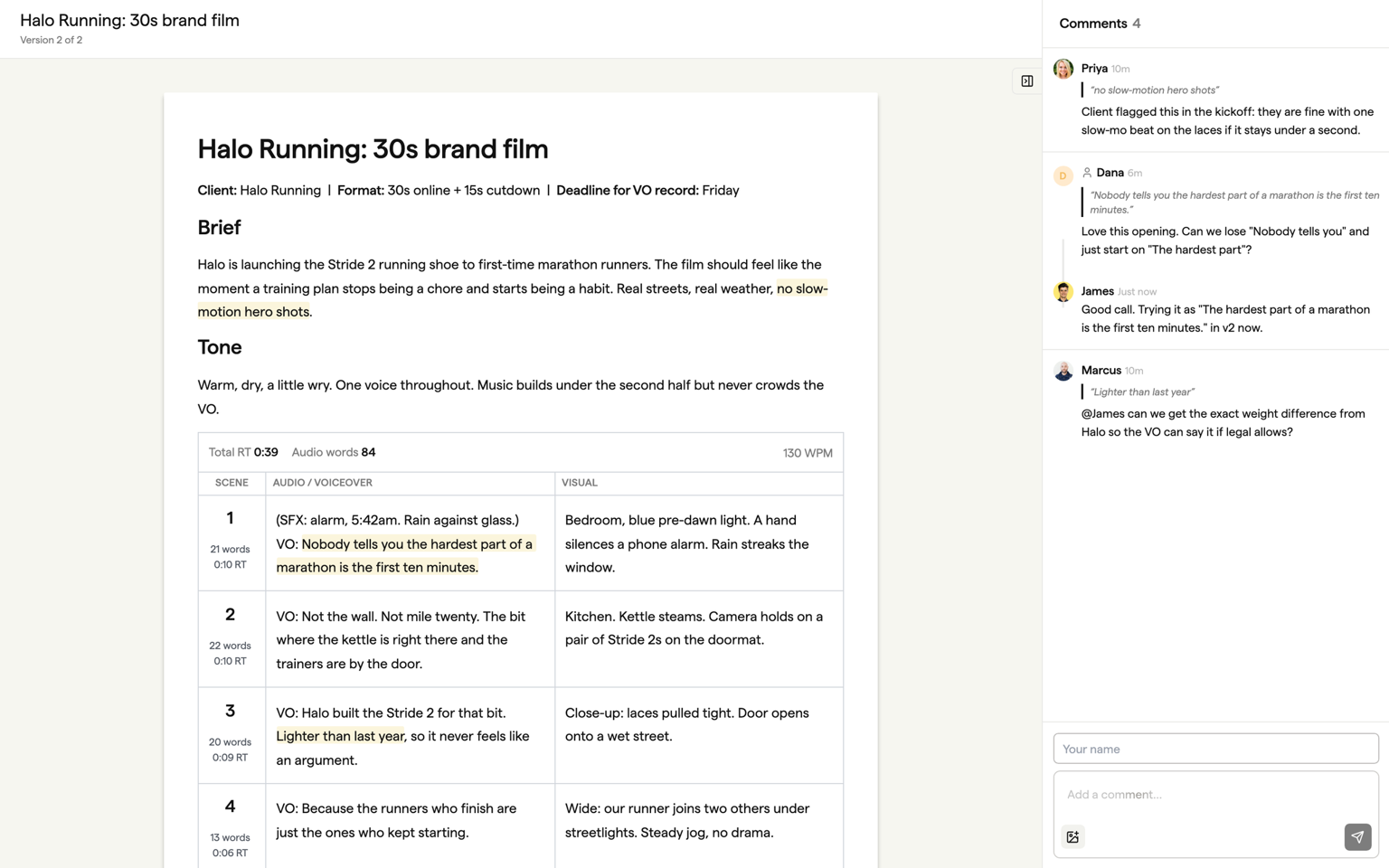
Anchors survive editing. Move a paragraph, rewrite the sentence around it, or add lines above it, and the comment stays with its text. If the text a comment was attached to is deleted, the thread is not lost: it stays in the comments panel, labelled Original text deleted, with its original quote so you can still act on the feedback.
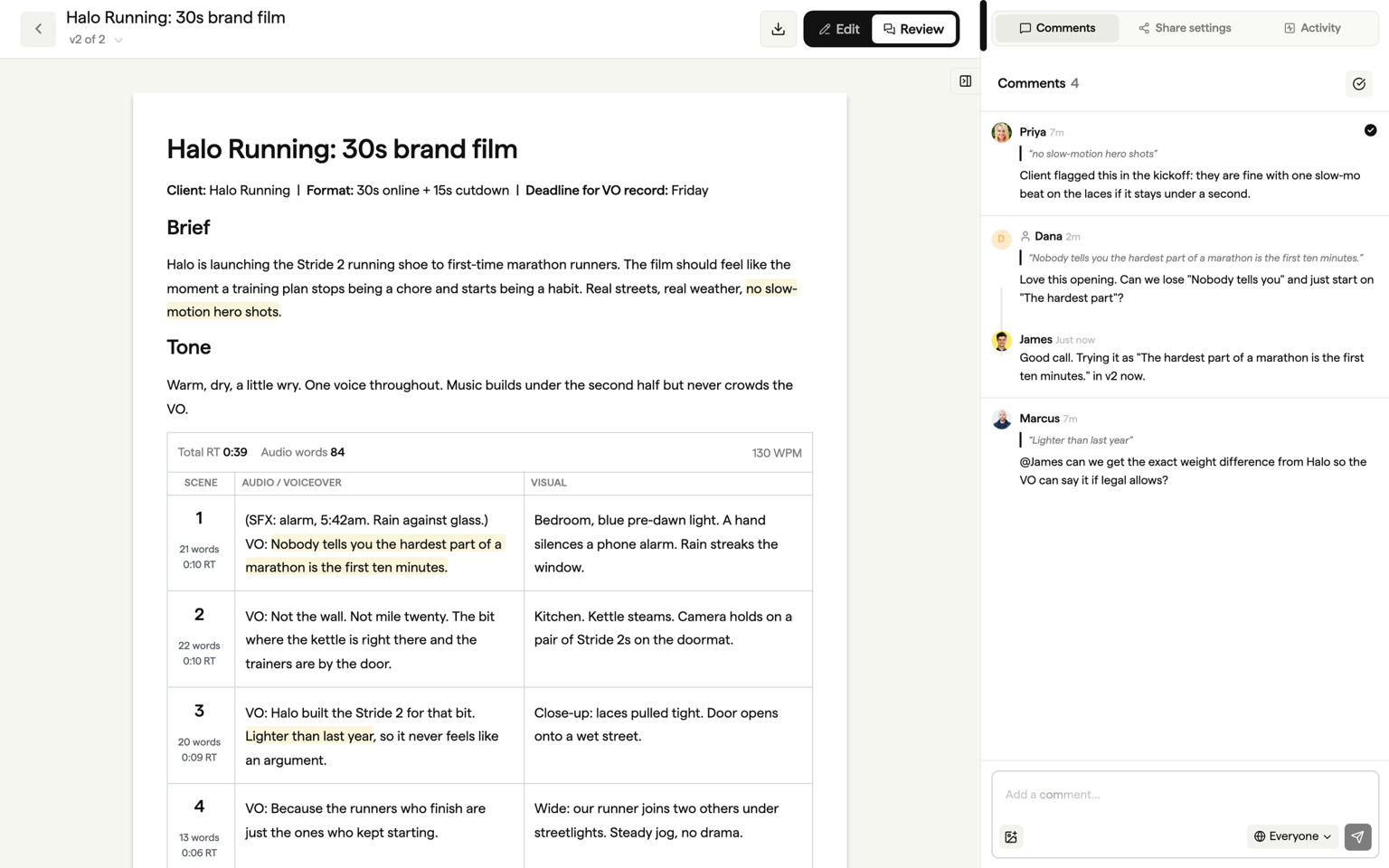
Threads work the way you would expect: reply to a comment, mark a thread as complete when it has been dealt with, and reopen it if the note comes back. Team members can also mark a comment as team only, so it is visible to your team but not to guests on the review link.
Mentions and notifications
Type @ in a comment to mention up to five team members who have access to the project. Guests cannot be mentioned. Mentions, replies, and completed threads create notifications that land in your Boords inbox, by email, and in Slack if you have connected it. See Notifications for how to set that up.
The bell in each script's header controls what you personally receive for that script: whether you get comment emails, and whether you follow the script in your inbox. Following covers every version of the script.
Sending directly
Instead of copying the link, you can send it from Boords. Add one or more email addresses in the Add reviewer emails field (in Settings or in the Share script dialog), write a personal message, and send. Each recipient gets an email with their own link to the script.
Direct sends give you read receipts: the Activity panel records when each recipient first opened the script, when they last opened it, and how many times. You can send to up to 50 addresses per day.
Passphrase protection
You can lock the review link with a passphrase so that only people you have given it to can open the script. Turn on Passphrase in Settings or the Share script dialog and enter the phrase. Guests are asked for it before they see the document, and once they have entered it they stay unlocked for that script.
Changing the passphrase instantly invalidates every previous unlock, so rotating it is a clean way to cut off access. Recipients you sent the script to directly bypass the passphrase through their personal link.
Passphrase protection is available on paid plans. See pricing for details.
Script settings
The Settings tab in the sidebar holds the review link controls and the settings that shape what reviewers see. These settings apply to every version of the script.
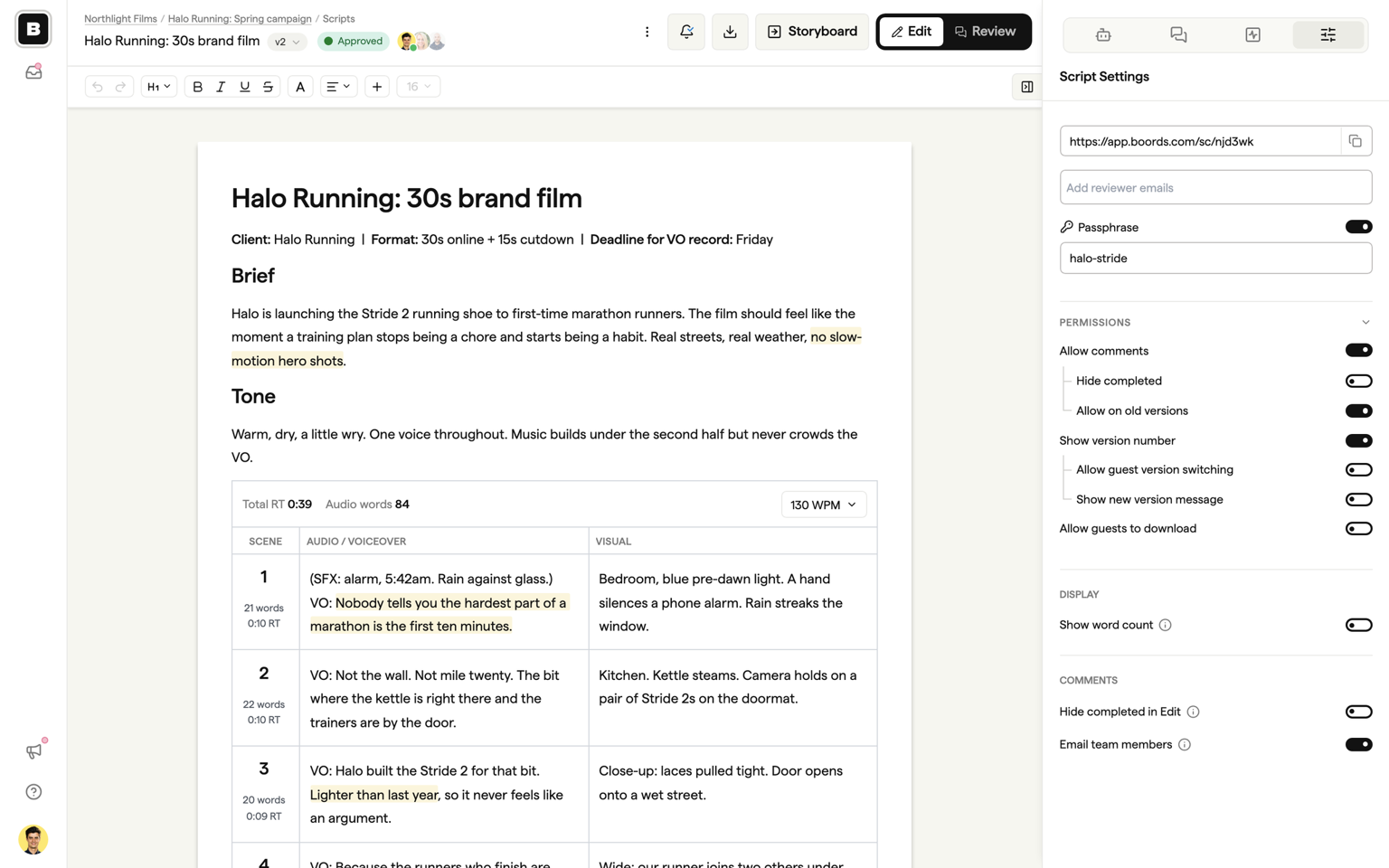
| Setting | Default | What it does |
|---|---|---|
| Allow comments | On | Lets team members and guests comment on the script. Turn it off to make the review link read-only. |
| Hide completed | Off | Hides completed threads for everyone viewing in Review. |
| Allow on old versions | On | Lets people start new threads and reply on versions older than the newest one. |
| Show version number | On | Shows guests which version they are looking at when the script has more than one. |
| Allow guest version switching | Off | Lets guests switch between versions using the version dropdown in Review. |
| Show new version message | Off | Tells guests looking at an older version that a newer one exists, with a link to it. |
| Allow guests to download | Off | Shows guests the Export menu so they can download the script as PDF, Word, Markdown, or plain text. |
| Show word count | Off | Shows a word count below the document in Edit and Review. |
| Hide completed in Edit | Off | Hides completed threads for your team in Edit. |
| Email team members | On | Sends comment emails to team members who follow the script. |
Approval and the activity trail
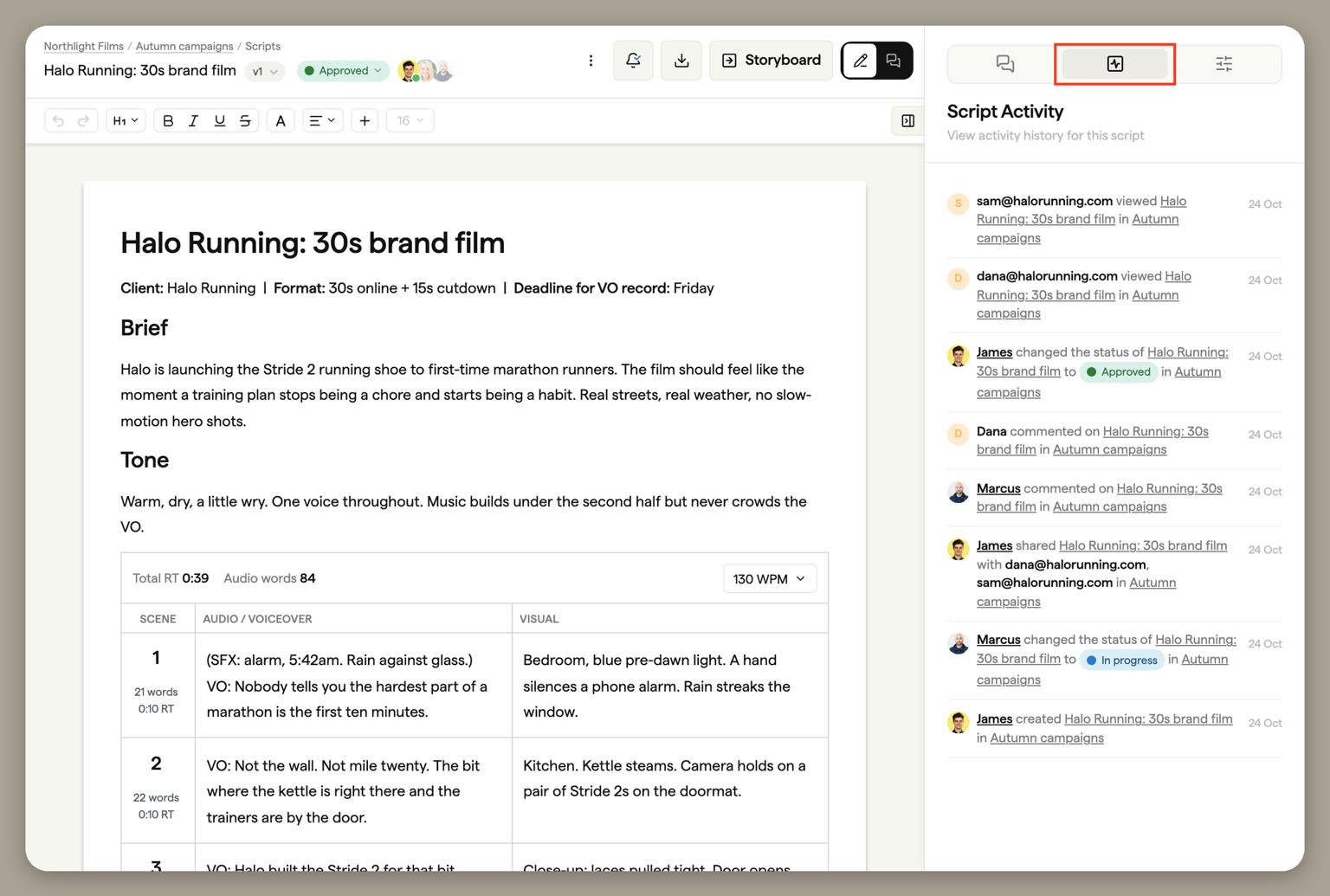
When the client is happy, set the version's status to Approved, or another status your team has added under Approved, using the status pill next to the title. The approval is recorded in the Activity panel against that version, with who did it and when, alongside every comment, status change, share, and read receipt on the script. Because status is per version, the record of which round was signed off stays intact when you open the next one.
See Versions and exports for how review rounds work as versions.
FAQ
No. Share the review link and anyone you send it to can read the script and leave comments anchored to specific lines. No account, no login, no seat on your plan. You can set a passphrase on the link, and you decide whether guests can download the script.
Yes, on paid plans. Turn on Passphrase in the script settings or the Share script dialog and enter a phrase. Guests are asked for it before they can see the document. Changing the passphrase instantly invalidates every previous unlock, and people you sent the script to directly bypass the passphrase through their personal link.
Only if you let them. Allow guests to download is off by default. Turn it on in the script settings and guests will see the Export menu in Review, with the same formats your plan allows: PDF, Word, Markdown, and plain text.