
Notifications
Stay on top of comments with the inbox, @mentions, and follows
Boords keeps you up to date on comments that need your attention. Your notifications inbox collects mentions, replies, and updates from storyboards you follow, all in one place.
The notifications inbox
Open your inbox from the bell icon in the left rail. The bell shows a pink badge when you have unread notifications. The inbox is separate from your email and from the team Activity Log, and only you can see your own notifications.
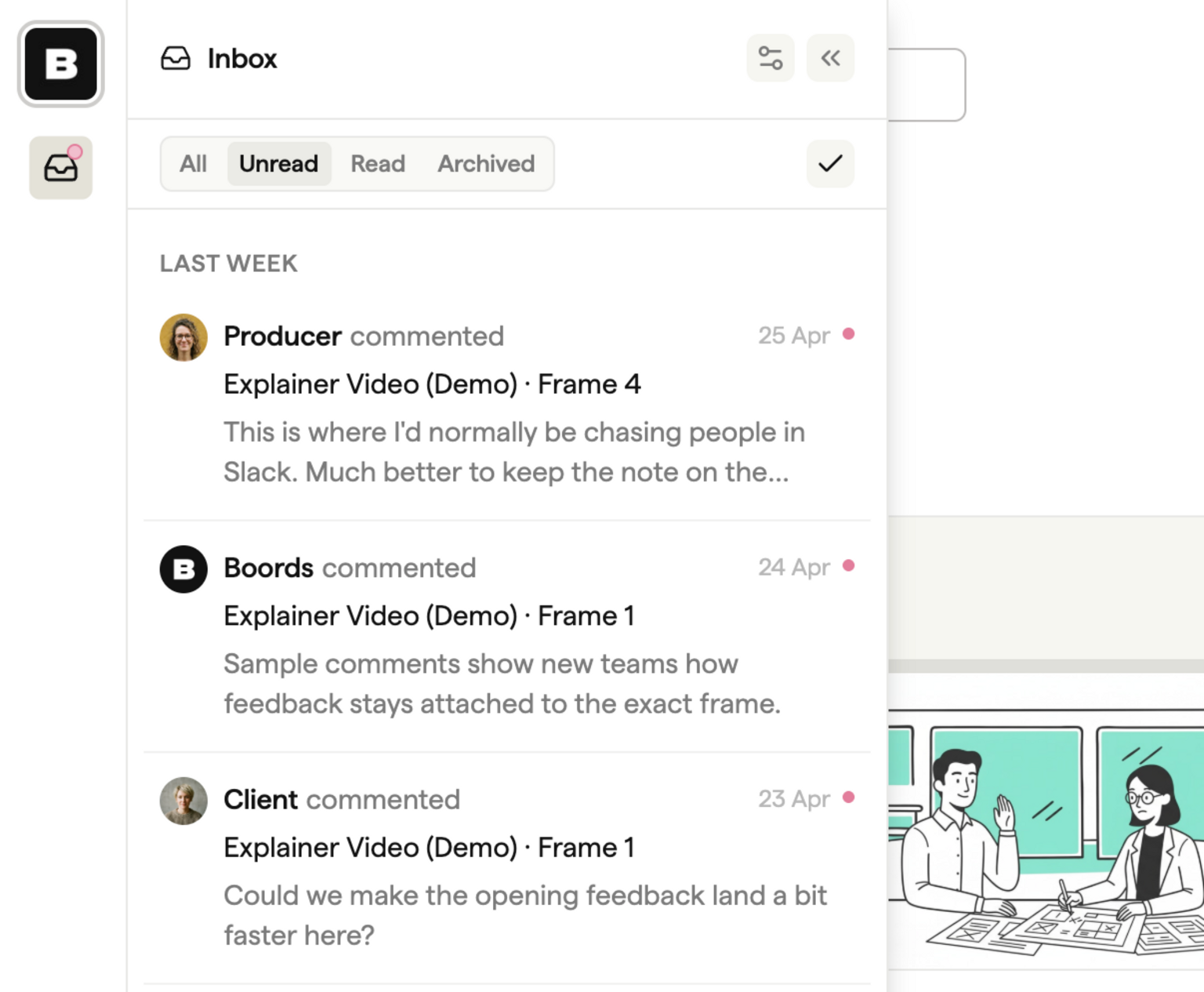
The inbox has four tabs:
- All shows every active notification.
- Unread shows what you haven't read yet.
- Read shows notifications you've opened.
- Archived shows anything you've cleared from the other three tabs.
The inbox updates automatically while Boords is open. Click a notification to mark it read and jump straight to the comment. From the inbox panel header you can clear everything with Mark all as read, and from the Read tab you can clear everything at once with Archive all. You can also archive individual notifications from the row's menu on any tab.
Mentions, replies, and status changes on your own comments (when someone marks them complete or reopens them) always appear in your inbox, even if you haven't followed anything. Following a storyboard or project adds every comment on that storyboard or project on top of those.
Using @mentions
Type @ while writing a comment to bring up a list of teammates you can mention, then pick a name to insert it. The list is scoped to teammates with access to the storyboard's project. The mentioned person gets a notification in their inbox, and an email summary if their global @mentions and replies preference is on.
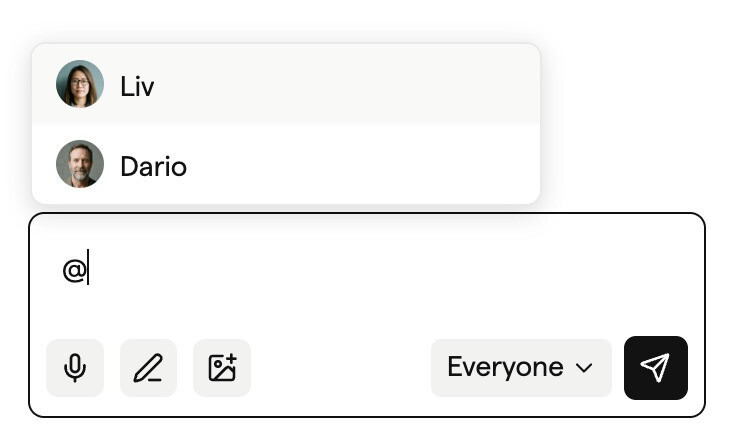
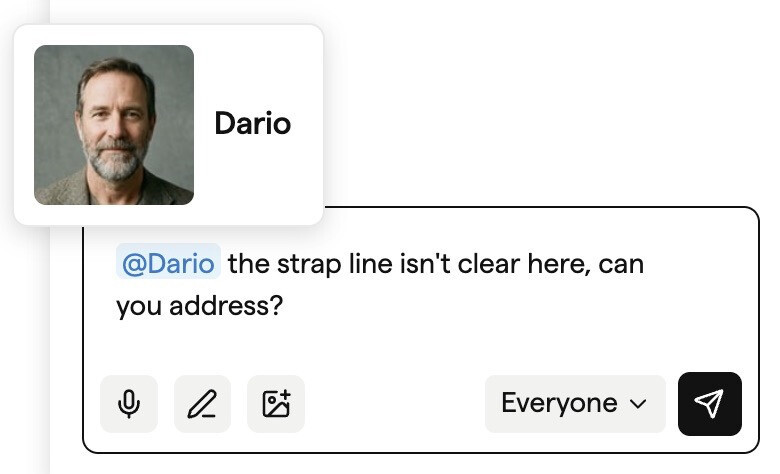
A few things to know:
- Guests commenting on shareable links can leave comments but cannot @mention.
- If you edit a comment to remove a name, that person's notification is cancelled.
Following a storyboard
Open the bell menu in any storyboard header and turn on Follow in Inbox. Every new comment on that storyboard then creates an inbox notification, including comments left by guests on the shareable link. The follow toggle only affects the inbox; your email preferences decide whether you also get a comment email, separately from the follow.
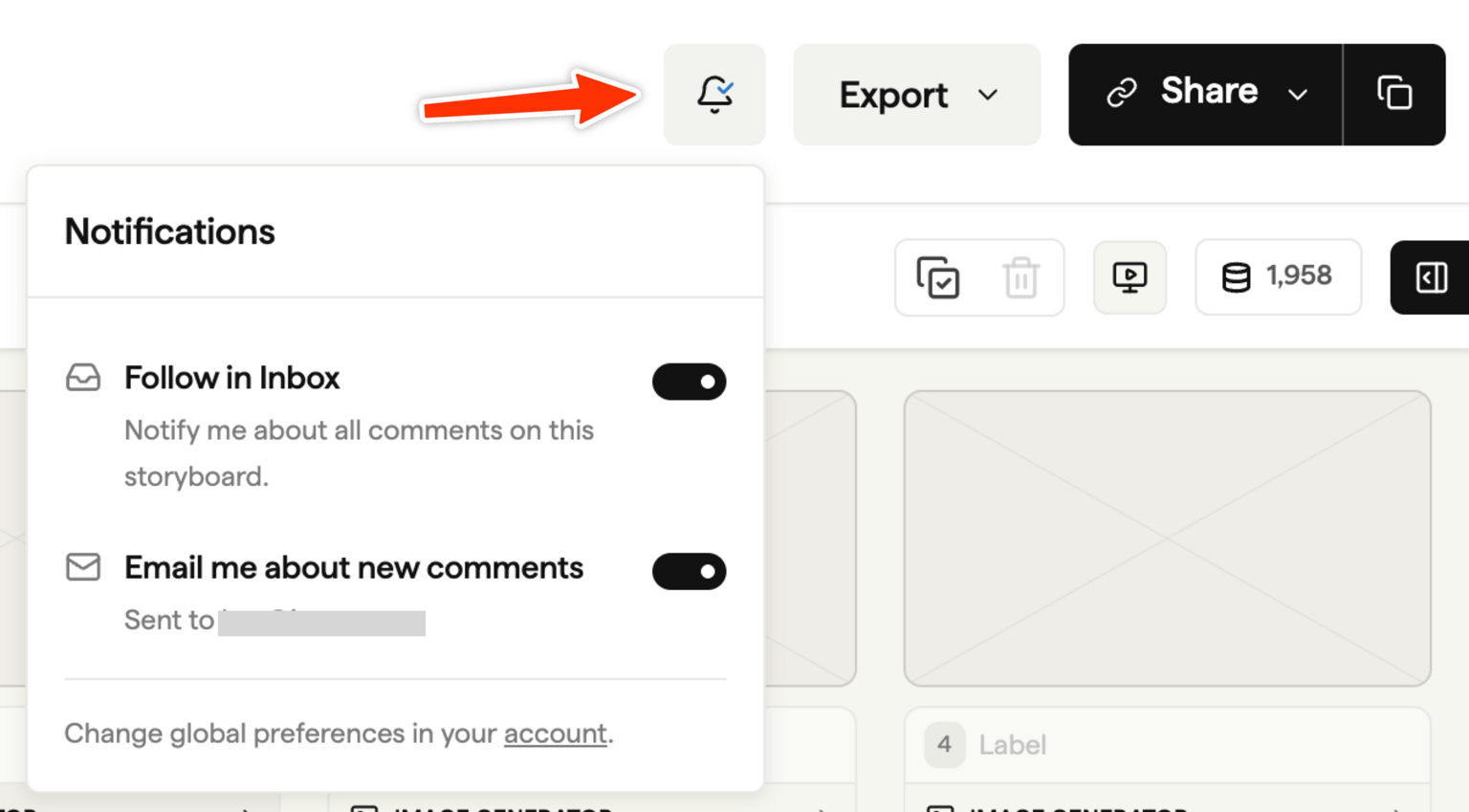
Right below the follow toggle, Email me about new comments controls whether this storyboard sends you comment emails. It only takes effect when your global comment-email preference is also on.
To stop following, open the same bell menu and turn Follow in Inbox off. If you've set the toggle on a storyboard yourself, that choice sticks even when you change the project's follow setting.
Following a script
Scripts have the same bell in the script header. Turn on Follow in Inbox to get an inbox notification for every new comment on the script, including guest comments left on the review link, and use Email me about new comments to control comment emails for that script. Following a script covers all of its versions, so you do not need to follow each round separately.
New scripts you create are followed for you automatically when Auto-follow new scripts I add is on in your account defaults, and following a project follows the scripts inside it as well as the storyboards.
Following a project
Following a project applies the same idea to every storyboard inside it. Open the bell menu on a project page and turn on Follow in Inbox to get notifications for every top-level storyboard in that project (the originals, not their versions), both current and future.
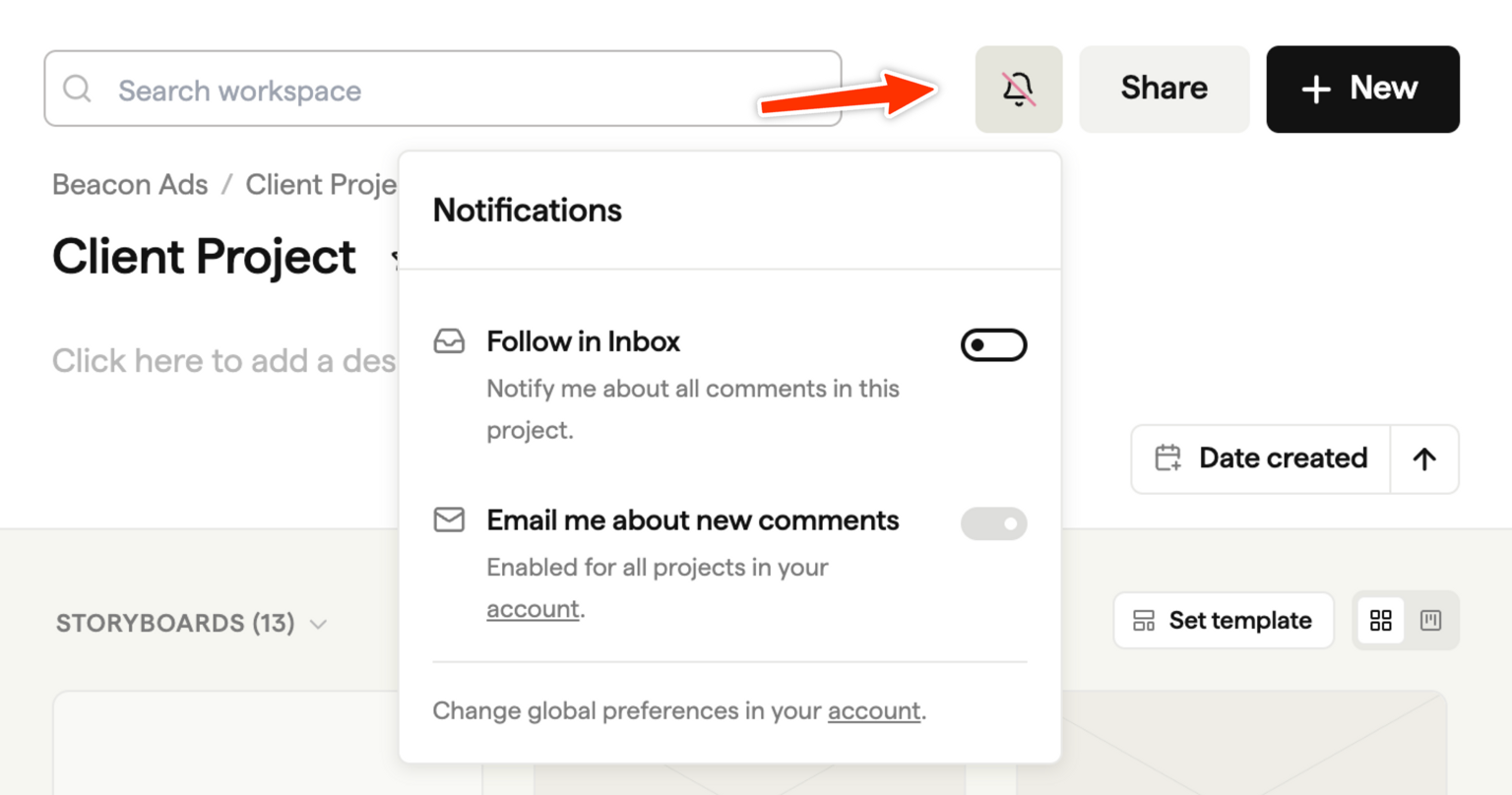
A few rules to know:
- If you've turned Follow in Inbox off on a particular storyboard, following its project won't switch it back on.
- Turning the project follow off stops following the storyboards Boords had auto-added for you. Any storyboards you turned on yourself from the storyboard's own bell menu stay followed.
- New top-level storyboards added to the project are auto-followed for everyone watching the project.
The project bell menu also has its own Email me about new comments toggle. This adds comment emails for storyboards in the project even when your global comment-email preference is off, and is independent of the inbox follow.
Finding the projects you follow
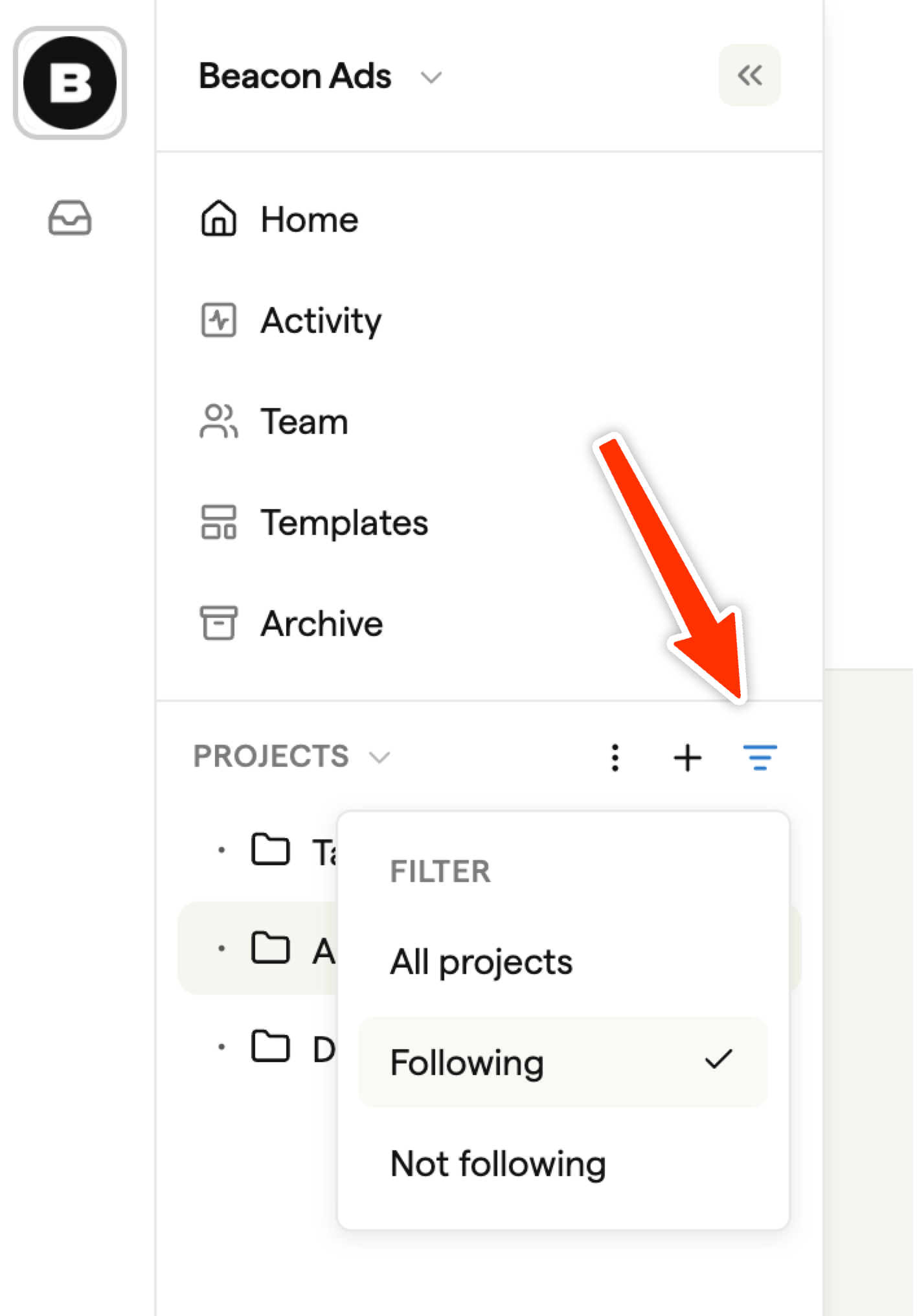
When your project list gets long, the Filter button at the top of the projects sidebar lets you narrow it down:
- All projects shows everything.
- Following shows only the projects with Follow in Inbox turned on.
- Not following shows the rest.
Account defaults
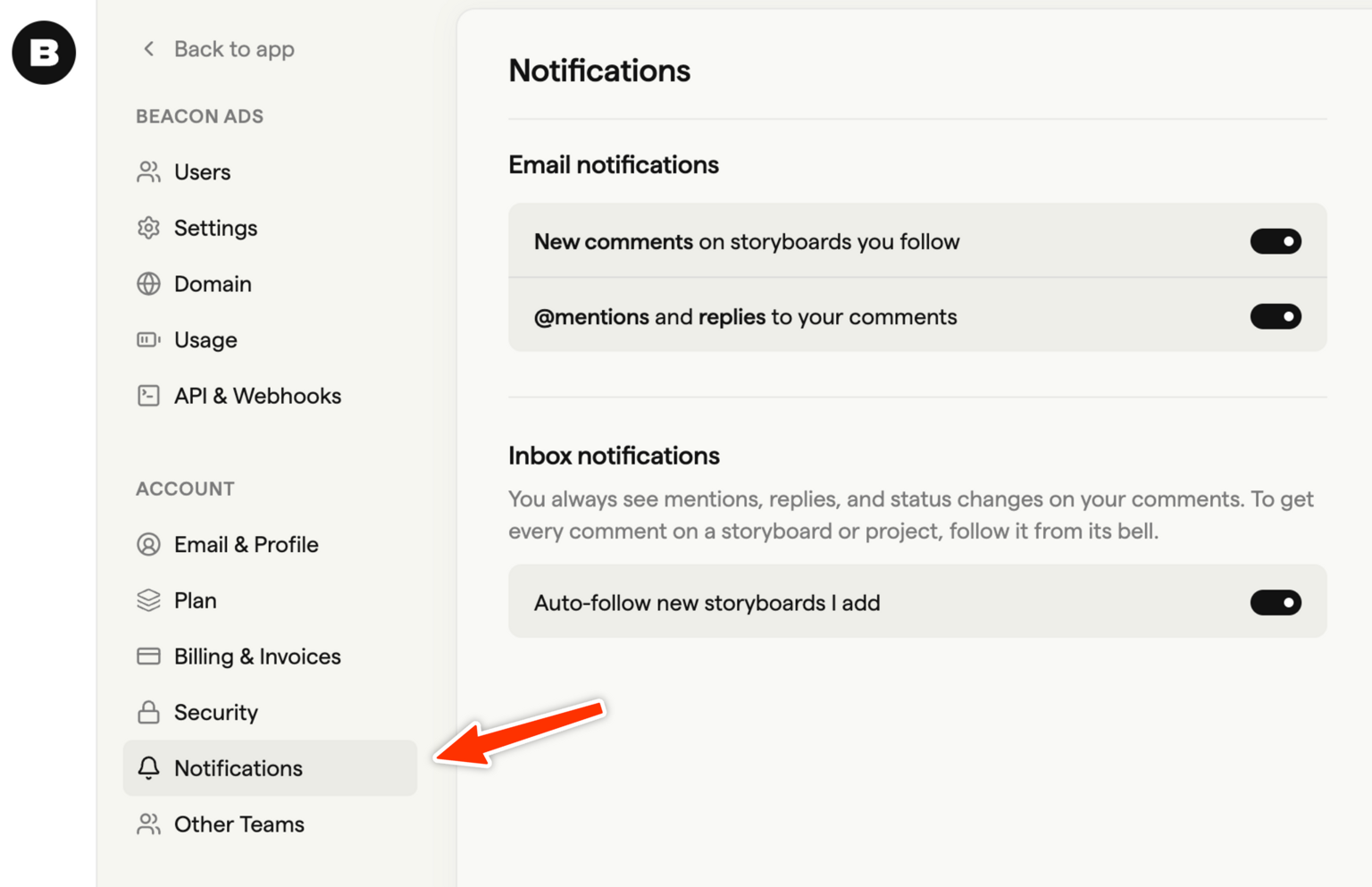
Manage your global preferences at Settings → Account → Notifications. The page splits them into two groups.
Email notifications
- New comments on storyboards you follow. Receive batched emails for new comments on storyboards you have access to. The toggle is the master switch for comment emails; per-storyboard and per-project email overrides decide which specific storyboards send to you.
- @mentions and replies to your comments. Receive batched emails when someone @mentions you or replies to you.
Inbox notifications
- Auto-follow new storyboards I add. Automatically follow any new storyboard you create or duplicate. New versions of an existing storyboard inherit the follow status of the master storyboard rather than getting their own.
- Auto-follow new scripts I add. The same for scripts: automatically follow any new script you create. Following covers every version of the script.
New accounts have all three turned on by default. The page reminds you that mentions, replies, and status changes on your own comments always appear in your inbox regardless of follows.
Slack DMs
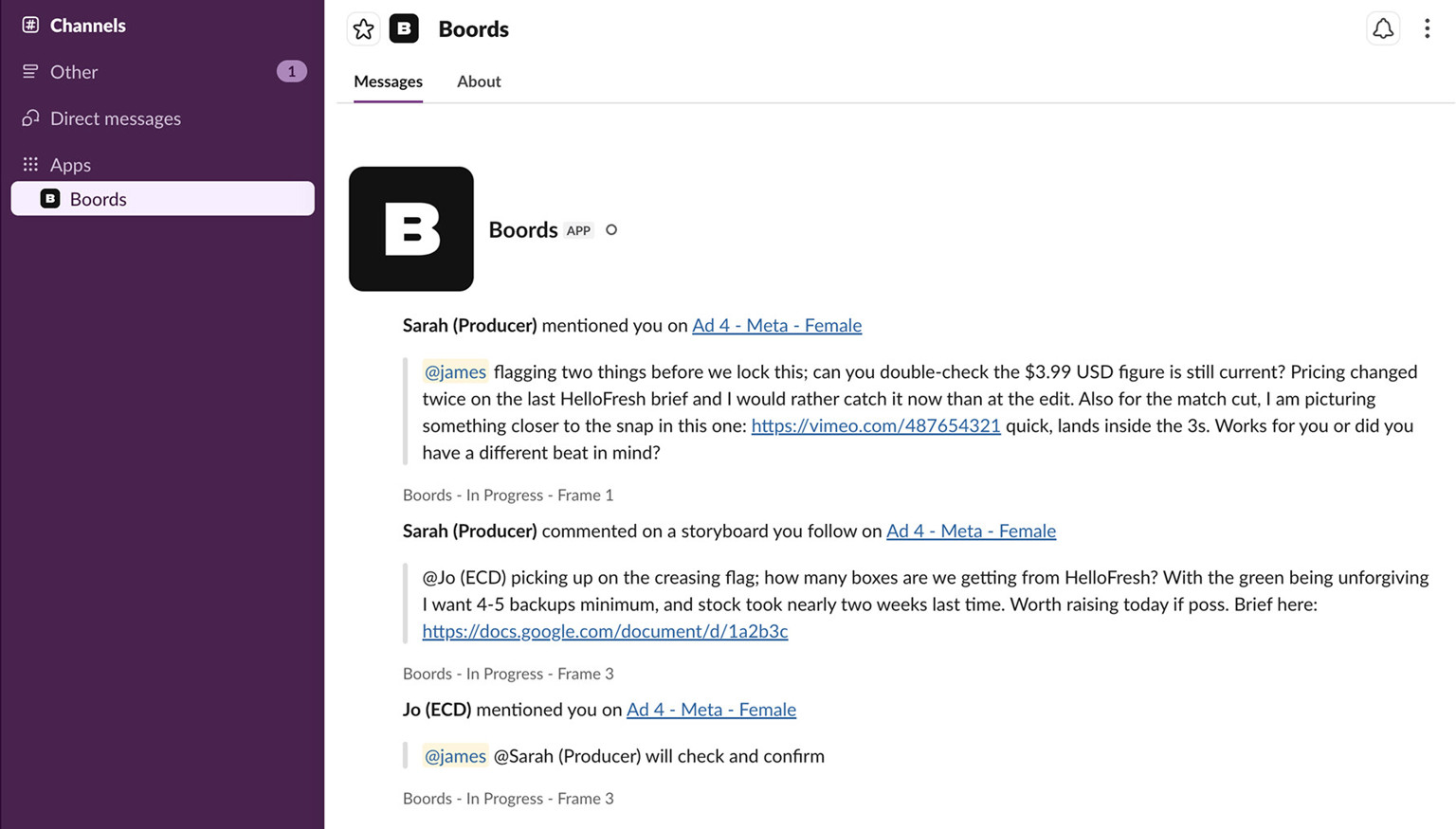
Boords can also deliver your notifications as Slack DMs. The DMs cover the same five types as your inbox: mentions, replies, comments completed, comments reopened, and followed-storyboard comments. They go only to you. Boords never posts in Slack channels or sends DMs to other teammates.
Slack is set up per team. Each Boords team you belong to has its own Slack connection, and you connect your own Slack account separately for each one.
Setting up Slack
Setup is two steps:
- Install the Boords app on your Slack workspace. A team owner, admin, or manager does this once. After that, the workspace is connected for everyone on the team.
- Connect your own Slack account. Open Settings → Account → Notifications and click Connect Slack on the team's row. Boords sends you to Slack to authorise the DM, then back to your settings.
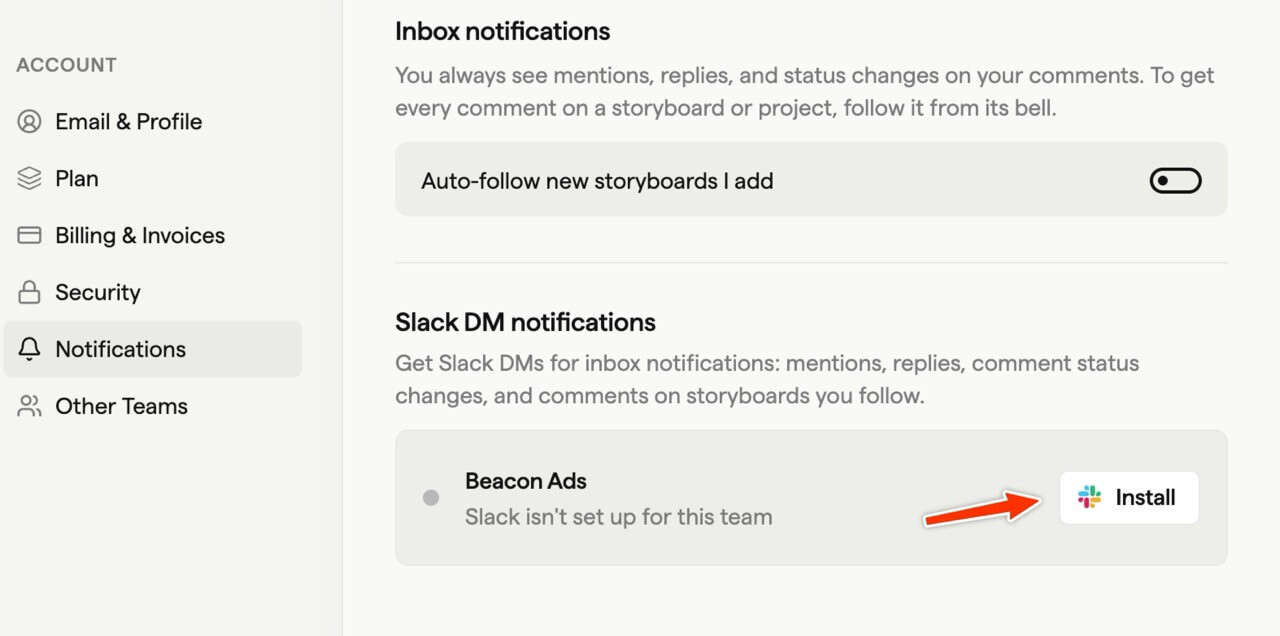
New notifications start arriving in Slack straight away. The DM has the same content as the inbox notification and links back to the comment in Boords.
The Slack setup banner
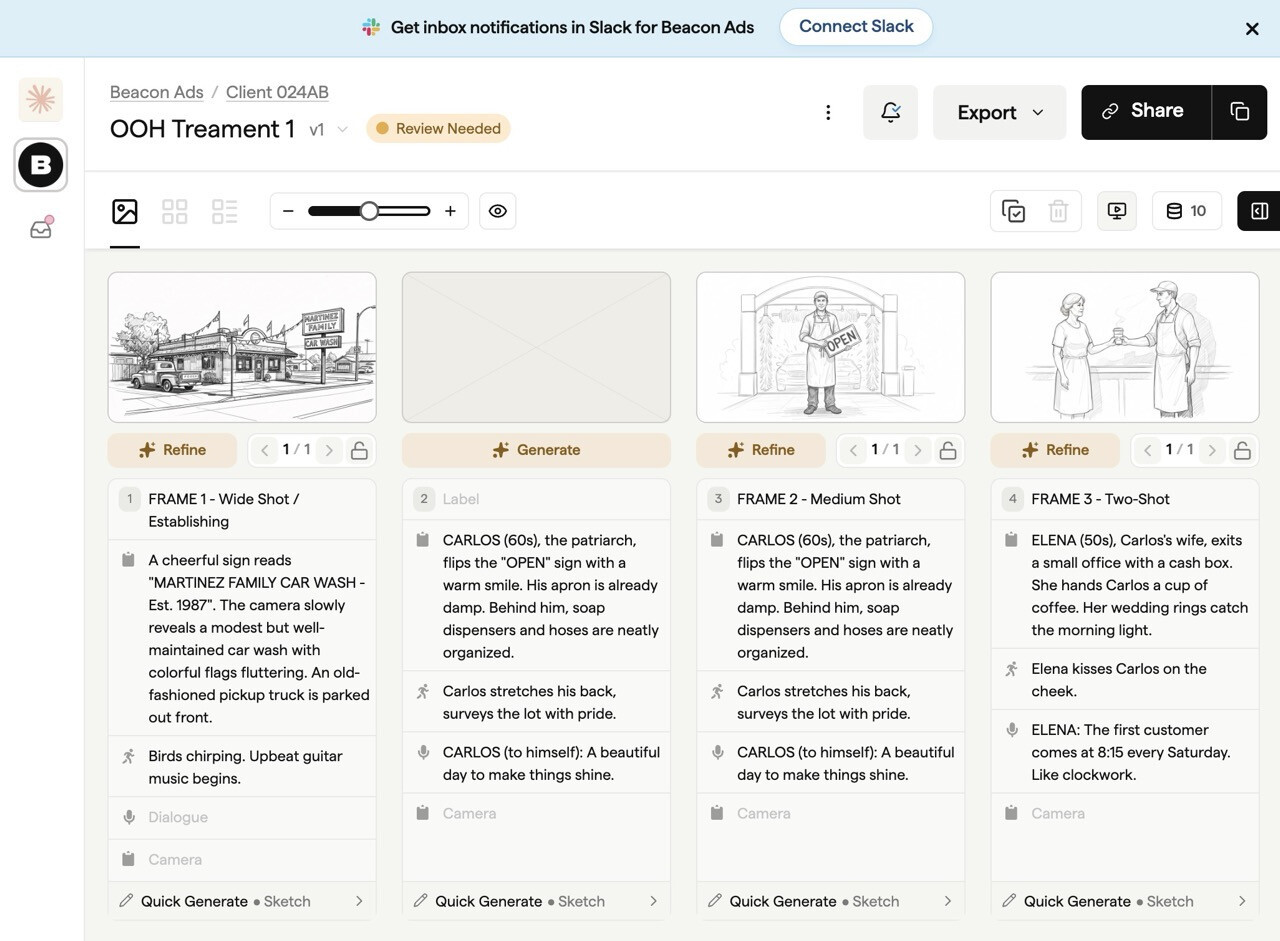
When your team's Slack workspace is connected but you haven't linked your own account, Boords shows a banner at the top of project pages and team storyboards. It reads "Get inbox notifications in Slack for your team", with your team's name in place. Click it to jump to the Slack row in your account settings. You can dismiss the banner if you don't want to use Slack for that team.
Disconnecting Slack
Open Settings → Account → Notifications and disconnect Slack on the relevant team's row. Your inbox and email notifications carry on as before.
Where to set what
A quick reference for the change you might want to make:
| I want to... | Go to |
|---|---|
| Get inbox notifications about a single storyboard | Follow in Inbox in the storyboard's bell menu |
| Get inbox notifications about every storyboard in a project | Follow in Inbox on the project page bell menu |
| Stop comment emails for a single storyboard | Email me about new comments in the storyboard's bell menu |
| Override your global email preference for a whole project | Email me about new comments on the project page bell menu |
| Change global email or auto-follow preferences | Settings → Account → Notifications |
| Get Boords notifications as Slack DMs | Connect Slack for the relevant team on Settings → Account → Notifications |
| See which projects you're following | Filter button at the top of the projects sidebar |
| Stop following | The same bell menu you used to turn it on |
Inbox versus email
The inbox and your email are independent surfaces.
Your inbox collects activity aimed at you: mentions, replies, and status changes on your own comments, plus any comment activity on storyboards or projects you've followed.
Your email delivers comment digests based on your email preferences. You can receive comment emails for any storyboard you have access to, regardless of whether you've followed it in the inbox. Following a storyboard does not subscribe you to its emails, and getting emails for a storyboard does not put it in your inbox.
What triggers a notification
Five kinds of notification can land in your inbox. The same table shows which ones also create an email.
| Type | When you get it | In inbox | In email |
|---|---|---|---|
| Mention | Someone @mentions you in a comment. | Always | If your @mentions and replies email is on |
| Reply | Someone replies to a comment you left. | Always | If your @mentions and replies email is on |
| Comment completed | Someone else marks your comment complete. | Always | If your new comments email is on and the storyboard has comment emails enabled |
| Comment reopened | Someone else reopens your completed comment. | Always | No |
| Followed storyboard | A new comment on a storyboard you follow. | Always | Independent of the follow. You'll get a regular comment email if your email preferences are set to deliver one for that storyboard. |
If a comment would trigger more than one notification for you, you'll see the most direct one only. Mentions beat replies, and both beat followed-storyboard notifications. See the FAQ below for an example.
Edge cases
- Guests. Guests can comment but don't have a Boords inbox; they trigger your notifications but receive none themselves.
- Deleted comments. If a comment is deleted, its notification is hidden from your inbox.
- Lost project access. If you lose access to a project, its notifications are hidden from your inbox automatically.
- Edited comments. If a comment is edited to remove your @mention, that notification is cancelled.
Related
- Commenting overview
- Activity & notifications for the team Activity Log on the Pro plan.
- Developers can also access notifications via the Boords API and Webhooks.
FAQ
Yes. New accounts start with everything turned on: Auto-follow new storyboards I add, New comments on storyboards you follow, and @mentions and replies to your comments. You can change any of these at Settings → Account → Notifications once you've seen what's useful and what's noisy.
Digest emails are sent roughly every 10 minutes, so a busy review session won't flood your inbox with one email per comment. @mentions and replies emails go out on the same 10-minute cadence: they're delivered alongside other comment activity in the next batched email, not as separate immediate sends.
If 10 minutes feels too slow for your workflow, the in-app inbox updates automatically and is the fastest way to keep up with comments as they come in.
No. Guests commenting on shareable links can leave comments and trigger notifications for the people you've shared the storyboard with, but they don't have a Boords account or inbox and don't receive notifications themselves.
Guests also can't @mention teammates. If you need someone to receive notifications, invite them to your team instead of relying on the shareable link.
Not currently. Boords delivers notifications to the in-app inbox and as email summaries based on your preferences, but does not send browser push or desktop notifications. The in-app inbox refreshes automatically while you have Boords open, so you'll see new notifications without reloading the page.
Boords picks the most direct notification and skips the rest. A mention beats a reply, and both beat a followed-storyboard notification.
For example, if a teammate replies to you and @mentions you in the same comment, you'll see a mention notification only. The reply and followed-storyboard versions are suppressed so your inbox isn't cluttered with duplicates of the same comment.