
Writing and formatting
The editor, the AV block, voiceover timing, co-editing, and the Script Agent
The script editor is a pageless rich-text document with a first-class two-column AV block, real-time co-editing, and a Script Agent in the sidebar for drafting and tightening.
The editor
A script is a single pageless document: no page breaks, no screenplay margins, just the words. The formatting bar sits between the header and the document and covers everything you need for a video script:
- Text style: paragraph and headings 1 to 3
- Bold, italic, underline, and strikethrough
- Text colour and highlight colour
- Font size
- Alignment
- Bulleted and numbered lists
- Blockquote and horizontal rule
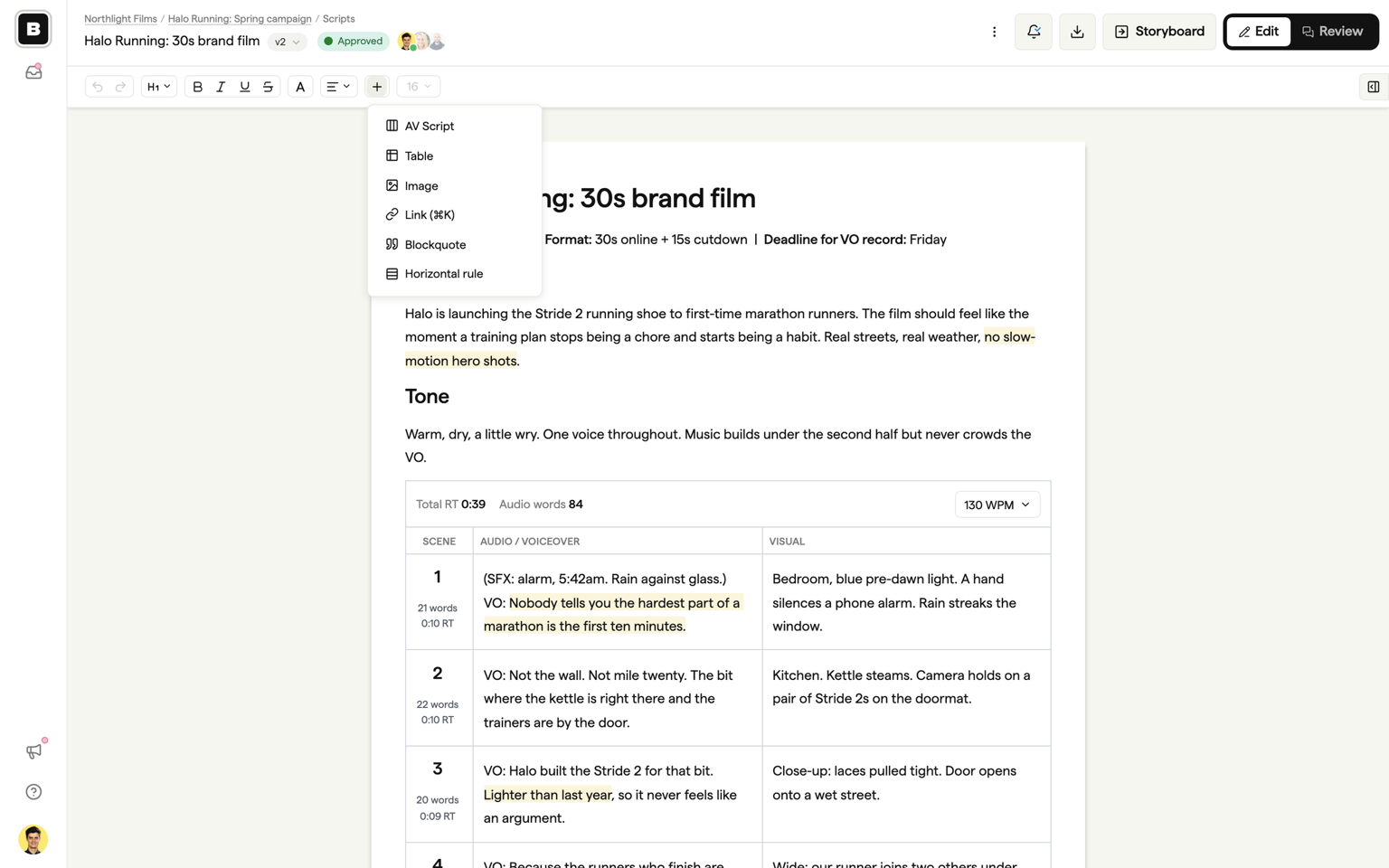
- Tables and images (from the Insert menu)
Press Cmd+K (Mac) or Ctrl+K (Windows) to add or edit a link on the selected text. That is the one custom shortcut; everything else uses the standard shortcuts you already know from other editors.
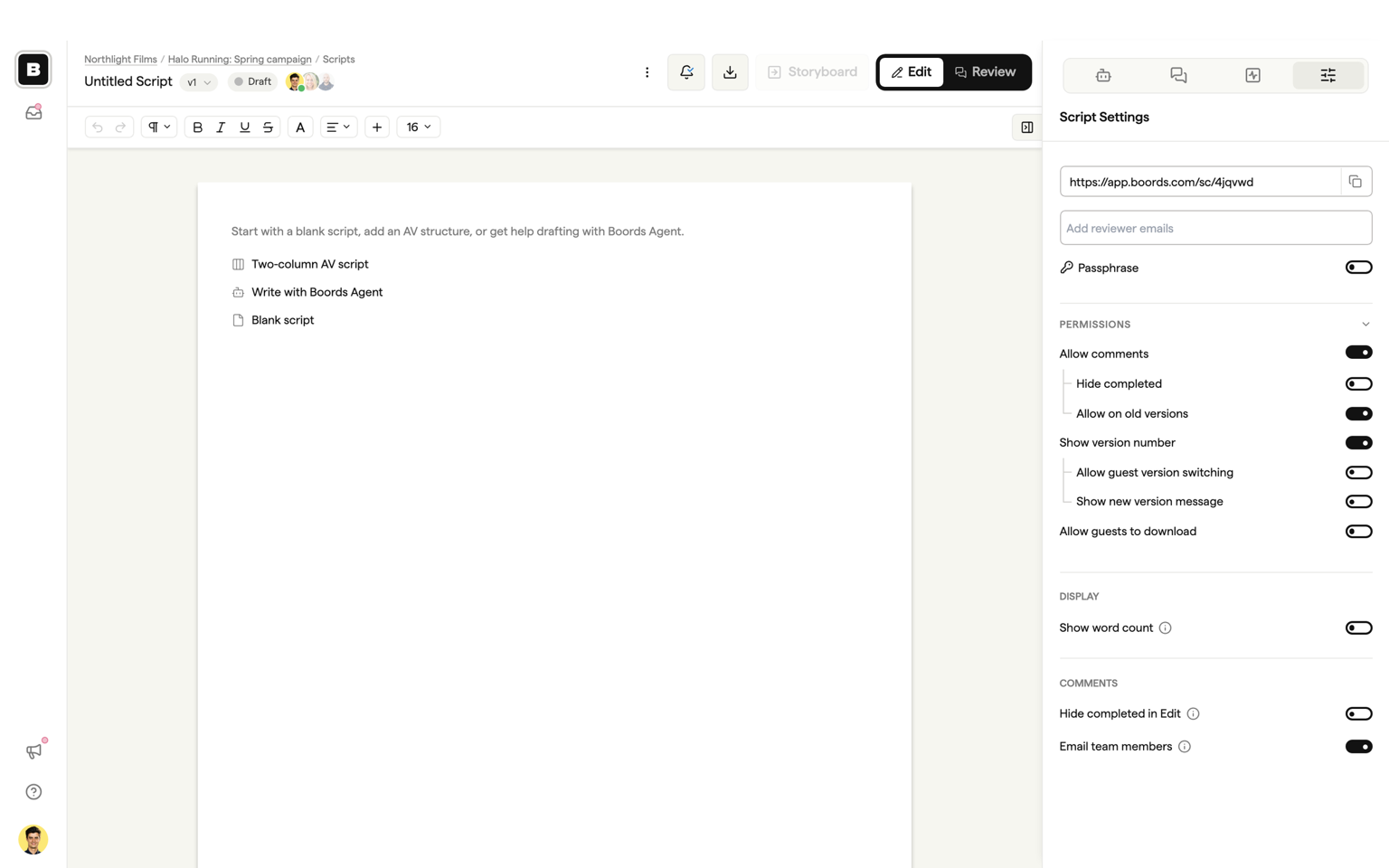
When you open a brand new script you will see three shortcuts instead of an empty page: Two-column AV script, Write with Boords Agent, and Blank script. Pick one to get started, or just start typing.
The AV block
Two-column AV scripts are built in, not something you fake with a table. Open the Insert menu and choose AV Script to add an AV block. Each block has three fixed columns:
- Scene: numbered automatically, with a word count and runtime for that row.
- Audio / Voiceover: what the audience hears.
- Visual: what the audience sees.
The Audio / Voiceover and Visual labels are editable if your team calls them something else. Rows can be added, duplicated, deleted, and dragged into a new order. The three columns themselves are fixed: you cannot add, remove, resize, merge, or split them. If you need free-form columns, insert a regular table instead.
Voiceover timing
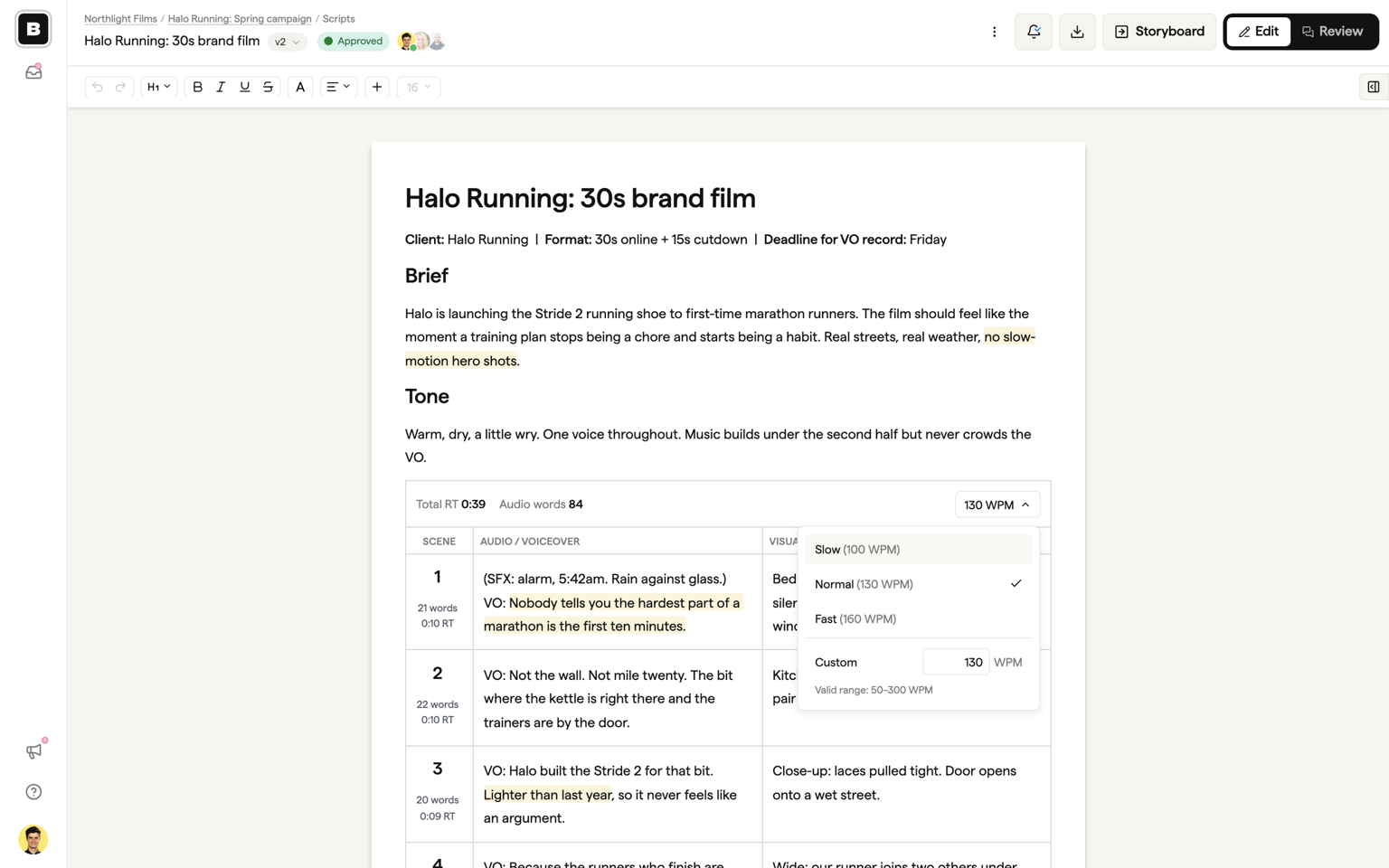
Every AV block has a timing band across the top showing the total runtime and the audio word count for the block. Only text in the Audio / Voiceover column is counted, so visual descriptions and scene notes never inflate your runtime.
Runtime is calculated at a reading speed you choose. The default is 130 words per minute. Click the WPM control to pick a preset, Slow (100), Normal (130), or Fast (160), or enter a custom value between 50 and 300 words per minute. Each block keeps its own reading speed.
Getting an existing script in
Paste from Google Docs, Word, or anywhere else and the formatting comes with it: headings, bold and italic, lists, links, and tables all survive the paste.
There is no file-import step when you create a script. A new script starts blank and you paste or draft into it. If you have a script as a file (a PDF or a Word document, for example), attach it to the Script Agent in the sidebar and ask it to lay the script out for you.
Writing together
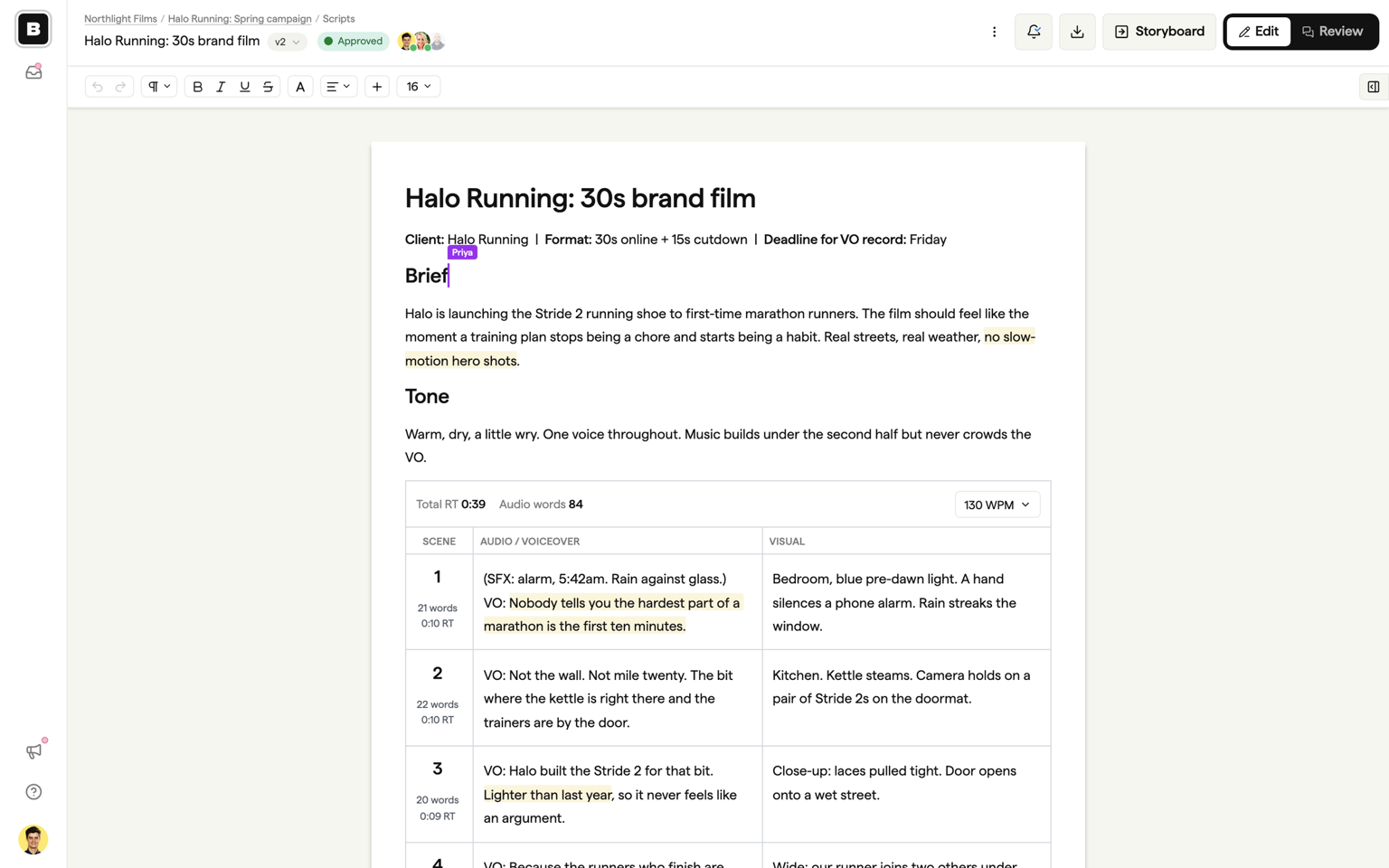
Scripts are collaborative in real time. Everyone with edit access to the project can work in the same document at the same time, and you will see each collaborator's cursor and selection, labelled with their name, as they type. The facepile in the header shows who is in the document right now.
Edits sync as you type. If your connection drops, you can keep writing: your changes are held locally and sync automatically when the connection returns. Boords tells you what is happening in two cases:
- Cannot connect on open: if the document cannot connect before it has loaded for the first time, the editor shows an unavailable state until the connection is made.
- Connection lost while editing: if you lose connection after the document has loaded, a banner appears at the top of the app and stays until the document is fully back in sync.
A healthy connection shows nothing at all, so no banner means you are up to date.
Drafting with the Script Agent
The Script Agent lives in the editor sidebar. Open the Agent tab (the robot icon) and it reads the script that is currently open and edits it in place, so you see the changes appear in the document rather than in a chat window.
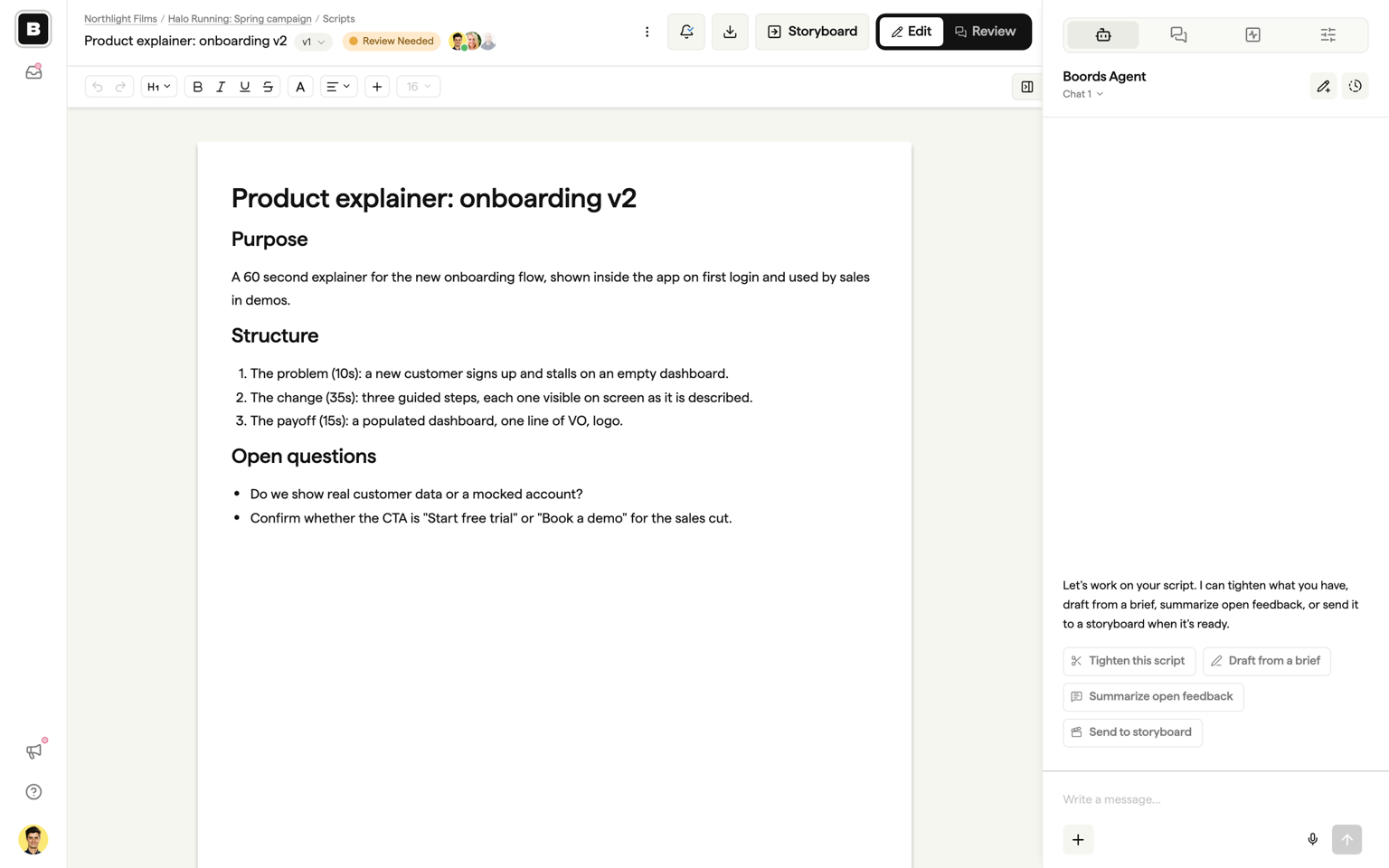
Four quick actions cover the common jobs:
- Draft from a brief: paste or describe the brief and get a first draft in the document.
- Tighten this script: cut the flab while keeping the meaning and the structure.
- Summarize open feedback: pull the open comment threads into a short summary you can act on.
- Send to storyboard: run the same conversion as the Storyboard button in the header, after you confirm.
You can also type your own request, and attach files (images, PDFs, and text documents) for the Agent to work from. Large or sweeping edits ask for your confirmation before they are applied, so the Agent cannot rewrite the whole script without you saying yes.
The Script Agent is available where your team has AI features switched on. Team admins control this in team settings. Your scripts, storyboards, and images are not used to train AI models. See Boords Agent for more on how the Agent works across Boords.
Browser support
The script editor is built for desktop browsers. Editing on a phone or tablet is not supported; the review view that clients see is responsive, so reading and commenting on a phone works fine. Safari is not part of the verified browser matrix for the collaborative editor, so for the smoothest editing experience use Chrome, Edge, or Firefox.
FAQ
There is no file-import step when you create a script: a new script starts blank. Paste from Word or Google Docs and the formatting comes with it, or attach the file to the Script Agent in the sidebar and ask it to lay the script out for you. Final Draft (.fdx) and Fountain files are not supported, because Scripts is not screenplay software.
The AV block counts the words in the Audio / Voiceover column only and divides by the reading speed you have set for that block. The default is 130 words per minute, with presets for Slow (100), Normal (130), and Fast (160), or any custom value between 50 and 300. Text in the Visual column and scene notes are never counted, so your runtime reflects what will actually be spoken.
Yes. Scripts are collaborative in real time, with live cursors so you can see who is working where. Edits sync as you type, and if your connection drops your work is held locally and syncs automatically when the connection comes back.