
Scripts overview
Write, review, and sign off video scripts inside your projects
Scripts let you write, review, and sign off the script for a video inside the same project as its storyboard, so the writing stage and the boarding stage stop living in different tools.
What a script is
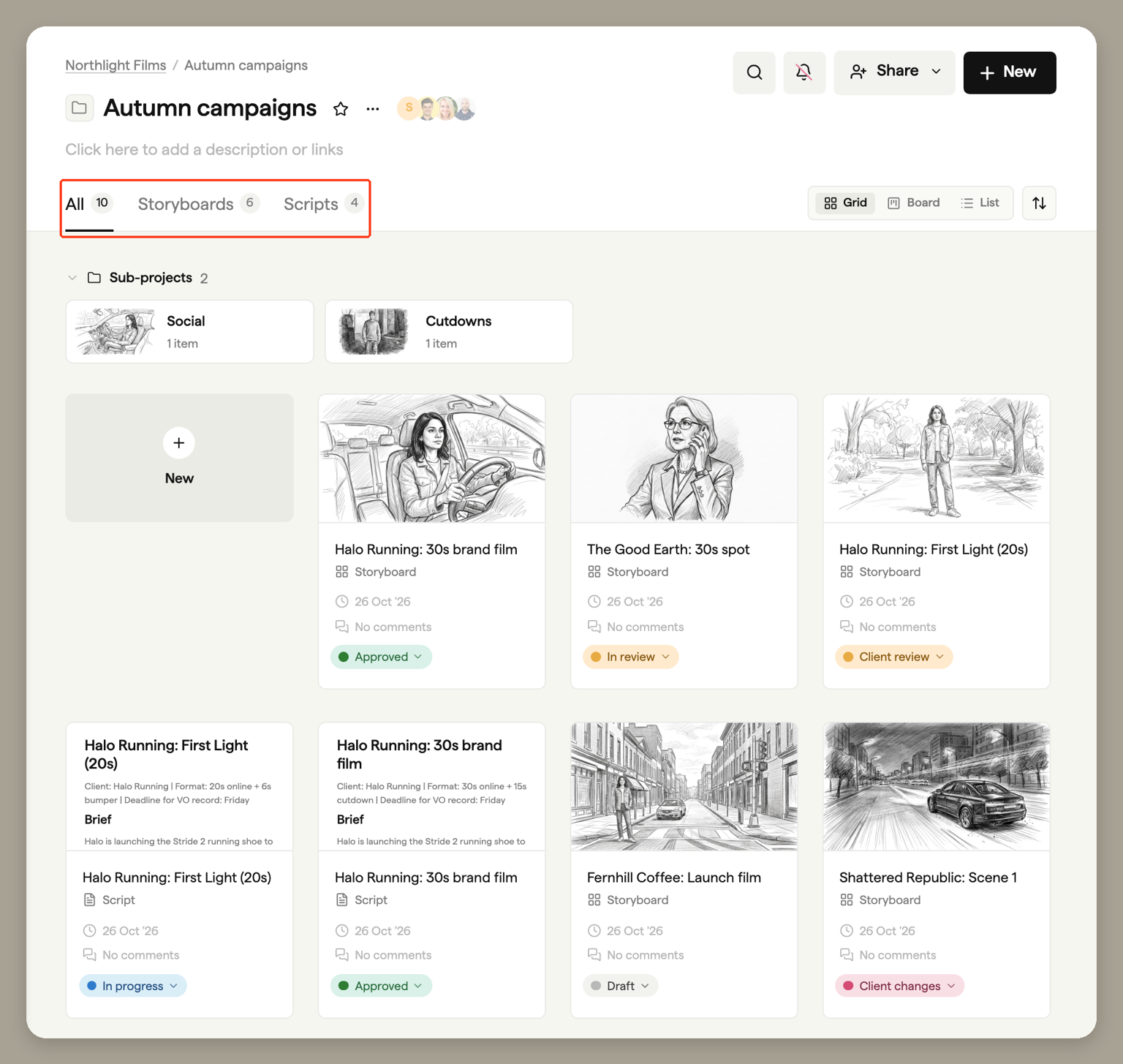
A script is a rich-text document that lives inside a project, alongside your storyboards. There is no separate Scripts area in the sidebar. Open a project and its scripts sit alongside its storyboards in one list. Select the Scripts tab above the list to show only scripts.
Each script can hold several versions, carries comment threads that are anchored to specific lines of text, and can be shared with clients through a review link. When the words are approved, you can turn the script into a storyboard in the same project.
Creating a script
There are four ways to start a script:
- Click the New tile in a project's Grid view and choose Script. With the Scripts tab selected, the tile reads New script and creates one straight away. In Board view, click New at the bottom of the Draft column.
- Open the project's New menu (top right, next to Share) and choose Script.
- In an empty project, click the New script card under Start this project.
- Choose to start with a script when you sign up and go through onboarding.
New scripts start blank. Once the document opens, you will see three shortcuts to get going: a Blank script, a ready-made Two-column AV script structure, or Write with Boords Agent to draft from a brief. See Writing and formatting for the editor itself.
The dashboard card
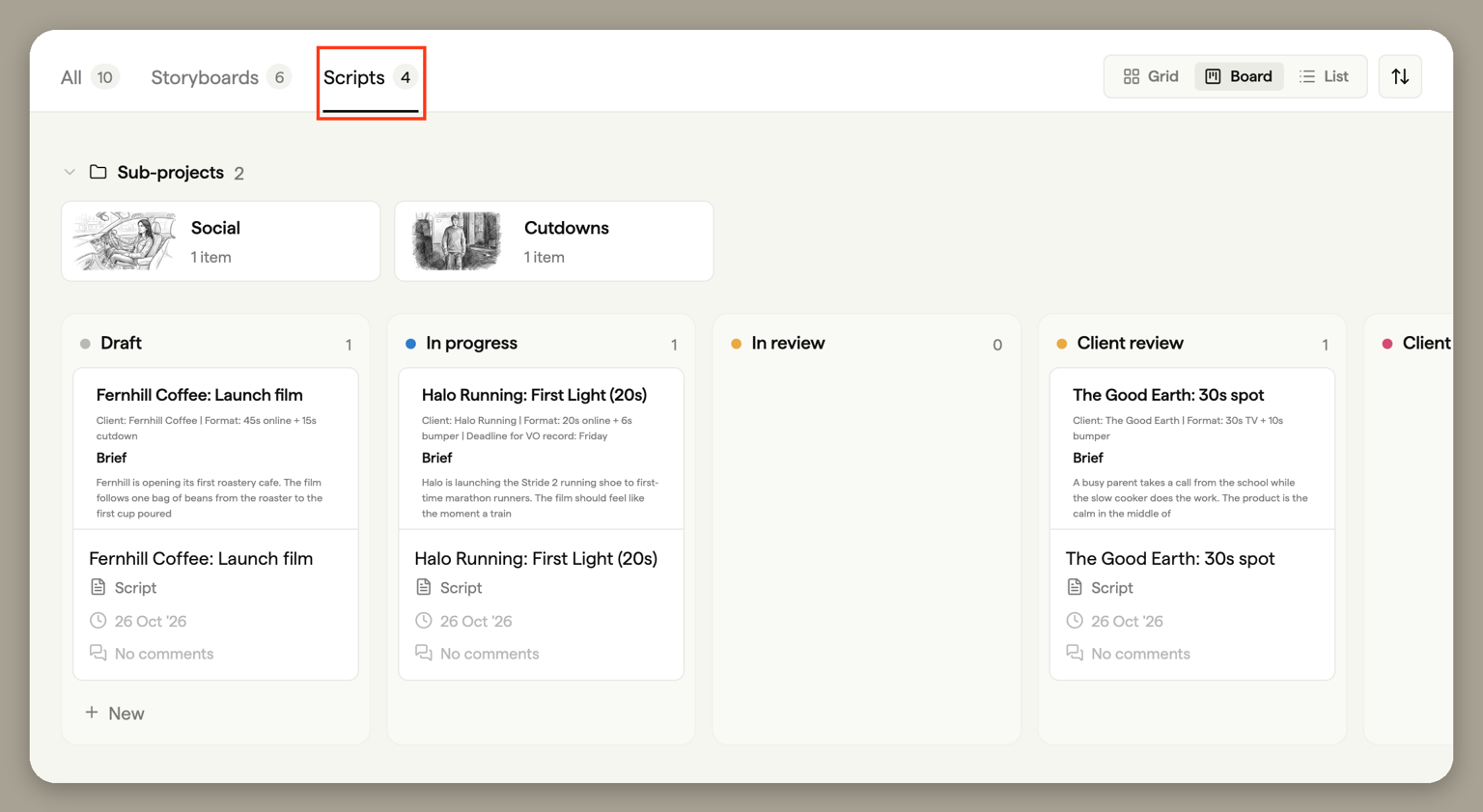
Each script appears as a card in its project, alongside the project's storyboards. Choose the Scripts tab to show only scripts. In Grid view each script is a card with a preview of the document, its name, a Script label, when it was last modified, its comment count and a status menu. In Board view each column is one of your team's statuses, so you can drag a script card into another status column to change its status. List view groups scripts and storyboards by status.
Statuses
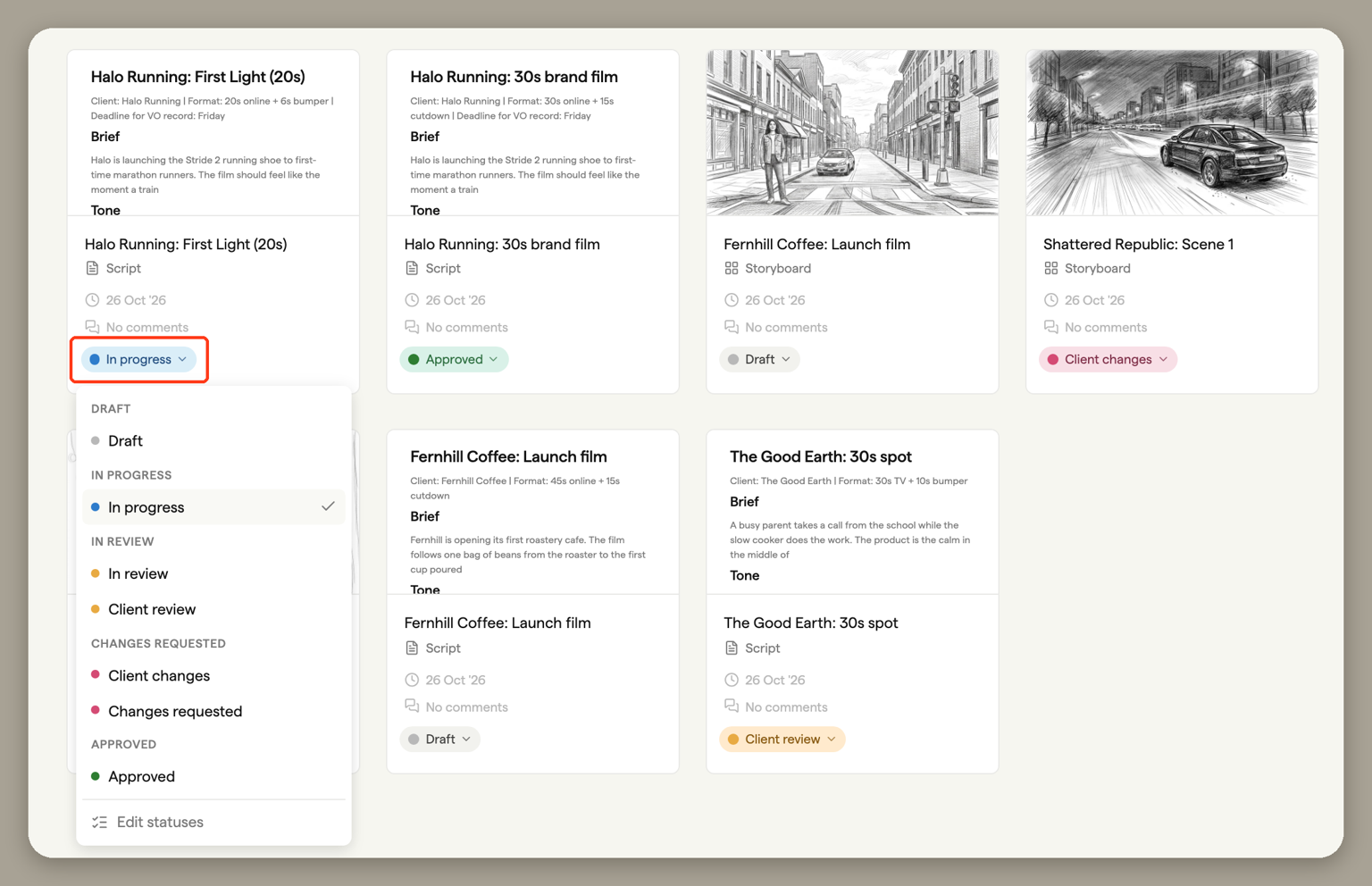
Scripts use your team's statuses, the same as storyboards. Out of the box these are Draft, In progress, In review, Changes requested and Approved. The team Owner and Admins can rename them, add their own and reorder them within each category in Team settings under Statuses. Status is set per version. A new version starts at Draft, so an approved first draft stays approved when you open a second round. You can change status from the card on the project page, from the pill next to the script title in the editor, or by dragging the card into another column in Board view.
Duplicate, move, and archive
Open the actions menu on a script card (or the ⋮ menu in the editor header) to duplicate, move, or archive it.
- Duplicate copies only the current version into a new, independent script. The copy does not carry the other versions with it.
- Move sends the whole script, with all of its versions, to another project.
- Archive removes the script and its entire version history from the project and frees up one of your active script slots. Archived scripts can be restored from the team Archive.
Archiving a project also archives the scripts inside it. Restoring the project brings them back.
Active script limits
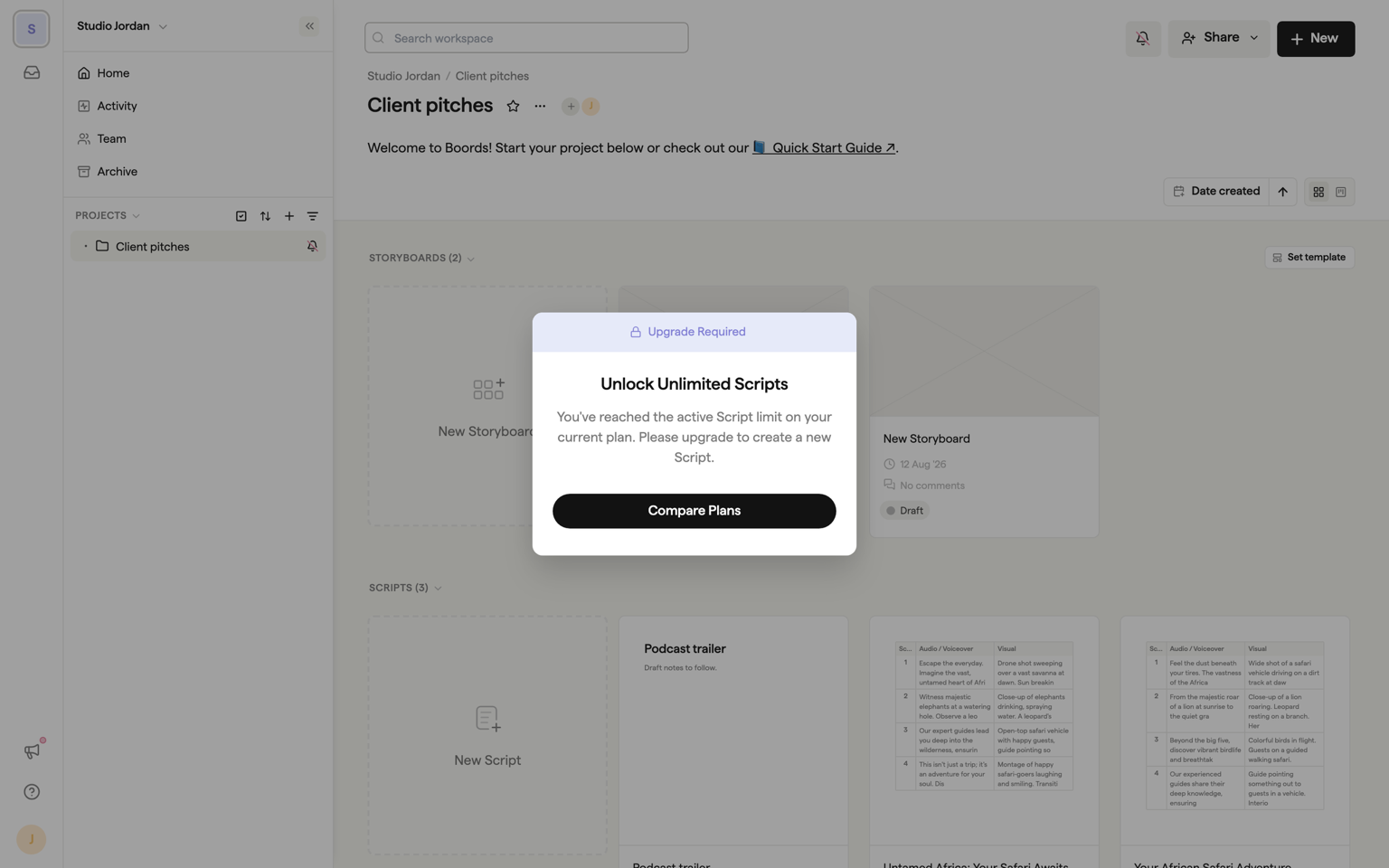
Free teams can keep 3 active scripts at a time. Paid plans include unlimited active scripts. Only active scripts count towards the limit: versions belong to their script rather than counting separately, and archived scripts do not count at all.
When you reach the limit, creating a new script shows an upgrade prompt. To free a slot without upgrading, archive or delete a script you no longer need.
Scripts are included on every Boords plan. See pricing for what each plan covers, including the active script limit and the paid features mentioned in these docs.
What Scripts is not
Scripts is not screenplay software. There are no sluglines, no Final Draft or Fountain import or export, and no screenplay page formatting. It is built for the scripts video teams actually write: commercials, brand films, explainers, social cutdowns, treatments, and two-column AV scripts. If you write feature screenplays, a dedicated screenwriting tool will serve you better.
Where to next
- Writing and formatting: the editor, the AV block, voiceover timing, real-time co-editing, and drafting with the Script Agent.
- Review and sign-off: review links, guest comments, passphrase protection, and the approval trail.
- Versions and exports: review rounds as versions, plus PDF, Word, Markdown, and plain text exports.
- Turning a script into a storyboard: the one-click conversion from approved script to editable frames.
FAQ
Scripts are included on every Boords plan. Free teams can keep three active scripts at a time; paid plans include unlimited active scripts. Archived scripts do not count towards the limit. Some features inside Scripts, such as creating new versions, passphrase-protected review links, and Word, Markdown, and plain text exports, are part of paid plans. See pricing for the details of what each plan covers.
No, and deliberately so. Boords Scripts is built for video teams writing commercials, brand films, explainers, and social cutdowns, not for feature screenplays. There are no sluglines and no Final Draft or Fountain import or export. If you write screenplays for film and television, a dedicated screenwriting tool will serve you better.
No. The active script limit counts scripts, not versions. A script with five versions uses one slot. Duplicating a script does create a new, independent script and uses a slot, and archiving a script frees one.