
Boords Agent
Build and edit storyboards by chatting with an AI assistant
Boords Agent is an AI assistant built into the storyboard editor. It sits in a chat panel beside your board, understands the storyboard you have open, and can build it out for you. Describe what you are storyboarding and it roughs out the frames. Ask it to add a scene, generate images, import a script, or tighten your pacing, and it does the work in the board while you watch.
Agent already knows your storyboard's title, frame count, and the content of each frame, so you never have to copy and paste your board into a chat window. Agent is currently in beta. This guide covers how to turn it on, what it can do, and how to get the best results.
Turning on Boords Agent
Agent is a beta feature that a team admin enables for the whole team.
- Go to Team settings and open Enable AI tools.
- Switch on Enable Boords Agent.
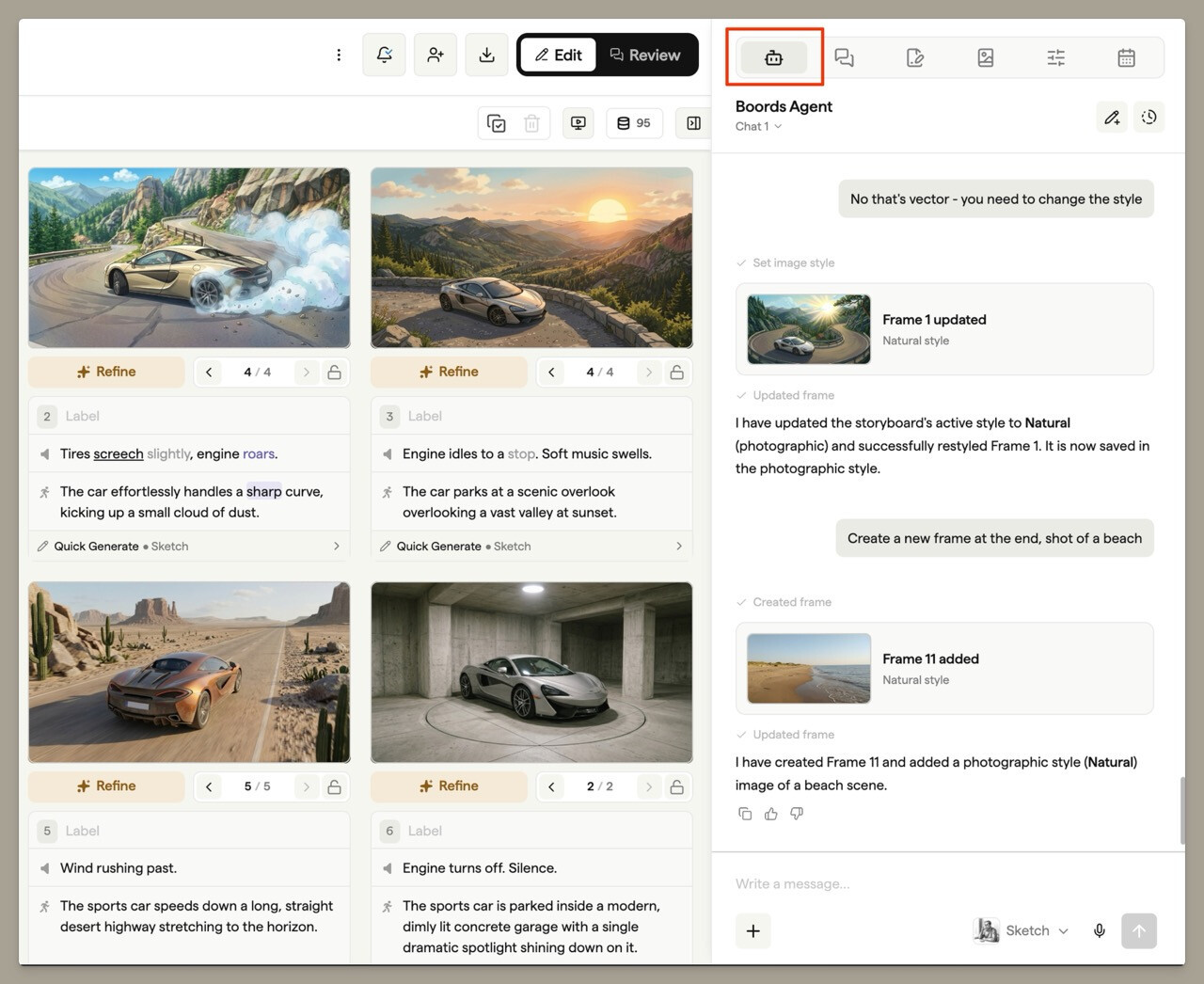
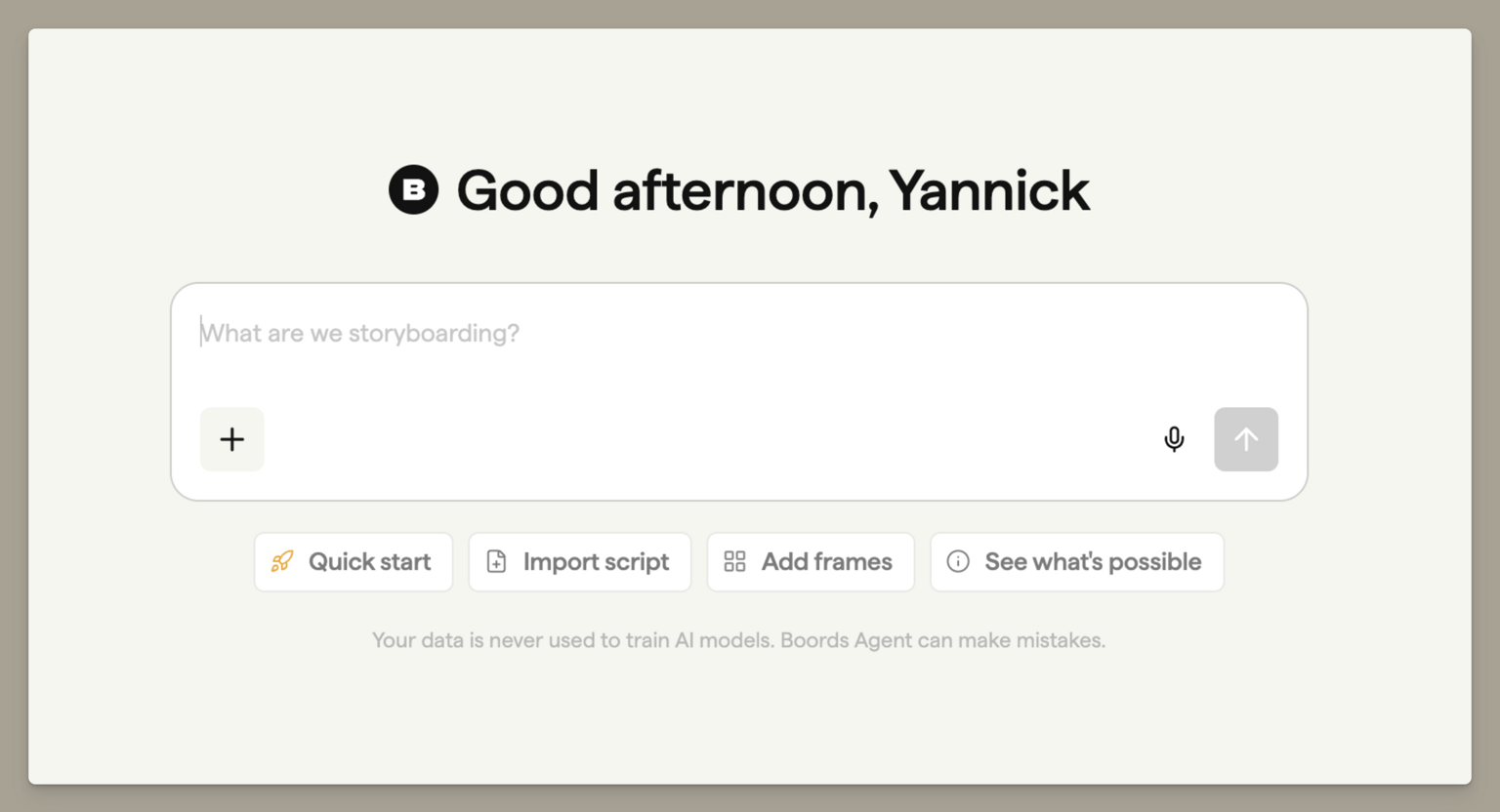
Once it is on, open any storyboard and look for the Agent tab (the robot icon) in the right-hand sidebar. On an empty storyboard, an Agent prompt also appears in the middle of the canvas so you can start building straight away.
Starting a conversation
Open the Agent tab, type into the message box at the bottom, and press Send or Cmd+Enter (Ctrl+Enter on Windows). Agent replies in real time and does the work directly in your board.
On a new, empty storyboard, the Agent prompt offers a few quick ways to start:
- Add frames sets up a request to rough out a handful of frames.
- Import script lets you attach a script file to turn into a storyboard.
- Upload images turns images from your device into frames.
- See what's possible asks Agent what it can do.
What Agent can do
Build and edit your storyboard
Ask Agent in plain English and it makes the change in your board:
- Rough out a whole storyboard from a description of what you are shooting.
- Add, edit, reorder, and delete frames.
- Fill in frame fields such as action and dialogue.
- Rename the storyboard, set its status (including your team's custom statuses), set frame statuses, change the aspect ratio, and update sharing settings.
Anything that cannot be undone easily, such as deleting a frame or changing the aspect ratio when frames already have images, pauses for your approval first. See Approvals below.
Generate and restyle images
Agent can create and change frame images for you:
- Generate a new image for a frame from a prompt.
- Restyle an existing image into a different look.
- Reframe a shot to a new angle.
- Generate several images at once for different frames.
Image generation works the same way as the Generate sidebar and uses the same image credits. For the full picture on prompting, references, and styles, see Generating images and Styles & restyling.
Choose the image model
Before sending an image request, open Image model below the Agent prompt. This control is available in both the empty-storyboard prompt and the Agent sidebar. In a narrow panel, the button shows the provider's logo.
Choose Nano Banana 2, GPT Image 2.5 Flare or GPT Image 2.5 Sunburst, then select 0.5K or 1K at the top of the menu. Free and trial teams can use Flare at 0.5K; the other models and 1K require a paid plan.
This choice applies to image generation. It doesn't change the assistant you chat with. Boords remembers the selection in this browser and shares it with Playground and the frame generator. Styles and operations can require a different model, including Camera reframe.
See Choosing an image model for defaults and compatibility limits. On credit-based plans, each generated frame image uses one image credit, so a request that generates several images uses a credit for each image.
Bring in your own material
- Import a script. Attach a PDF, TXT, Markdown, HTML, or CSV file and Agent turns it into frames. For long screenplays, Agent shows you the scenes it found and asks which range to import before it adds anything.
- Turn images into a storyboard. Upload images and Agent builds frames around them.
- Read a webpage. Paste a public web address into your message and Agent can read that exact page to inform what it creates. It only reads links you paste, and if it cannot read a page it will ask you to paste or upload the material instead.
Manage versions and downloads
- Create a new version of the storyboard as a revision checkpoint.
- Duplicate the storyboard into an independent copy.
- Switch between existing versions.
- Prepare a ZIP of every image in the storyboard to download. Downloading images does not use any image credits.
Manage your team
If you are a team admin or manager, Agent can also help you run your team: invite teammates, change roles, and grant or remove project access. These options are only available to admins and managers. Everyone else gets the storyboard and image tools.
Agent in scripts
Agent is available inside Scripts too. Open a script and click the Agent tab (the robot icon) in the sidebar. This Script Agent reads the script that is open and edits it in place, so changes appear in the document rather than in the chat.
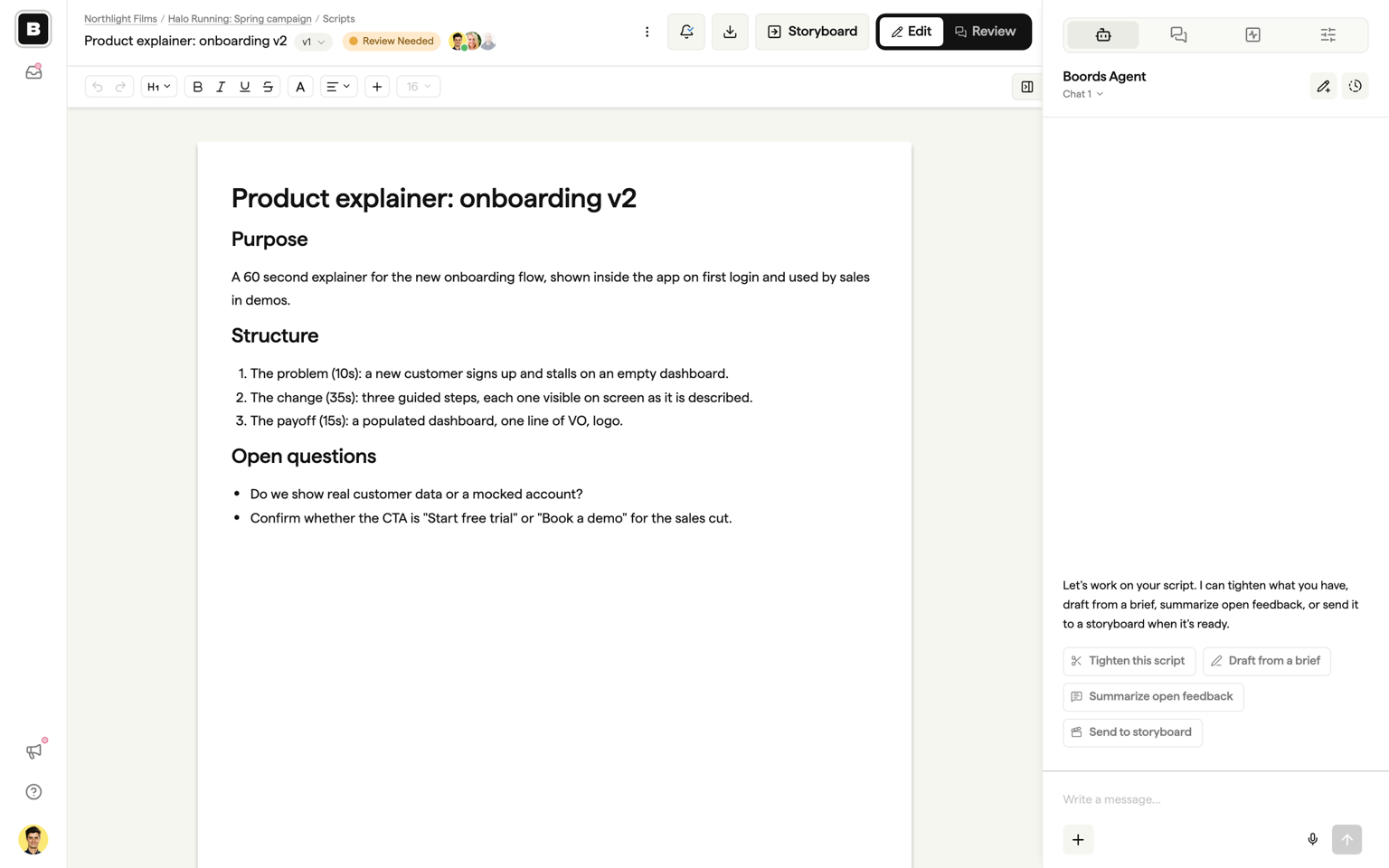
Four quick actions cover the common jobs, and you can type any request of your own:
- Draft from a brief: paste or describe the brief and get a first draft in the document.
- Tighten this script: cut the flab while keeping the meaning and the structure.
- Summarize open feedback: pull the open comment threads into a short summary.
- Send to storyboard: run the same conversion as the Storyboard button in the script header, after you confirm.
The Script Agent can also rename the script, set its status (including your team's custom statuses), create a new version, and switch between versions. It applies the same approval rules as the storyboard Agent: large or sweeping edits, new versions, and sending to a storyboard all ask you first, so it cannot rewrite the document without you saying yes.
Attachments are the route for bringing an existing script file into Boords. There is no file-import step when you create a script, so attach the PDF, Word document, or text file to the Script Agent and ask it to lay the script out for you. See Writing and formatting for the full guide.
Attaching files, images, and links
Use the paperclip button below the message box to attach material to your request. You can:
- Add images or script files from your device.
- Choose existing images from your Assets or Frames in the picker, which stays open so you can pick several.
- Paste an image straight into the message box with Cmd+V (Ctrl+V on Windows).
You can also dictate your message instead of typing it, using the voice button in the composer.
Mentioning library images and frames
In storyboard Agent, type @ while writing a message to choose a character, location or prop from your team's Asset Library, or an earlier frame from the Frames group. You can also click Reference characters, props or locations below the message box to open the picker. Both options work in the sidebar and the prompt on an empty storyboard.
Select an image from the list after checking its preview. For example, select Alex, Box and Office while writing "Show @alex holding @box in @office." Each image appears as a tag in your message and a reference thumbnail above it.
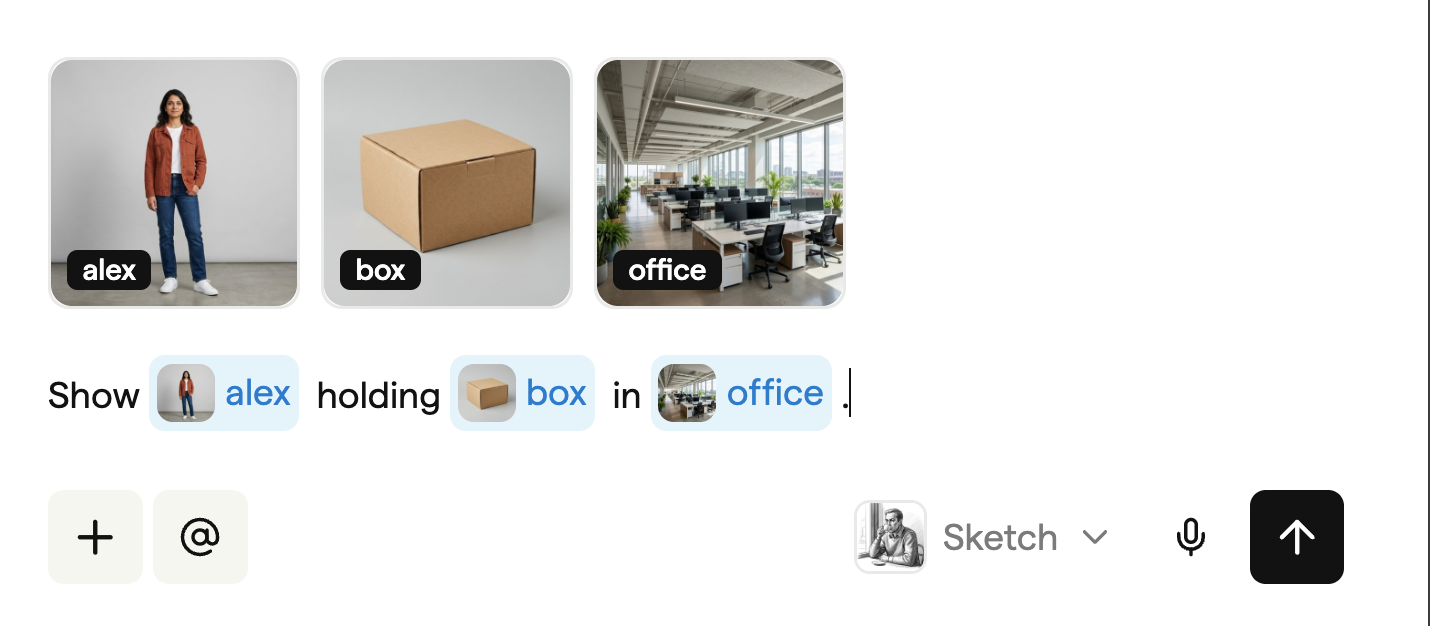
Finish your request, then send it. To remove a reference before sending, hover over its thumbnail and click its remove button. This also removes the matching tag from your message.
A mentioned frame sends its current image, and your wording decides what carries over: "same scene as @frame-3" keeps the setting, while "the woman from @frame-3 in an office lobby" keeps the subject.
You can include up to four content references, frames included, in a storyboard Agent message. The message can hold up to six attachments in total, including files. Project-only images need to be added to the team library before you can mention them. Asset mentions are available in storyboard Agent; Script Agent doesn't have this picker.
If Agent generates frames with a named character, location or prop that isn't in your library, it may show a tip in the chat suggesting you save a reference. Click Generate in Playground to create one, or Upload as @name to add an image from your computer. After an upload, click Mention @name to add the tag to your message. Agent shows this tip at most once per chat, and only to people who can add images to the library.
Keeping characters and scenes consistent
To carry a character, location or prop from one frame to the next, select it or the frame it appears in with an @mention, or attach a reference image. You can use an existing frame, an uploaded image or an image Agent generated earlier. If you ask for a set of matching images, Agent will usually generate the first one, then use it as the reference for the rest.
When there is no reference to work from and the look is ambiguous, Agent will ask a quick question rather than guess. For imported scripts, Cast Integration remains the most reliable way to keep the same characters across a whole board.
Approvals
Some actions are hard to undo, so Agent asks before it runs them. When this happens, you will see Approve and Deny buttons in the chat instead of having to type a confirmation. Approving runs the action, denying skips it.
Actions that ask first include deleting a frame, changing the aspect ratio when frames already have images, creating a version, duplicating the storyboard, and, for admins, removing a teammate or sending and revoking invitations.
You can also stop Agent at any time while it is working by clicking Stop.
You can open a frame or close the panel while Agent works. It finishes the reply and shows it when you come back.
Chats, history, and custom instructions
- Multiple chats. Use the pen button in the panel header to start a fresh chat, and the history button to switch between, rename, or delete past chats. Chat history is saved and stays with the storyboard, and it is shared across every version of that storyboard.
- Custom instructions. Use the settings icon in the panel header to open a box where you can give Agent standing instructions for this storyboard, such as a house style or a persona to write in. Agent applies them on every message.
Credits and plans
Agent uses your normal Boords image credits when it generates, restyles or reframes images. On credit-based plans, each generation uses one credit, including a new variation. Workflow and Lifetime plans include unlimited image generation. Preparing an image download does not use credits. For allowances and upgrades, see Billing & plans. If you ask Agent about pricing or plans, it will point you to the right place to compare and upgrade.
Tips for better results
- Be specific about what you want. "Add a wide establishing shot of a rainy city street at night" beats "add a frame".
- Select a library image with
@or attach a reference whenever a character or location needs to stay consistent. - Review each frame before approving anything that replaces or deletes existing work.
- Pick a style early so new images match the rest of your board.