PDF exports
Choose layouts, covers, and branding for PDF exports
Exporting your storyboard as a PDF makes it easy to share your work with clients, collaborators, or anyone reviewing your project. The PDF exporter gives you control over layout, image sizing, font and branding, before it’s sent out to present or review.
Accessing the PDF exporter
Open your storyboard and select Download. From the list of options, choose PDF.
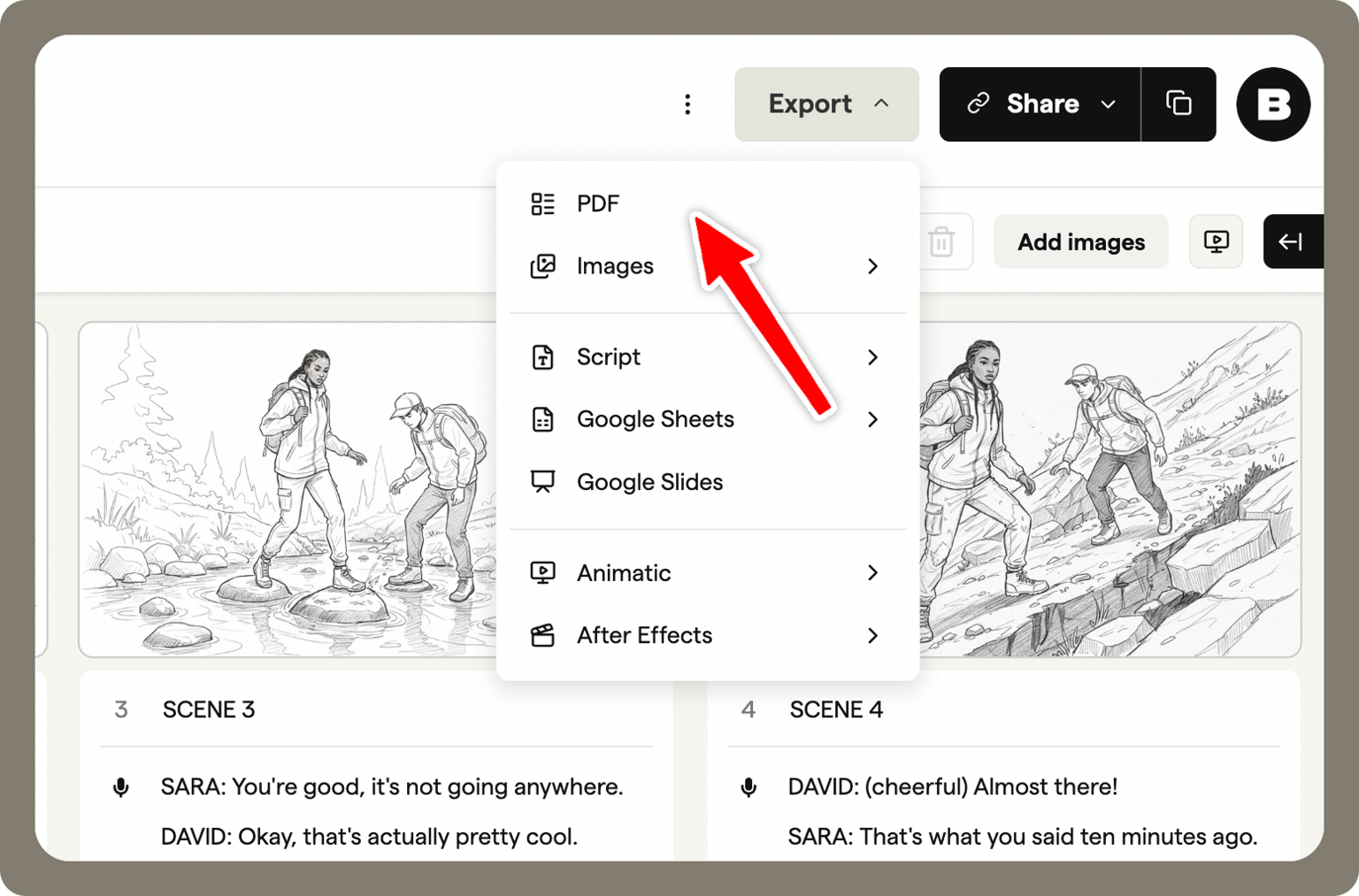
This opens the PDF export settings, where you can customise the layout, styling, and content of your document.
Custom covers
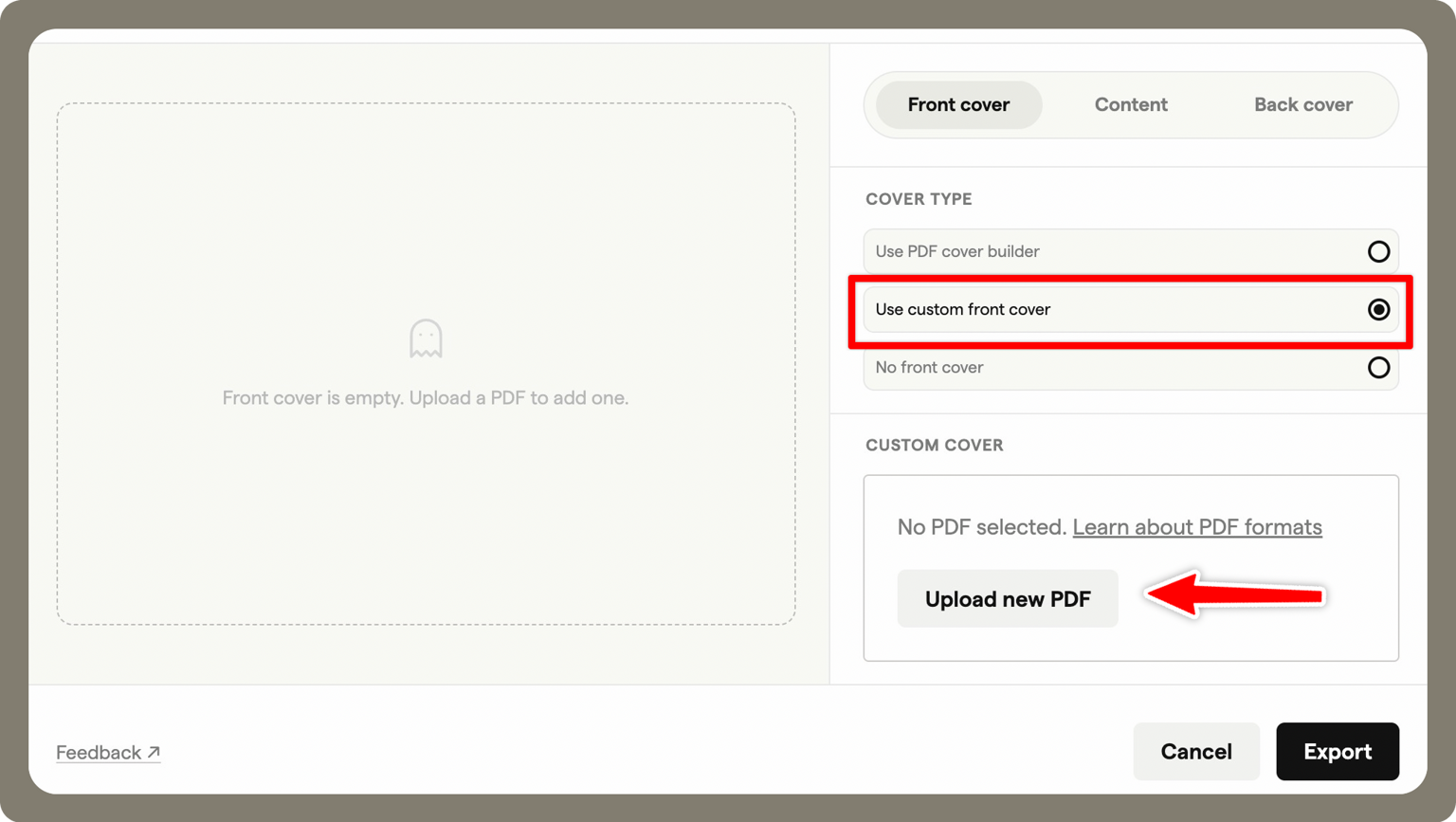
PDF exports support front and back covers, allowing you to brand or title your storyboard export.
Upload your own cover pages if you already have them.
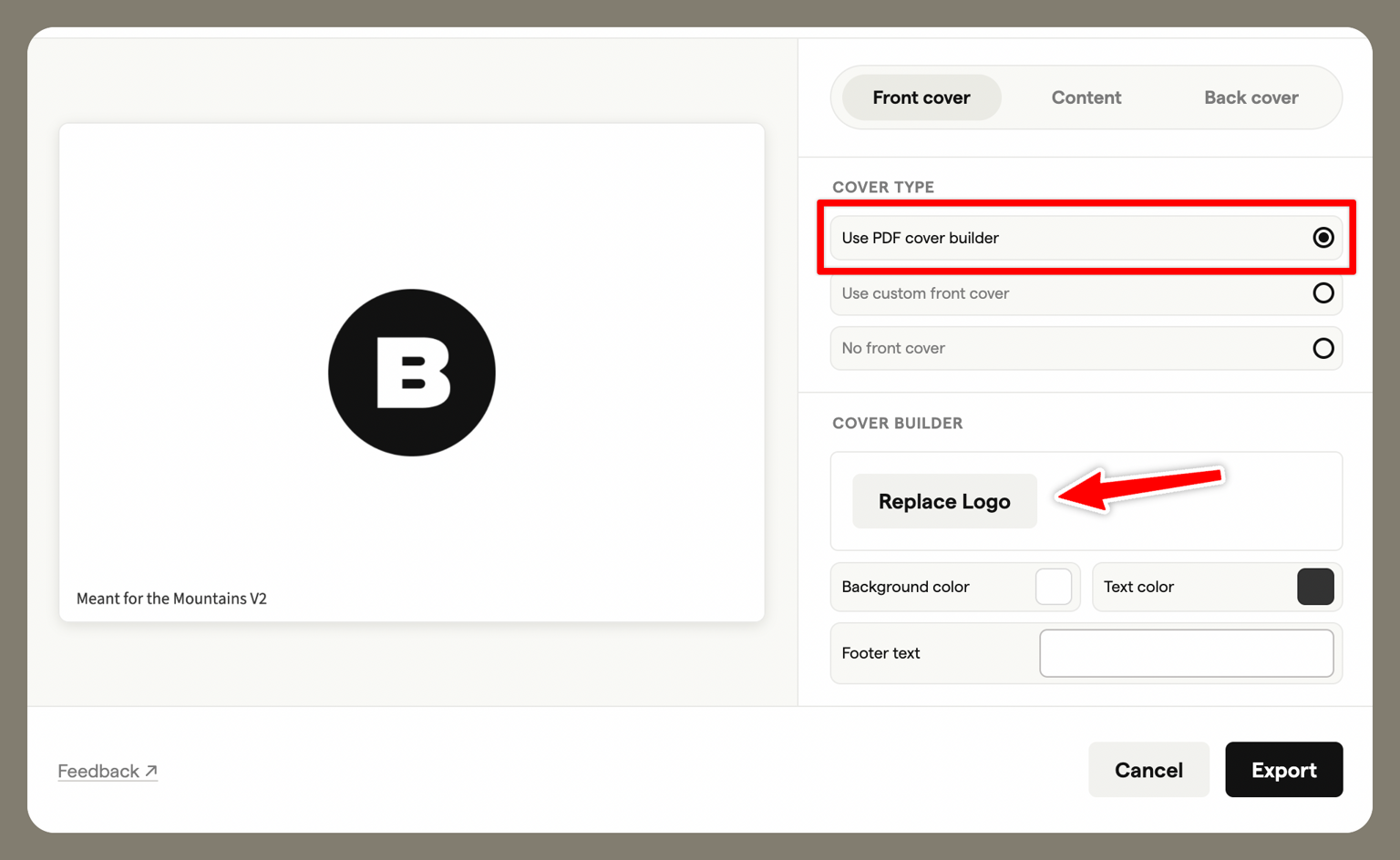
Or use the cover builder to add your logo. Upload your logo and Boords will generate a cover page for you automatically.
Choose a layout
Choose how frames are arranged in your storyboard by selecting from a range of layout options:
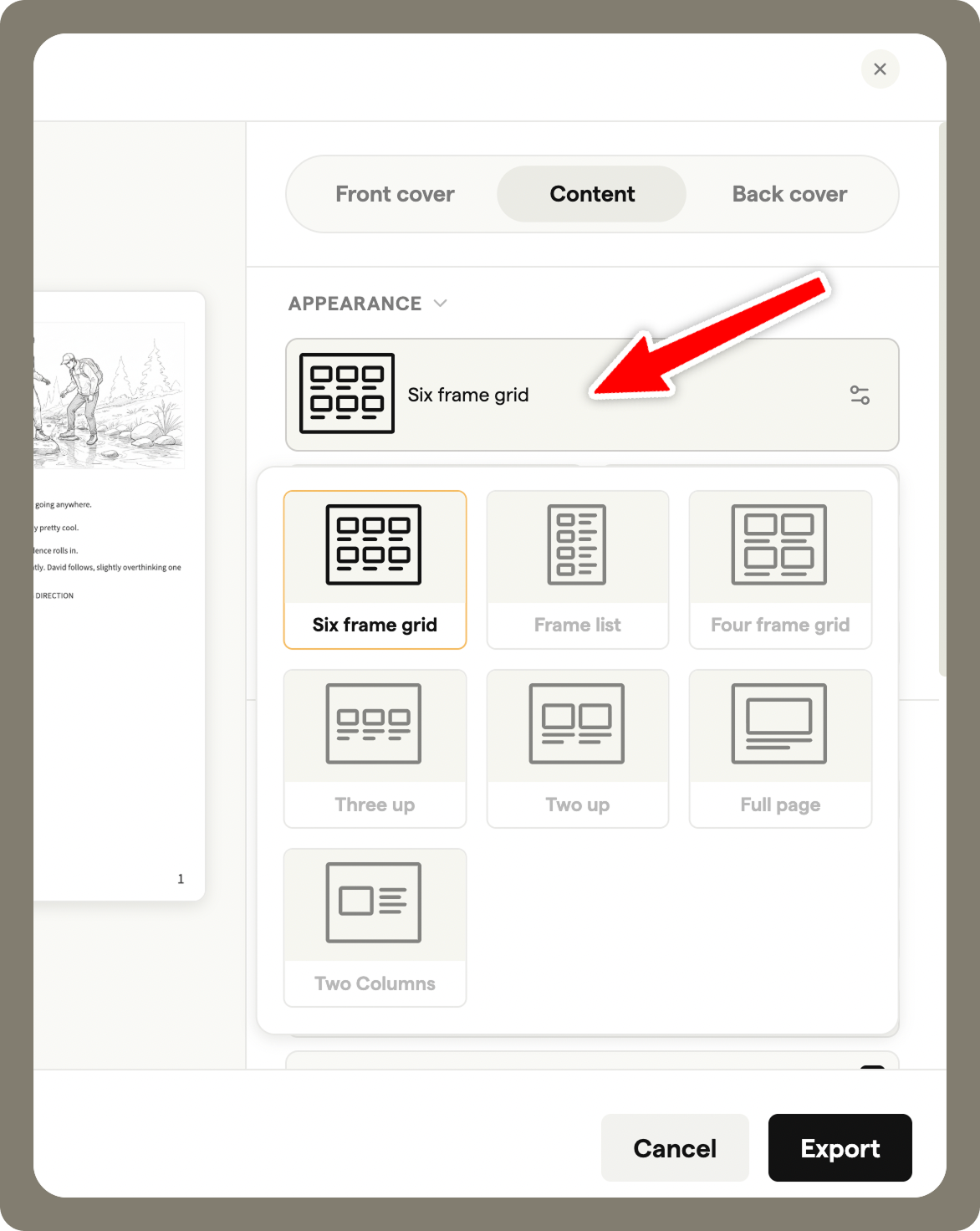
- 6-frame grid
- Frame list
- 4-frame grid
- 3 up
- 2 up
- Full page
- 2 columns
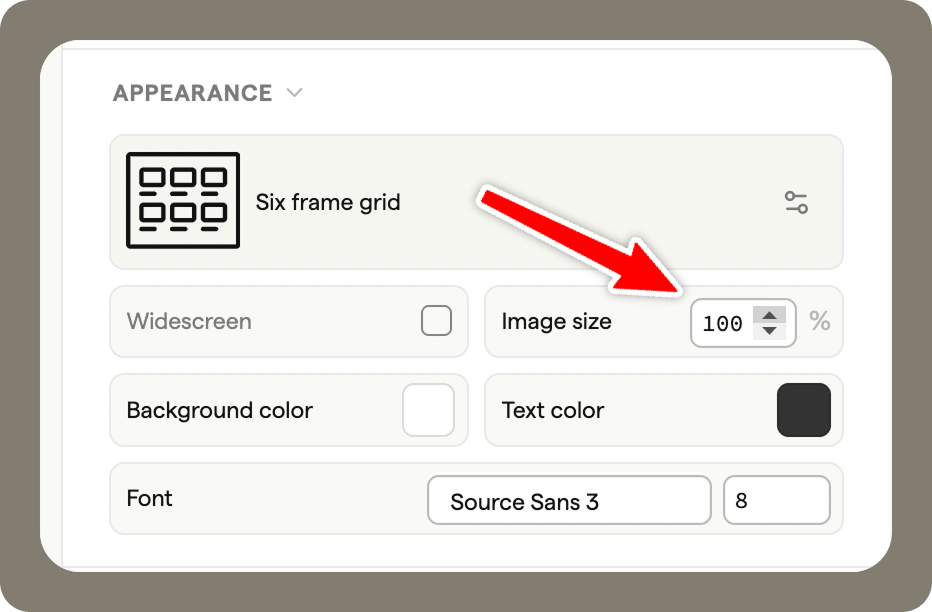
You can also fine-tune the layout using the controls below:
- Image size slider. Adjust the percentage to control how large your images appear on the storyboard.
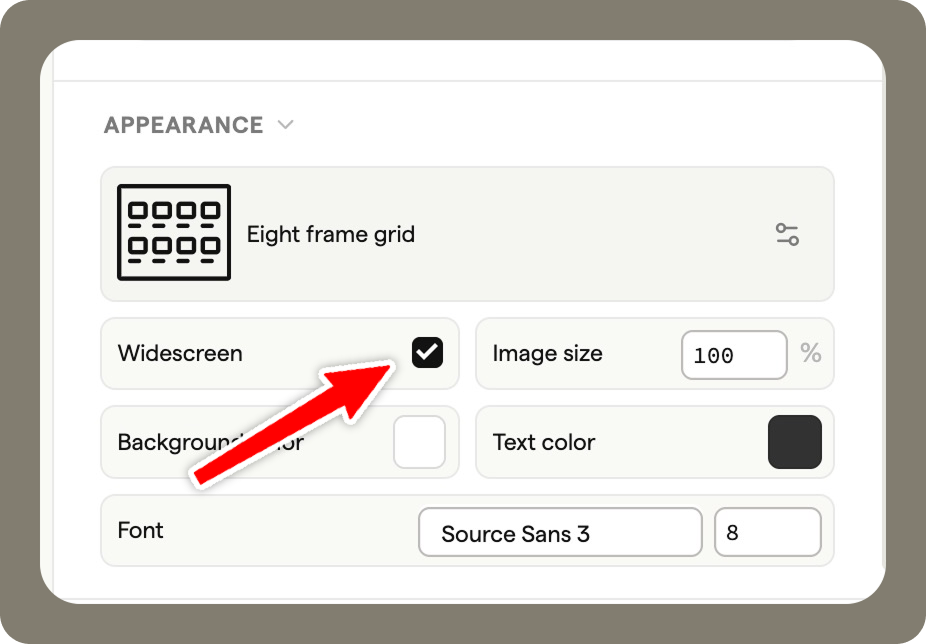
- Widescreen option. Check the widescreen box to enable a wider layout. With widescreen enabled, the 8-frame grid layout becomes available.
Fonts
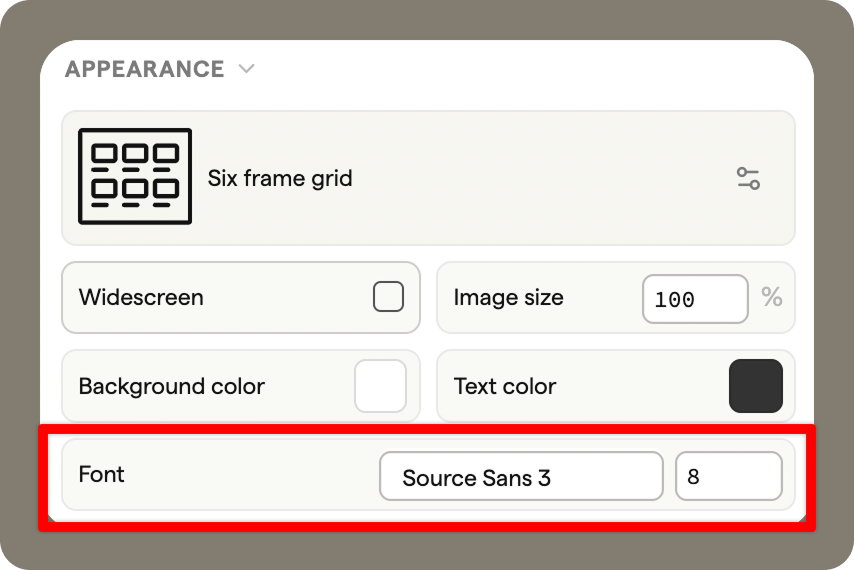
Customise how text appears in your PDF by changing the font and font size. Fonts support multiple languages.
Frame settings
Frame settings let you control how frames appear in the exported PDF, giving you more flexibility over the final look of your storyboard.
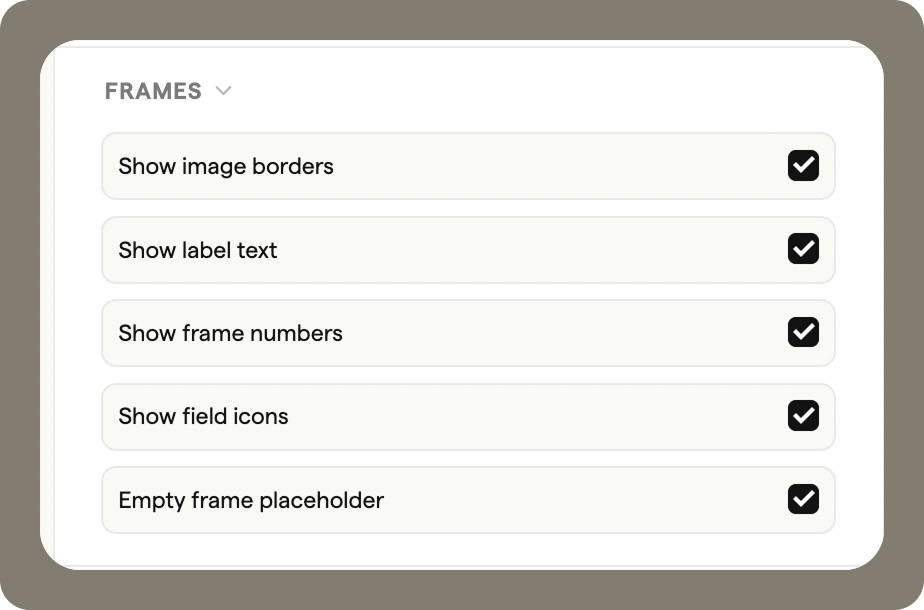
You can choose whether certain elements are shown or hidden - for example, image borders and frame numbers. This makes it easy to create a cleaner presentation or include more detail, depending on who you’re sharing the storyboard with.
Footer customisation
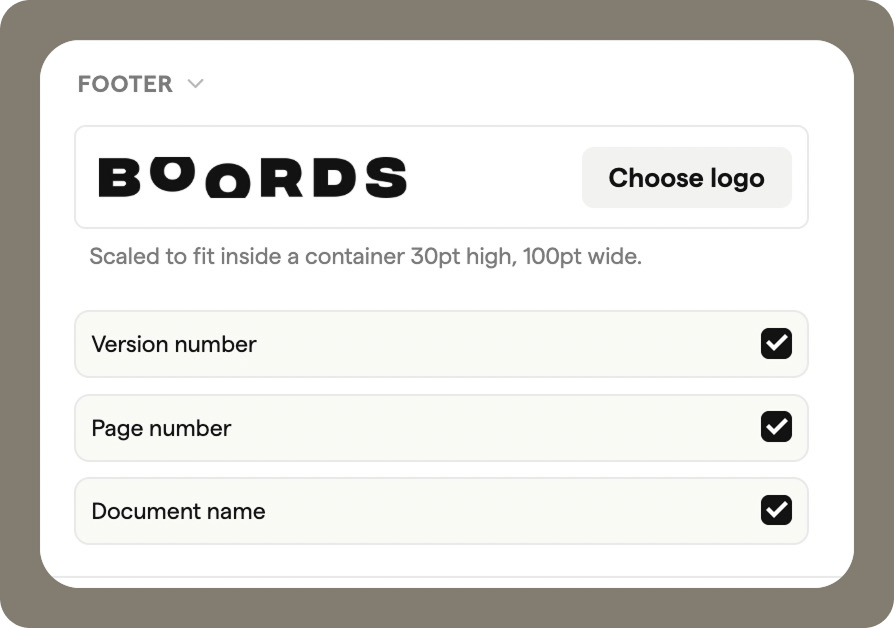
The footer can be customised to match your project or brand:
- Upload a footer logo
- Show or hide the version number
- Show or hide page numbers
- Show or hide the document name
Once you’re happy with your settings, export the PDF and it's ready to share!