
The New Boords
If you were on an existing Boords plan, you'll notice a fresh new interface when you log in. Here's what's new and how to make the most of it.
If you were on an existing Boords plan, you'll notice a fresh new interface when you log in. Don't worry — your billing hasn't changed, and all your existing storyboards and projects are exactly where you left them. Here's what's new and how to make the most of it.
What's changed
Watch our quick video walkthrough of the new Boords interface and the features designed to streamline your team's workflow.
A redesigned project view
See also: Projects and Sharing links
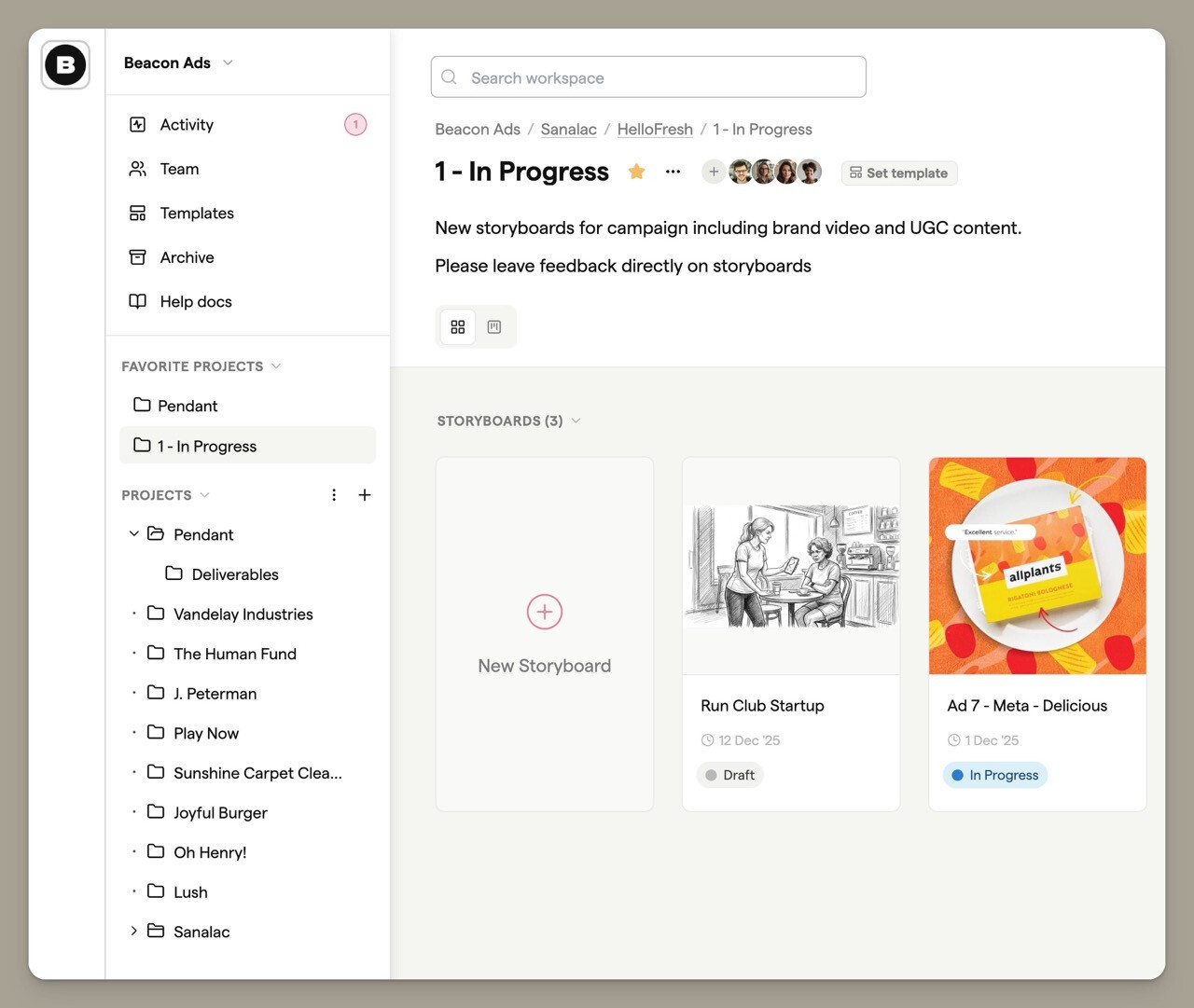
The new version introduces a completely redesigned way to organise your work. The sidebar now shows all your projects in a collapsible tree view, making it easy to navigate even complex folder structures.
Nested projects
You can now nest projects within each other to create a structure that matches how your team works — whether that's by client, campaign, or production stage. Drag and drop projects in the sidebar to reorganise them, or drop storyboards directly onto projects to move them.
Favourite projects
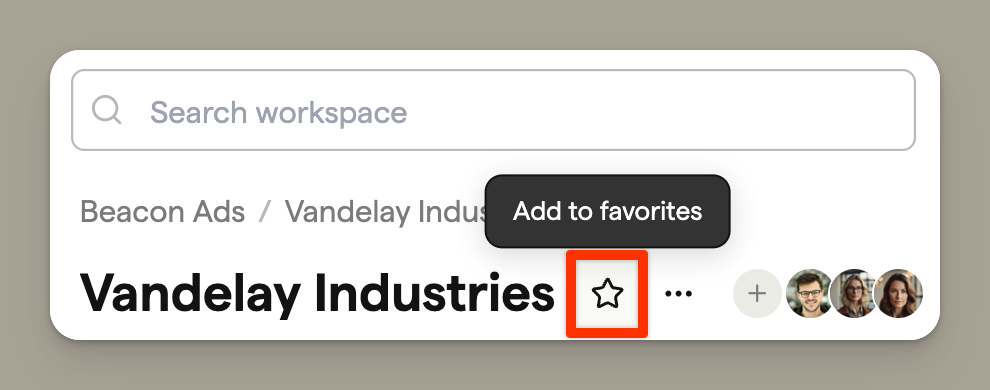
Mark projects you access frequently as favourites by clicking the star icon. Favourite projects appear in their own section at the top of the sidebar for quick access.
Project sharing
Share an entire project — including all its storyboards — with a single link. This is useful when you want to give clients access to multiple storyboards at once, such as all the episodes in a series or all the scenes in a campaign.
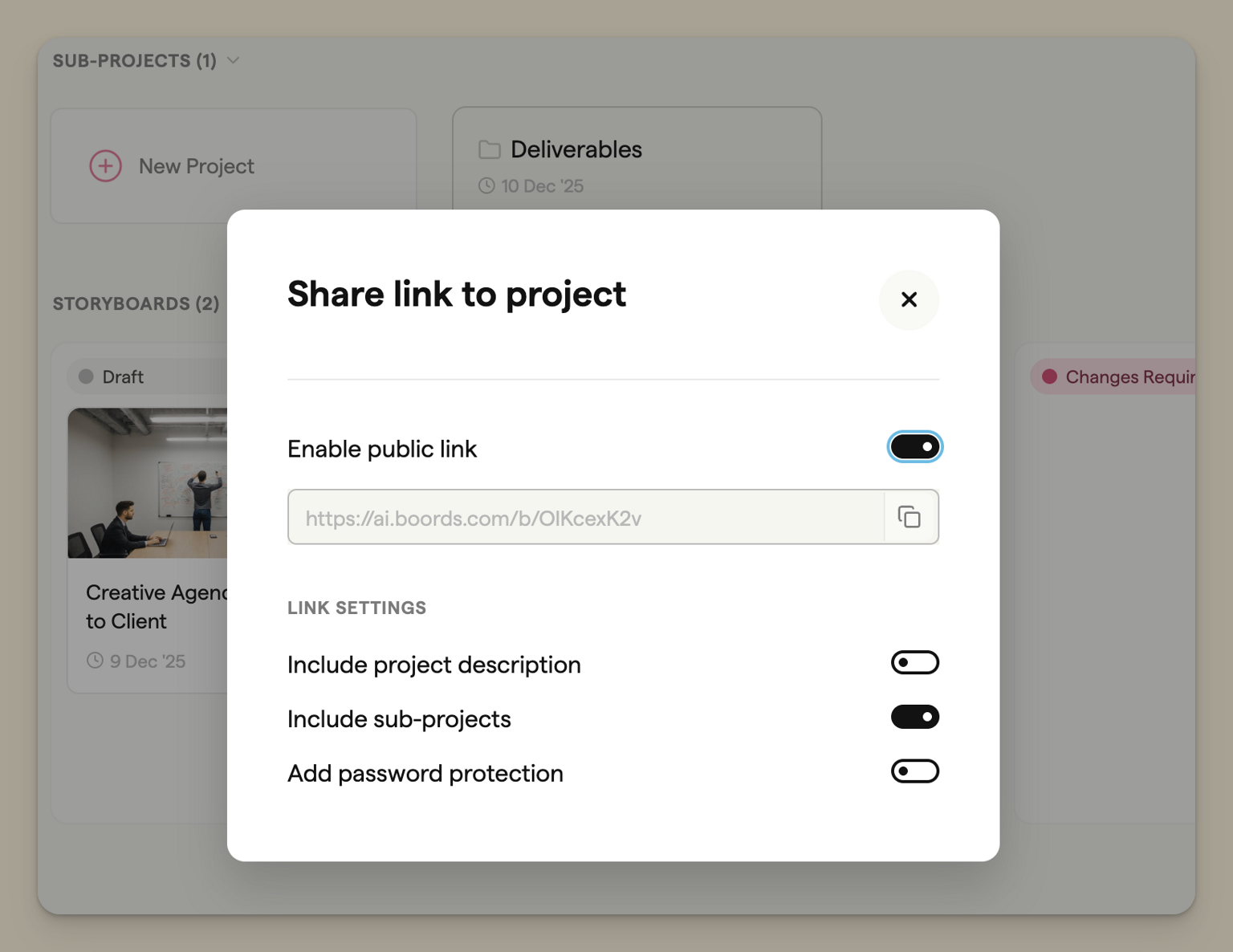
To share a project:
- Open the project you want to share
- Click the Share button in the project header
- Toggle Enable public link to generate the shareable URL
- Optionally add password protection or choose to include sub-projects
Storyboard statuses
One of the biggest additions is storyboard statuses, which help you track where each storyboard sits in your workflow.
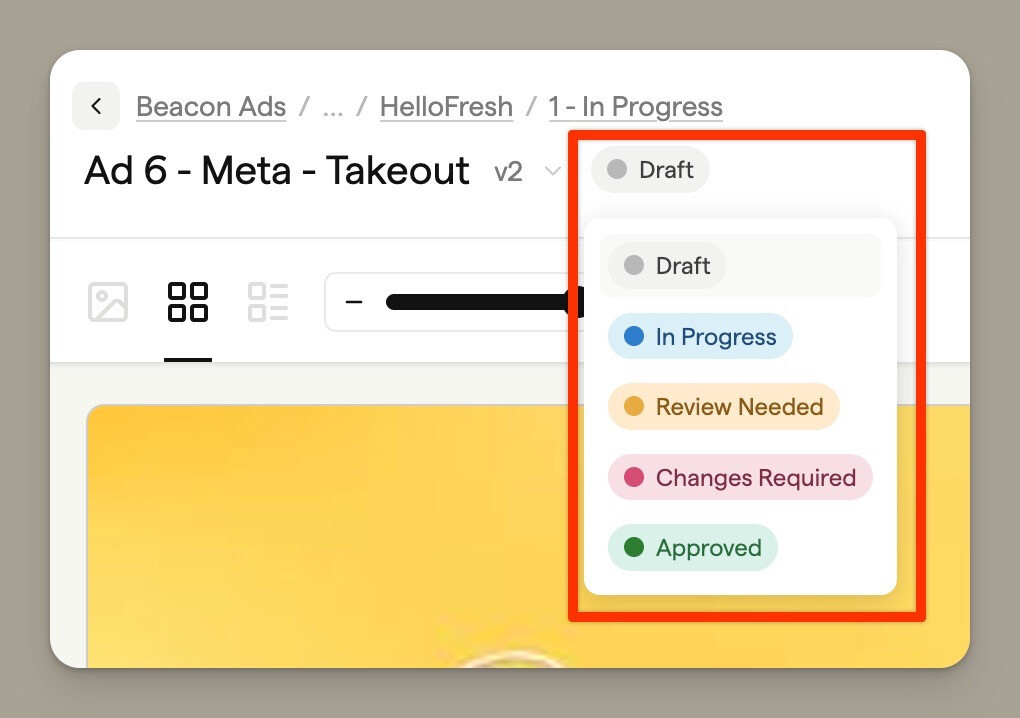
Every storyboard can now have one of five statuses:
| Status | Use it when... |
|---|---|
| Draft | Work hasn't started yet |
| In Progress | The storyboard is actively being worked on |
| Review Needed | Ready for feedback from clients or team |
| Changes Required | Feedback received, revisions needed |
| Approved | Signed off and complete |
Kanban board view
The Kanban view lets you see all your storyboards organised by status in a board layout. This gives you a visual overview of where everything sits in your workflow.
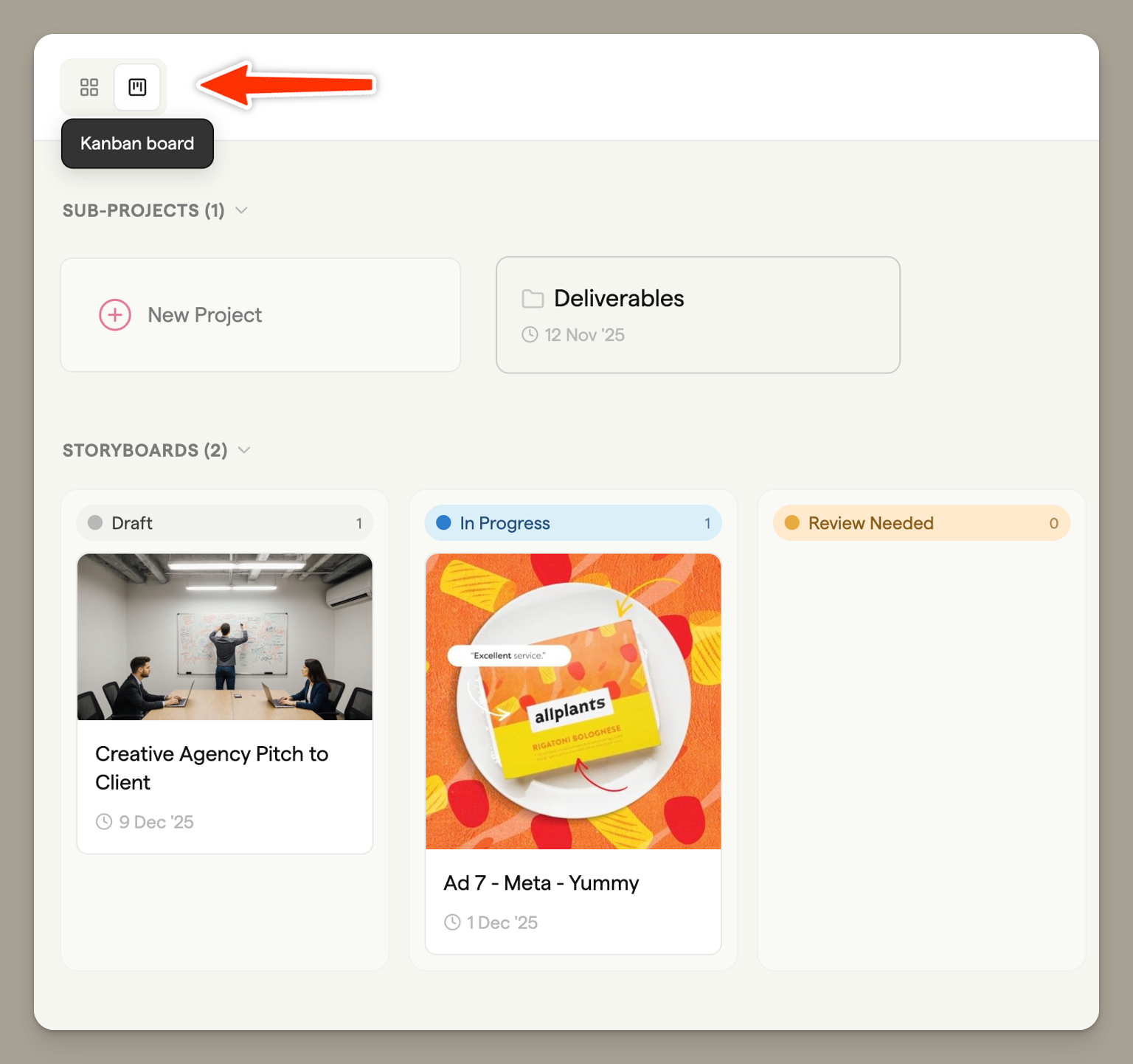
Switch between Grid view and Kanban view using the toggle in the project header. In Kanban view, drag storyboards between columns to update their status — the change is saved automatically.
Where statuses appear
You'll see storyboard statuses in three places:
- Project view — On each storyboard card
- Edit view — In the storyboard header
- Shareable links — Visible to guests (if enabled in share settings)
Changing statuses
Click the status badge on any storyboard to change it. Only team members can update statuses — clients and guests viewing shareable links can see the current status but can't change it.
Every status change is recorded in the Activity Log, so you can see who updated a storyboard and when.
Team-only comments
See also: Commenting overview
Keep internal notes separate from client-facing feedback with team-only comments. When you leave a comment, you can choose to make it visible to everyone or just your team.
Team-only comments are hidden from guests viewing shareable links, so you can have candid internal discussions without clients seeing them.
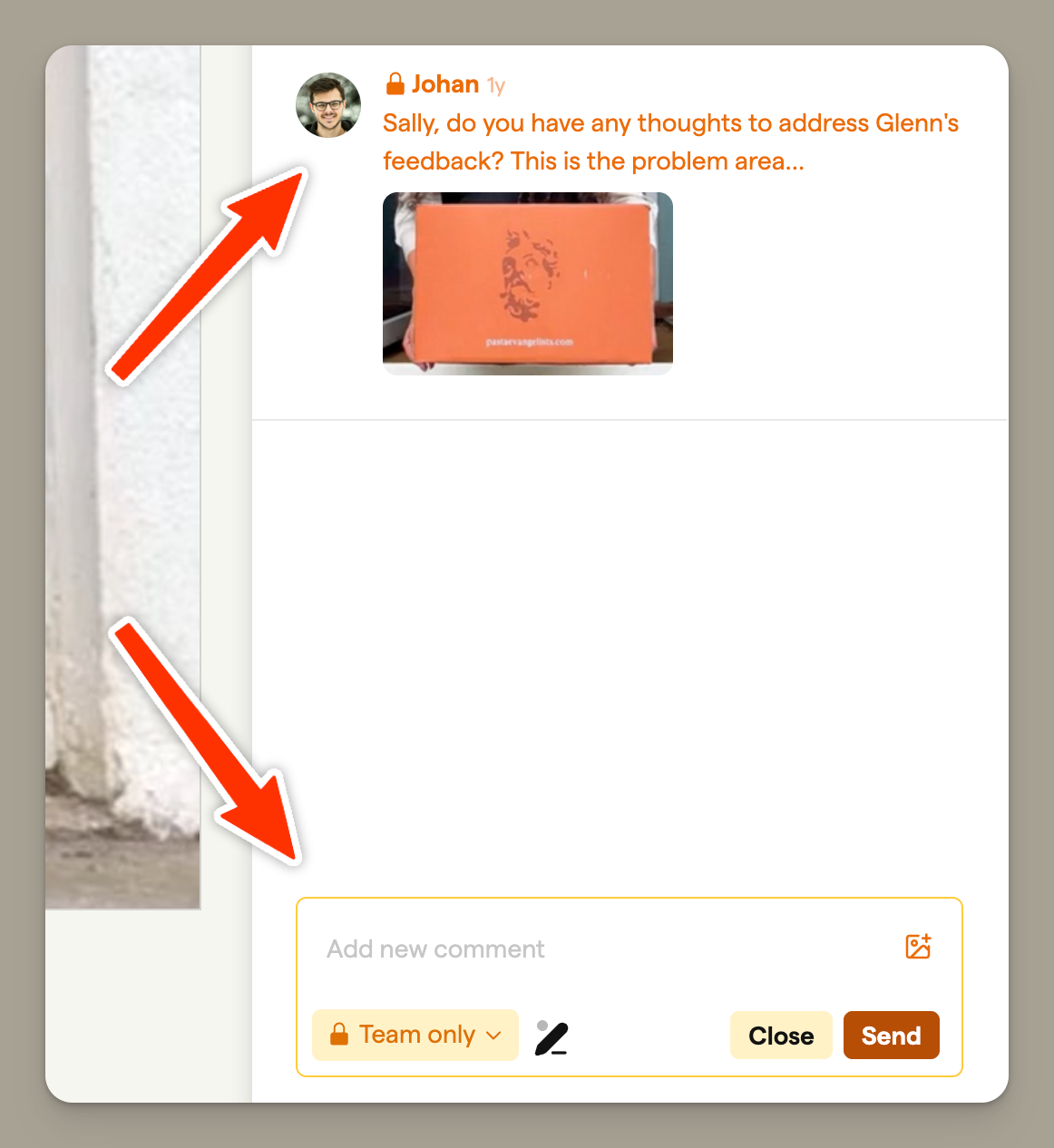
Team-only comments are visually distinct with an orange border and a lock icon, making it easy to identify which comments are internal.
Templates
See also: Templates
Templates help your team maintain consistency across projects. Define your preferred aspect ratio, frame fields, sharing settings, and more — then apply the template to a project so every new storyboard starts with the same configuration.
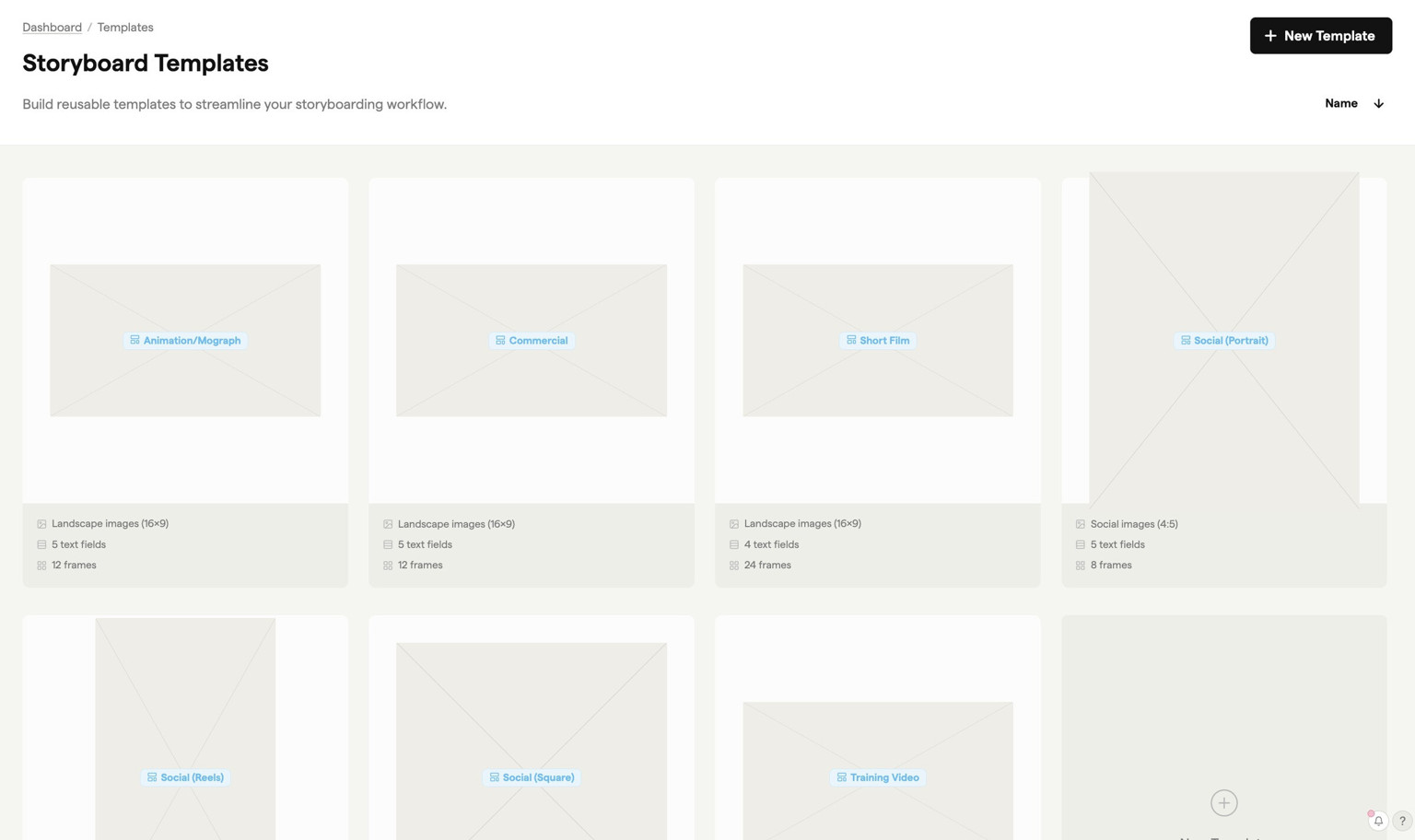
You can assign a template to a project so that all new storyboards in that project use the same settings automatically.
Activity Log
See also: Activity & notifications
The Activity Log gives you a clear, chronological history of everything happening in your workspace — from status changes to comments, exports, and more.
Team activity page
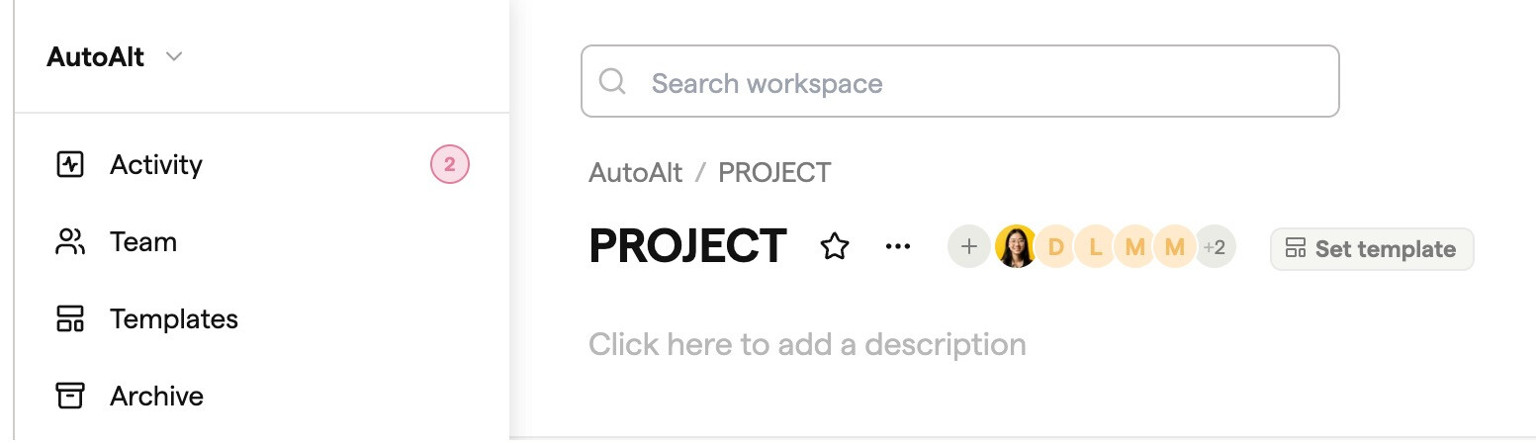
You'll see a small pink unread badge in the sidebar when there's new activity since you last checked. Click it to open the full Activity Log.
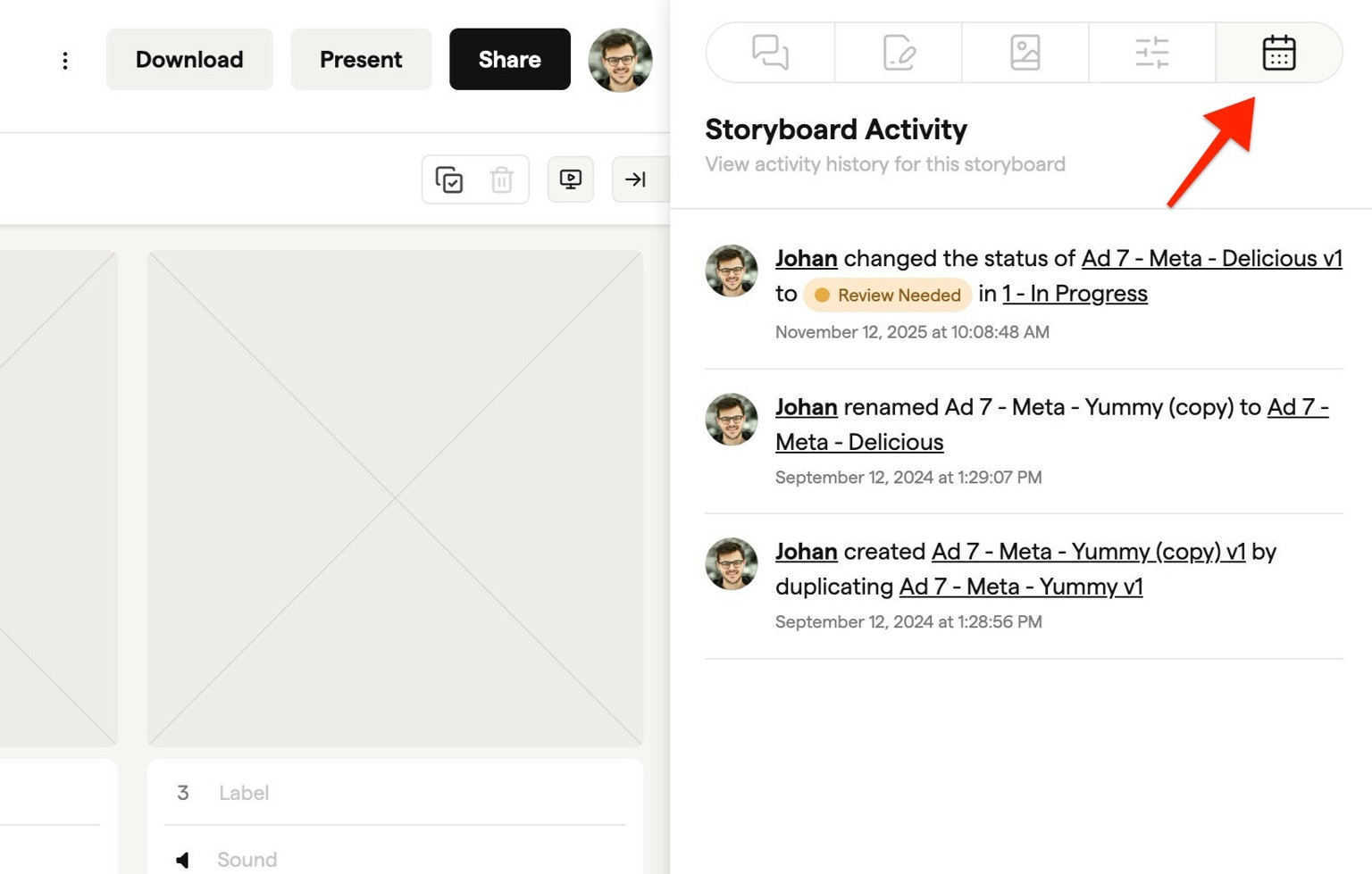
Storyboard activity panel
Each storyboard also has its own activity panel in the sidebar, showing just the activity for that storyboard.
Filtering and search
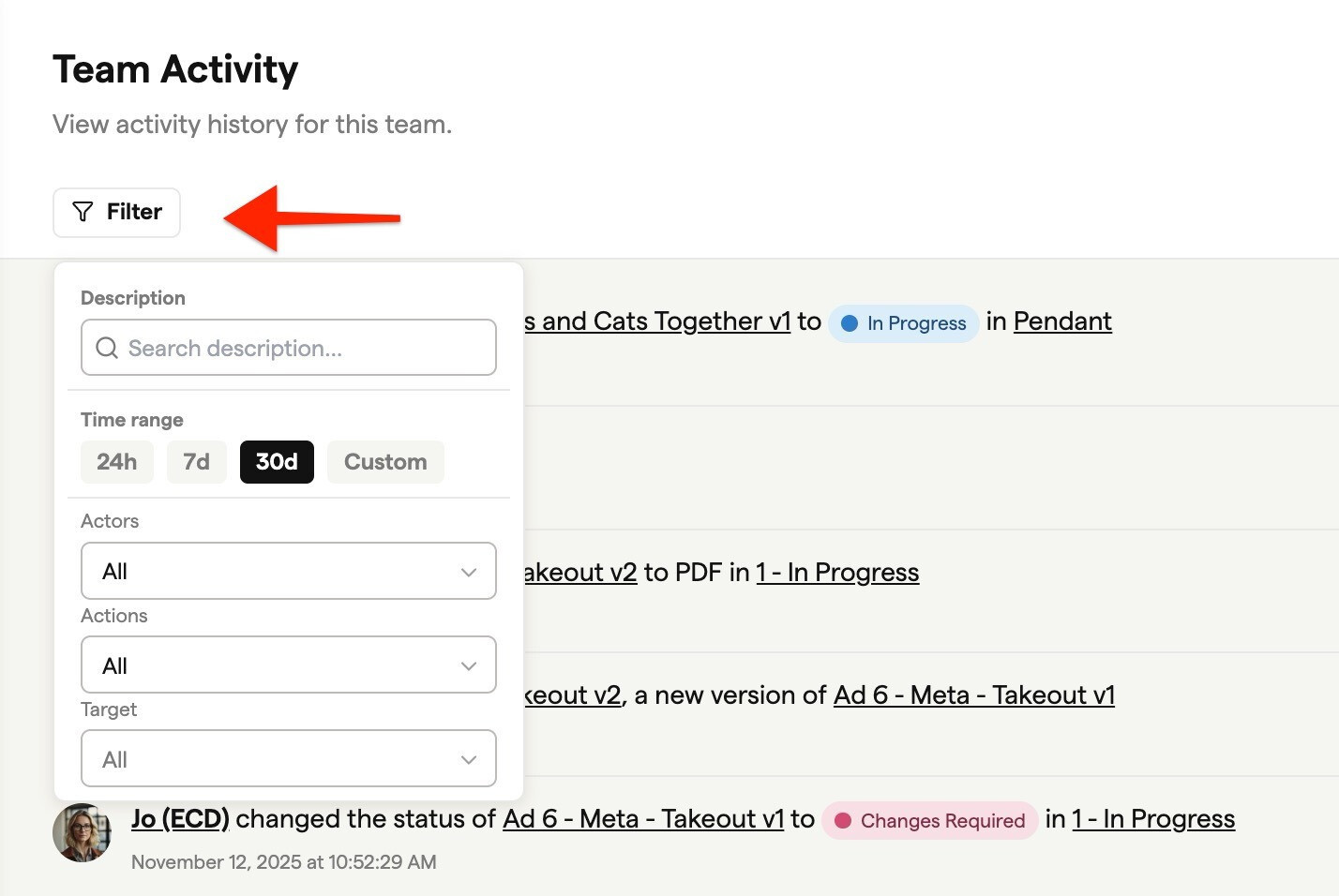
The Activity Log includes powerful filtering so you can find exactly what you need:
- Search by text
- Filter by time range
- Filter by teammate or guest
- Filter by storyboard, project, or other targets
- Filter by action type (e.g., status change, comment, export)
Getting help
If you have questions about the new version or need help finding something, check out our other help docs or reach out to our support team.