
Turning a script into a storyboard
Convert an approved script into editable frames in the same project
Once the script is approved, one click turns it into a storyboard of editable frames in the same project, with the scenes already broken out and your fields filled in.
One button
The Storyboard button sits in the script header, between Export and the Edit / Review toggle. Click it and Boords reads the script, works out where the scenes are, and builds a new storyboard in the same project with one frame per scene.
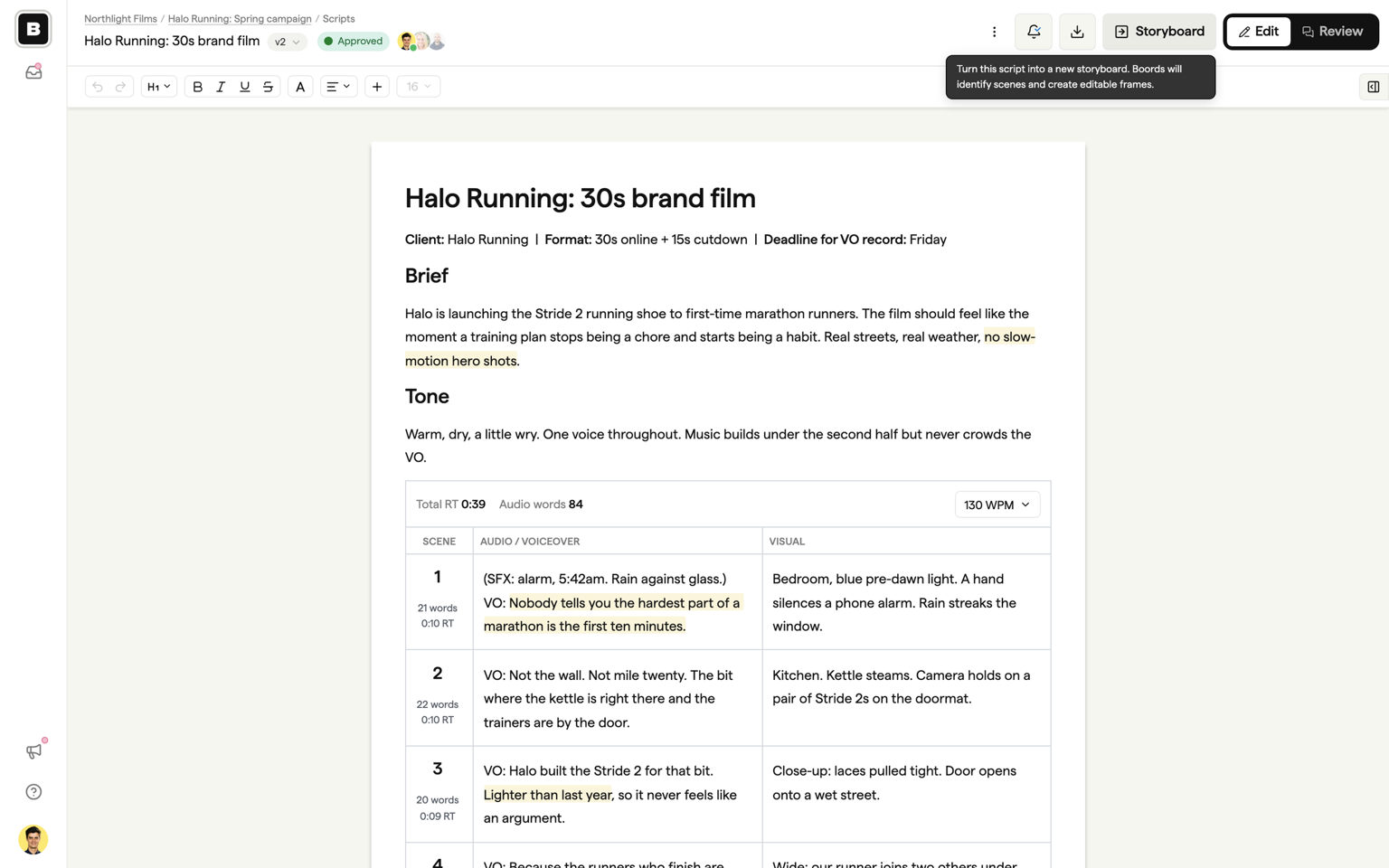
The button is disabled while the script is empty, still loading, or out of sync, so you cannot convert a half-saved document by accident.
The dialog
Before anything is created, a dialog lets you confirm three things:
- Field names: the frame fields the storyboard will have. Boords suggests them by reading your script (Action, Dialogue, and Sound, for example). Edit, add, or remove them as you like. A Label field is always added automatically.
- Number of scenes: how many frames to create, from 1 to 250. Boords suggests a count from the script; you can change it.
- Frame size: Landscape (16:9), Portrait (9:16), Square (1:1), Social (4:5), TV (4:3), Widescreen (1.85:1), or Anamorphic (2.4:1). It defaults to the size you used last.
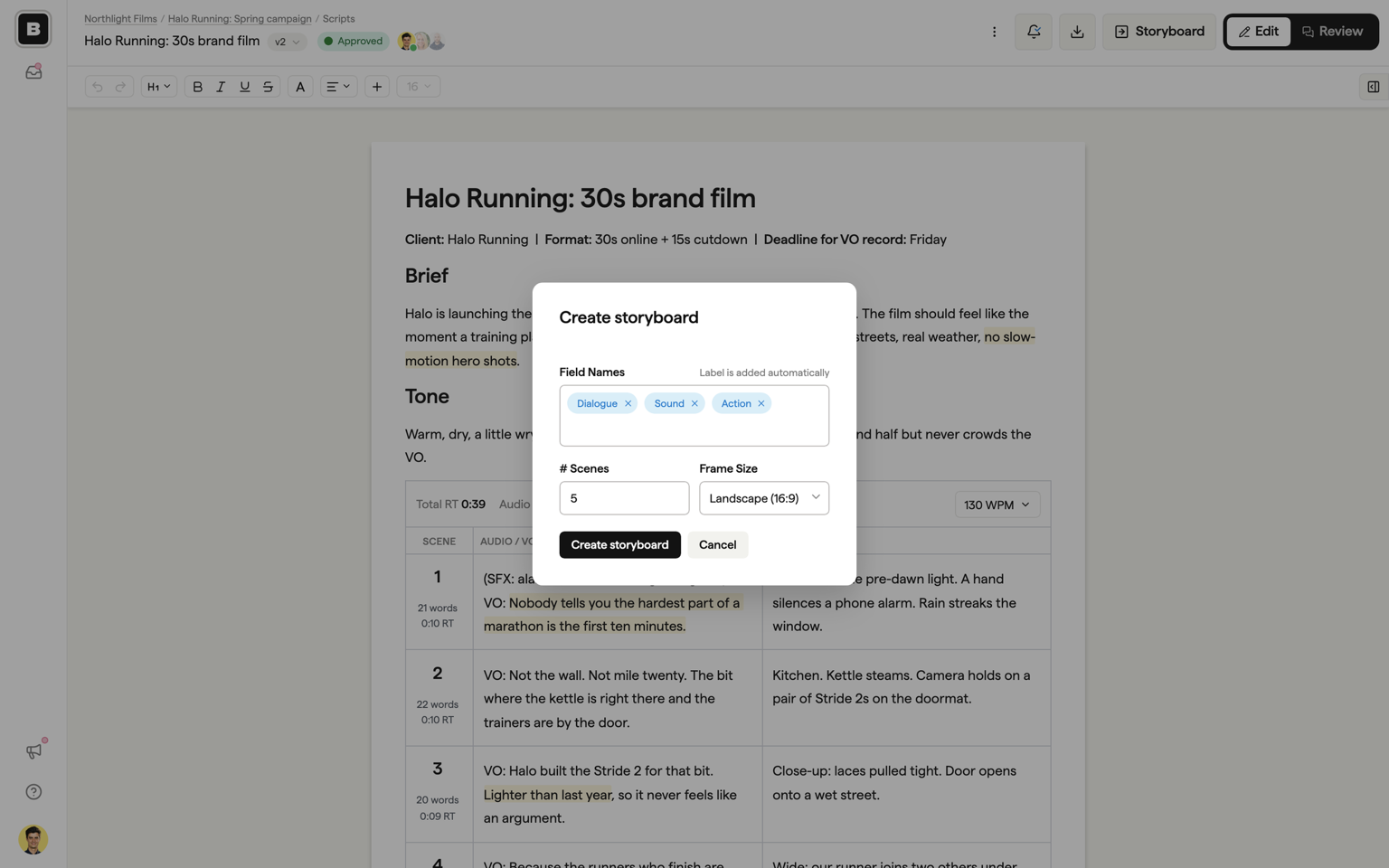
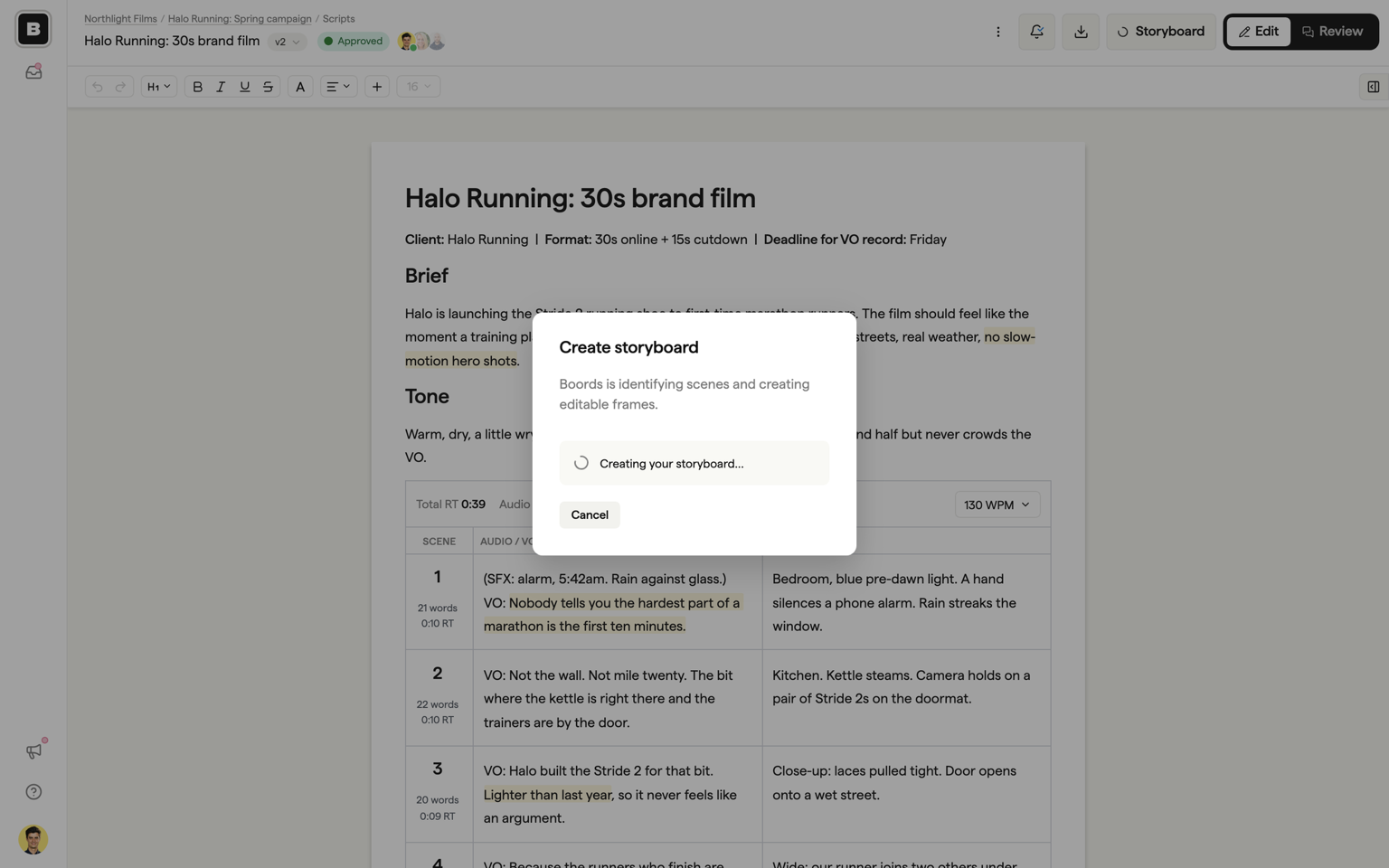
Click Create storyboard and Boords gets to work. You can cancel while it is identifying scenes; once the storyboard is being written you will be taken to it as soon as it is ready.
Long scripts
If your script is screenplay length, Boords will not try to turn the whole thing into one enormous board. Instead the dialog shows a scene-range picker so you convert a section at a time, running the conversion once per range.
What you get
A structure-only storyboard: the right number of frames, in order, with your fields filled in from the script. No images are generated at this stage, so you start with the words in place and empty frames.
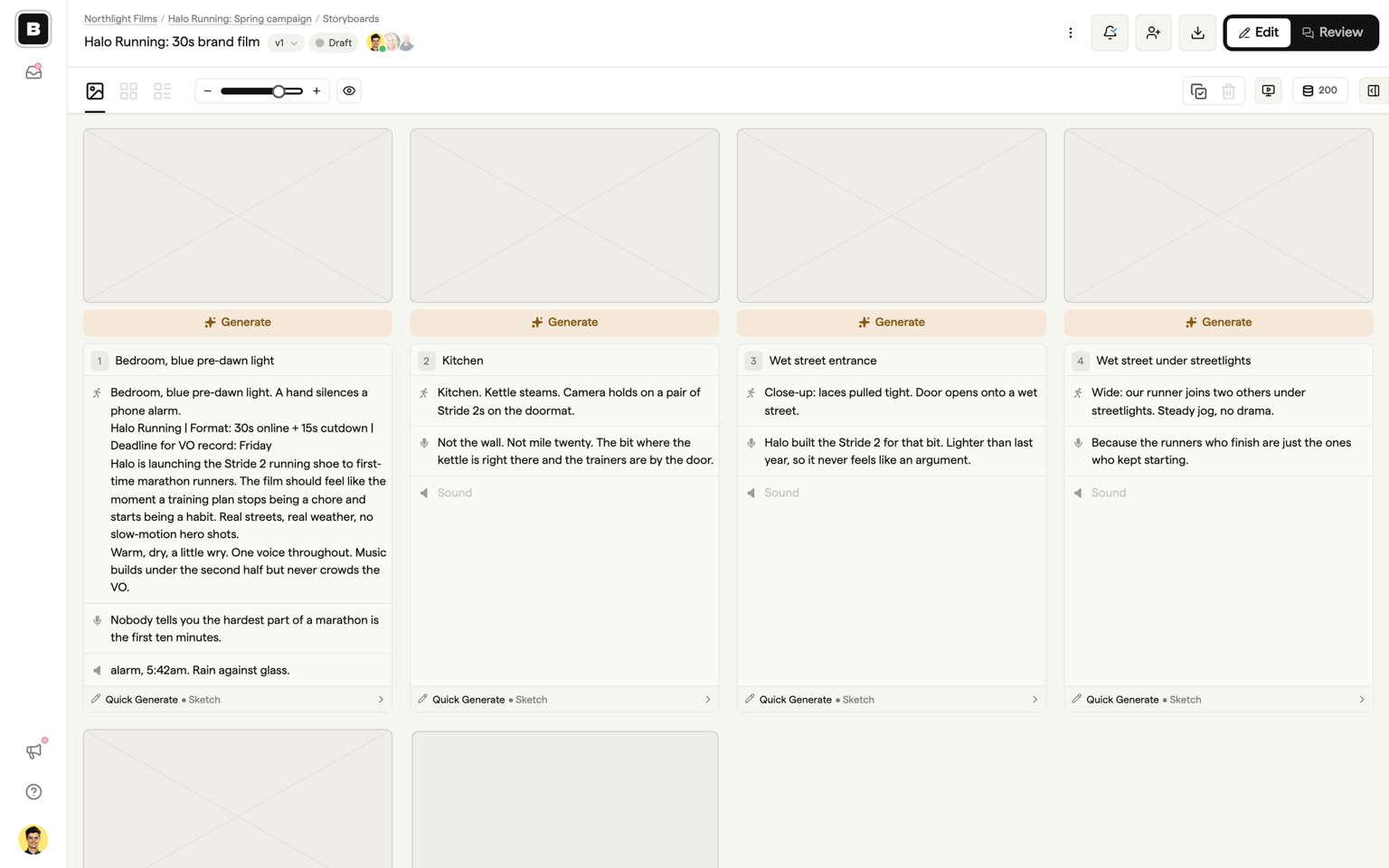
From there you work in the storyboard as normal: generate images for each frame, apply a style, upload your own artwork, or draw. See AI image generator and Adding your own images to keep going.
One-way, one-shot
The storyboard does not stay in sync with the script. It is a snapshot of the script at the moment you converted it, and edits you make in either place afterwards do not flow to the other.
Conversion also does not append to an existing storyboard: each run creates a new one. If the script changes enough that you want a fresh board, edit the script and convert again.
Via the Script Agent
You can also ask the Script Agent to send the script to a storyboard. Open the Agent tab in the sidebar and use the Send to storyboard quick action, or just ask. The Agent runs the same conversion with the same rules, and always asks you to confirm before it creates anything. For screenplay-length scripts it will list the available scene ranges and wait for you to pick one. See Writing and formatting for more on the Script Agent.
FAQ
No. Conversion is one-way and one-shot: the storyboard is a snapshot of the script at the moment you converted it, and later edits in either place do not flow to the other. Conversion also does not append to an existing storyboard; each run creates a new one. If the script changes enough, edit it and convert again.
No. Conversion creates a structure-only storyboard: the right number of frames, in order, with your fields filled in from the script. From there you generate images, apply a style, upload your own artwork, or draw, exactly as you would in any storyboard.