Introducing PowerPoint export

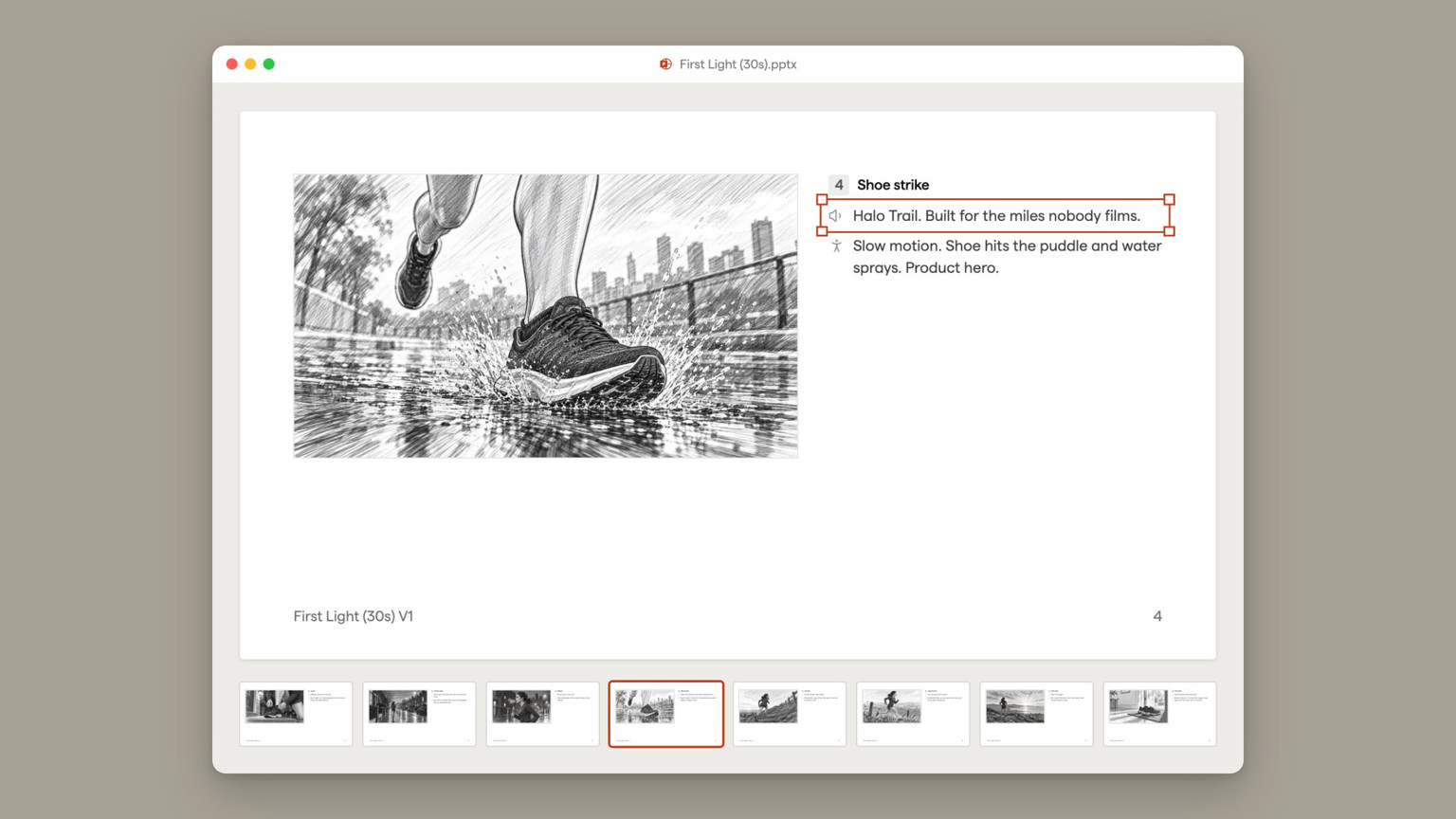
You can now export any Boords storyboard as an editable PowerPoint deck. Click Export, choose Slides, pick a layout, and download a .pptx with your frames, notes and footer already in place.
A lot of teams, especially in bigger companies, don't review storyboards in Boords. They review them in a slide deck, because that's how sign-off works there, and that isn't going to change because we'd like it to.
Until now, someone had to download every frame, drop them into slides one at a time and copy the notes across by hand. On a 30-frame board that takes forever, and that's before the client asks for any changes. We should have built this sooner.
Layouts and appearance
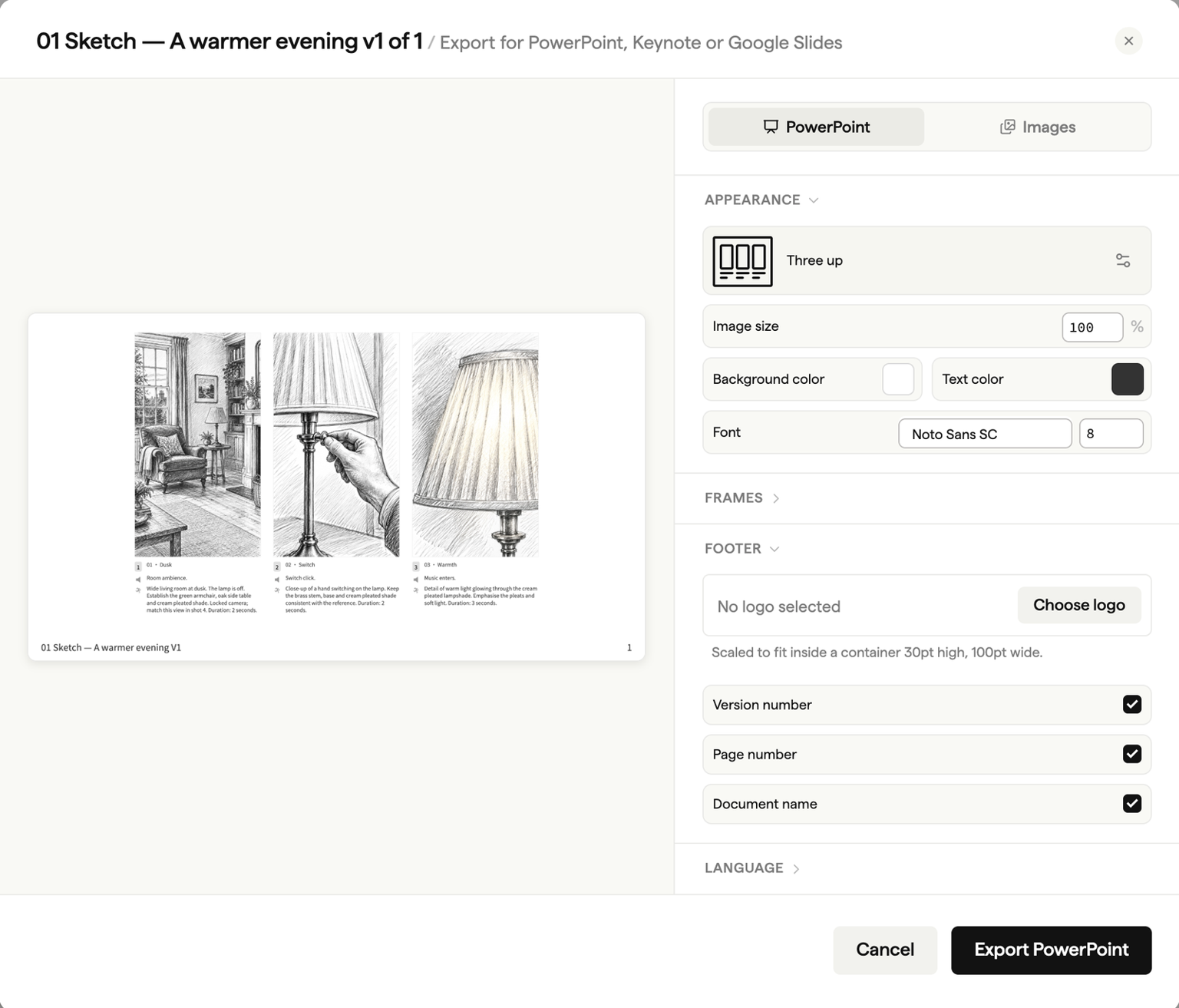
Choose one frame per slide or up to eight in a grid. The layouts on offer depend on the shape of your frames:
| Frame shape | Layouts |
|---|---|
| 16:9 or wider | Full page, Two Columns, Two up, Three up, and grids of four, six or eight |
| Square and 4:3 | Full page, Two Columns, Two up, Three up |
| 9:16 and 4:5 | Three up |
Under Appearance, set the image size, background and text colours, font and font size. Under Footer, add your logo, version number, page number and document name, or switch them off if the deck is going into your own template. The preview updates as you go.
Editable text and full-resolution images
Frame text arrives as real text boxes, not pictures of text. Bold, italic, strikethrough, colour, links and lists all come through. If someone wants to tweak a line before the meeting, they click and type, without going back to Boords.
Images are embedded at full resolution, so frames hold up on a big screen in the meeting room.
Keynote and Google Slides
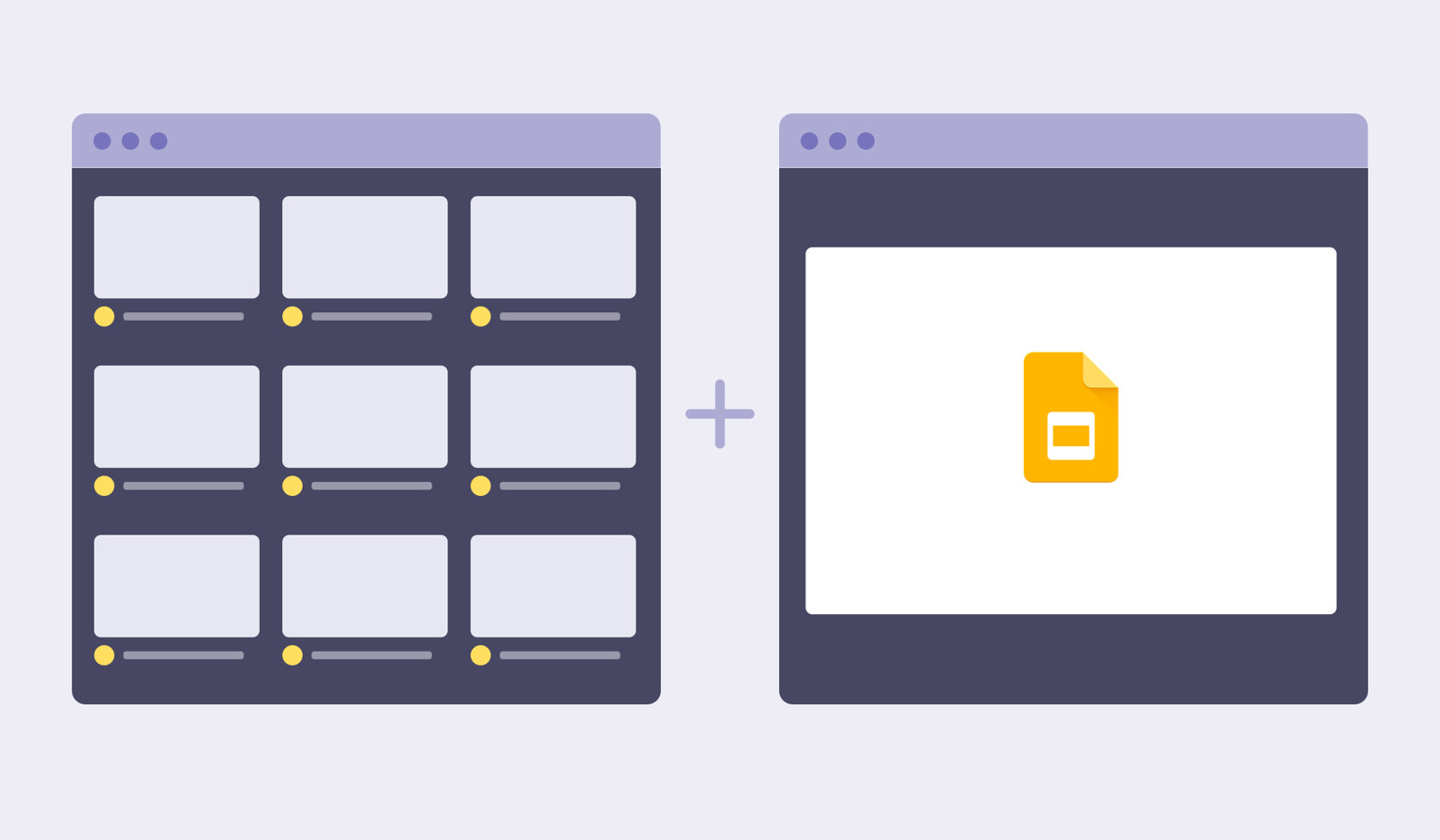
It's a standard .pptx, so it opens in Keynote too. To use it in Google Slides, choose File > Import slides and upload the file. Each frame's image, number, title and notes arrive as separate objects you can edit or move.
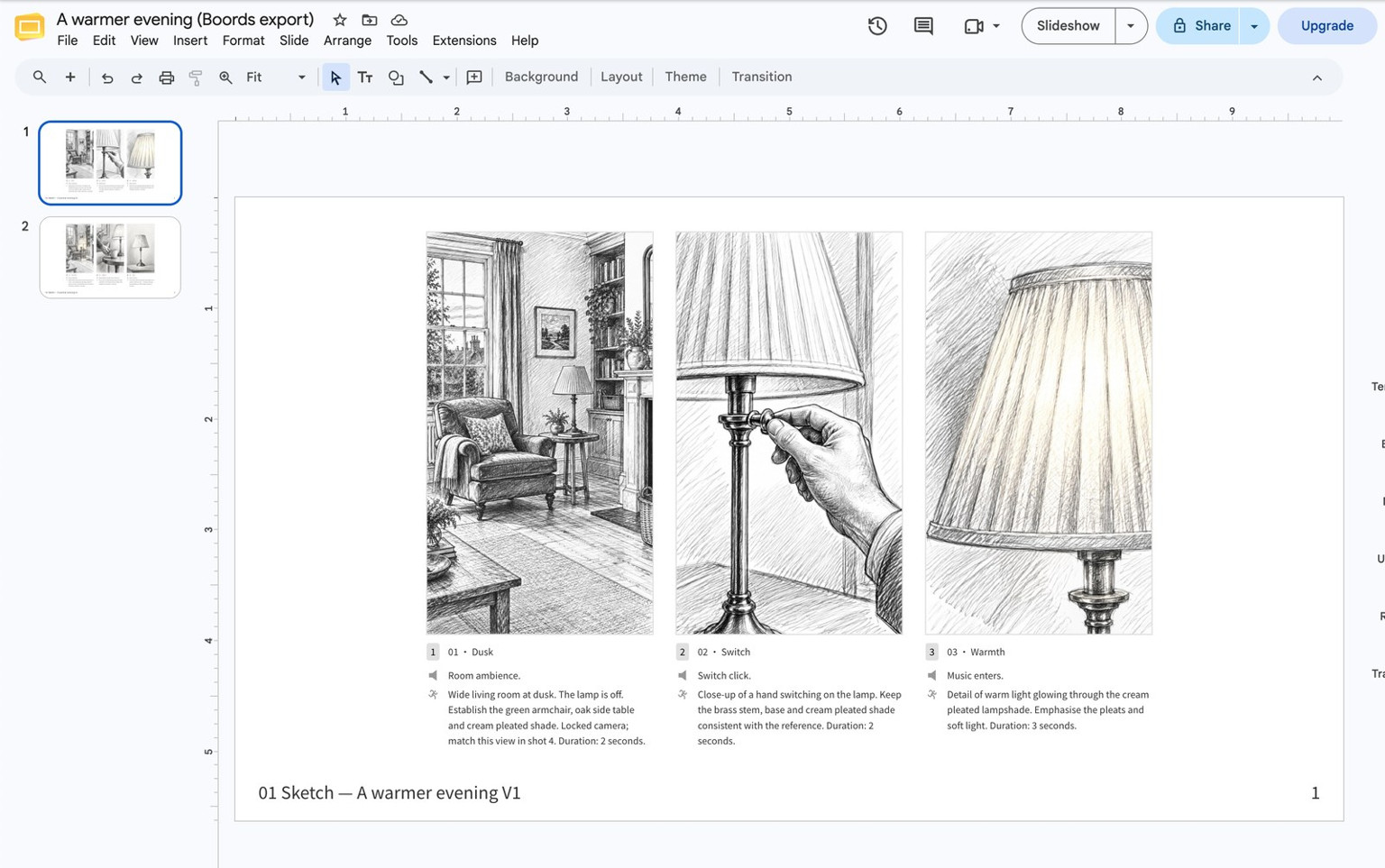
There's a step-by-step Google Slides walkthrough with screenshots of each step.
Slides as images
Prefer flat images? Choose Images instead of PowerPoint to download a ZIP with one PNG per slide, 3840 pixels wide, ready to drop into any presentation tool.
Good to know
- No cover slide. The deck starts at your first frame. Add your own title slide in PowerPoint.
- Notes sit on the slide. Frame notes are text boxes on each slide, not in the speaker notes pane.
- Fonts aren't embedded. If the person opening the deck doesn't have your font, their app swaps in a similar one.
- Frame list stays in PDF. Slides are widescreen, so the Frame list layout is a PDF option only.
- Export again after changes. The deck is a copy of the board at the time you export it.
Getting started
PowerPoint export is on every paid plan: Solo, Pro, Team and Agency. On Free, Slides exports watermarked images instead.
- Open a storyboard, click Export and choose Slides.
- Pick a layout, then set the appearance and footer.
- Keep PowerPoint selected and click Export PowerPoint.
- When the export is ready, click Download PowerPoint.
Export your next board as slides →
For the full reference, see Export formats in the help docs, or Boords and PowerPoint for how agencies use the deck.
Sharper preproduction, less back-and-forth
Workflow tips and Boords product updates for video and brand teams, twice a week.
More from the blog

Get every video signed off before production starts
Create scripts, storyboards, and animatics with your team.
Collect client feedback, keep every version on record, and go into production knowing exactly what was approved.